Configuração do preenchimento automático
Esta seção descreve como configurar o Preenchimento automático entre nuvens (preenchimento automático) para produtos de dados de compartilhamento seguro e produtos de dados de pacotes de aplicativos. Ela também descreve como configurar o preenchimento automático em nível de objeto para uma listagem.
Você deve adicionar um produto de dados à sua listagem antes de configurar o preenchimento automático. Além disso, as etapas para configurar o preenchimento automático são diferentes dependendo do produto de dados que você oferece e de como você disponibiliza sua listagem.
Configuração do preenchimento automático em nível de objeto
Se você quiser transferir automaticamente o produto de dados associado à sua listagem para outras regiões do Snowflake, configure o preenchimento automático. Você também pode usar o preenchimento automático SUB_DATABASE e optar por preencher apenas as tabelas e exibições em um produto de dados para uma região remota usando o preenchimento automático. Isso pode ajudar a reduzir custos e a gerenciar seu produto de dados preenchido automaticamente.
As etapas abaixo descrevem como configurar o preenchimento automático em nível de objeto para uma listagem. Como parte de um fluxo de trabalho típico, você configura o preenchimento automático em nível de objeto ao configurar a disponibilidade da região (para uma listagem publicada no Snowflake Marketplace) ou quando você adiciona um consumidor localizado em outra região (para uma listagem compartilhada de forma privada).
Criar uma listagem. Consulte Criar uma nova listagem.
Ative um produto de dados que contenha apenas objetos compatíveis.
Configure regiões ou contas para compartilhar e começar a configurar o preenchimento automático:
Para uma listagem publicada no Snowflake Marketplace:
Localize a seção Region Availability e selecione Add.
Para Region availability, mantenha o padrão de All regions ou selecione Custom regions para sua listagem.
Para uma listagem compartilhada de forma privada, adicione uma conta de consumidor em uma região remota.
Selecione o intervalo de atualização de sua preferência para atualizar o produto de dados em regiões remotas.
Publique sua listagem ou salve-a como um rascunho.
Configurar o preenchimento automático para uma listagem que abrange vários bancos de dados
Os provedores podem criar uma única listagem que abrange vários bancos de dados, eliminando a necessidade de criar um banco de dados combinado por listagem. Nesse caso, todas as listagens associadas a um banco de dados são preenchidas automaticamente em conjunto.
Fluxo de trabalho
Um provedor tem um banco de dados (banco de dados principal) que deseja compartilhar. Ele também tem exibições nesse banco de dados que fazem referência a objetos em outro banco de dados (banco de dados referenciado).
O provedor cria um compartilhamento no banco de dados principal.
Usando GRANT <privilégio> … TO SHARE, o provedor concede os seguintes privilégios necessários ao compartilhamento:
O provedor concede ao compartilhamento o privilégio USAGE no banco de dados principal que contém a exibição.
O provedor concede ao compartilhamento o privilégio REFERENCE_USAGE no banco de dados referenciado.
Nota
A definição do tipo de atualização de preenchimento automático como
FULL_DATABASEestá obsoleta e não é compatível com concessões de uso de referência.O provedor concede ao compartilhamento o privilégio USAGE no esquema que contém a exibição.
O provedor concede ao compartilhamento o privilégio SELECT na exibição.
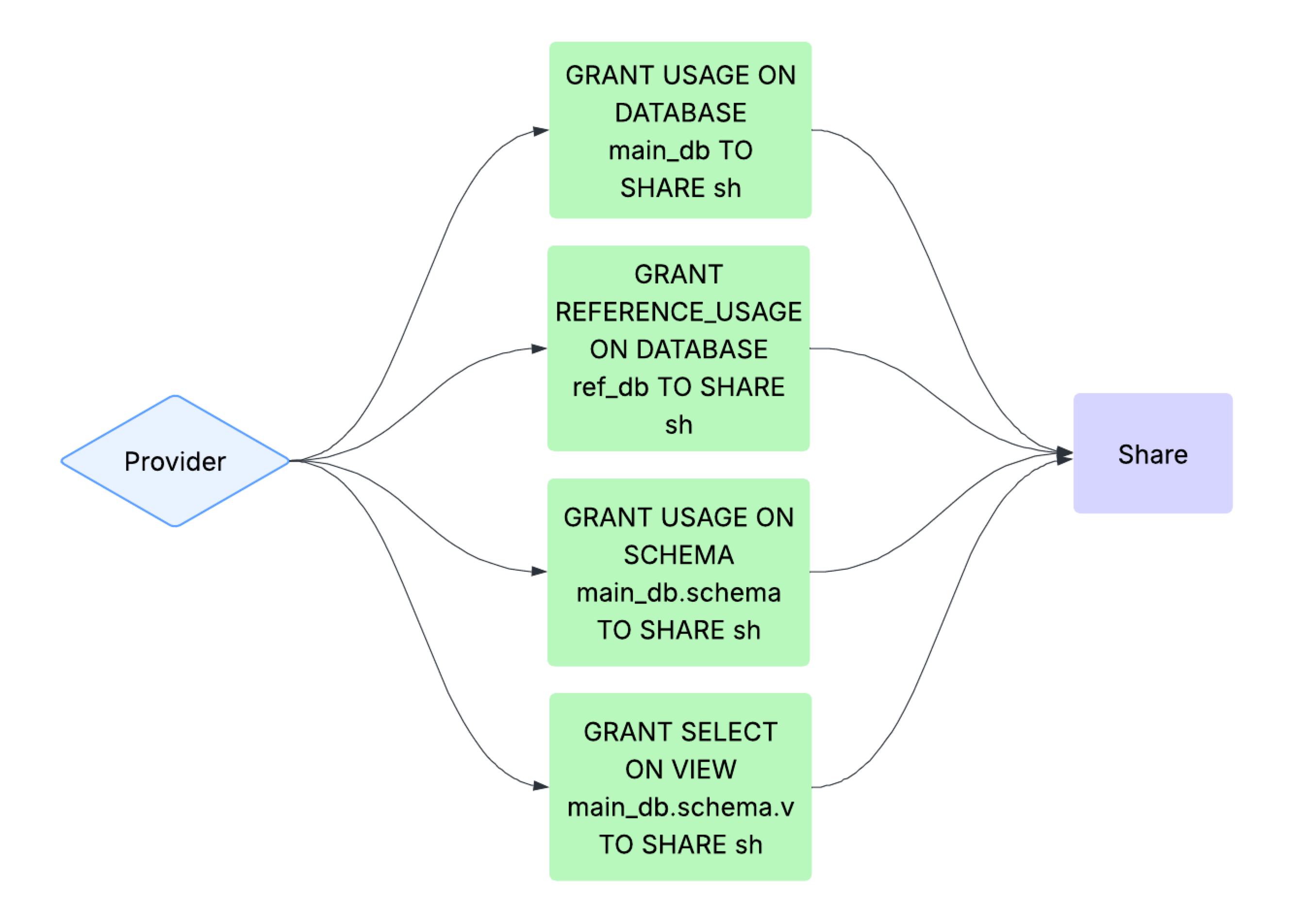
O provedor cria uma listagem com o compartilhamento e habilita o preenchimento automático para consumidores entre regiões e nuvens.
Para obter mais informações, consulte Compartilhamento de dados de vários bancos de dados.
Tipos de referência compatíveis
Quando REFERENCE_USAGE é concedido a um compartilhamento em um banco de dados, os seguintes tipos de referência são compatíveis:
Uma exibição que faz referência a uma tabela ou exibição em outro banco de dados.
Tabelas ou exibições com políticas quando essas políticas estão armazenadas em outro banco de dados.
Tabelas ou exibições com tags quando essas tags estão armazenadas em outro banco de dados.
Nota
Uma tag sem uma política associada em um banco de dados diferente só será replicada se o uso de referência for concedido. Caso contrário, a replicação será ignorada. Consulte GRANT <privilégio> … TO SHARE para obter mais informações. Se a tag for utilizada em mascaramento baseado em tags, o compartilhamento será tratado como uma tabela ou exibição com políticas de acesso a linhas.
Limitações
O Snowflake agrupa listagens ao atualizar os dados. Configurar listagens que abrangem vários bancos de dados pode alterar a forma como as listagens são agrupadas. Como resultado, os itens a seguir podem ser afetados:
O histórico de atualização de listagens pode estar ausente ou incorreto após a atualização da programação de preenchimento automático.
A configuração da opção
refresh_schedule_overridepode ser necessária. Quando essa opção estiver ausente, a mensagem de erro resultante incluirá a lista de listagens que foram afetadas pela alteração na ordem em que foram agrupadas.
A definição do tipo de atualização de preenchimento automático como
FULL_DATABASEestá obsoleta e não é compatível com concessões de uso de referência.
Notas de uso
Ao configurar o preenchimento automático, se os bancos de dados selecionados e referenciados incluírem listagens existentes, os valores na seção Data product refresh assumirão por padrão a programação de atualização existente. Como resultado, as alterações na programação de atualização do preenchimento automático se aplicam a todas as outras listagens associadas a este banco de dados e ao banco de dados referenciado.
Exemplos
Para exemplos de como criar uma exibição segura que faz referência a objetos e outras exibições em um ou mais bancos de dados, consulte Exemplos de compartilhamento de dados de vários bancos de dados.
Depois de criar uma exibição segura, você pode criar um listagem que inclua a exibição segura e configurar o preenchimento automático na listagem. Para ver exemplos de como criar listagens no Snowflake Marketplace, consulte Criar e publicar um listagem.