Agent mode and Plan mode
Cortex Code Desktop operates in Agent mode by default, where it has full access to tools for writing code, running commands, executing SQL, and making changes to your project. When a task requires exploration or design before implementation, the agent can switch to Plan mode — a read-only collaborative mode for researching and designing an approach before writing any code.
Overview
| Agent mode | Plan mode | |
|---|---|---|
| Purpose | Implement tasks — write code, run commands, make changes | Research and design an approach before coding |
| File writes | Yes | No (read-only) |
| Command execution | Full shell access | Read-only commands only (for example, ls, git status, git log) |
| SQL execution | All statements (SELECT, DDL, DML) | Read-only queries only (SELECT, SHOW, DESCRIBE) |
| Output | Code changes, file edits, command results | A structured plan with implementation steps |
Agent mode
Agent mode is the default operating mode. The agent has full access to all tools and can:
- Read, create, and edit files
- Run shell commands (build, test, install dependencies)
- Execute SQL queries and DDL/DML statements
- Run and edit Jupyter notebooks
- Search your codebase and the web
- Commit changes to git
- Manage tasks with a todo list
When you give the agent a task in Agent mode, it begins implementing immediately — reading relevant files, making edits, running tests, and iterating until the task is complete.
Plan mode
Plan mode restricts the agent to read-only operations. It can explore your codebase, search documentation, and ask clarifying questions, but it cannot modify any files or run destructive commands. The goal of Plan mode is to produce a structured implementation plan that you can review and approve before any code is written.
What the agent can do in Plan mode
- Read files and search your codebase
- Run read-only commands (
ls,git log,git status,find) - Run read-only SQL queries (
SELECT,SHOW,DESCRIBE) - Search the web and fetch documentation
- Ask you clarifying questions
- Spawn read-only research sub-agents
- Create a structured plan
What the agent cannot do in Plan mode
- Create, edit, or delete files
- Run commands that modify state (installs, builds, git commits)
- Execute DDL/DML SQL statements
- Modify notebooks
Plan output
When the agent completes its research in Plan mode, it produces a structured plan with:
- Context — files explored, key findings, and patterns discovered
- Implementation steps — a concrete, ordered list of tasks (typically 3–8 steps)
- Verification — how to verify the work (tests, commands, checks)
- Critical files — the 3–5 most important files involved
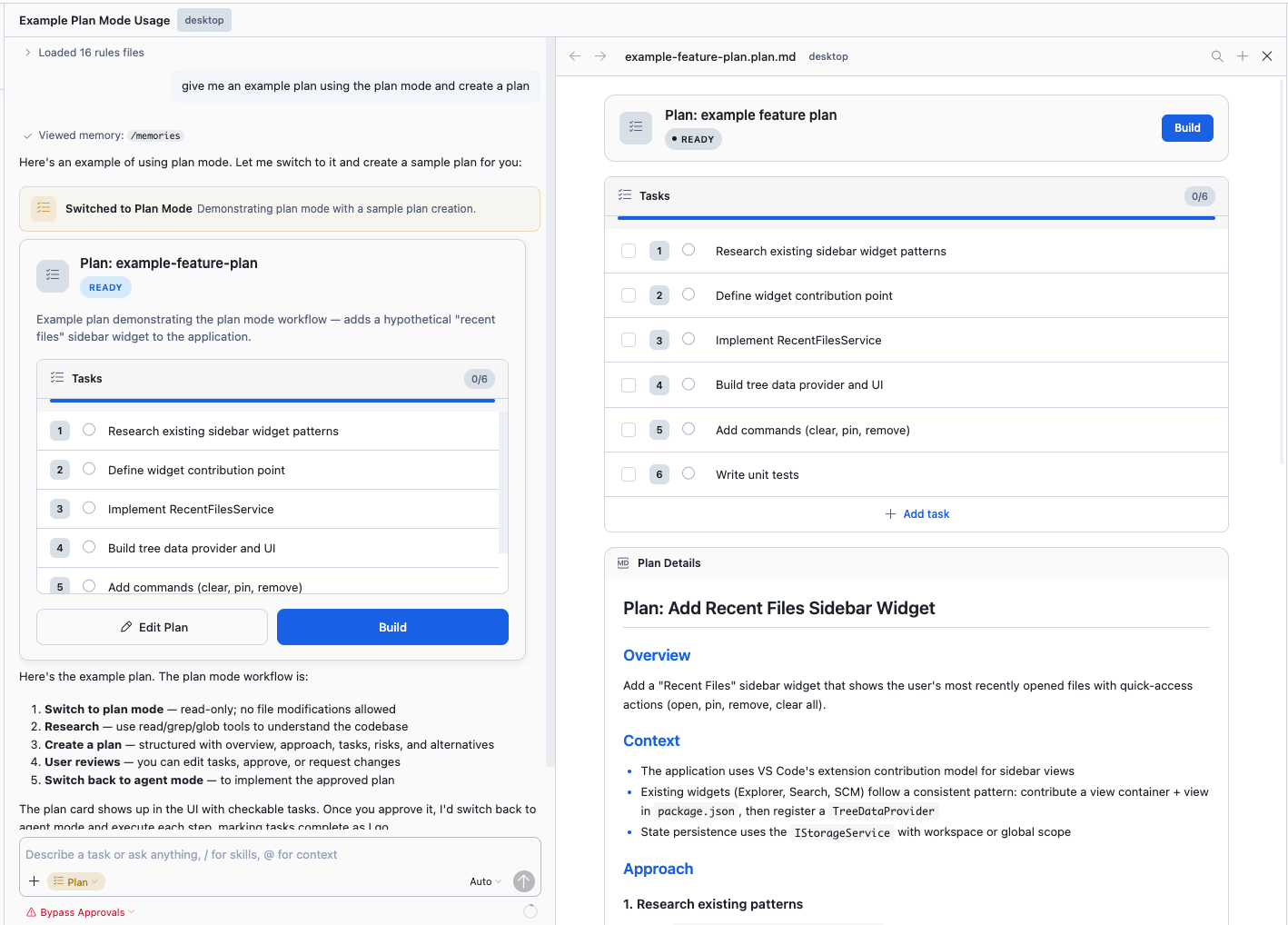
The plan appears in chat as a card with an overview and task list. A plan file is also saved
to .snowflake/cortex/plans/ in your workspace for reference.
Switching between modes
Manual switching
You can switch between Agent mode and Plan mode in three ways:
- Mode dropdown — When in Agent mode, a secondary dropdown appears next to the mode picker. Select Plan to switch.
- Keyboard shortcut — Press Shift + Tab to toggle between Agent and Plan mode.
- Command Palette — Run
Toggle Plan Modefrom the command palette.

Automatic switching by the agent
The agent can propose switching to Plan mode on its own when it determines a task would benefit from planning before implementation. When the agent decides to switch, it shows a confirmation dialog — you can accept or decline the switch.
The agent may propose switching to Plan mode when:
- The task has multiple valid approaches with significant tradeoffs
- Architectural or structural decisions need to be made before writing code
- Multi-file or codebase-wide changes are involved
- Requirements are ambiguous and need clarification
- Exploration is needed before implementation can begin
The agent will not switch to Plan mode for:
- Simple fixes, typos, or single-file changes
- Tasks where you provided clear, specific instructions
- Pure research questions with no code changes needed
- Tasks where it is already executing steps from an approved plan
Similarly, while in Plan mode, the agent can propose switching back to Agent mode once the plan is ready for execution.
Building from a plan
After the agent creates a plan in Plan mode, you can execute it by clicking the Build button on the plan card. This:
- Switches back to Agent mode automatically.
- Attaches the plan file as context.
- Begins executing the implementation steps in order.
- Updates the plan card with progress as each task completes.
You can also trigger this with Cmd + Shift + B (macOS) or from the command palette with Build from Plan.
Tip
You can edit the plan file before building. If you want to adjust the approach, add steps,
or remove steps, edit the .plan.md file and then click Build — the agent will follow
your modified plan.
When to use each mode
| Scenario | Recommended mode |
|---|---|
| Fix a bug with a clear error message | Agent mode |
| Add a single function or endpoint | Agent mode |
| Refactor a module with unclear dependencies | Plan mode first, then Build |
| Design a new feature spanning multiple files | Plan mode first, then Build |
| Migrate a codebase from one framework to another | Plan mode first, then Build |
| Run tests or deploy | Agent mode |
| Explore code to understand how something works | Either — Plan mode if you want a written summary |
Ask and Edit modes
In addition to Agent and Plan mode, Cortex Code Desktop offers two other top-level modes:
- Ask mode — Explore and understand your code. The agent answers questions without making changes. Use this for quick explanations, code walkthroughs, or understanding unfamiliar code.
- Edit mode — Edit or refactor selected code. Select a region of code and describe the change you want. The agent edits only the selected region.
Switch between Ask, Edit, and Agent modes using the mode picker at the top of the chat input. Plan mode is a sub-mode that only appears when Agent mode is active.