Agentic Browser
Cortex Code Desktop includes a built-in browser that the agent can use to browse the web, test your applications, and interact with pages on your behalf. Think of it as giving the agent its own browser tab — it can read pages, click buttons, fill out forms, and report back what it finds.
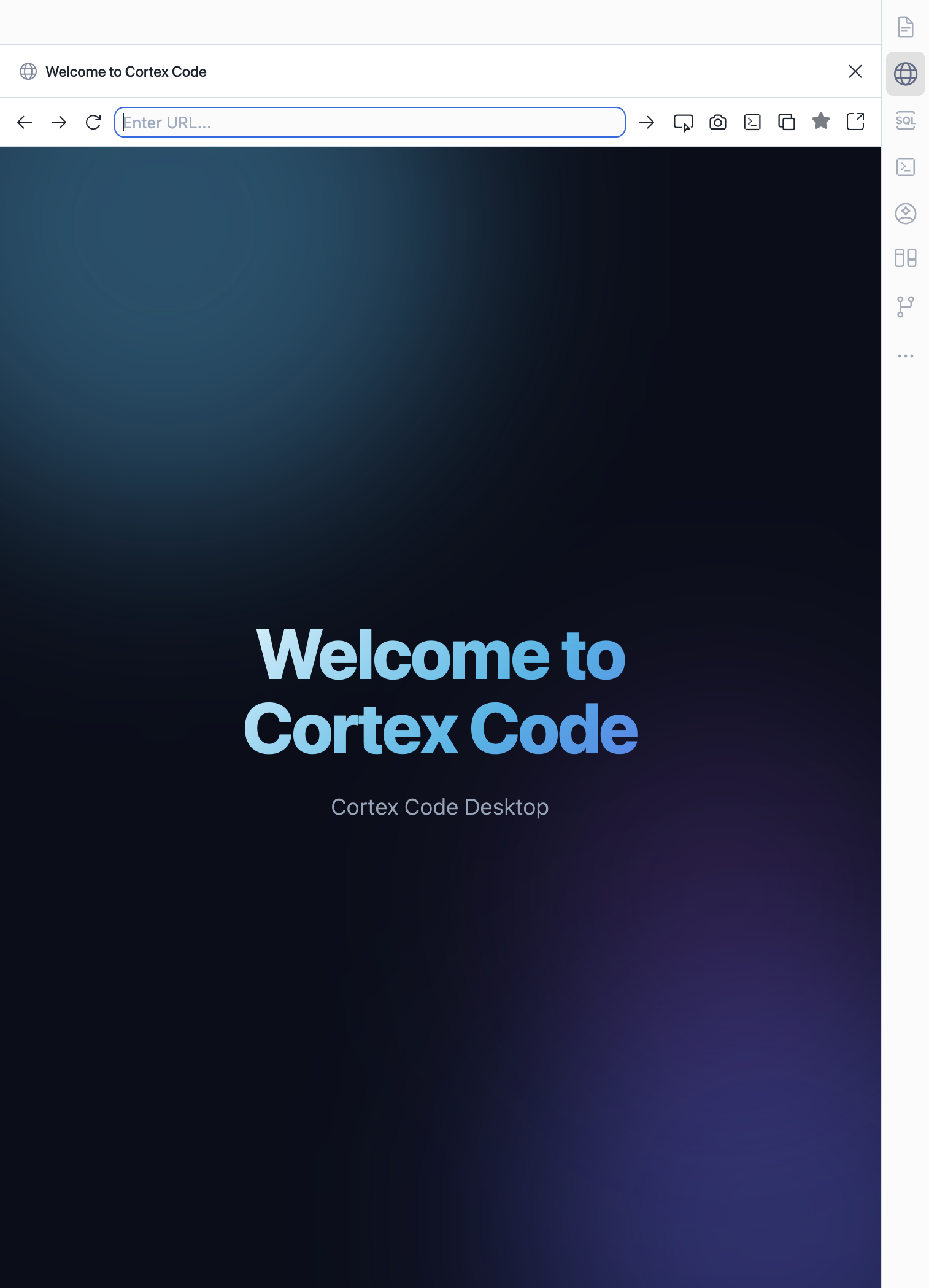
Agent mode vs Editor mode
The browser panel is available in both IDE modes:
- Agent mode — a full-screen workspace where the agent drives the workflow. The browser appears as a built-in panel alongside chat, terminal, and file changes. Toggle with ⌘E.
- Editor mode — the traditional code editor layout. The browser opens as a tab in the editor area or in the sidebar. The agent is still available via the chat panel.
The browser works identically in both modes. Your sessions carry over when you switch — toggle freely depending on whether you want the agent or your code front and center.
Opening the browser
- Agent mode — click the Browser tab in the right-hand panel, or ask the agent to open a URL.
- Editor mode — use ⌘ + Shift + B, or open the Browser view from the sidebar (globe icon).
- Command Palette — search for “Open Agentic Browser”.
Toolbar controls
| Button | Action |
|---|---|
| ← → | Navigate back and forward in history. |
| Reload | Refresh the current page. |
| URL bar | Type a URL and press Enter to navigate. |
| Select Element | Pick any element on the page and attach it to the chat — great for asking “fix this button” or “why does this look wrong?” |
| Screenshot | Capture the current page and attach it to the chat for the agent to review visually. |
| DevTools | Open Chromium Developer Tools for manual inspection. |
| Copy URL | Copy the current page URL to clipboard. |
| Bookmark | Bookmark the current page for quick access. |
| Open External | Open the current page in your system browser. |
What the agent can do
When the agent uses the browser, it can:
- Navigate — open URLs, go back/forward, manage multiple tabs.
- Read — understand page structure, read text content, check console logs and network activity.
- Interact — click buttons, fill out forms, select dropdowns, upload files, drag and drop.
- Wait — wait for content to load or change before proceeding.
- Capture — take screenshots for visual verification.
The agent understands pages structurally, not as raw pixels. This makes interactions precise and reliable — it knows exactly which button to click or which field to fill.
Sharing context with the agent
Select Element
Click Select Element in the toolbar, then hover over any element on the page and click it. The element’s structure and styles are attached to your chat. Then ask the agent anything about it — “fix this alignment”, “make this responsive”, “what font is this using?”
Screenshot to chat
Click Screenshot to capture what you’re seeing and share it with the agent. Useful for visual bug reports, design comparisons, or asking “does this look right?”
Testing local development servers
The browser works with localhost URLs, making it perfect for testing local apps:
- Start your dev server (for example,
streamlit run app.pyornpm run dev). - Ask the agent to open it and test a workflow.
- The agent navigates your app, interacts with the UI, and reports results.
Tip
Ask “start my app and test the login flow” — the agent will run the server, open the browser, and walk through the entire flow autonomously.
Example workflows
Frontend development
Run your dev server, select a broken element, and ask “why is this not aligned?” The agent inspects the page, identifies the issue, and fixes your source code directly.
Web research
Ask “go to the Snowflake docs and find the syntax for CREATE DYNAMIC TABLE” — the agent navigates, searches, and brings back the answer.
End-to-end testing
Ask “test the signup flow — fill in the form, submit, and verify the success page” — the agent walks through your entire app flow and reports what happened.
Visual verification
Take a screenshot and ask “does this match the Figma design?” — the agent compares what’s rendered to your requirements.
API debugging
Ask “what network requests happen when I click Submit?” — the agent monitors traffic and reports back the API calls, payloads, and responses.
Security
The agentic browser runs within Cortex Code Desktop’s security model:
- The agent asks for your confirmation before performing sensitive actions.
- Cross-origin interactions (different domains within iframes) require explicit approval.
- All browser activity happens locally on your machine — nothing is sent to external servers beyond normal page requests.
- The agent respects your permission mode settings for browser actions.