Agents in Cortex Code Desktop
Agents are focused, independent agents that Cortex Code can launch to handle a piece of work in parallel with — or on behalf of — your main conversation. They are useful for tasks that benefit from separate context, such as exploring a large codebase, running research in the background, or splitting a job into several pieces that can run at the same time.
Each agent runs in its own conversation with its own context window. When it finishes, it returns a single summary back to the main agent, which can then continue with the larger task.
When to use agents
- Parallel work. Run several independent investigations or edits at the same time instead of waiting for each one in sequence.
- Focused exploration. Search a codebase or research a topic without filling up the main conversation’s context.
- Specialized tasks. Delegate to a purpose-built agent (for example, a code-review or browser-automation agent) that is tuned for one kind of job.
- Long-running background jobs. Kick off work in the background and check on it later while you keep working in the main chat.
Launching an agent
Most of the time you do not launch agents directly — the main agent decides when one would help and starts it for you. You can also ask explicitly, for example:
- “Use an agent to find all callers of
foo().” - “Spin up three agents in parallel, one to review each file.”
- “Have an agent research this in the background while we keep working.”
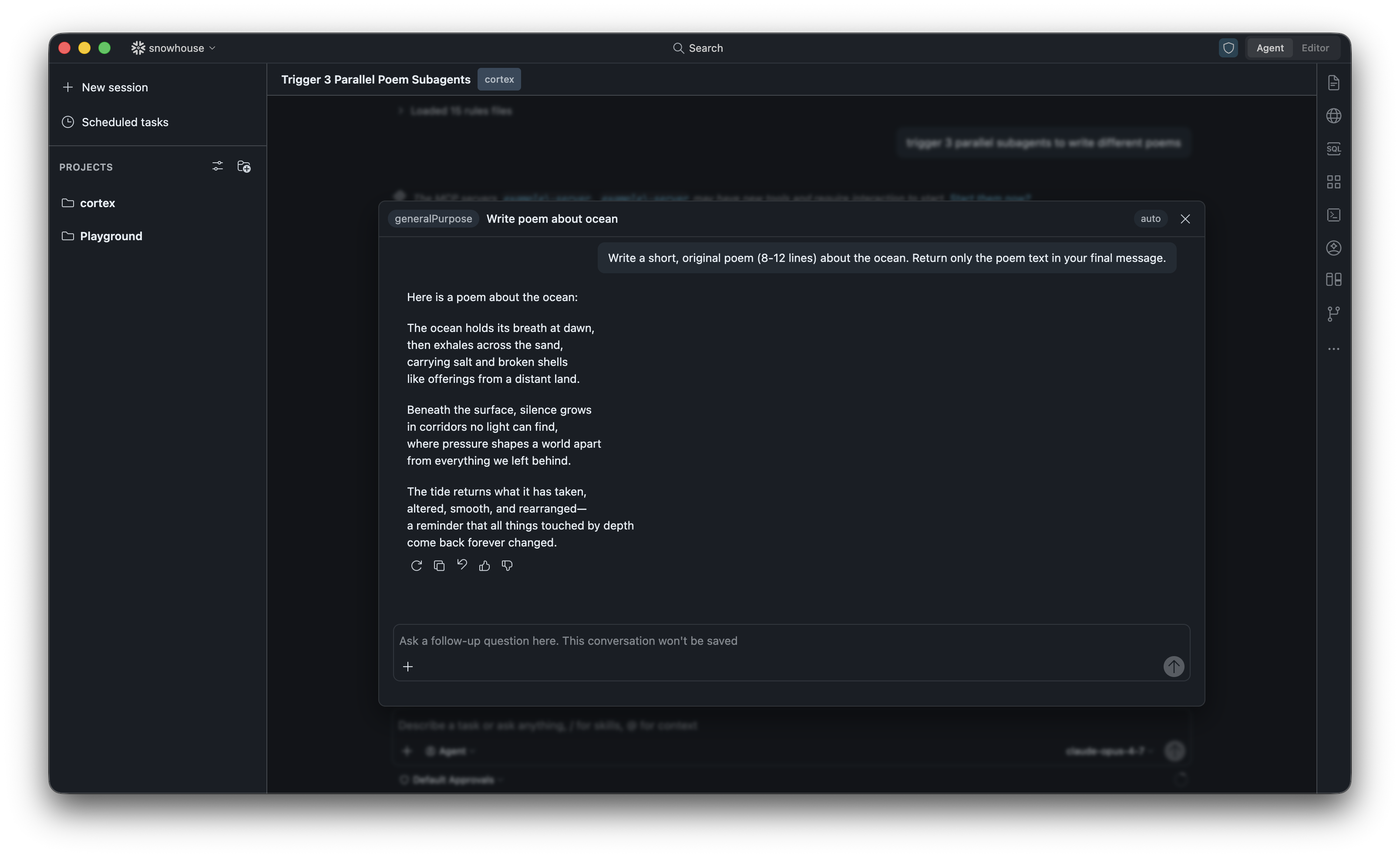
A agent appears as a card in the chat when it is launched.
Watching agents run
When one or more agents are active, Cortex Code shows their status as cards inside the conversation. Each card shows what the agent is working on and whether it is still running, finished, or stopped.
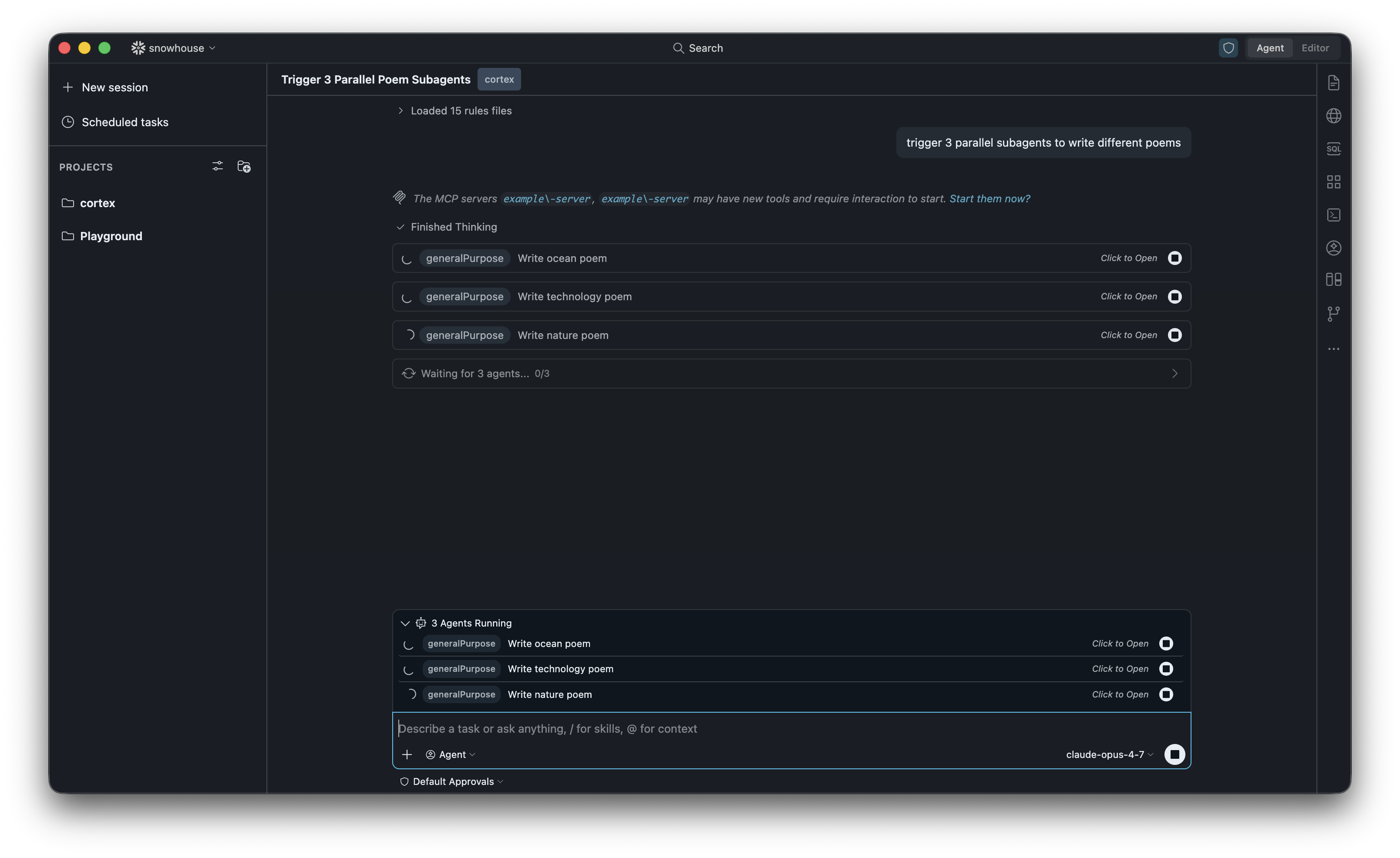
Click an agent card to open the transcript modal. The transcript shows the full conversation the agent had — every step it took, every tool it used, and the final result. This is the easiest way to see exactly what an agent did, especially when several were running at once.
Tip
You can keep working in the main chat while an agent is still running. The card updates in place, and the main agent will pick up the result automatically when it finishes.
Reviewing results
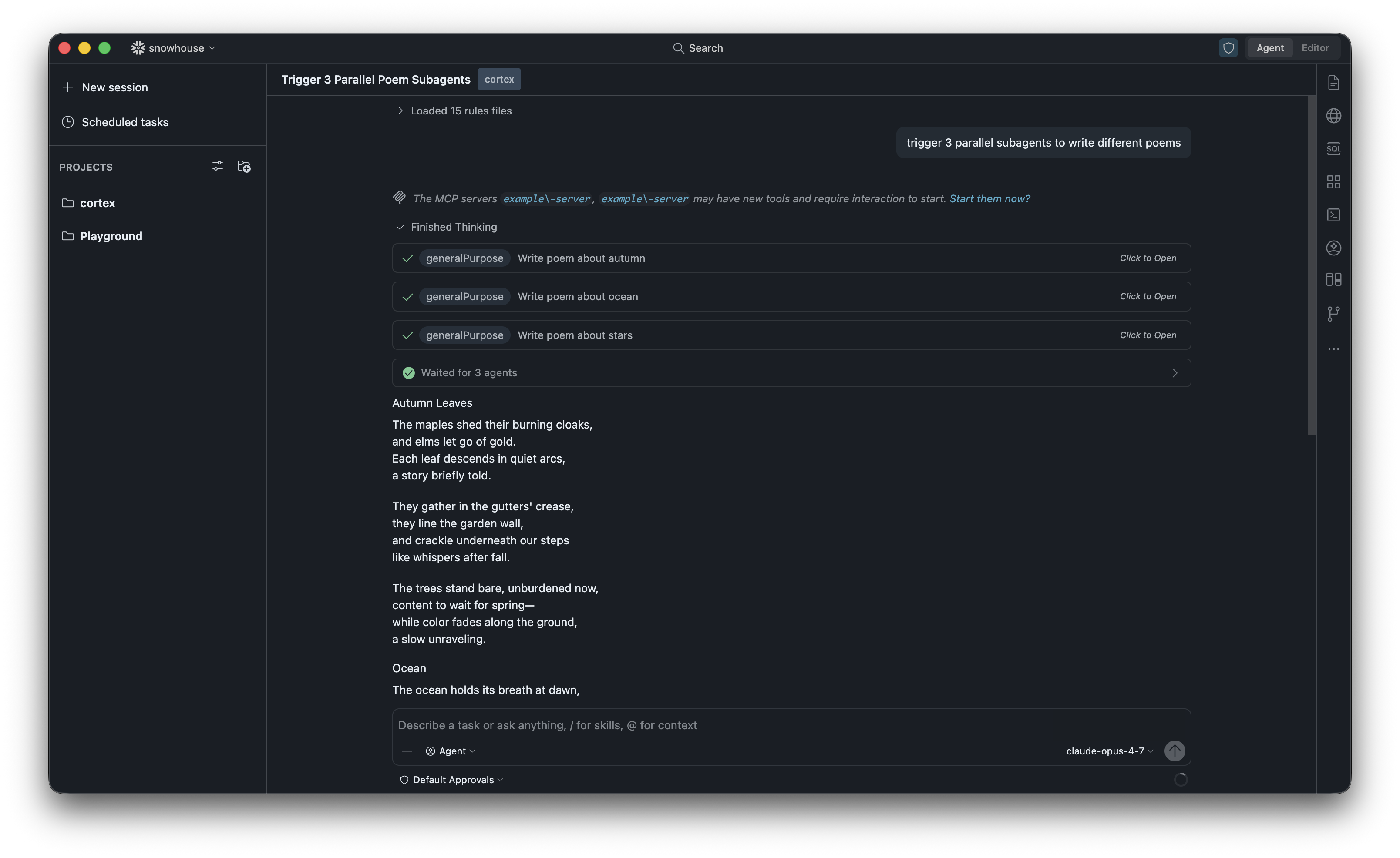
When an agent finishes, its card shows a completion state and the main agent receives a short summary of what it accomplished. You can still open the card at any time to see the full transcript of the agent’s work.
Running multiple agents in parallel
Agents shine when work can be split up. Asking the main agent to “use three agents in parallel” will launch them at the same time, and each one runs independently. You will see one card per agent, and they update as each finishes.
This is a good fit for tasks like:
- Reviewing several files at once.
- Searching multiple parts of a codebase for related code.
- Comparing alternative approaches side-by-side.
- Writing several drafts of something and picking the best one.
Creating a custom agent
In addition to the built-in agents, you can define your own. Custom agents let you pre-configure a name, description, allowed tools, model, and system prompt — useful when you have a recurring kind of task you want to delegate to a specialized agent.
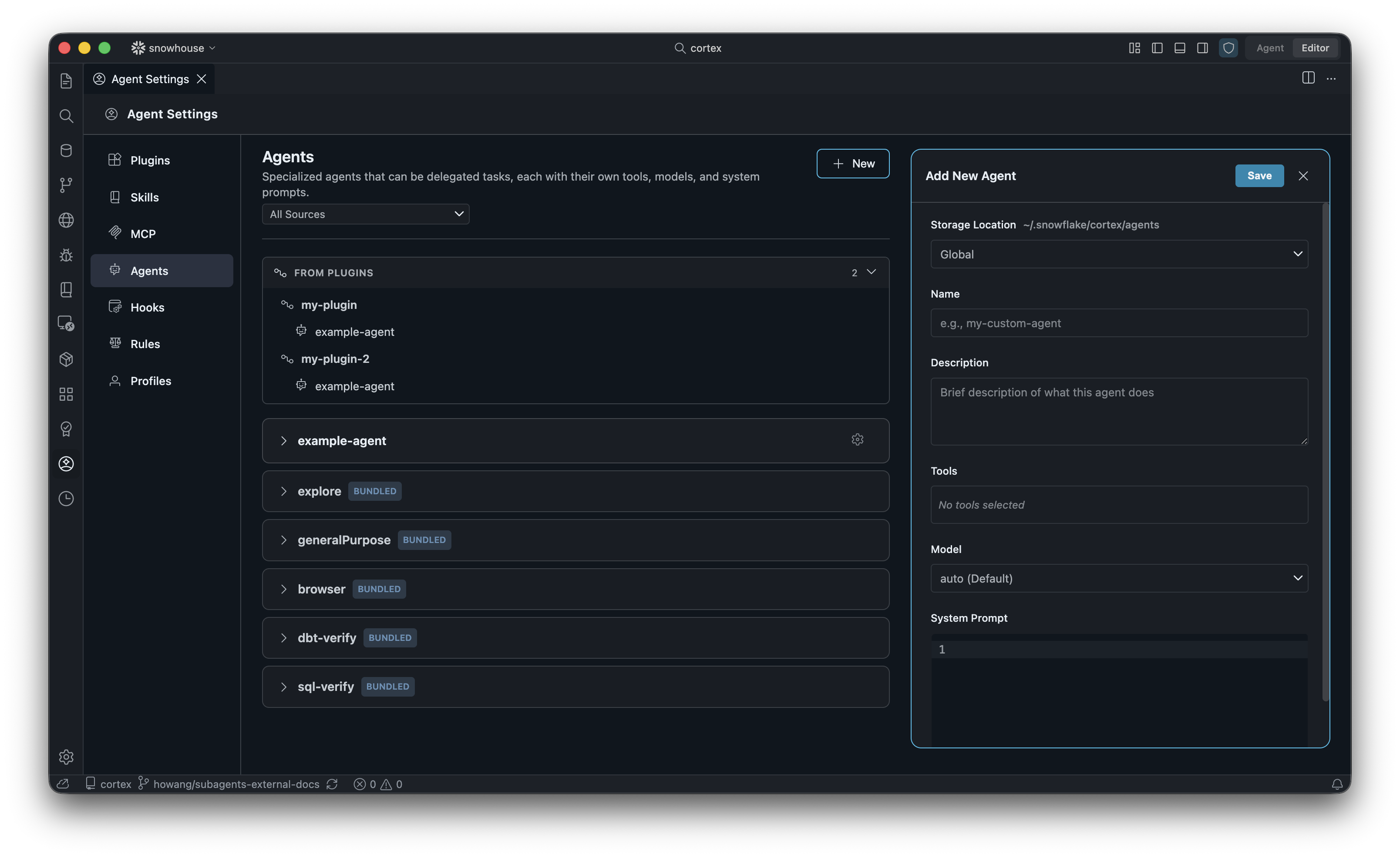
To manage agents, open Agent Settings and select Agents from the sidebar. This panel lists all available agents grouped by source — bundled agents that ship with Cortex Code, agents contributed by plugins, and any custom agents you have created.
Steps
- Open Agent Settings → Agents.
- Click + New in the top right to open the Add New Agent panel.
- Fill in the fields, then click Save.
| Field | Description |
|---|---|
| Storage Location | Where the agent definition is saved. Global makes the agent available in every workspace; Workspace scopes it to the current project so it can be shared with your team via source control. |
| Name | A short identifier (for example, my-custom-agent). This is how you refer to the agent when triggering it. |
| Description | A brief description of what the agent does. The main agent reads this when deciding whether to delegate to your custom agent automatically. |
| Tools | The set of tools this agent is allowed to use. Leave empty to inherit the default toolset, or pick specific tools to restrict it. |
| Model | The model the agent runs on. Choose auto to let Cortex Code pick, or pin a specific model. |
| System Prompt | Instructions that always run before the agent starts its task. Use this to set tone, output format, constraints, or domain knowledge. |
Tip
Write the description as if it were a routing hint — the clearer it is about when to use this agent, the more reliably the main agent will reach for it on its own.
Triggering a custom agent
Once saved, your custom agent appears in the Agents list and can be triggered in two ways:
- Automatically. The main agent will pick your custom agent when the task matches its description, just like the built-in agents.
- Explicitly. Ask for it by name in chat, for example: “Use the
my-custom-agentagent to review this file.”
Edit or remove an agent at any time by expanding its row in the Agents list and using the settings icon. Bundled and plugin-provided agents can be inspected but not edited.
Best practices
- Give clear, self-contained tasks. An agent only sees the instructions you give it — not the full main conversation. Include enough detail for it to work on its own.
- Say what you want back. Be specific about the format and content of the result (for example, “return a list of file paths and a one-line summary of each”).
- Use parallel agents for independent work. If two tasks depend on each other, run them in sequence instead.
- Open the transcript when something looks off. The full transcript is the best way to understand an agent’s reasoning or debug an unexpected result.
Note
Each agent has its own context window and does not share state with the main conversation or with other agents. Information only flows back to the main agent through the agent’s final summary. Follow-up questions you send to a subagent are not saved — only the parent session is persisted.