Hooks
Hooks let you run shell commands automatically at key points during agent execution. Use them to enforce policies, inject context, validate tool inputs, auto-approve permissions, or integrate with external systems. Hooks can observe what the agent is doing, modify its inputs, or block operations entirely.
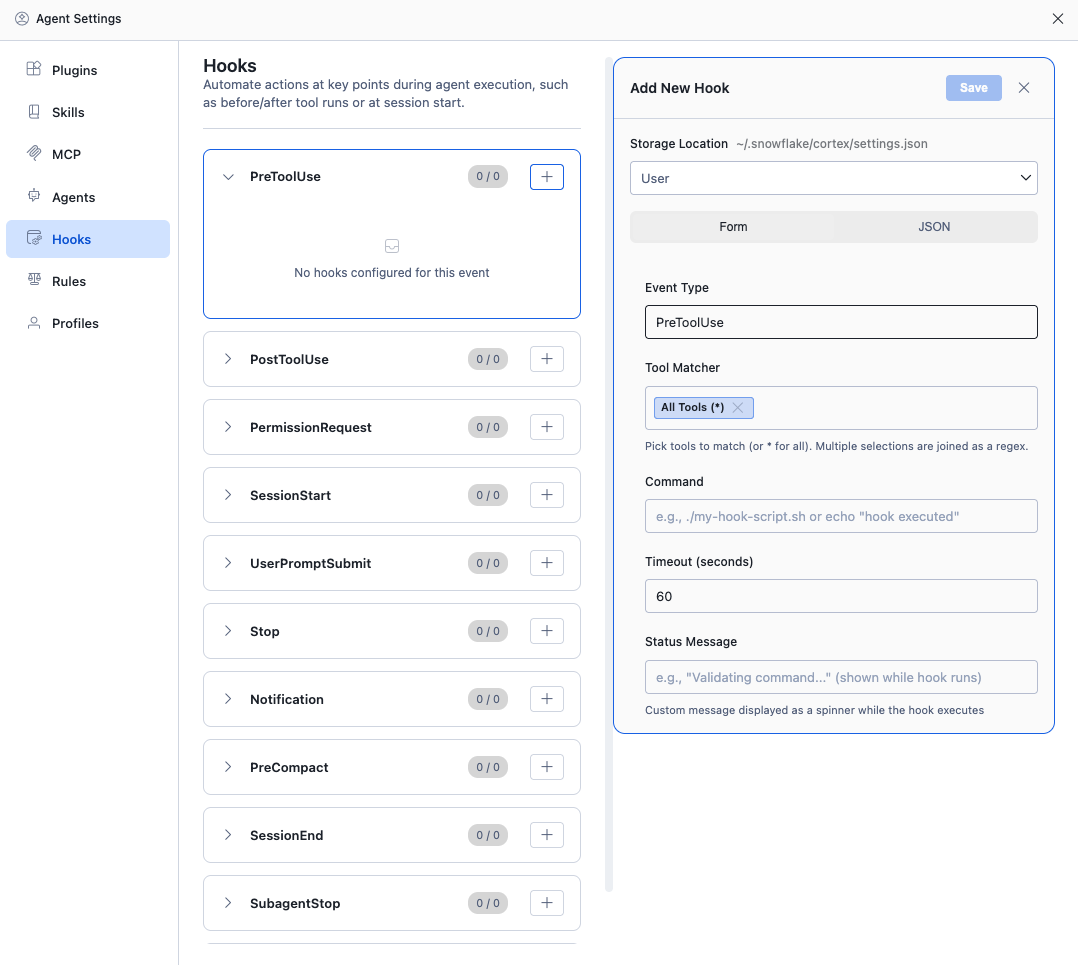
Hook events
Each hook is attached to an event that fires at a specific point in the agent lifecycle:
| Event | When it fires | Can block |
|---|---|---|
PreToolUse | Before a tool is executed | Yes |
PostToolUse | After a tool finishes executing | No |
PermissionRequest | When a permission dialog is about to be shown | Yes (auto-allow or auto-deny) |
SessionStart | When a new chat session is created | No |
UserPromptSubmit | When the user submits a prompt | Yes |
Stop | When the agent’s turn ends | No (but can force continuation) |
Notification | When a notification is sent | No |
PreCompact | Before conversation summarization/compaction | No |
SessionEnd | When a session ends (clear, logout, exit) | No |
SubagentStop | When a sub-agent’s turn ends | No |
Setup | When the agent performs initial environment setup | Yes |
Managing hooks
Open Agent Settings and select Hooks from the sidebar. The panel lists all event types as expandable sections with a badge showing the count of configured hooks (enabled / total).
To add a new hook:
- Click the + button next to the event you want to hook into.
- Choose the Storage Location:
- User — stored globally in
~/.snowflake/cortex/settings.json. - Workspace — stored in
<workspace>/.snowflake/cortex/settings.json.
- User — stored globally in
- Configure using the Form view or switch to JSON for raw editing.
- Set the fields:
- Tool Matcher — regex pattern to filter which tools trigger the hook (for tool events). Use
*for all tools. - Command — the shell command to execute (for example,
./my-hook-script.sh). - Timeout — seconds to wait before timing out (default 60).
- Status Message — custom message displayed as a spinner while the hook runs.
- Tool Matcher — regex pattern to filter which tools trigger the hook (for tool events). Use
- Click Save.
Configuration file
Hooks are stored in the hooks key of your settings file:
| Scope | Path |
|---|---|
| User (global) | ~/.snowflake/cortex/settings.json |
| Workspace | <workspace>/.snowflake/cortex/settings.json or <workspace>/.cortex/settings.json |
Example configuration:
Hook fields
| Field | Type | Description |
|---|---|---|
type | string | "command" — runs a shell command. |
command | string | The shell command to execute. |
timeout | number | Seconds to wait before timing out (default: 60). |
enabled | boolean | Whether the hook is active (default: true). |
statusMessage | string | Message shown as a spinner while the hook runs. |
Tool matcher
For tool-based events (PreToolUse, PostToolUse, PermissionRequest),
the matcher field is a regex pattern tested against the tool name. Use "*" or
leave empty to match all tools. Multiple matchers with different hooks can be configured for the same event.
Execution context
When a hook fires, the full execution context is piped to the command’s stdin as JSON. This includes information about the current session and the triggering event:
| Field | Available on | Description |
|---|---|---|
session_id | All events | Unique session identifier |
cwd | All events | Current working directory |
hook_event_name | All events | The event being triggered |
tool_name | Tool events | Name of the tool being called |
tool_input | Tool events | Input parameters (JSON object) |
tool_response | PostToolUse | The tool’s response text |
prompt | UserPromptSubmit | The user’s submitted prompt text |
Hook output
Hook commands communicate back via stdout (JSON) and exit code:
Exit codes
| Exit code | Meaning |
|---|---|
0 | Success — proceed normally |
2 | Block — prevent the operation. Stderr content becomes the block reason. |
| Other non-zero | Error — logged but does not block |
JSON output (stdout)
For more control, your hook can output JSON to stdout:
| Field | Description |
|---|---|
decision | "approve" or "block" — whether to proceed or block. |
reason | Explanation (shown to agent if blocked). |
additionalContext | Text injected into the conversation as context for the agent. |
hookSpecificOutput.permissionDecision | For PermissionRequest: "allow", "deny", or "ask". |
hookSpecificOutput.updatedInput | For PreToolUse: modified tool input parameters. |
If stdout is not valid JSON, it is treated as additionalContext text.
Blocking operations
PreToolUse, PermissionRequest, and UserPromptSubmit hooks can block operations.
When a hook blocks:
- The tool call (or prompt submission) is prevented.
- The block reason is shown to the agent so it can adjust its approach.
- The agent sees a message like: “[Hook] Tool execution blocked: <reason>”
To block from a hook, either:
- Exit with code
2and write the reason to stderr. - Output JSON with
"decision": "block"and a"reason"field.
Examples
Block writes to production files
Auto-approve read-only tools
Inject project context on session start
Configuration precedence
Hooks from multiple sources are merged. Workspace hooks fire before user hooks. Plugins and profiles can also contribute hooks (shown as read-only in the UI).