Cortex Code Desktop Model Context Protocol (MCP) support
Cortex Code Desktop implements the Model Context Protocol (MCP), an open standard that connects AI agents to external tools and data sources such as GitHub, Jira, internal APIs, and databases. Once you add an MCP server to Cortex Code Desktop, its tools become available to the agent automatically — no code changes are required.
This topic covers how to add and manage MCP servers using the graphical interface, the full configuration schema, credential handling, and administrator controls.
Transport types
Cortex Code Desktop supports two MCP transport types. Choose the transport that matches your server:
| Transport | Use case | How it works |
|---|---|---|
| stdio | Local tools, CLI wrappers, language-specific MCP servers | Spawns a subprocess and communicates over stdin/stdout |
| http | Web services, hosted APIs, real-time streaming services | Streamable HTTP requests (also supports SSE fallback) |
Managing MCP servers
You manage MCP servers through the Agent Settings panel in Cortex Code Desktop. Open Agent Settings and select MCP from the sidebar to view, add, and configure MCP connectors.
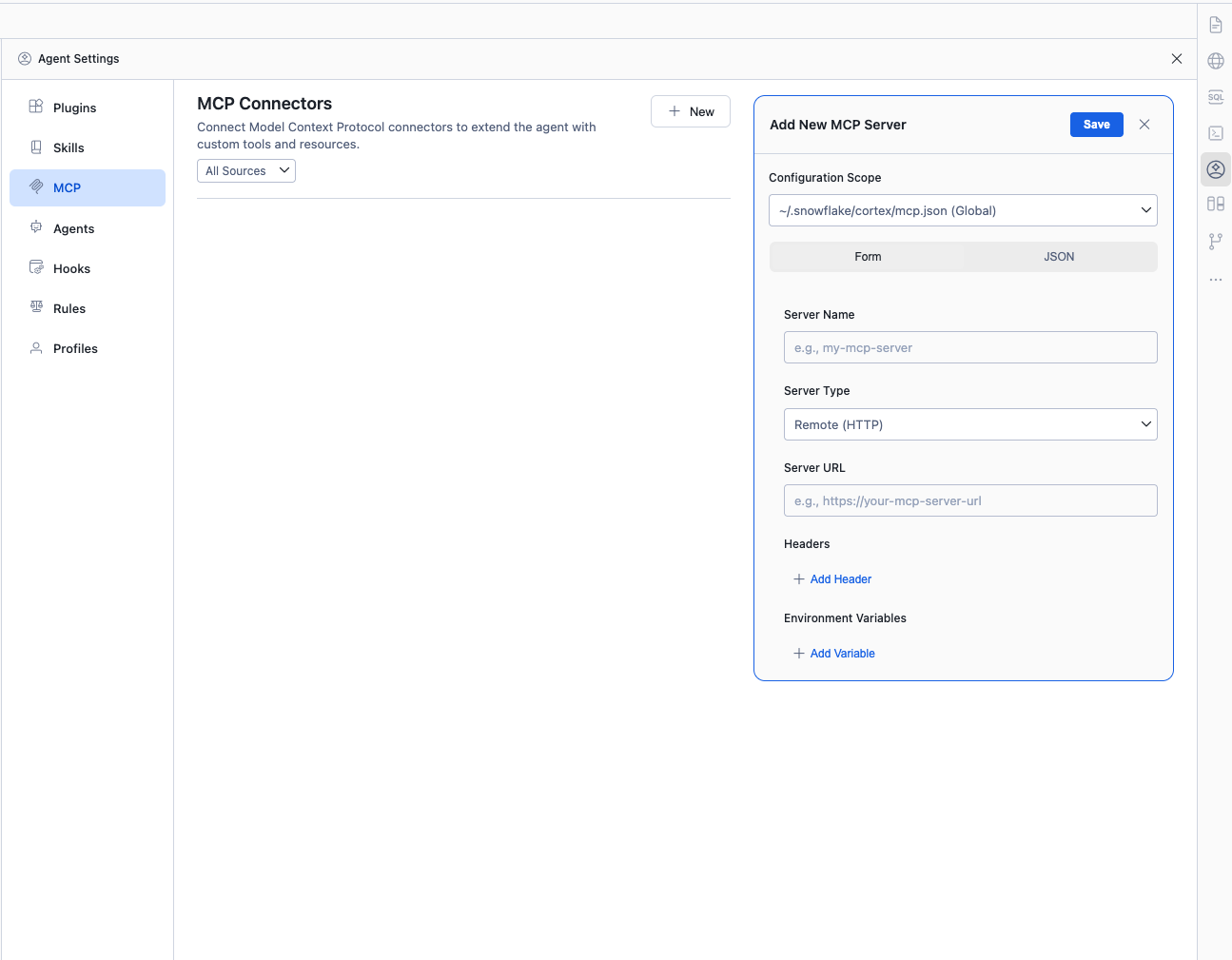
Adding a server via the UI
To add a new MCP server from the graphical interface:
- Open Agent Settings and navigate to the MCP tab.
- Click + New to open the Add New MCP Server form.
- Select the Configuration Scope:
- Global — stored in
~/.snowflake/cortex/mcp.json, available in all workspaces. - Workspace — stored in
<workspace>/.snowflake/cortex/mcp.json, scoped to the current project.
- Global — stored in
- Choose to configure the server using the Form view or switch to the JSON tab for raw editing.
- Fill in the server details:
- Server Name — a unique identifier for this server (for example,
my-mcp-server). - Server Type — select
Command (stdio)orRemote (HTTP). - For Command (stdio): enter the command to run (for example,
uvx mcp-server-git). - For Remote (HTTP): enter the Server URL (for example,
https://your-mcp-server-url).
- Server Name — a unique identifier for this server (for example,
- Optionally add Headers (for HTTP servers) or Environment Variables (for stdio servers).
- Click Save.
Adding a server via JSON
In the Add New MCP Server form, switch to the JSON tab to paste or edit configuration directly. This supports the same schema as the configuration file (see Configuration file).
Browsing the MCP gallery
Cortex Code Desktop includes a gallery of MCP servers that you can browse and install directly from the UI. Click + New and select Browse MCP Servers to discover available integrations.
Server status and management
The MCP Connectors panel displays the status of each configured server. From here you can:
- Start, stop, or restart individual servers.
- View the number of tools exposed by each connected server.
- Filter servers by source using the All Sources dropdown.
- View server output logs for troubleshooting.
Configuration file
MCP servers are configured in JSON files at these locations:
| Scope | Path |
|---|---|
| Global | ~/.snowflake/cortex/mcp.json |
| Workspace | <workspace>/.snowflake/cortex/mcp.json or <workspace>/.cortex/mcp.json |
The top-level key is "mcpServers". Each entry is keyed by server name:
Server fields
Stdio servers (Command)
| Field | Type | Description |
|---|---|---|
command | string | Required. The executable to launch. |
args | array of strings | Arguments passed to the command. |
env | object | Environment variables for the subprocess. |
envFile | string | Path to a .env file to load environment variables from. Supports ${workspaceFolder}. |
cwd | string | Working directory for the subprocess. |
HTTP servers (Remote)
| Field | Type | Description |
|---|---|---|
url | string | Required. The endpoint URL for the MCP server. |
headers | object | HTTP headers sent with each request (for example, authorization tokens). |
Environment variable expansion
Cortex Code Desktop expands environment variables in configuration fields before connecting. Three syntaxes are supported:
| Syntax | Behavior |
|---|---|
${VAR} | Replaced with the value of VAR. If not set, the literal is preserved. |
${VAR:-default} | Replaced with VAR if set, otherwise with default. |
$VAR | Short form of ${VAR}. |
Additionally, Cortex Code Desktop supports ${workspaceFolder} to reference the
current workspace root in paths like cwd and envFile.
Important
Use environment variables for credentials. Do not hardcode tokens or secrets in mcp.json.
Export sensitive values from your shell profile (~/.bashrc, ~/.zshrc) so they are
not checked into source control.
Variable inputs for secrets
Cortex Code Desktop supports an inputs array in configuration files for prompting users to provide secrets at connection time,
avoiding the need to store them in plain text:
Configuration precedence
Cortex Code Desktop merges MCP servers from multiple sources in the following order (later sources win when names collide):
- Administrator-enforced servers from managed settings.
- User servers from
~/.snowflake/cortex/mcp.json(global). - Workspace servers from
<workspace>/.snowflake/cortex/mcp.json. - Plugin-declared servers from installed plugins.
- Servers discovered from other applications (Claude Desktop, Cursor, Windsurf) if discovery is enabled.
Importing from other applications
Cortex Code Desktop can automatically discover MCP servers configured in other tools:
- Claude Desktop —
~/Library/Application Support/Claude/claude_desktop_config.json(macOS) - Cursor —
~/.cursor/mcp.json - Windsurf —
~/.codeium/windsurf/mcp_config.json
Discovery sources are individually toggleable via the chat.mcp.discovery.enabled setting.
Tool names and permissions
MCP tools are namespaced by server name so that two servers can expose tools of the same name without conflict. The composed tool name has the form:
For example, a tool named search exposed by the server github is visible to
the agent as mcp__github__search.
Tool names are limited to 64 characters and must contain only alphanumeric characters, underscores, and hyphens.
Permissions
MCP tools participate in the standard Cortex Code permission system. At runtime, permissions are requested on first use and can be remembered for the session. Default permission rules can be configured in:
You can match individual tools by their full composed name, or match all tools from a server with a wildcard:
Using MCP tools
Once configured, MCP tools are available in every Cortex Code Desktop session automatically. Invoke them through natural language in the chat:
Tool results are capped at 50 KB. If a tool returns more data, the output is truncated and a notice is appended.
Sample configurations
Git server (stdio)
HTTP API with headers
NPM package with environment variables
Workspace-scoped server with envFile
Plugin-declared MCP servers
Plugins can ship MCP servers with their distribution by declaring them in plugin.json.
These servers are loaded automatically when the plugin is active:
Plugin MCP servers have lower priority than user or workspace servers — a plugin cannot overwrite a server that you configured directly.
Administrator controls
Administrators can restrict MCP usage through managed settings.
MCP troubleshooting
Server not connecting
- Check the server status in the MCP Connectors panel under Agent Settings.
- Click on the server to view its output log and inspect error messages.
- Confirm that any required environment variables are set in your shell (
echo $VAR). - For stdio servers, verify the command is available on your
PATH.
Tools not appearing
- Confirm the server status shows as connected in the MCP panel.
- Ensure tool names are alphanumeric, underscore, or hyphen and shorter than 64 characters. Servers exposing invalid tool names are rejected.
- Check if the server is disabled or filtered out by administrator URL allowlists.
Environment variables not expanding
- Prefer
${VAR}with braces over bare$VARto avoid ambiguity. - Verify the variable is exported in your shell (
echo $VAR). - Remember that Cortex Code Desktop expands variables from the process environment at launch time.
Output truncated
Tool results are capped at 50 KB. For large datasets, have the MCP server return a summary, a reference, or a pointer to a file that Cortex Code can read in a follow-up step.
MCP best practices
- Use descriptive server names. Server names appear in the tool namespace, so pick names that make tool calls self-describing (for example,
mcp__github__searchis clearer thanmcp__gh1__search). - Secure credentials. Use environment variables,
envFile, or theinputsprompt mechanism. Never hardcode tokens inmcp.json. - Use workspace scope for project-specific servers. Keep project-specific MCP configurations in the workspace
mcp.jsonso they travel with the project. - Set appropriate timeouts. The default tool timeout is 60 seconds. This can be overridden globally via the
COCO_MCP_TOOL_TIMEOUT_MSenvironment variable. - Scope permissions narrowly. Use the
allowanddenylists inpermissions.jsonto pre-approve safe read-only tools and explicitly deny destructive ones.