Navigation
Cortex Code Desktop offers two layout modes — Agent mode and Editor mode — so you can focus on working with the agent or on writing code.
Switching between Agent and Editor modes
Use Agent mode when the agent is the main focus: your conversations and projects on the left, chat in the center, and the tool bar on the right. Use Editor mode when you want a traditional code editor: files in the center, tools along the sides, and optional chat in a secondary panel.
How to switch
- Use the mode control in the top-right of the window: Agent on the left, Editor on the right. The active mode is highlighted.
- Press ⌘E on macOS or Ctrl+E on Windows and Linux.
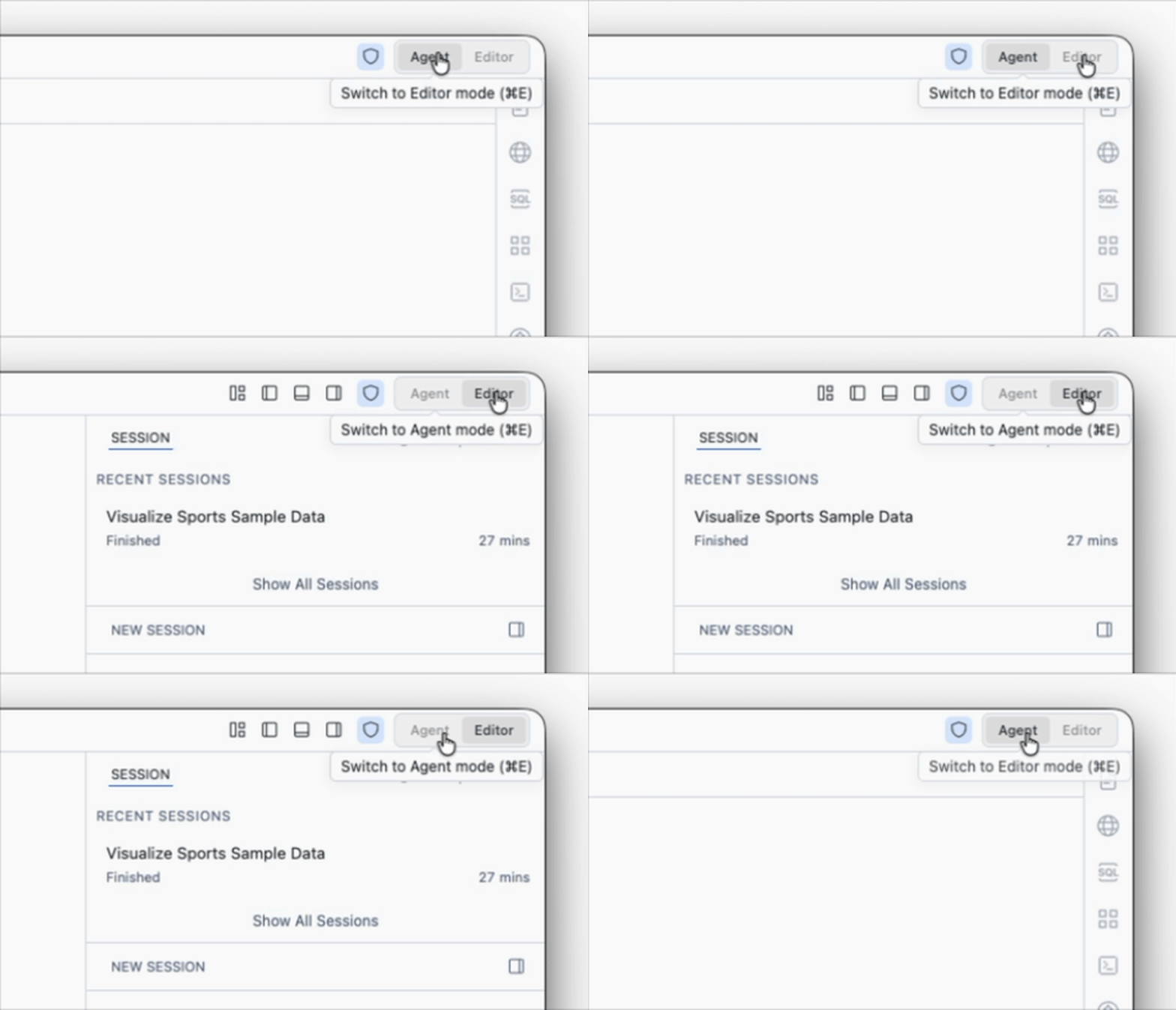
The mode control shows Agent first, then Editor. Click either option or use the keyboard shortcut to switch layouts.
When you switch modes, Cortex Code remembers which side panels were open so your layout feels familiar when you switch back. Your open files, chat sessions, and Snowflake connection stay as they were.
Tip
There is no separate “save” step when switching modes. If you are mid-conversation in Agent mode, you can return to Editor mode to edit files in the main editor, then switch back to continue the chat.
Agent mode
Agent mode puts conversations first. The window has three main regions: the navigation panel on the left, the main area in the center, and the tool bar on the right — a column of icons that open supporting panels next to the chat.
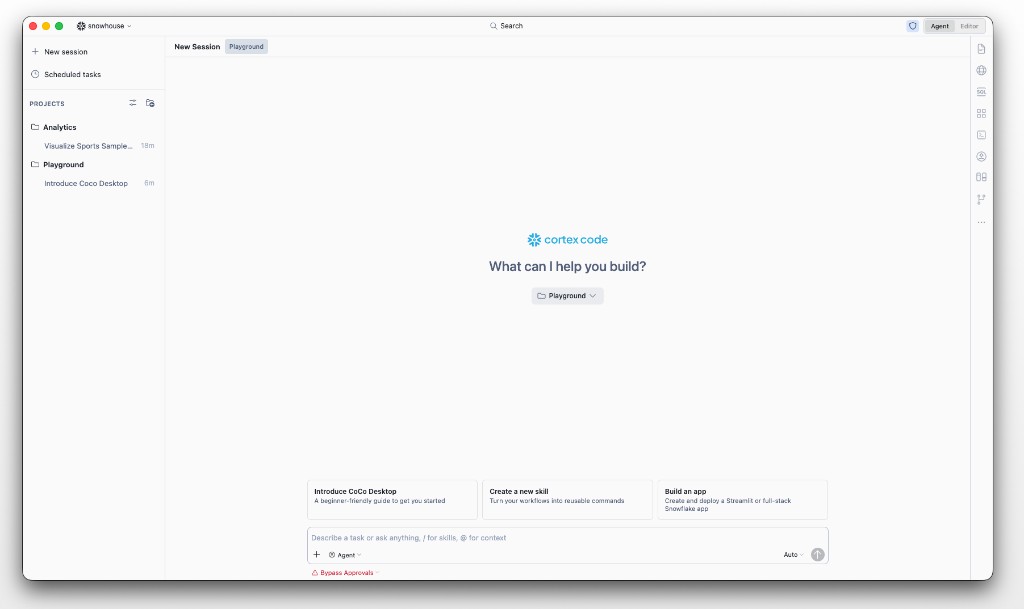
Navigation panel on the left, chat in the center, and the tool bar on the right. The Agent mode control is selected in the top bar.
Navigation panel (left)
The navigation panel is where you move between conversations and projects. At the top are shortcuts; below them is the Projects list with your folders and past sessions.
Top shortcuts
| Shortcut | What it does |
|---|---|
| New session | Start a new chat. Keyboard: ⌘N / Ctrl+N. |
| Scheduled tasks | Open scheduled task management in the main area. See Scheduled tasks. |
Projects and sessions
Below the shortcuts:
- Projects are folders or workspaces you have added. Expand a project to see its sessions (individual chats).
- Click a session to open it in the center.
- Use the customize control on the navigation panel header to switch between tree and list layout, search sessions, or filter (for example, unread only).
- Use the add control to attach another project folder.
- Right-click a project or session for actions such as renaming a session, opening the project in Editor mode, or removing a project from the list.
Tool bar (right)
The tool bar is the vertical strip of icons on the right edge of the window. Click an icon to open its panel beside the chat. Some tools stay pinned on the bar; others appear when relevant and can be closed when you are done. Only one tool panel is active at a time in that column.
From top to bottom, the tool bar typically includes access to documentation, the in-app Browser, SQL Playground, Apps, Files, account and collaboration tools, Source Control, and a More menu for additional panels such as Terminal and Files changed.
| Tool | What it does | Applies to |
|---|---|---|
| Files | Open and preview project files. Quick open: ⌘P / Ctrl+P. The file tree can appear in the navigation panel while the preview shows in the tool panel. | Current project |
| Browser | In-app browser for web previews and agent-driven browsing. | Current session |
| SQL Playground | Run SQL against your Snowflake account. | Current session |
| Apps | Same Apps gallery as in Editor mode. | Current project |
| Terminal | Integrated terminal. ⌘J / Ctrl+J. | Current project |
| Files changed | Review diffs of files the agent modified. ⌘2 / Ctrl+2. | Current session |
| Source Control | Git status, staging, and commits. | Current project |
| Agent Settings | Same settings as the Agent Settings activity bar icon in Editor mode. | Current project |
Session-scoped tools such as Browser and Files changed are tied to the active chat. Project-scoped tools such as Terminal and Source Control follow the project folder you are working in.
Agent mode tips
- Expand a project in the navigation panel to reopen a recent session, or use New session to start fresh.
- After the agent edits files, open Files changed to review diffs before you commit.
- Switch to Editor mode when you need the full editor layout for heavy multi-file editing or debugging.
- Approval behavior for tool use is controlled separately; see Permission modes.
Editor mode
Editor mode is built around the file editor. The activity bar is the narrow column of icons on the far left. Click an icon to open or focus the matching panel beside it. Only one activity-bar panel is shown at a time in that region.
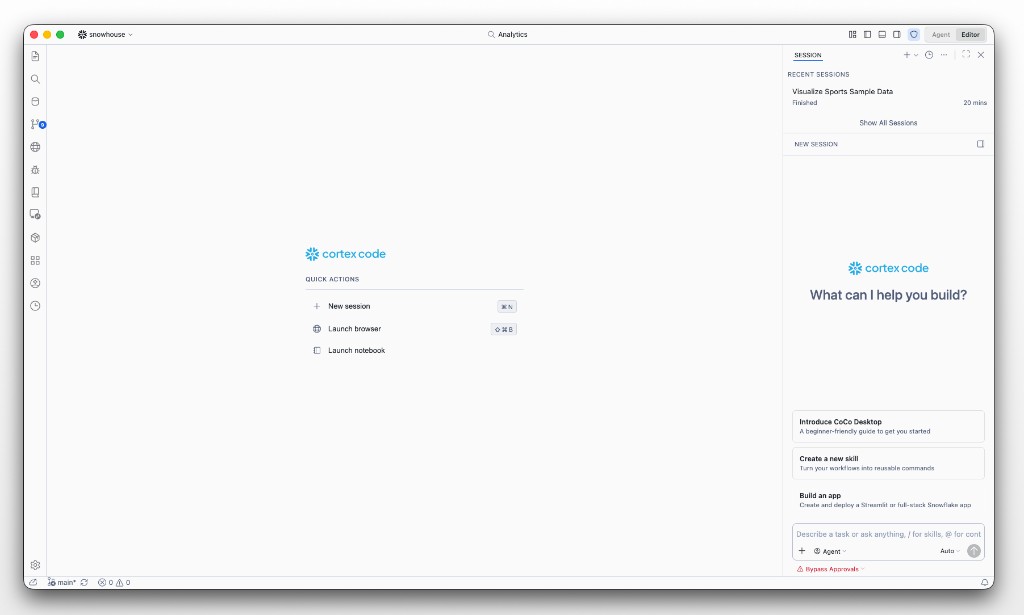
Activity bar on the left, main workspace in the center, and the Session panel on the right. The Editor mode control is selected in the top bar.
Standard activity bar icons
These icons work the same way as in VS Code:
| Name | What it does |
|---|---|
| Explorer | Browse files and folders in the open project. |
| Search | Find text across the workspace. |
| Source Control | Review Git changes, stage files, and commit. |
| Run and Debug | Launch and debug applications. |
| Extensions | Install and manage editor extensions. |
Cortex and Snowflake icons
Additional icons connect Cortex Code to Snowflake and agent features:
| Name | What it does |
|---|---|
| Snowflake Catalog | Browse databases, schemas, tables, and other Snowflake objects. |
| Skills | Browse and manage reusable agent skills for your workflows. |
| Apps | Open the Apps gallery to build, preview, and deploy Snowflake apps. |
| Agent Settings | Configure agent profiles, models, MCP connectors, hooks, and permissions. |
| Scheduled tasks | Create and manage recurring agent prompts. See Scheduled tasks. |
Views that open as editor tabs
Clicking Apps, Agent Settings, or Scheduled tasks opens a full editor tab in the center of the window rather than a narrow side panel. This gives you more room for galleries, settings forms, and task lists. Use the activity bar icon again or close the tab to leave the view.
Session panel in Editor mode
Your chat appears in the Session panel on the right side of the window. It is not on the activity bar. The panel header shows SESSION with controls to start a new session, refresh, or close the panel. Recent sessions lists past conversations you can reopen.
The center of the window is for editors and quick actions (for example New session, Launch browser, or Launch notebook on the welcome screen). Open or hide the Session panel from the View menu or the layout controls in the top bar.
Bottom panel
Along the bottom of the window you can show Terminal, Problems, Output, and related views. If your project includes dbt, a dbt tab appears there when a dbt project is detected.
Editor mode tips
- Drag the edge of a side panel to resize it.
- Hide the side bar with ⌘B / Ctrl+B when you need more editor space.
- Use Snowflake Catalog to explore data, then chat in Session to ask the agent about what you found.