Plugins in Cortex Code Desktop
Plugins are reusable packages that extend your agent’s capabilities. A single plugin can bundle together any combination of skills, MCP servers, hooks, and subagents — letting you install an entire workflow in one step.
What plugins contain
Each plugin is a folder with a manifest file (.cortex-plugin/plugin.json) and one or more of the following components:
| Component | What it does |
|---|---|
| Skills | Markdown-based instructions that teach the agent how to handle specific tasks. Each skill lives in a subfolder under skills/ with a SKILL.md file. Skills are invoked in chat via slash commands. |
| MCP servers | Model Context Protocol servers that provide additional tools to the agent (e.g., database connectors, API integrations). Configured in the manifest or in .mcp.json. |
| Hooks | Shell commands that run automatically in response to events such as before or after a tool call. Configured in the manifest or in .hooks.json. |
| Subagents | Specialized agents (defined as .md files in an agents/ folder) that the main agent can delegate work to. |
Browsing and managing plugins
Open Agent Settings and select the Plugins tab to see all installed plugins.
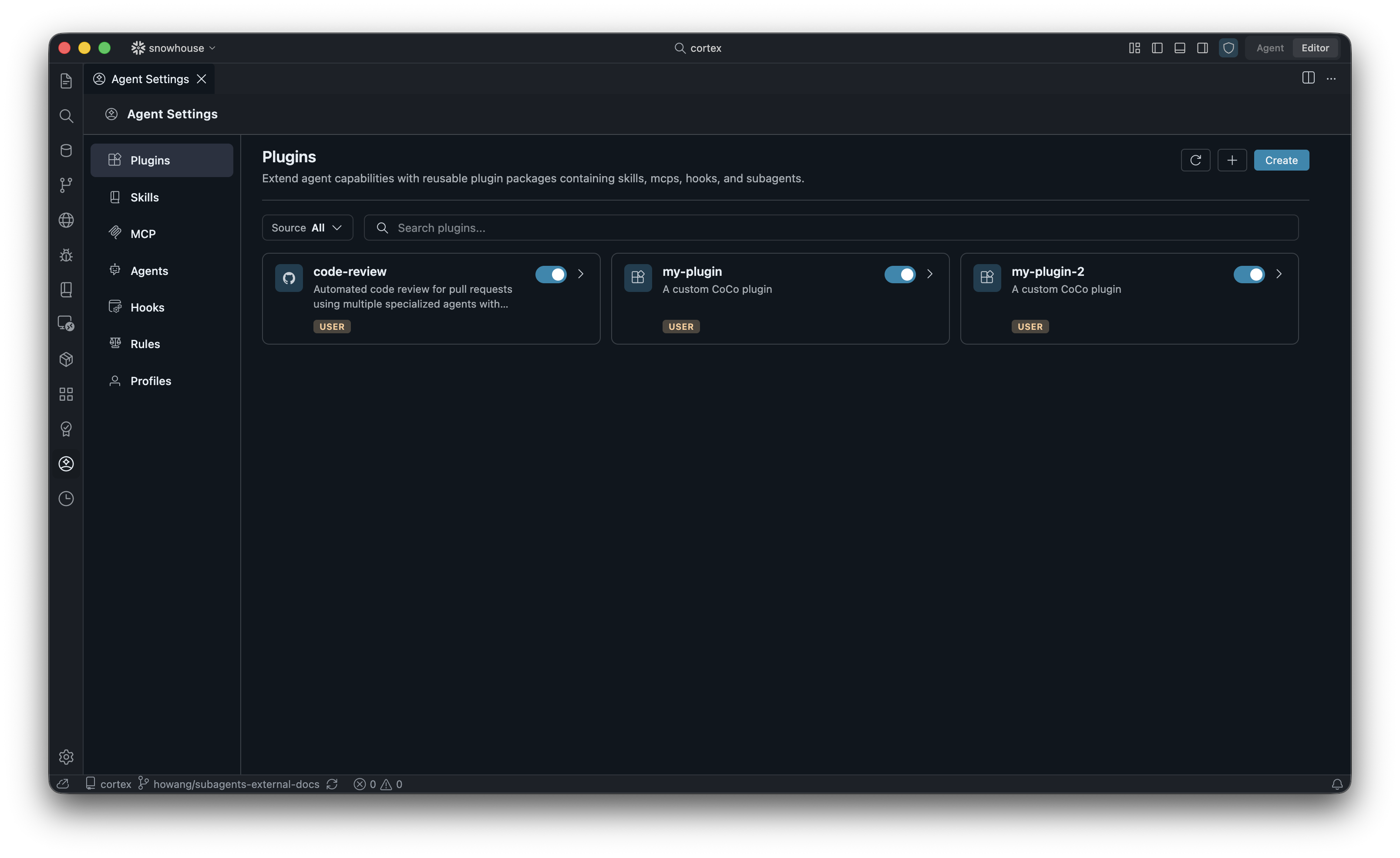
From here you can:
- Toggle plugins on or off using the switch on each card.
- Filter by source using the “Source” dropdown (All, User, Bundled, Project).
- Search by name or description using the search bar.
- Click a card to open the plugin detail view.
Plugin details
Clicking a plugin card opens its detail view, which shows the plugin’s description, source, version, status, and its components (skills, hooks, MCP servers, subagents).
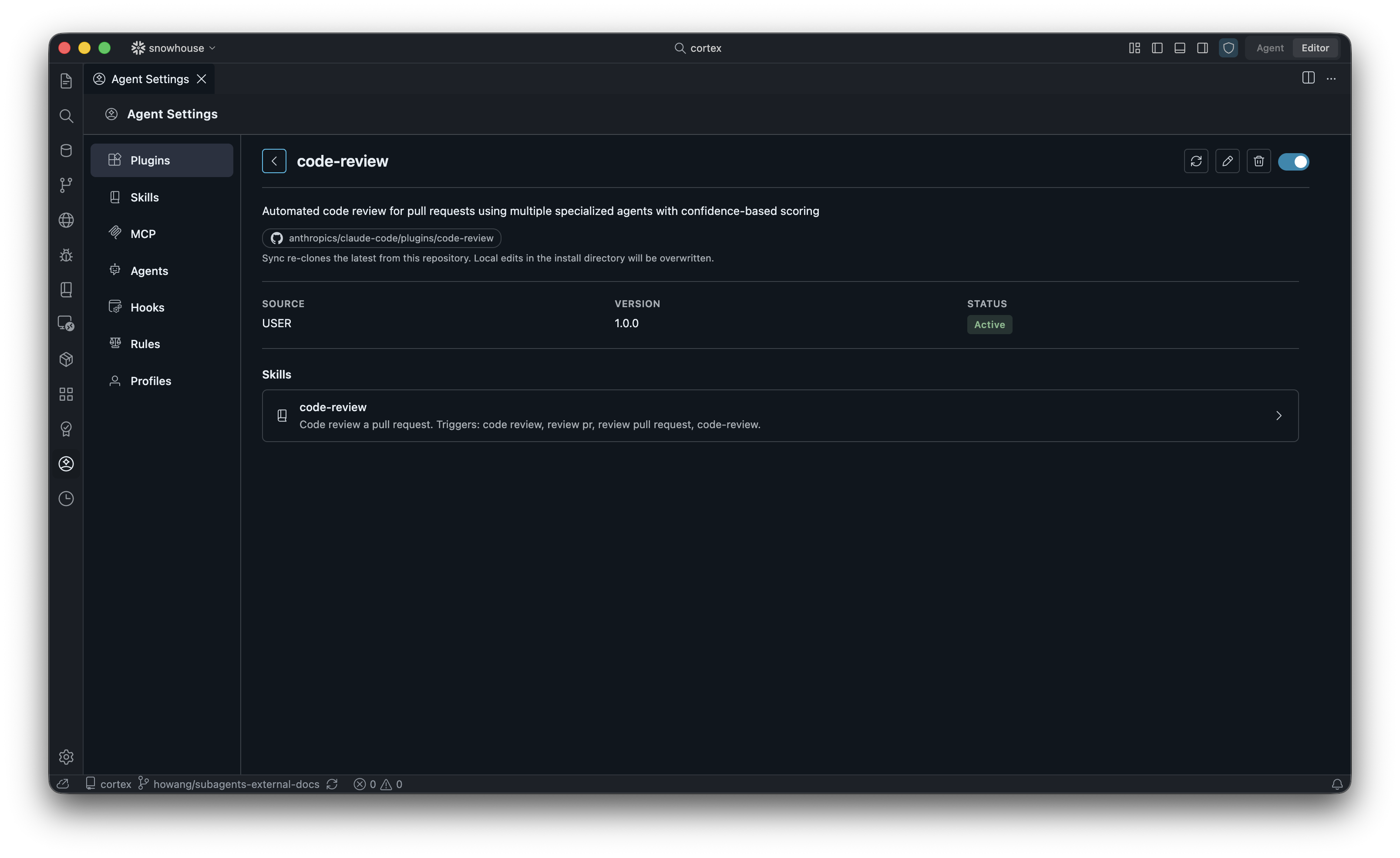
For plugins imported from GitHub, the detail view displays the source repository path and a note explaining that syncing will re-clone the latest version and overwrite local edits.
Importing plugins
Click the + button in the Plugins toolbar to import an existing plugin.
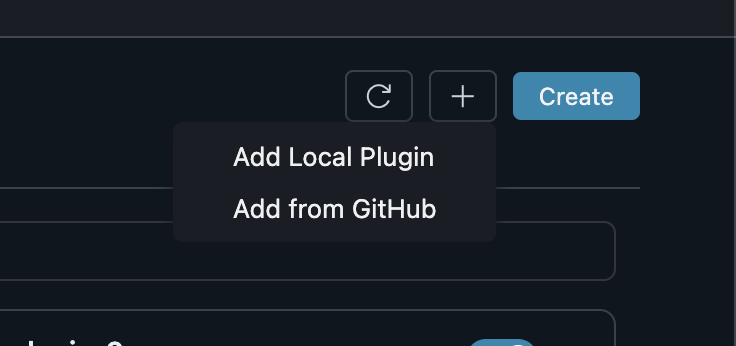
Add Local Plugin
Select a folder on your filesystem that contains a .cortex-plugin/plugin.json manifest.
The plugin is registered by reference — it stays where it is on disk, and no files are copied.
Tip
Local plugins update automatically. File watchers detect changes to skill files, hooks, and MCP configurations, so your edits take effect immediately without needing to sync or refresh.
Add from GitHub
Provide a GitHub repository in the format owner/repo (optionally with a subpath and
branch, e.g. owner/repo/plugins/my-plugin#main). The repository is cloned into
~/.snowflake/cortex/plugins/ and registered as a GitHub-sourced plugin.
GitHub-sourced plugins support sync (see below) to pull updates from the remote repository.
GitHub sync
Plugins imported from GitHub can be synced to pull the latest version from the remote repository. Click the sync icon on the plugin detail page to start a sync.
The sync process:
- Re-clones the repository at the pinned ref (branch or commit).
- Validates that the cloned content is a valid Cortex plugin.
- Performs an atomic swap of the install directory — the old version is kept as a backup during the swap and restored if anything goes wrong.
- Updates the registry with the sync timestamp.
Note
Sync overwrites any local edits you have made in the plugin’s install directory. If you need to customize a GitHub-sourced plugin, consider forking the repository or creating a separate local plugin.
Creating a plugin
Click the Create button in the Plugins toolbar to scaffold a new plugin. This creates a plugin folder with the required manifest file and directory structure.
Plugin manifest
Every plugin must have a .cortex-plugin/plugin.json file. Here is an example:
| Field | Required | Description |
|---|---|---|
name | Yes | Plugin identifier. Must start with a letter or digit, use only A-Z a-z 0-9 _ -, and be at most 64 characters. |
version | No | Semantic version string (e.g. 1.0.0). |
description | No | Short description shown in the Plugins panel. |
skills | No | Path(s) to skill directories (defaults to skills/). |
hooks | No | Hook configuration object, or loaded from .hooks.json. |
mcpServers | No | MCP server configuration object, or loaded from .mcp.json. |
Directory structure
Refresh button
The circular-arrow icon (↻) in the Plugins toolbar forces a full reload of the plugin registry. It invalidates all caches, re-reads the registry file, and re-activates all enabled plugins.
Use the refresh button when:
- You have manually edited plugin files outside of Cortex Code and changes are not appearing.
- A plugin appears stale or is not activating as expected.
- You have modified the registry file directly.
Tip
For local plugins, you usually do not need to refresh manually — file watchers detect changes automatically. The refresh button is most useful after bulk operations or external tooling modifies the plugins directory.
Plugin storage locations
| Location | Path | Notes |
|---|---|---|
| Bundled | Shipped with the app | Read-only plugins included in Cortex Code. Disabled by default (opt-in). |
| User | ~/.snowflake/cortex/plugins/ | Plugins you install or create. Available across all workspaces. |
| Project | .cortex/plugins/ in your project root | Workspace-scoped plugins shared with your team via version control. |
Important
Plugins are not cryptographically signed or verified by Snowflake. Treat each plugin source like running code from that author: review the manifest, the skills it bundles, and the MCP servers and hooks it registers before installing.
Note
Project-scoped plugins require workspace trust before they auto-activate. If your workspace is not trusted, project plugins are disabled by default — you can enable them individually via the toggle in the Plugins panel, or trust the workspace to activate them all.