SQL Playground in Cortex Code Desktop
The SQL Playground is an embedded SQL scratch editor that lives in the Agent Manager right-hand-side (RHS) panel of Cortex Code Desktop. It gives you a lightweight surface for authoring, running, and iterating on ad-hoc SQL against your active Snowflake connection without leaving the chat view, and it ties each query buffer to the chat conversation it belongs to.
Use the playground to draft queries while you talk to the agent, run statements that the agent has
proposed, or experiment with results that you plan to feed back into your workflow. Each conversation
gets its own persistent .sql file, so when you reopen a chat your last buffer, cursor, and
layout come back with it.
Note
The SQL Playground is a transient scratch surface, not a workspace file. For full editor features (multi-file editing, source control, dirty-state tracking against disk), use the Open in Editor action to pop the buffer into a regular editor tab.
Prerequisites
- Cortex Code Desktop installed and signed in.
- An active Snowflake connection bound to the chat conversation. The playground submits queries using the same connection the agent uses for that conversation.
- A chat conversation open in Cortex Code Desktop. The playground content and history are scoped per conversation.
Open the SQL Playground
The playground is one of the panels in the Agent Manager RHS area. To open it:
- Click the SQL Playground icon in the Agent Manager RHS toolbar, or
- Run the Open SQL Playground command from the Command Palette, or
- Let the agent open it for you. When a tool produces SQL, you can click Open in SQL Playground on the result to push that query into the editor.
The panel slides in alongside the chat. Switching conversations swaps in that conversation’s saved buffer; switching back restores the previous one.
Anatomy of the panel
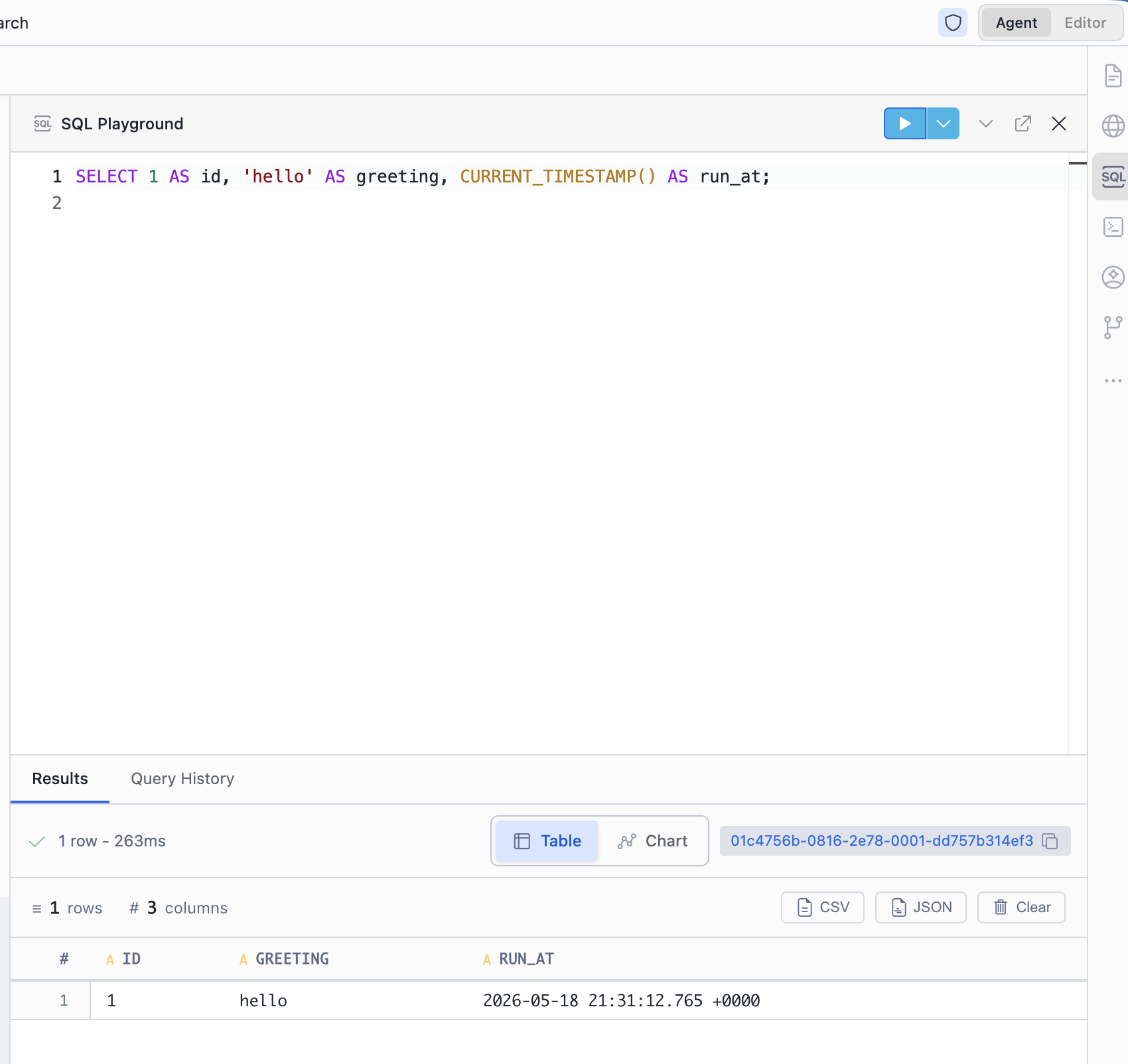
The SQL Playground panel has three main areas:
-
Toolbar at the top, containing:
- Run button — executes the SQL statement at the cursor (⌘Enter on macOS, Ctrl+Enter on Windows/Linux).
- More Run Options dropdown — currently exposes Run All, which executes every statement in the buffer top-to-bottom.
- Hide Results Panel / Show Results Panel toggle — collapses or restores the results pane. Your previous split ratio is remembered.
- Open in Editor — pops the buffer out into a regular workspace editor tab with the suggested name
SQL Playground.sql.
-
Editor — a Monaco-based SQL editor with autocomplete, suggestions, snippets, bracket matching, and the standard right-click context menu. The editor is registered against the SQL language so keyword and identifier suggestions are available out of the box.
-
Results pane — tabbed view at the bottom with Results and Query History tabs. A horizontal sash between the editor and the results pane lets you resize the split.
Running SQL
The playground supports the same execution surfaces you’d expect from a Snowflake worksheet:
- Run statement at cursor — press ⌘Enter (macOS) or Ctrl+Enter (Windows/Linux), or click Run. The playground detects the statement under the cursor (using semicolon-delimited boundaries) and submits only that statement.
- Run All — from the More Run Options dropdown, executes every statement in the buffer in order. Useful for setup scripts or for running an entire draft end to end.
- Cancel a running query — while a query is in flight, the Run button switches to a cancel state. Click it to abort the in-flight statement.
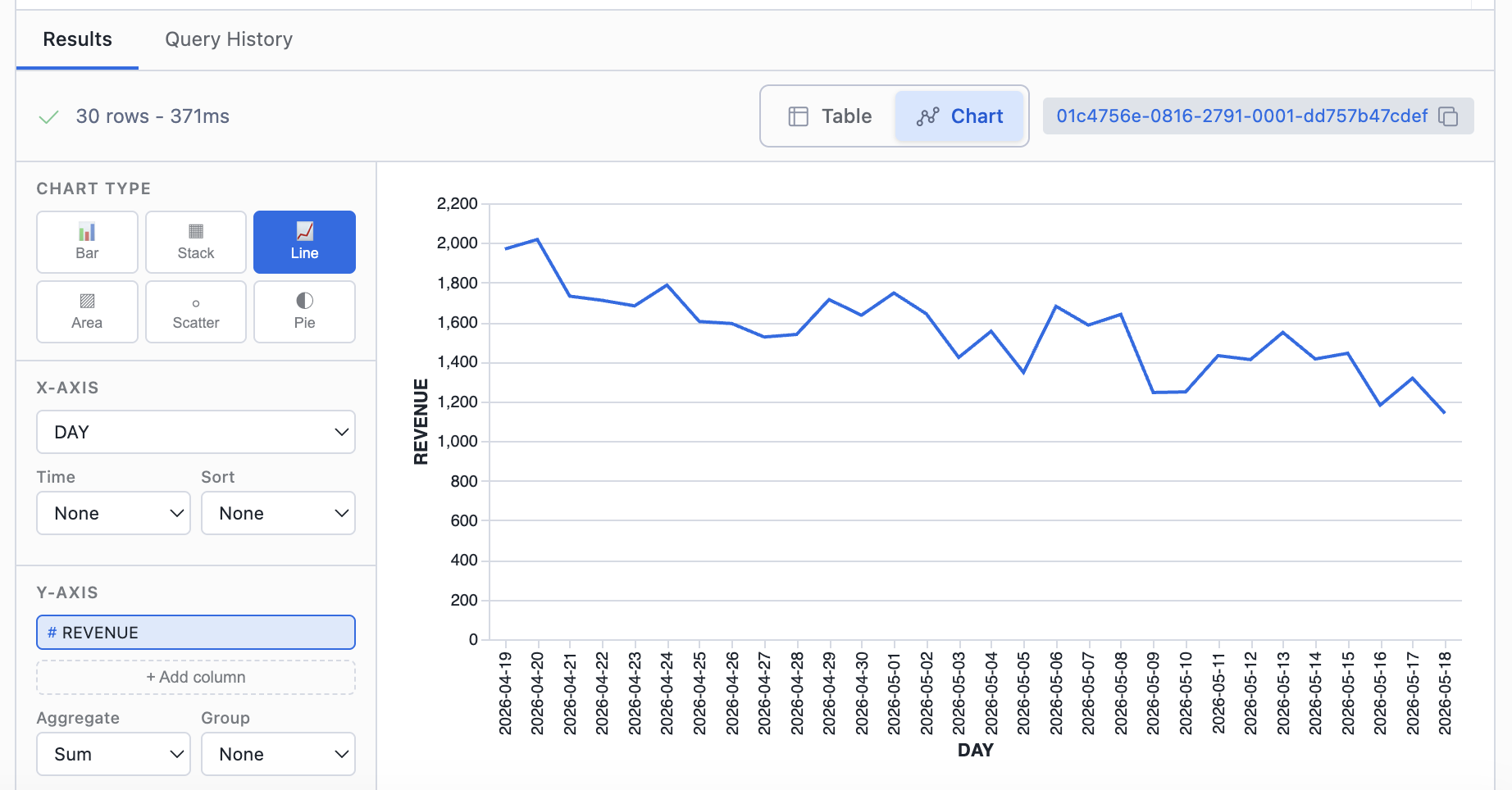
- Switch view modes — once results land, toggle between Table and Chart view from the results-pane controls. Chart view uses the same renderer the agent uses to visualize tool results.
Tip
If a query is taking a long time to return, you can collapse the results pane to keep editing, then reopen it. Cancelling and re-running is safe; the playground does not retain partial results from a cancelled execution.
Query history
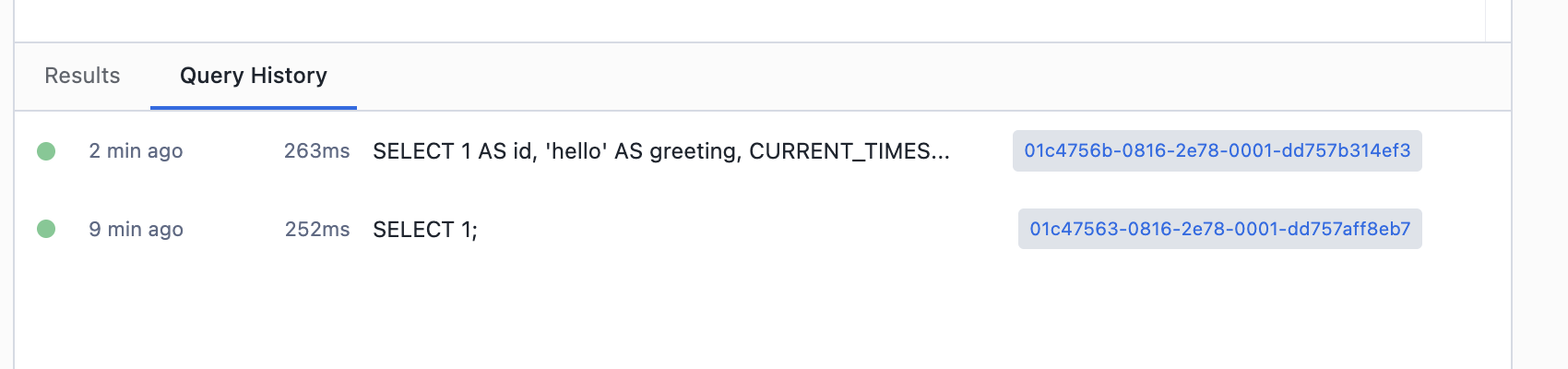
The Query History tab lists previous executions for the current conversation, sourced from the SQL results service. The list refreshes while the panel is visible, so completed queries appear shortly after they finish.
Selecting an entry shows its result in the same renderer used in the Results tab, with the same table/chart view options. This is the easiest way to revisit a query you ran earlier in the conversation without re-executing it.
Persistence
The playground persists your work across sessions in two places:
- Buffer file on disk. Each conversation has its own
.sqlfile under~/.snowflake/cortex/playground/sql/. The file is created the first time you type into the playground for that conversation and is auto-saved on edit. The buffer uses the URI schemesql-playground:internally, but the on-disk file is a regular UTF-8 SQL file you can read or back up with any tool. - Lightweight UI state. Cursor position, the editor/results split ratio, the active tab, and whether the results pane is collapsed are stored under the storage key
agentManager.sqlPlaygroundByConversation. This is keyed by conversation ID, so each chat restores its own layout.
Note
Deleting a conversation in the chat does not delete the on-disk .sql file. If you need
to recover a draft from a removed conversation, look in
~/.snowflake/cortex/playground/sql/ for a file named after the conversation ID.
Open in Editor
Click Open in Editor in the toolbar to move out of the playground and into a regular
editor tab. Cortex Code suggests the filename SQL Playground.sql and opens the buffer with
the full editor experience: source control integration, save-as, multi-cursor, formatters, and so on.
The playground keeps its own copy, so opening in editor does not detach the conversation’s playground buffer; it just gives you a richer editing surface for the same SQL when you need it.
Agent integration
Tools that the agent runs can push SQL into the playground for you. When a tool result includes a SQL statement, an Open in SQL Playground action appears on the result. Clicking it loads the SQL into the playground (creating the panel if it isn’t open yet) and brings the editor into focus.
Settings reference
| Setting / path | Description |
|---|---|
~/.snowflake/cortex/playground/sql/ | Directory containing one auto-saved .sql file per conversation. The filename is derived from the conversation ID. |
agentManager.sqlPlaygroundByConversation | Storage key holding per-conversation UI state: cursor position, editor/results split ratio, active tab, and results-pane collapsed state. |
sql-playground: | URI scheme used for the in-memory editor model backing the playground buffer. |
| Run keybinding | ⌘Enter on macOS, Ctrl+Enter on Windows/Linux. Runs the statement at the cursor. |
Troubleshooting
“No active connection” or queries fail before reaching Snowflake
The playground submits queries using the connection bound to the current chat conversation. Make sure a Snowflake connection is selected for the conversation; if you switched accounts recently, reopen the conversation or set the connection from the chat header before running.
Results pane stays empty after pressing Run
- Confirm your cursor is on a non-empty SQL statement. Run targets the statement at the cursor, so an empty line yields nothing to execute.
- Try Run All from the More Run Options dropdown to execute the entire buffer.
- Check the Query History tab; if the run is recorded there with an error, the message will explain why no results were rendered.
A query is stuck or taking too long
Click the Run button while a query is in flight to cancel it. If the cancel does not return promptly, the query may already be executing on Snowflake; you can also cancel it from Snowsight or another client connected to the same warehouse.
I lost my draft after deleting a conversation
Removing a conversation from the chat does not remove the on-disk buffer. Look for the conversation’s
.sql file under ~/.snowflake/cortex/playground/sql/ and copy the contents into
a new playground or editor.