Cortex AI Function Studio onboarding
This guide walks you through setting up Cortex AI Function Studio in Snowflake using the AI Function Studio skill in Cortex Code CLI and SnowWork. Cortex AI Function Studio lets your team turn optimized AI logic (model, prompt, and evaluation) into reusable, governed SQL functions that you can call from queries and pipelines like any other Snowflake function.
Important
This is a Private Preview feature. It is for development and testing only and is not recommended for production workloads.
Prerequisites
To use Cortex AI Function Studio, you need the following:
Your Snowflake account has Cortex AI Functions enabled and your organization has signed the Preview Terms with Snowflake (your account team will confirm).
A non-production Snowflake account for this preview.
A role with:
SNOWFLAKE.CORTEX_USERdatabase role (for calling Cortex AI Functions).USAGEon a warehouse you will use for evaluation and optimization.On the target schema where functions will live:
CREATE FUNCTION,CREATE PROCEDURE,CREATE STAGE, andCREATE TABLE.
Cortex Code CLI supported on your platform (macOS, Linux, or Windows). See the Cortex Code CLI docs for details.
uv (Python package manager) installed and available on your
PATH. For example, on macOS you can install it withbrew install uv.
Install Cortex AI Function Studio Skill for Cortex Code CLI
Install Cortex Code CLI
Cortex Code CLI is the agentic command-line tool you will use to run the AI Function Studio skill. Open a terminal on your machine and follow the Cortex Code CLI installation guide.
On macOS and Linux, installation typically starts with the following command:
See the doc for Windows and advanced options.
After installation, verify by running:
If this fails, refer to the Installation and Troubleshooting sections in the Cortex Code CLI docs.
Install the Cortex AI Function Studio skill
The AI Function Studio skill is delivered through Cortex Code. Add the skill by running:
If you’ve already added the skill, update it to the latest version:
Start Cortex Code:
(Optional) List skills inside Cortex Code to verify installation by typing /skill. You should see an entry for Cortex AI Function Studio.
Skill discovery and locations are documented under Cortex Code CLI and CLI reference.
Use Cortex AI Function Studio Skill in Cortex Code CLI
Connect to Snowflake
In your terminal, issue the cortex command. The setup wizard walks you through creating or selecting a connection:
To use an existing connection, choose the connection from the list in
~/.snowflake/connections.tomlusing the up and down arrow keys, then press Enter.To create a new connection, choose More options* and provide your account identifier, user, authentication method (for example,
externalbrowser), and default role, warehouse, database, and schema.
Note
The connections.toml file is also used by the Snowflake CLI. If you have already set up a connection for the Snowflake CLI, you can use that connection with Cortex Code CLI.
Once configured, you should be able to run natural-language prompts in Cortex Code (for example, “list my databases”). For more detail, see the “Connect to Snowflake” section of the Cortex Code CLI docs.
Verify Cortex AI Functions access
To confirm your account is ready for Cortex AI Function Studio, run a simple AI_COMPLETE query in a Snowflake worksheet or Cortex Code SQL prompt:
If you get an authorization error:
Confirm your role has the
SNOWFLAKE.CORTEX_USERdatabase role.Confirm the chosen model is allowed in your account (via model RBAC or allowlist).
Work with your Snowflake admin or account team if additional configuration is required.
For reference, see AI Functions and AI_COMPLETE.
Explore the skill and try out pre-built demos
Ask Cortex Code: /cortex-ai-function-studio what can this skill do?
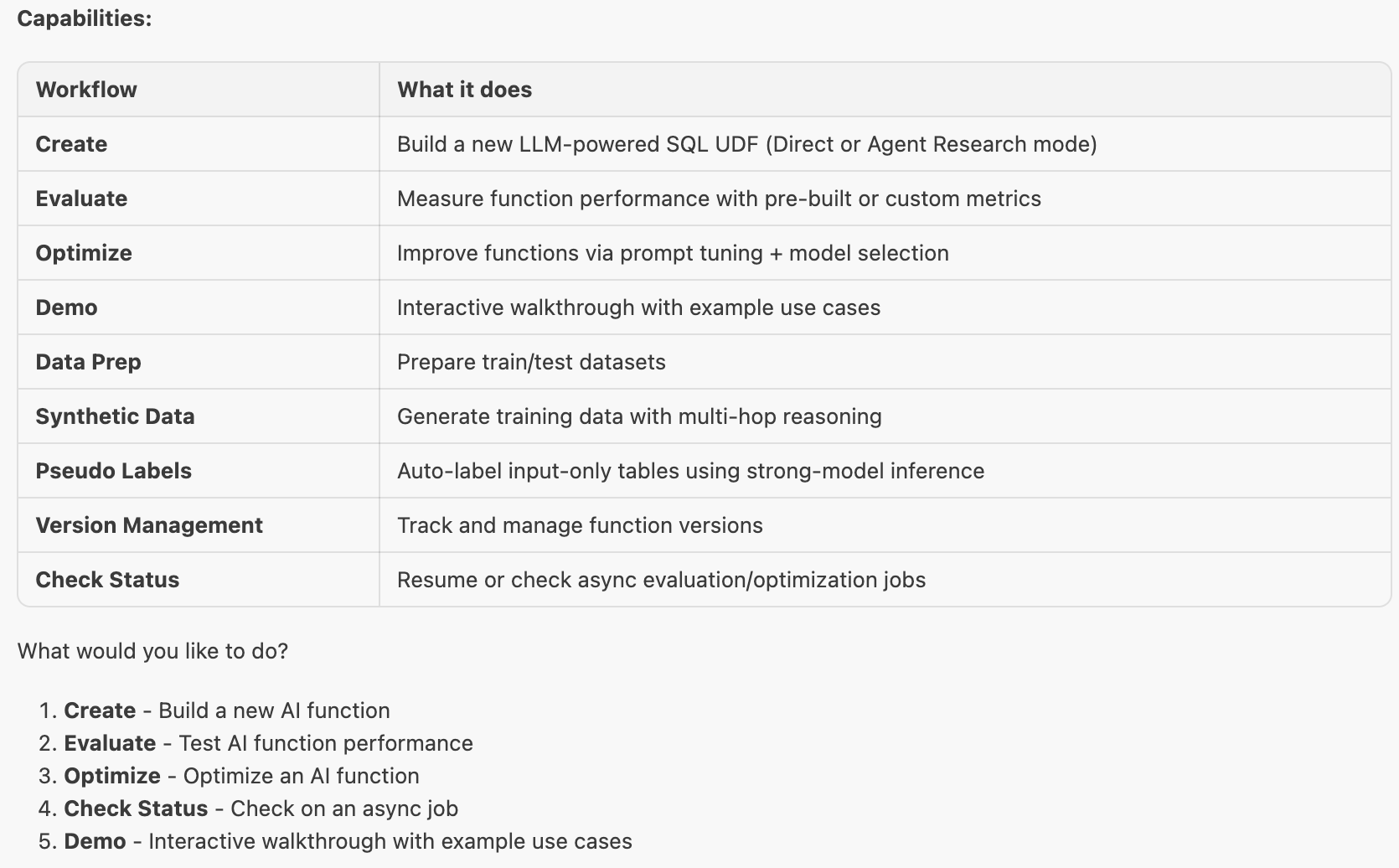
You can choose demo option to try out one of the pre-built demos.
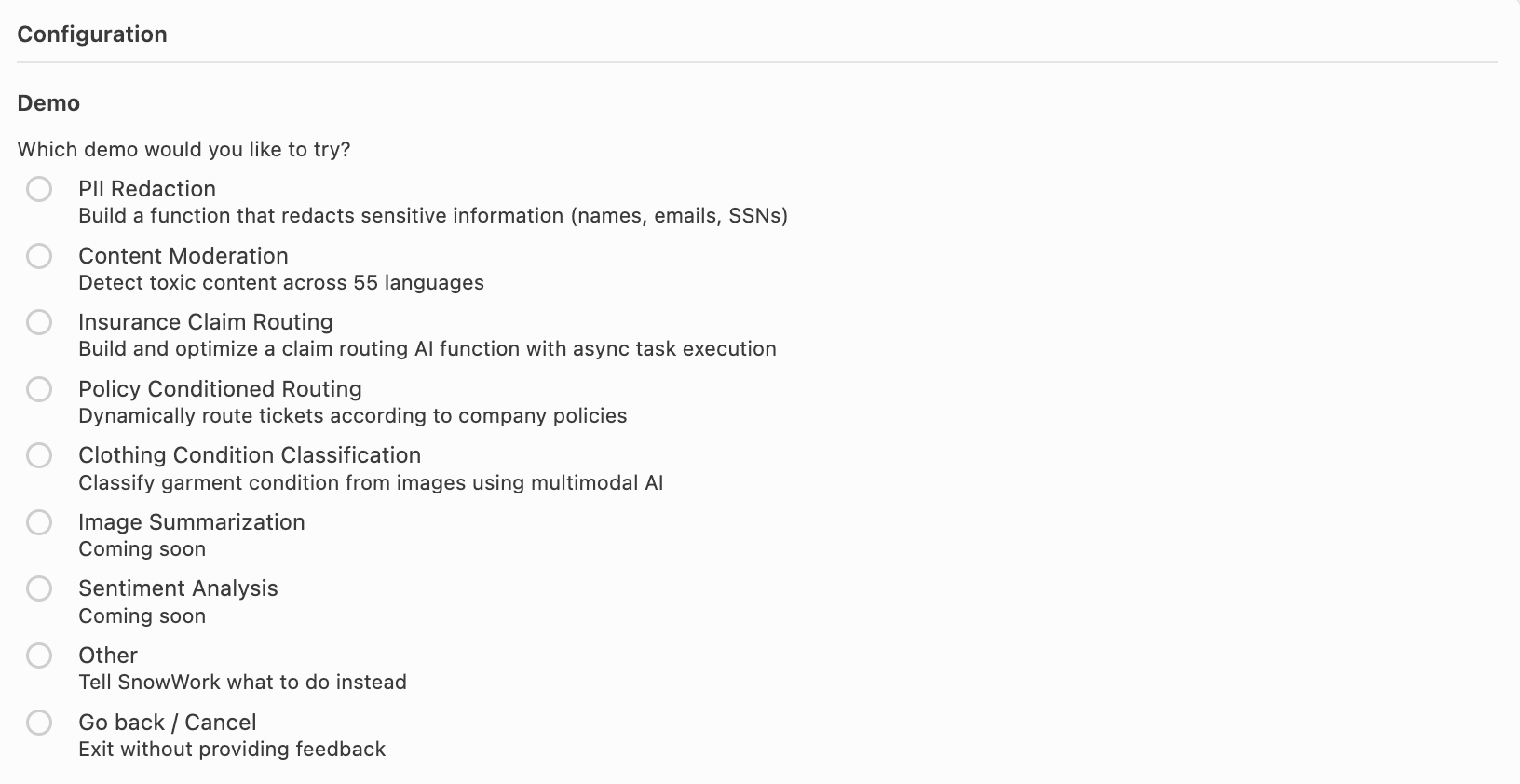
Create your first Cortex AI Function
Once the skill is installed and Cortex Code is connected:
Launch Cortex Code.
Describe your task in natural language. For example:
The skill guides you through:
Choosing input and output columns and types
Writing or refining the system prompt
Selecting one or more models for evaluation
Provide a labeled evaluation dataset.
Point the skill at an existing table or use synthetic data generation to create a new table.
Run evaluation and optimization.
The skill will:
Generate candidate prompts and configurations.
Evaluate them using builtin metrics (for example,
exact match,fuzzy match,contains match,LLM-as-a-judge).Surface cost-quality tradeoffs across models.
Register the Cortex AI Function.
After you choose a winning configuration, the skill registers a Cortex AI Function in your target database and schema.
You can then call it like any other SQL function:
Install Cortex AI Function Studio Skill for SnowWork
SnowWork is in Research Preview. To access it, you need to be a member of the SnowWork Research Preview program. If you are not a member, you can request access by contacting your Snowflake account team.
Once you have access to SnowWork, add the Cortex AI Function Studio skill by click on the SKILL button in the top left corner to open the skill tab and then click + to add a skill from Github Link https://github.com/Snowflake-Labs/cortex-ai-function-studio-skill.
Using the Cortex AI Function Studio skill in SnowWork is similar to using it in Cortex Code.
Cost visibility
Cortex AI Functions are billed according to the underlying models they use.
To monitor and control costs, we recommend:
Using the
SNOWFLAKE.ACCOUNT_USAGE.CORTEX_AI_FUNCTIONS_USAGE_HISTORYview and associated examples:
You can build dashboards and alerts over this view to track spend by function, user, or workload.