自動複製の設定

ここでは、セキュアシェアデータ製品およびアプリケーションパッケージデータ製品のクロスクラウド自動フルフィルメントのセットアップ方法について説明します。また、リストにオブジェクトレベルの自動フルフィルメントをセットする方法についても説明します。

自動複製を設定する前に、データ製品をリストに追加する必要があります。また、自動フルフィルメントのセットアップ手順は、提供するデータ製品やリストの可用性によって異なります。

Snowflake Marketplace で共有される安全な共有データ製品の自動複製の設定

データ製品が、リストを使用して Snowflake Marketplace に公開する安全な共有の場合は、次のステップに従って自動複製を設定します。

  1. Snowsight にサインインします。

  2. ナビゲーションメニューで Data sharing » Provider Studio » Listings を選択します。

  3. 自動複製を設定するリストを選択します。

  4. Region Availability » Edit を選択します。

  5. Region availability については、ご希望の可用性を選択します。

    • デフォルトでは、 All regions が選択されています。これにより、将来Snowflakeによって追加されるリージョンで、あなたのリストの可用性が保証されます。

    • リストに特定のリージョン制限がある場合は、使用可能なリージョンを Custom regions に変更し、データ製品を提供するリージョンを選択します。カスタムリージョンを選択すると、現在のすべての Snowflake Marketplace リージョンでリストが表示されますが、コンシューマーは指定したリージョンでのみデータ製品を取得できます。新しいリージョンでは、自動的にリストは使用可能になりません。

    • 有料リストの場合は、デフォルトで Custom regions が選択されています。有料リストは、 サポートされたリージョン およびSnowflakeにより今後サポートされたリージョンとして追加されるリージョンでのみ利用可能です。

  6. Fulfillment method では、 Automatic 複製がデフォルトの選択となります。クロスクラウドの自動複製を使用すると、データ製品は自動的にリージョンに複製され、そのリージョンでコンシューマーの需要がある場合にのみコストが発生します。

    自動複製を使用できず、オプションを使用できる場合は、 Manual を選択してデータ製品を手動で複製します。リスト・リクエストを満たすためにデータを手動で複製する を参照してください。

  7. 自動複製で Automatic を選択した場合:

    1. ドロップダウンリストから更新間隔を選択し、値を入力します。更新間隔は少なくとも8日間を選択する必要があります。

    2. デフォルトのウェアハウスが設定されていない場合は、自動複製に使用するウェアハウスを選択します。

    3. データ製品をリストに追加すると、Snowflakeは互換性チェックを実行し、データ製品が他のリージョンに自動提供できることを検証します。チェックの結果、互換性がない場合は、データ製品を更新する必要があります。自動複製のトラブルシューティング をご参照ください。

    4. Save and Enable Fulfillment を選択します。

      リストの自動フルフィルメントが有効になりましたが、リストに添付されたデータ製品は、リストが公開され、コンシューマーがデータ製品をリクエストするまで、どのリージョンにも履行されません。自動フルフィルメントの仕組み をご参照ください。

  8. リストを手動で複製することを選択した場合は、 Save を選択します。リストを公開する前に、選択した利用可能な各リージョンにデータを複製する必要があります。リスト・リクエストを満たすためにデータを手動で複製する を参照してください。

Snowflake Marketplace で共有されるアプリケーションパッケージデータ製品の自動複製の設定

データ製品がリスト付きで Snowflake Marketplace に公開するアプリケーションパッケージである場合は、次のステップに従って自動複製を設定します。

  1. Snowsight にサインインします。

  2. ナビゲーションメニューで Data sharing » Provider Studio » Listings を選択します。

  3. 自動複製を設定するリストを選択します。

  4. Region Availability » Edit を選択します。

  5. Region availability については、ご希望の可用性を選択します。

    • デフォルトでは、 All regions が選択されています。すべてのリージョンを選択すると、Snowflakeによって今後追加されるリージョンであなたのリストが利用可能であることを保証します。

    • リストに特定のリージョン制限がある場合は、リージョンの使用可能性を Custom regions に変更し、データ製品を提供したいリージョンを選択します。カスタムリージョンを選択すると、現在のすべての Snowflake Marketplace リージョンでリストが表示されますが、コンシューマーは指定したリージョンでのみデータ製品を取得できます。また、リストは新しいリージョンでも自動的に利用可能になることはありません。

    • 有料リストの場合は、デフォルトで Custom regions が選択されています。有料リストは、 サポートされたリージョン およびSnowflakeにより今後サポートされたリージョンとして追加されるリージョンでのみ利用可能です。

  6. アカウント・レベルで構成された更新間隔を確認します。別のリフレッシュ間隔を使用する必要がある場合は、 アカウントレベルの更新間隔を設定する を参照してください。

  7. デフォルトのウェアハウスが設定されていない場合は、自動複製に使用するウェアハウスを選択します。

  8. Save and Enable Fulfillment を選択します。

    リストの自動フルフィルメントが有効になりましたが、リストに添付されたデータ製品は、リストが公開され、コンシューマーがデータ製品をリクエストするまで、どのリージョンにも履行されません。自動フルフィルメントの仕組み をご参照ください。

オブジェクトレベルの自動複製の設定

自動フルフィルメントを設定して、リストに関連付けられたデータ製品を自動的に他のSnowflakeリージョンに転送することができます。SUB_DATABASE 自動フルフィルメントを使用して、データ製品のテーブルとビューのみを自動フルフィルメントを使用してリモートリージョンにフルフィルメントするように選択することもできます。これにより、自動フルフィルメントデータ製品のコストを削減し、管理負担を軽減することができます。

以下の手順では、リストにオブジェクトレベルの自動フルフィルメントをセットする方法を説明します。一般的なワークフローの一環として、リージョンの可用性をセットアップするとき (Snowflake Marketplace に公開されたリストの場合)、または別のリージョンにいるコンシューマーを追加するとき(非公開で共有されたリストの場合)に、オブジェクトレベルの自動フルフィルメントを設定します。

  1. リストを作成。新規リストの作成 を参照してください。

  2. サポートされているオブジェクトのみを含むデータ製品を追加します。

  3. 共有するリージョンまたはアカウントを設定し、自動フルフィルメントの設定を開始します。

    Snowflake Marketplace に公開されるリストの場合:

    1. Region Availability セクションを見つけて、 Add を選択します。

    2. Region availability の場合、デフォルトの All regions のままにするか、 Custom regions を選択します

    非公開で共有されるリストについては、リモートリージョンのコンシューマーアカウントを追加します。

  4. リモートリージョンのデータ更新間隔を選択します。

  5. リストを公開するか、ドラフトとして保存します。

Set up auto-fulfillment for a listing that spans databases

Providers can create a single listing that spans databases, eliminating the need to create one combined database per listing. In this case, all listings associated with a database are auto-fulfilled together.

Workflow

  1. A provider has a database (main database) that they want to share. They also have views in that database that reference objects in another database (referenced database).

  2. The provider creates a share in the main database.

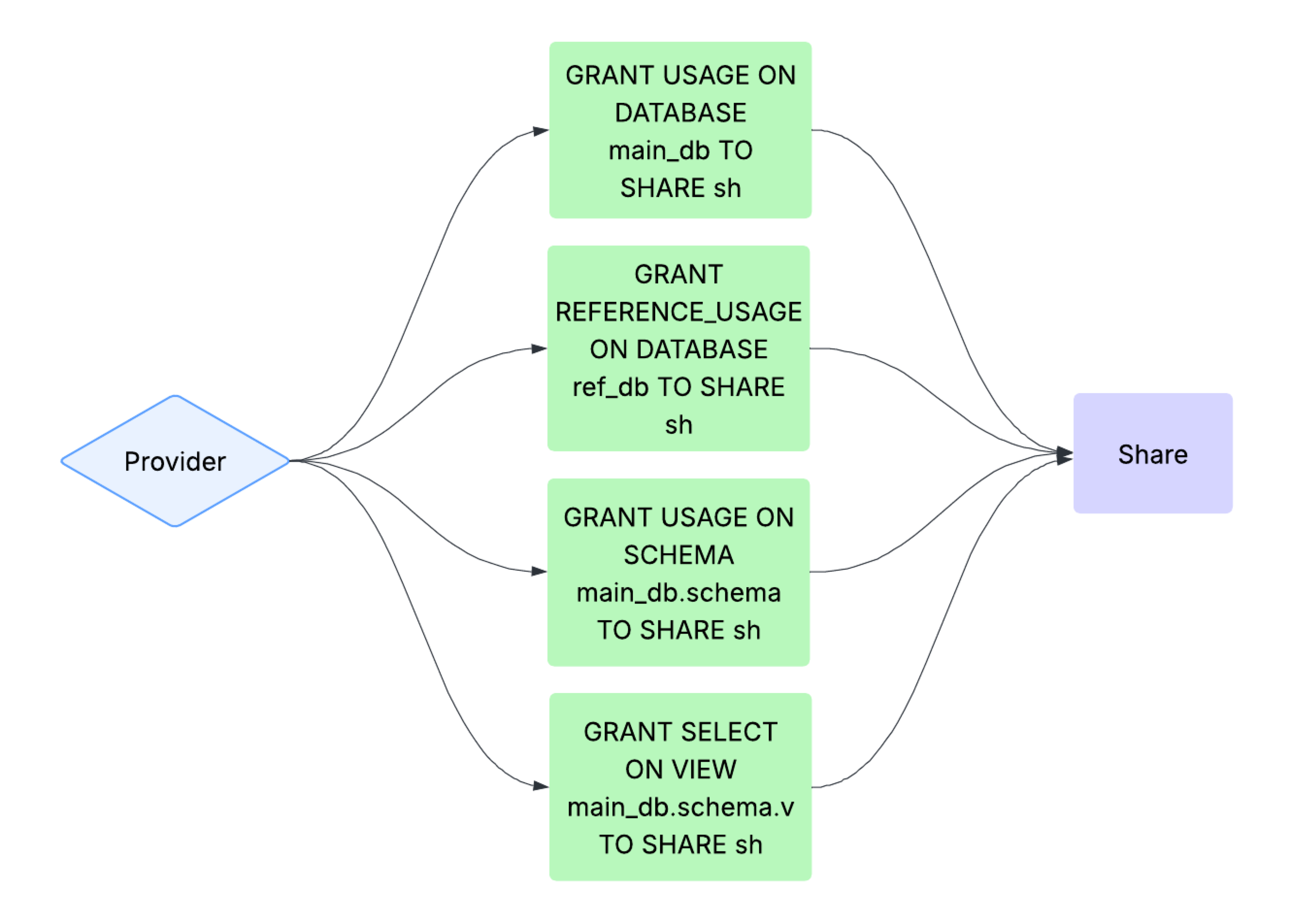
  3. Using GRANT <権限> ... TO SHARE, the provider grants the following required privileges to the share:

    1. The provider grants the USAGE privilege on the main database that contains the view to the share.

    2. The provider grants the REFERENCE_USAGE privilege on the referenced database to the share.

    3. The provider grants the USAGE privilege on the schema that contains the view to the share.

    4. The provider grants the SELECT privilege on the view to the share.

    Diagram showing the privileges granted to a share for a listing that spans databases
  4. The provider creates a listing with the share and enables auto-fulfillment for cross-region cross-cloud consumers.

For more information, see 複数データベースからのデータの共有.

Supported reference types

When REFERENCE_USAGE is granted on a database to a share, the following reference types are supported:

  • A view referencing a table or view in another database.

  • Tables or views with policies when these policies are stored in another database.

  • Tables or views with tags when these tags are stored in another database.

    注釈

    A tag without an attached policy in a different database will only be replicated if reference usage is granted. Otherwise, replication will be skipped. See GRANT <権限> ... TO SHARE for more information. If the tag is used in tag-based masking, then the share is treated as a table or view with row-access policies.

Limitations

Snowflake groups listings together when refreshing the data. Setting up listings that span multiple databases can change the way listings are grouped. As a result, the following might be affected:

  • The listing refresh history can be missing or incorrect after update the auto-fulfillment schedule.

  • Setting the refresh_schedule_override option may be required. When this option is missing, a resulting error message will include the list of listings that were affected by the change in the order that the listings were grouped.

Usage notes

When setting up auto-fulfillment, if the selected and referenced databases include existing listings, then the values in the Data product refresh section default to the existing refresh schedule. As a result, changes to the auto-fulfillment refresh schedule apply to all other listings associated with this database and with the referenced database.

Examples

For examples on how to create a secure view that references objects and other views in one or more databases, see the Share data from multiple databases examples.

After you create a secure view, you can create a listing that includes the secure view and set up auto-fulfillment on the listing. For examples on how to create listings on the Snowflake Marketplace, see Create and publish a listing.