Cortex Agents for Slack
Introduction
Snowflake for Slack brings Cortex Agents into your workspace so teams can ask questions in natural language and get answers from Snowflake data without leaving Slack.
- CoWork — Query structured data through pre-built Cortex Agents. Get tables, charts, and narrative answers in direct messages and channels.
- CoCo (Cortex Code) — Run deeper, multi-step analysis with AI-powered investigation, SQL exploration, and generated reports.
For the per-user setup, each person signs in as their own Snowflake user, and requests run as that user, including that user’s masking and row access policies. In a multiplayer channel, requests instead run as the channel’s bound service user. For more information, see multiplayer channels in Cortex Agents for Slack.
Important
When you use this integration, you are directing Snowflake to send or receive data between the Snowflake Service and Slack. Snowflake is not responsible for the privacy, security, or integrity of data once it leaves the Snowflake Service boundary. Your use of Slack, and any data you process with it, is governed solely by the terms between you and Slack.
AI-generated content
AI can make mistakes. CoWork and CoCo are powered by large language models (LLMs). AI-generated responses — including text, SQL, tables, charts, and generated reports — may be inaccurate, incomplete, inappropriate, or biased. Review and verify outputs before relying on them, and apply human oversight to any decisions based on them.
For more information, see the Legal notices at the bottom of this page.
Install
Before you install, make sure that you have the following:
- A Snowflake account that is enabled for this preview. To request access, contact your Snowflake account team.
- A role with the
CREATE INTEGRATIONprivilege. The ACCOUNTADMIN role has this privilege by default. - Permission to add apps to your Slack workspace. If your workspace restricts app installation, a Slack workspace administrator must approve the request before the app is available.
- A default Cortex Code (CoCo) settings agent configured for the account. Before you change account-level settings for
the Slack integration, create the
CORTEX_CODE.CONFIG.DEFAULTagent. For instructions, see Configure default model settings.
Important
Snowsight is the only supported way to install the app. The Snowsight flow is what links your Slack workspace to your Snowflake account, so don’t start the installation from Slack. If you install the app from Slack, it isn’t connected to your Snowflake account.
To install the app from Snowsight, do the following:
- Sign in to Snowsight.
- Select Settings » Account » Agent settings » Integrations.
- On the Snowflake AI for Slack tile, select Connect to Slack Workspace. Slack opens an authorization window.
- In the authorization window, confirm the Slack workspace that is selected in the dropdown at the upper right, then select Allow.
Important
If you belong to more than one Slack workspace, the authorization window might preselect a workspace other than the one you want. Check the workspace in the dropdown before you select Allow. If you authorize the wrong workspace, repeat the installation and select the correct workspace.
After you install
The integration owner grants the USAGE privilege on the integration to each role that needs access to the app:
Until a user’s role has this privilege, that user can’t use the app from Slack.
Each user then does the following:
- Open a direct message with Snowflake in Slack.
- Select Authenticate with Snowflake and sign in to your Snowflake account.
- Ask a question in plain language, or
@mentionthe app in a channel to ask a question there.
How it works in Slack
The following sections describe the main workflows after installation, with screenshots for each.
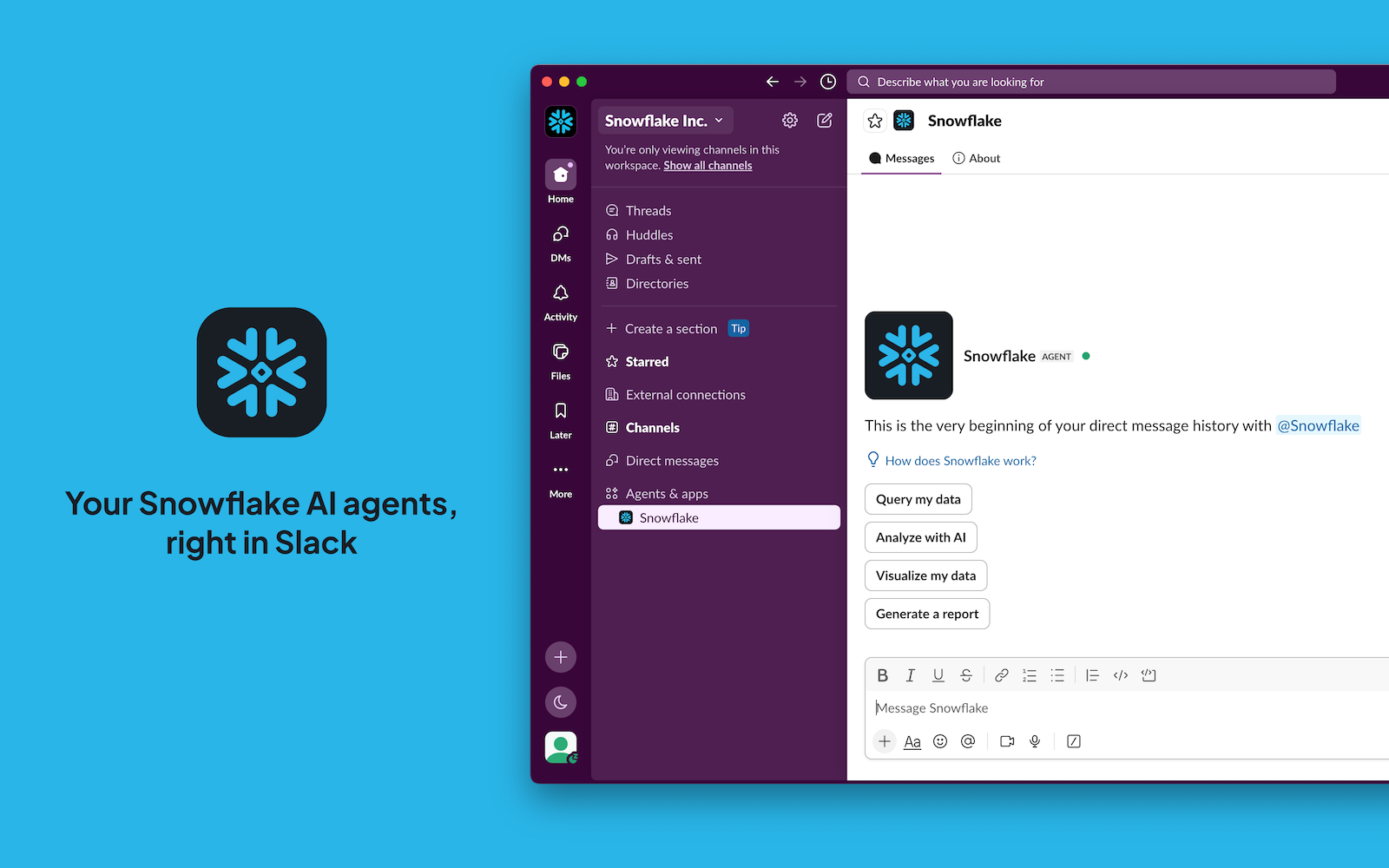
Ask CoCo in a direct message
Ask questions in a DM to run CoCo (Cortex Code) for deeper analysis, including charts and multi-step reasoning over your Snowflake data.
Each message that you send in the DM starts its own conversation. To continue a line of questioning, reply in the thread that the app creates under your message rather than sending a new message in the DM.
Because CoCo can run tools on your behalf, it asks for your approval before it takes an action such as running a shell command. Approve the individual action, or choose to allow that tool for the rest of the session.
Use CoWork in a channel
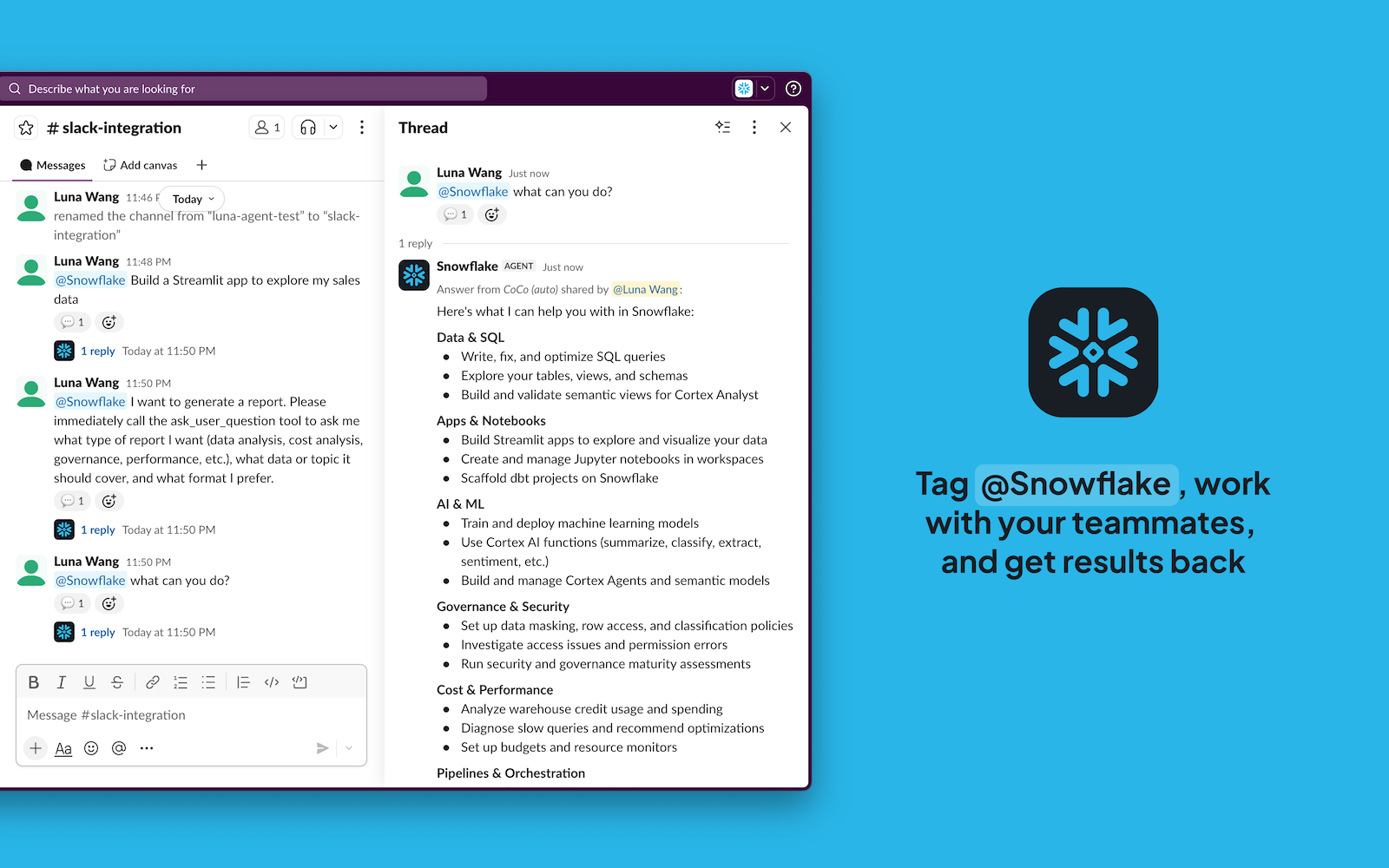
@mention the app in a channel or thread to run CoWork Cortex Agents against your Snowflake data.
The answer is visible only to you, so an @mention in a busy channel doesn’t post results to everyone. To make an
answer visible to the channel, select Share in thread. You can also select the option to continue the conversation
in a DM with the app, which moves your follow-up questions out of the channel.
Manage settings
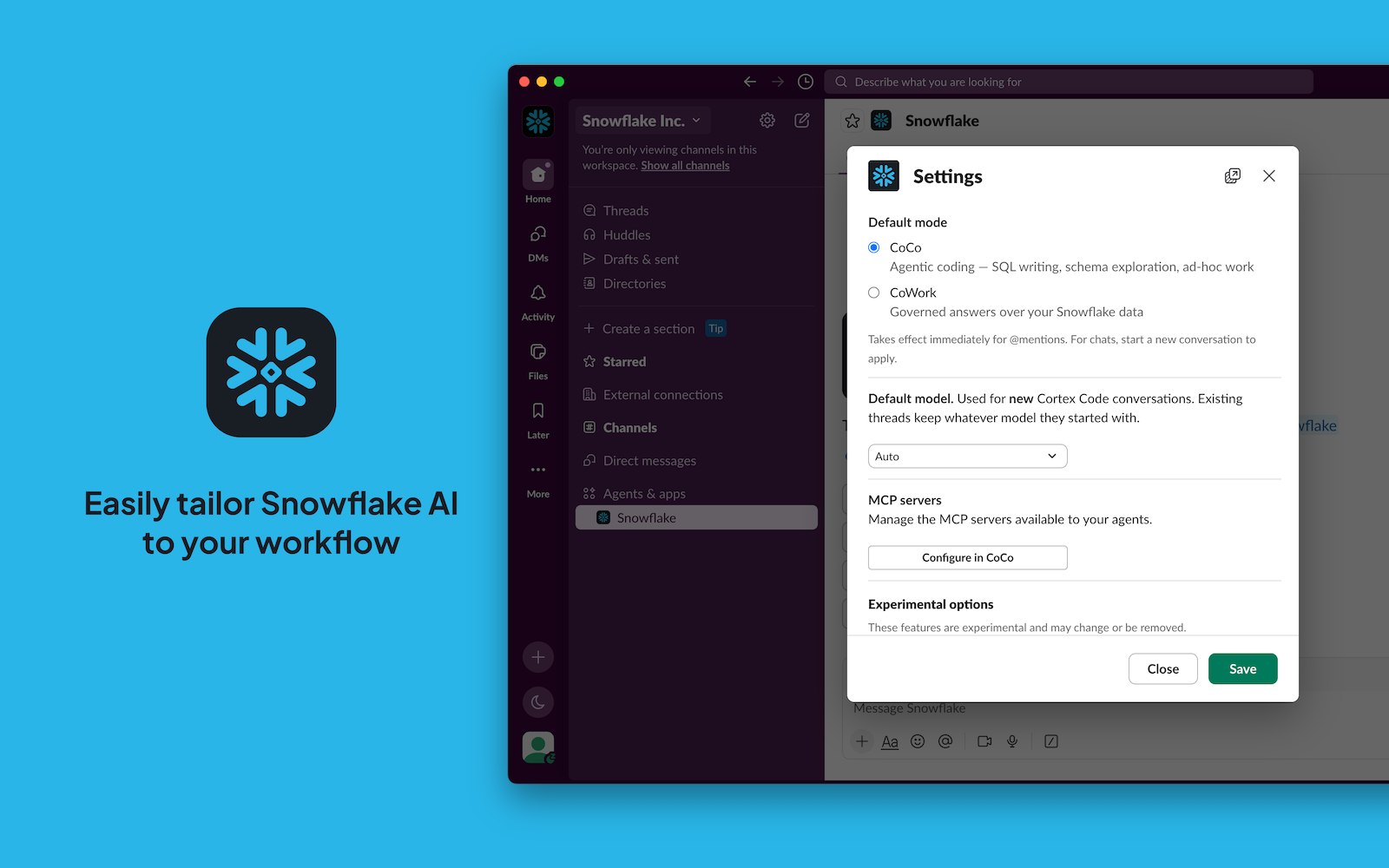
To open settings, send a DM to the app, then select the overflow menu (…) on any of its answers and select Settings. In settings, you can choose your default run mode (CoCo or CoWork), manage connected Snowflake accounts, and adjust preferences.
Multiplayer channels
An administrator can bind a Slack channel to a Snowflake service user and a CoCo agent, so that every member of the
channel can @mention the app without being a Snowflake user in your account. For more information, see
multiplayer channels in Cortex Agents for Slack.
Limitations
During the preview, the integration has the following limitations:
- No outbound internet access. CoCo runs in a sandbox that can’t reach the public internet, so it can’t clone an external repository or fetch a page or package from the web. To give CoCo code or other files to work with, upload them to your Snowflake workspace, or paste the contents into your message.
- Answers in channels are per-user. When you
@mentionthe app in a channel, only you see the answer until you select Share in thread. A thread doesn’t yet act as a shared session where every member can continue the same conversation. - One Snowflake account per Slack workspace. A Slack workspace can connect to only one Snowflake account.
Troubleshooting
Settings fail to save
When you save account-level Slack settings in Snowsight, the save can fail. Snowsight reports that it could not save the settings. This happens when the account doesn’t have a default Cortex Code (CoCo) settings agent.
Before you change those settings, create the CORTEX_CODE.CONFIG.DEFAULT agent, then try again. For instructions, see
Configure default model settings.
Support and privacy
- Support: Snowflake Support
- Privacy policy: Snowflake Privacy Policy
For questions about this integration, contact your Snowflake account team or Snowflake Support.
Related documentation
Legal notices
Where your configuration of Cortex Code uses a model provided on the Model and Service Pass-Through Terms, your use of that model is further subject to the terms for that model on that page.
The data classification of inputs and outputs are as set forth in the following table.
| Input data classification | Output data classification | Designation |
|---|---|---|
| Usage Data | Customer Data | Covered AI Features [1] |
For additional information, refer to Snowflake AI and ML.