Agentic Notebook in Cortex Code Desktop
The Cortex Code Desktop agent can work with Jupyter notebooks (.ipynb files)
directly from chat. Ask the agent in plain English and it will write code, run cells, read
the results, and iterate — the same way you would, but without leaving the chat panel.
Use the Agentic Notebook workflow when you want the agent to perform multi-step data exploration or model development — for example: load a Snowflake table into a DataFrame, profile its schema, plot a chart, then refine the code based on what the kernel returns.
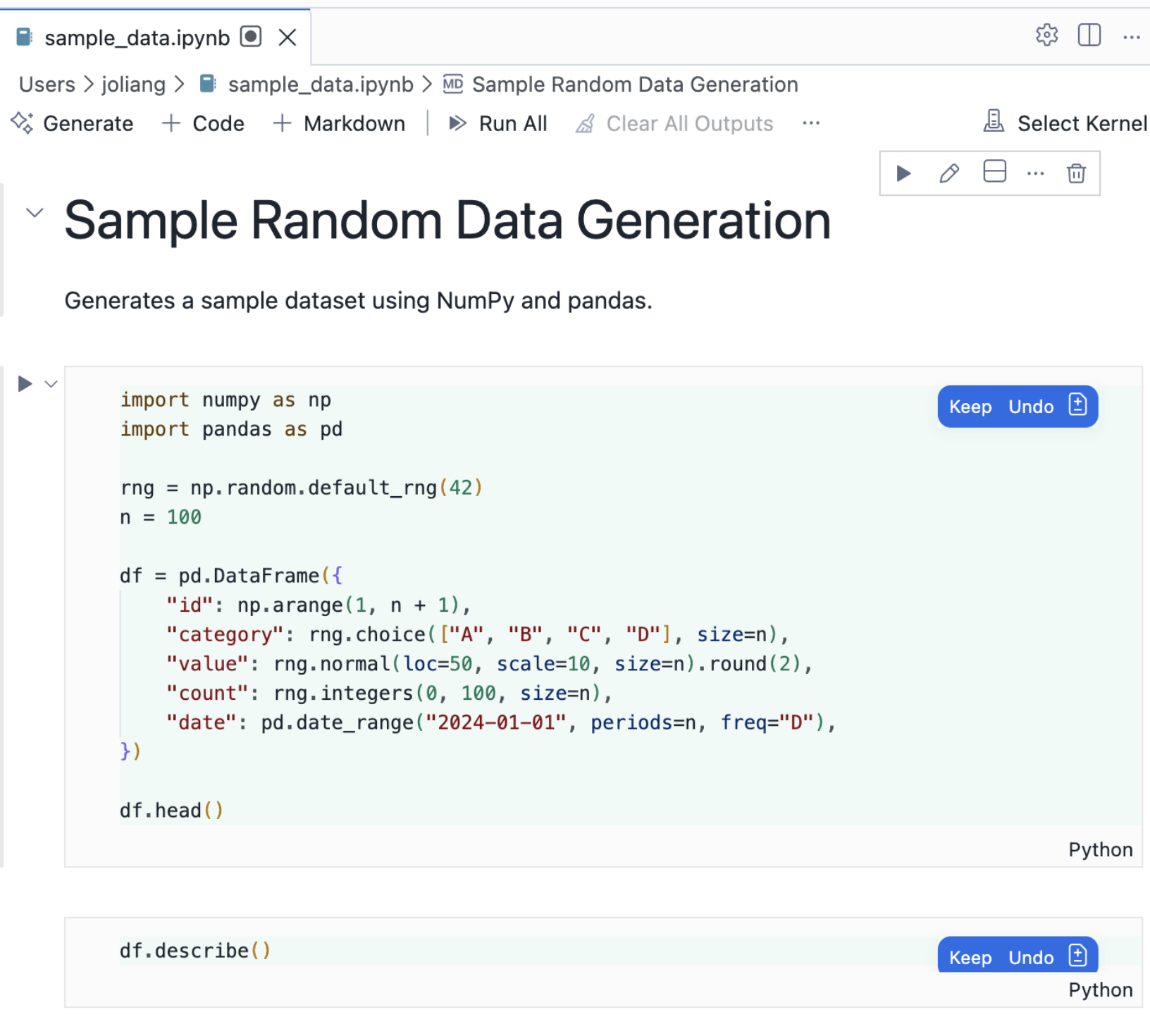
Agent-authored cells appear inline with Keep / Undo controls so you can review each edit before accepting.
Note
Notebook support is built in — there’s nothing to install or enable. The agent works with the notebook you have open and the kernel attached to it.
Prerequisites
- Cortex Code Desktop installed and signed in.
- A Jupyter kernel available on your machine (for example, the bundled Python environment, a conda environment, or a remote Jupyter server).
- An open
.ipynbfile in the workspace, or permission for the agent to create one.
How the agent works with your notebook
When you ask the agent to do something in a notebook, it walks through the same steps a person would: it confirms the kernel is ready, writes or edits cells, runs them, and reads the output before deciding what to do next. Every change shows up inline so you can review it.
At a high level, the agent can:
- Author and edit cells. The agent adds new code or markdown cells, edits existing ones, or removes cells when they’re no longer needed.
- Run code in your kernel. The agent runs a single cell, a range of cells, or the whole notebook against the kernel you’ve selected. If no kernel is attached, the agent opens the kernel picker so you can choose one.
- Read results. After execution, the agent reads cell outputs — printed values, DataFrames, charts, and any errors — and uses them to plan the next step.
- Inspect data. The agent can list the variables in your kernel, peek at a DataFrame’s schema or sample rows, or evaluate a quick expression without leaving a cell behind.
- Manage the kernel. The agent can interrupt a stuck cell or restart the kernel when state needs to be cleared, prompting you first when appropriate.
Throughout, you stay in control: every cell the agent proposes appears with Keep and Undo buttons so you can accept, reject, or tweak the change before it sticks.
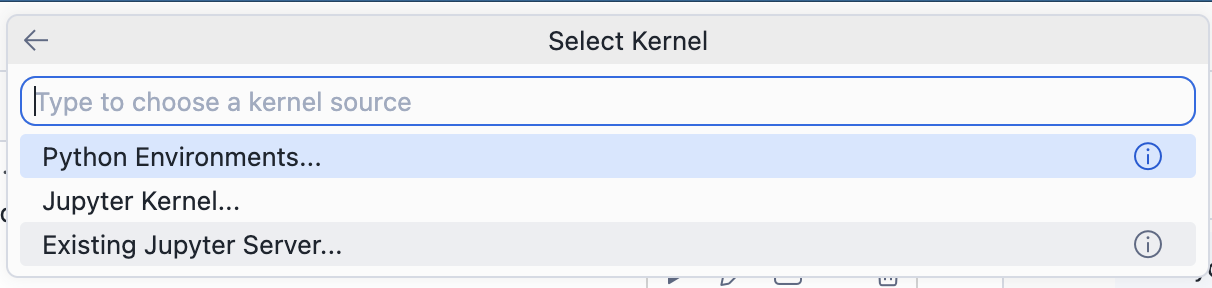
If no kernel is attached, the agent opens the Select Kernel picker so you can choose one.
Example workflows
Generating and running code
Ask the agent to write a piece of analysis (“Generate a sample DataFrame with 100 rows” or
“Plot monthly revenue from SALES”). The agent drafts the cells, you click
Keep, and the agent runs them and reports back with the output.
Exploring a DataFrame
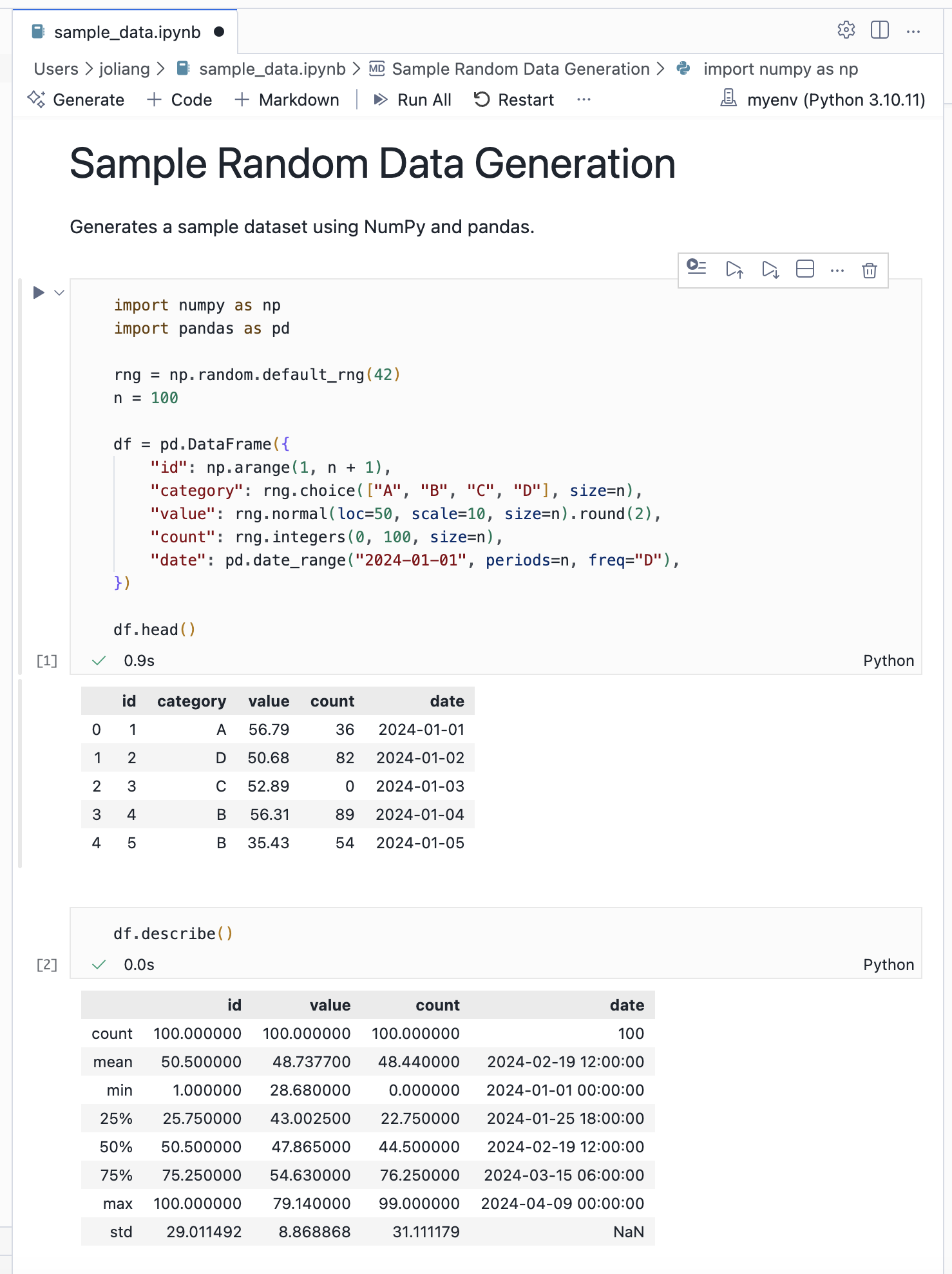
When you ask “What does this dataset look like?” the agent inspects the DataFrames already in the kernel, retrieves their schema and a sample of rows, and summarizes findings before writing follow-up analysis code.
Tips
- Review cells before keeping them. Use the inline Keep / Undo controls to accept or reject each agent-authored cell. You can edit a cell first and then keep it.
- Pick a kernel that has your packages. If the agent’s code fails on missing imports, switch kernels via Select Kernel in the notebook toolbar.
- Restart when state gets confused. If results stop making sense after many iterations, ask the agent to restart the kernel and re-run from the top.
- Be specific about the data. Mention table names, column names, or DataFrame variable names in your prompt so the agent doesn’t have to guess.
Troubleshooting
“No kernel attached” when running a cell
The notebook needs a kernel before any code can run. Click Select Kernel in the notebook toolbar (or let the agent open the picker for you) and choose a Python environment, a local Jupyter kernel, or an existing Jupyter server.
Cell appears stuck
Long-running code can keep the kernel busy. Ask the agent to interrupt the cell, or use the Restart action in the notebook toolbar to clear state and start over.
DataFrame inspection returns an error
The DataFrame inspection features support pandas, polars, PySpark, and Snowpark DataFrames. If you’re working with a different library, ask the agent to inspect it as a generic variable instead.
The agent’s edit didn’t apply
This usually happens if the cell content changed since the agent last read it. Ask the agent to re-read the cell and try again.