Configure an external volume for Amazon S3
Grant Snowflake restricted access to your Amazon S3 bucket using an external volume for Apache Iceberg™ tables in Snowflake. To configure an external volume for Amazon S3, you can use SQL or use Snowsight.
As a best practice, create a designated IAM policy that grants Snowflake access to your S3 location. You can then attach the policy to a role, and use the security credentials generated by AWS for that role to access the files.
Note
To harden your security posture, you can configure an external volume to use private connectivity rather than the public Internet for network traffic. For more information, see Private connectivity to external volumes for Amazon Web Services.
Prerequisites
Before you configure an external volume, you need the following:
-
An S3 storage bucket.
- To use the external volume for externally managed Iceberg tables, all of your table data and metadata files must be located in a bucket that hosts your Snowflake account.
-
Snowflake can’t support external volumes with S3 bucket names that contain dots (for example,
my.s3.bucket). S3 doesn’t support SSL for virtual-hosted-style buckets with dots in the name, and Snowflake uses virtual-host-style paths and HTTPS to access data in S3. -
To support data recovery, enable versioning for your external cloud storage location.
-
Permissions in AWS to create and manage IAM policies and roles. If you aren’t an AWS administrator, ask your AWS administrator to perform these tasks.
Configure an external volume by using SQL
Step 1: Create an IAM policy that grants access to your S3 location
To configure access permissions for Snowflake in the AWS Management Console, do the following:
-
Log in to the AWS Management Console.
-
From the home dashboard, search for and select IAM.
-
From the left-hand navigation pane, select Account settings.
-
Under Security Token Service (STS) in the Endpoints list, find the Snowflake region where your account is located. If the STS status is inactive, move the toggle to Active.
-
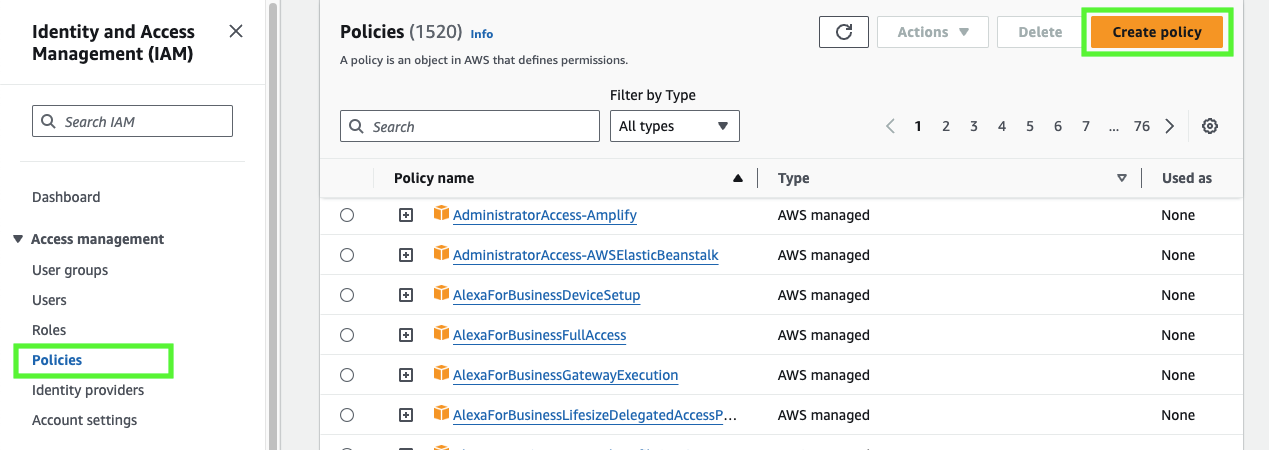
From the left-hand navigation pane, select Policies.
-
Select Create Policy.
-
For Policy editor, select JSON.
-
Add a policy to provide Snowflake with the required permissions to read and write data to your S3 location.
The following example policy grants access to all locations in the specified bucket.
Note
- Replace
my_bucketwith your actual bucket name. You can also specify a path in the bucket; for example,my_bucket/path. - Setting the
"s3:prefix":condition to["*"]grants access to all prefixes in the specified bucket; setting it to["path/*"]grants access to a specified path in the bucket. - For buckets in government regions, the bucket ARNs use the
arn:aws-us-gov:s3:::prefix. -
If you’re using an S3 access point, specify the access point ARN instead of a bucket ARN. For more information, see Configuring IAM policies for using access points.
- Replace
-
Select Next.
-
Enter a Policy name (for example,
snowflake_access) and an optional Description. -
Select Create policy.
Note
For Iceberg tables created from Delta table files, often called Delta Direct, omit write actions (such as s3:PutObject and the object delete actions) from the IAM policy while keeping list and read actions. For the full comparison with write access on Amazon S3, Google Cloud Storage, and Microsoft Azure, see Read-only vs write access for Delta Direct on each storage provider.
Step 2: Create an IAM role
Create an AWS IAM role to grant privileges on the S3 bucket containing your data files.
-
From the left-hand navigation pane in the Identity and Access Management (IAM) Dashboard, select Roles.
-
Select Create role.
-
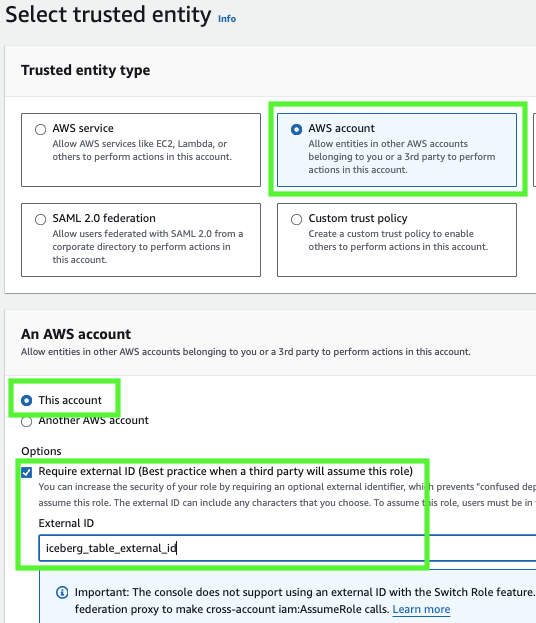
For the trusted entity type, select AWS account.
-
Under An AWS account, select This account. In a later step, you modify the trust relationship and grant access to Snowflake.
-
Select the Require external ID option. Enter an external ID of your choice. For example,
iceberg_table_external_id.An external ID is used to grant access to your AWS resources (such as S3 buckets) to a third party like Snowflake.
-
Select Next.
-
Select the policy that you created for the external volume, then select Next.
-
Enter a Role name and description for the role, then select Create role.
You have now created an IAM policy for an S3 location, created an IAM role, and attached the policy to the role.
-
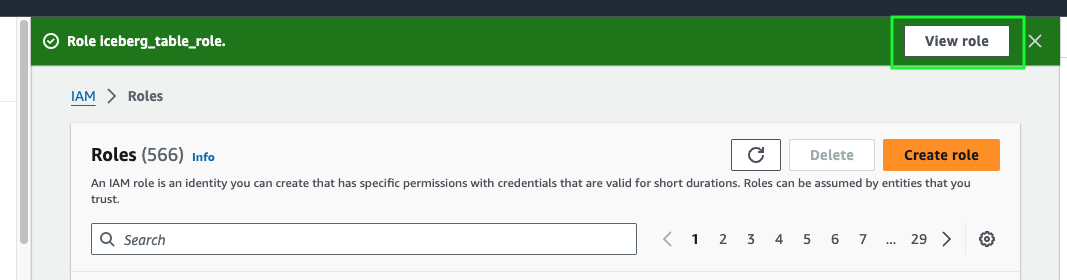
Select View role to view the role summary page. Locate and record the ARN (Amazon Resource Name) value for the role.
Step 3: Grant privileges required for SSE-KMS encryption to the IAM role (optional)
If you want to upload an object encrypted with an AWS KMS key to Amazon S3,
the IAM role that you created for your external volume needs kms:GenerateDataKey permissions on the key.
To download an object encrypted with an AWS KMS key, the IAM role needs kms:Decrypt permissions on the key.
If you want to use a KMS key for your server-side encryption, follow these steps to create a key and reference it.
-
In the AWS Management Console, go to the Key Management Service (KMS). From the left navigation, select Customer managed keys, and then select Create key. You must create a key in the same region as your bucket.
-
Create a Symmetric key type. For the key usage, select Encrypt and decrypt. Select Next.
-
For Alias, enter a name for the key and select Next.
-
If needed, select an administrator for the key and select Next.
-
For Define key usage permissions, select your IAM role, then select Next.
-
Review the key configuration details, then select Finish to create the key.
-
Find the key in the list of customer managed keys, select it, and record its ARN. The following is an example of an ARN for a key:
arn:aws:kms:us-west-2:111111122222:key/1a1a11aa-aa1a-aaa1a-a1a1-000000000000.When you create your external volume, set the
KMS_KEY_IDvalue to the ARN of your key.
Step 4: Create an external volume in Snowflake
Create an external volume using the CREATE EXTERNAL VOLUME command.
The following example creates an external volume named iceberg_external_volume
that defines a single Amazon S3 storage location with encryption.
The example specifies the
external ID (iceberg_table_external_id) associated with the IAM role that you created for the external volume.
Specifying an external ID lets you use the same IAM role (and external ID) across multiple external volumes.
Note
Specify ARNs exactly as provided by AWS. ARNs are case-sensitive.
Step 5: Retrieve the AWS IAM user for your Snowflake account
-
Retrieve the ARN for the AWS IAM user that was created automatically for your Snowflake account using the DESCRIBE EXTERNAL VOLUME command. Specify the name of your external volume.
The following example describes an external volume named
iceberg_external_volume. -
Record the value for the
STORAGE_AWS_IAM_USER_ARNproperty, which is the AWS IAM user created for your Snowflake account; for example,arn:aws:iam::123456789001:user/abc1-b-self1234.Snowflake provisions a single IAM user for your entire Snowflake account. All S3 external volumes in your account use that IAM user.
Note
If you didn’t specify an external ID (
STORAGE_AWS_EXTERNAL_ID) when you created an external volume, Snowflake generates an ID for you to use. Record the value so that you can update your IAM role trust policy with the generated external ID.
Step 6: Grant the IAM user permissions to access bucket objects
In this step, you configure permissions that allow the IAM user for your Snowflake account to access objects in your S3 bucket.
-
Log in to the AWS Management Console.
-
From the home dashboard, search for and select IAM.
-
From the left-hand navigation pane, select Roles.
-
Select the IAM role that you created for your external volume.
-
Select the Trust relationships tab.
-
Select Edit trust policy.
-
Modify the policy document with the DESC EXTERNAL VOLUME output values that you recorded.
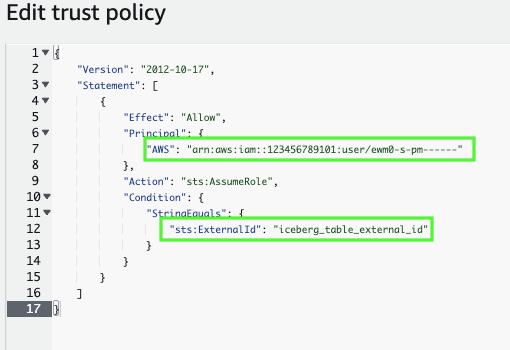
Policy document for IAM role
Where:
snowflake_user_arnis the STORAGE_AWS_IAM_USER_ARN value you recorded.iceberg_table_external_idis your external ID. If you already specified an external ID when you created the role, and used the same ID to create your external volume, leave the value as-is. Otherwise, updatests:ExternalIdwith the value that you recorded.
Note
You must update this policy document if you create a new external volume (or recreate an existing external volume using the CREATE OR REPLACE EXTERNAL VOLUME syntax) and don’t provide your own external ID. For security reasons, a new or recreated external volume has a different external ID and cannot resolve the trust relationship unless you update this trust policy.
-
Select Update policy to save your changes.
Step 7: Verify storage access
To check that Snowflake can successfully authenticate to your storage provider, call the SYSTEM$VERIFY_EXTERNAL_VOLUME function.
Note
If you receive the following error, your account administrator must activate AWS STS in the Snowflake deployment region. For instructions, see Manage AWS STS in an AWS Region in the AWS documentation.
Configure an external volume in Snowsight
Step 1: Create an IAM policy that grants access to your S3 location
To configure access permissions for Snowflake in the AWS Management Console, do the following:
-
Log in to the AWS Management Console.
-
From the home dashboard, search for and select IAM.
-
From the left-hand navigation pane, select Account settings.
-
Under Security Token Service (STS) in the Endpoints list, find the Snowflake region where your account is located. If the STS status is inactive, move the toggle to Active.
-
From the left-hand navigation pane, select Policies.
-
Select Create Policy.
-
For Policy editor, select JSON.
-
Add a policy to provide Snowflake with the required permissions to read and write data to your S3 location.
The following example policy grants access to all locations in the specified bucket.
Note
- Replace
my_bucketwith your actual bucket name. You can also specify a path in the bucket; for example,my_bucket/path. - Setting the
"s3:prefix":condition to["*"]grants access to all prefixes in the specified bucket; setting it to["path/*"]grants access to a specified path in the bucket. - For buckets in government regions, the bucket ARNs use the
arn:aws-us-gov:s3:::prefix. -
If you’re using an S3 access point, specify the access point ARN instead of a bucket ARN. For more information, see Configuring IAM policies for using access points.
- Replace
-
Select Next.
-
Enter a Policy name (for example,
snowflake_access) and an optional Description. -
Select Create policy.
Step 2: Create an IAM role
Create an AWS IAM role to grant privileges on the S3 bucket containing your data files.
-
From the left-hand navigation pane in the Identity and Access Management (IAM) Dashboard, select Roles.
-
Select Create role.
-
For the trusted entity type, select AWS account.
-
Under An AWS account, select This account. In a later step, you modify the trust relationship and grant access to Snowflake.
-
Select the Require external ID option. Enter an external ID of your choice. For example,
iceberg_table_external_id.An external ID is used to grant access to your AWS resources (such as S3 buckets) to a third party like Snowflake.
-
Select Next.
-
Select the policy that you created for the external volume, then select Next.
-
Enter a Role name and description for the role, then select Create role.
You have now created an IAM policy for an S3 location, created an IAM role, and attached the policy to the role.
-
Select View role to view the role summary page. Locate and record the ARN (Amazon Resource Name) value for the role.
Step 3: Create an external volume in Snowsight
To create an external volume in Snowflake by using Snowsight, follow these steps:
Sign in to Snowsight.
In the lower-left corner, select your name » Switch role, and then select ACCOUNTADMIN or a role that has the CREATE EXTERNAL VOLUME privilege.
For more information, see Switch your primary role.
In the navigation menu, select Catalog » External data.
Select the External volumes tab.
Select + Create.
Select AWS S3 and then select Next.
Note
You already configured your cloud provider earlier when you created an IAM policy that grants access to your S3 location and created an IAM role.
In the Grant storage access page, from the Trust policy field, copy the trust policy into a text editor.
In the next step, you paste this trust policy into AWS.
To grant storage access, follow these steps:
- In AWS, log in to the AWS Management Console.
- From the home dashboard, search for and select IAM.
- From the left-hand navigation pane, select Roles.
- Select the IAM role that you created for your external volume.
- Select the Trust relationships tab.
- Select Edit trust policy.
- Replace the trust policy for your IAM role with the policy that you copied in Snowsight.
- Select Update policy to save your changes.
- In Snowsight, select Next.
In Snowsight, select Next.
To configure your external volume, from the Configure external volume page, complete the fields:
Field Description External volume name Enter a name for your external volume. Region type Specifies the cloud storage provider that stores your data files.
- Standard (default): S3 storage in public AWS regions outside of China.
- Government (GovCloud): S3 storage in AWS government regions.
S3 role ARN Specifies the case-sensitive Amazon Resource Name (ARN) of the AWS identity and access management (IAM) role that grants privileges on the S3 bucket containing your data files.
You recorded this value when you created an IAM role.
Encryption (optional) Specifies the encryption type used. Possible values are:
- None (default): No encryption.
- SSE-S3: Server-side encryption using S3-managed encryption keys. For more information, see Using server-side encryption with Amazon S3-managed encryption keys (SSE-S3).
- SSE-KMS (enter key): Server-side encryption using keys stored in KMS. For more information, see Using server-side encryption with AWS Key Management Service (SSE-KMS).
Scope Choose where this external volume should become the default location for future Iceberg tables. Possible values are:
- Do not set a default: Don’t set the external volume as a default anywhere.
- Account: Set the external volume as the default for Iceberg tables that are created under the entire account.
- Specific database: Set the external volume as the default for Iceberg tables that are created under the database you specify. To specify this database, use the Database drop-down that appears when you select Specific database.
- Specific schema: Set the external volume as the default for Iceberg tables that are created under the schema you specify. To specify this schema, use the Database drop-down that appears to first select the parent database of the schema and then select the schema.
Comment (optional) Specifies a comment for the external volume. Connectivity Specifies whether to use outbound private connectivity to harden your security posture. For information about using this parameter, see Private connectivity to external volumes for Amazon Web Services. Possible values are:
- Public (default): Use the public internet.
- Private (AWS PrivateLink): Use outbound private connectivity.
Storage base URL Specifies the base URL for your cloud storage location. Access scope Specifies whether write operations are allowed for the external volume; must be set to Allow writes for the following tables:
- Iceberg tables that use Snowflake as the catalog.
- Iceberg tables that use an external catalog and are writable. Externally managed Iceberg tables are writable when you access them through a catalog-linked database that has the ALLOWED_WRITE_OPERATIONS parameter set to TRUE.
For Iceberg tables created from Delta table files, setting this parameter to Allow writes enables Snowflake to write Iceberg metadata to your external storage. For more information, see Delta-based tables.
The value of this field must also match the permissions that you set on the cloud storage account for each specified storage location.
Note
You can configure storage permissions so Access scope matches read and write or read-only use, depending on your use case. For comparison tables and Delta Direct guidance, see Read-only vs write access for Delta Direct on each storage provider.
- Select Next.
On the Verify connection & create volume page, Snowflake verifies your connection to AWS and then displays a “Successfully connected” message.
Note
If Snowflake is unable to verify your connection, check your permission or external volume configuration and then select Verify again.
- Select Create.
Next steps
After you configure an external volume, you can create an Iceberg table.
- To create a read-only Iceberg table that uses an external catalog, see Configure a catalog integration.
- To create an Iceberg table with full Snowflake platform support, see Create a Snowflake-managed table.