Snowflake interactive analytics
Overview
Snowflake interactive analytics provides low-latency, high-concurrency query execution through interactive warehouses. An interactive warehouse contains a query engine optimized for sub-second response times and high throughput, making it ideal for real-time dashboards, data-powered APIs, and high-concurrency serving workloads.
Use cases
- Real-time dashboards
Serving selective dashboard queries that power thousands of user requests with low-latency, high concurrency. Especially useful for serving use cases where some aggregations and flexibility are required.
- Data-powered APIs
Serving data-powered APIs that require predictable, consistent latency, that contain repetitive query shapes.
- Alerting and selective agentic AI workloads
For observability and selective AI agentic workloads that can generate unpredictable query load spikes and require low cost per query.
All table format support (Preview)
Interactive warehouses now support all table types on Snowflake (Preview), where support for Interactive table is GA:
| Table type | Use case |
|---|---|
| Standard tables | Best default, same performance as Interactive tables |
| Dynamic tables | Similar to Standard tables in terms of performance, supports dynamic updates |
| Interactive tables | Best for consistenty query latency, reserved for future capabilities |
| Iceberg tables | Most flexible, worse query performance than other options |
| Hybrid tables | Supported only for data portability reasons, should not be used in production |
Getting started
To get started with interactive analytics:
- Create an interactive warehouse. For more information, see Creating an interactive warehouse.
- Resume the interactive warehouse. For more information, see Resuming and suspending an interactive warehouse.
- (Optional) Add tables to the interactive warehouse. For more information, see (Optional) Adding tables to an interactive warehouse.
- Start querying through the interactive warehouse. For more information, see Querying tables through an interactive warehouse.
If you want to use interactive tables for maximum performance, create the interactive table first using a standard warehouse. For more information, see Creating an interactive table.
Working with interactive warehouses
Creating an interactive warehouse
Specify the keyword INTERACTIVE in the CREATE WAREHOUSE or CREATE OR REPLACE WAREHOUSE command.
You can immediately run a USE WAREHOUSE command for the interactive warehouse and begin running queries:
After you create an interactive warehouse, it remains in a suspended state until you resume it. Queries might fail if you don’t resume the warehouse manually or have auto-resume configured.
Resuming and suspending an interactive warehouse
The following command resumes an interactive warehouse.
If you have tables added to an interactive warehouse, those added tables will be proactively warmed upon warehouse resumption. Queries will be slow while the cache warms after resuming. Warming speed depends on data size and warehouse size. A XS warehouse warms roughly at 300-400MB/s. The larger the table, the longer the cache-warming time. Larger warehouses warm faster.
The following command suspends an interactive warehouse:
Auto-suspend and auto-resume for interactive warehouses
Interactive warehouses support auto-suspend and auto-resume. You can set the AUTO_SUSPEND and AUTO_RESUME properties when creating or altering an interactive warehouse.
The minimum AUTO_SUSPEND value for an interactive warehouse is 86400 seconds (24 hours). This minimum ensures that the cache stays warm long enough to provide consistent low-latency performance. You can manually suspend the warehouse at any time; you can also use scheduled scaling to suspend it sooner.
The following example creates an interactive warehouse with auto-suspend after 24 hours of inactivity, and auto-resume enabled:
You can also set these properties on an existing interactive warehouse:
Note
In a production environment, you typically use interactive warehouses for workloads running 24x7, or where low latency is crucial for queries. Suspending and resuming an interactive warehouse (whether manually or through auto-suspend) resets the cache and incurs cache warm-up time (this can be significant when you have large tables). Evaluate whether auto-suspend is appropriate for your workload pattern.
(Optional) Adding tables to an interactive warehouse
Adding a table to an interactive warehouse indicates to Snowflake that this table should be maintained in the data cache.
Note
Support for standard tables and Iceberg tables in interactive warehouses is in public preview. In the current preview, the performance of interactive warehouses on Iceberg tables are lower than performance on standard tables.
The following command associates the orders table with the interactive_demo warehouse.
You can specify multiple table names, separated by commas, with the ADD TABLES clause.
If the table is already associated with the interactive warehouse, the command succeeds but has no effect. You can associate a table with multiple interactive warehouses.
This action starts the data cache-warming process.
The warming process doesn’t block the warehouse from accepting new queries. Priority of warming is:
- Micropartitions required to serve user-issued queries
- Newly added micropartitions through auto-refresh or other means of data ingestion
- Other micropartitions of attached tables
To run ADD TABLES command, the role must have the MANAGE ATTACHED TABLES or MODIFY privilege on the warehouse. Use MANAGE ATTACHED TABLES to grant scoped access to cache management operations without granting full warehouse modification rights:
Because cache warming depends on your queries, the best way to monitor whether the cache is warm is to review the remote read percentage in Snowsight Query Profile.
For programmatic access to query operator statistics, see GET_QUERY_OPERATOR_STATS. In ideal execution scenarios, low-latency queries should have a remote read percentage close to 0%.
Querying tables through an interactive warehouse
In your query session, ensure that the warehouse for your current session is an interactive warehouse:
After this, you can query your tables normally.
Note
Certain types of queries are especially suited for interactive warehouses. For more information, see Use cases and Performance considerations.
Detaching tables from an interactive warehouse
You can detach one or more tables from an interactive warehouse by running an ALTER WAREHOUSE command with the DROP TABLES clause on the Interactive warehouse. To run this command, the role must have the MANAGE ATTACHED TABLES or MODIFY privilege on the warehouse.
Note
The tables still exist after this operation. This ALTER WAREHOUSE clause isn’t the same as performing the SQL command DROP TABLE.
Automatically handling statement timeouts
To ensure Interactive Warehouses’ resources are available for high-concurrency, low-latency queries, Snowflake Interactive Warehouses have a query runtime limit of 5 seconds. You should configure a fallback warehouse where longer-running queries will be re-executed on a warehouse of your choice. This fallback behavior is transparent to the client issuing the query, it behaves as an internal retry.
Note
The fallback warehouse is a standard warehouse and can be shared with non-interactive workloads. You should usually pick a warehouse size that is either the same or larger than the interactive warehouse.
- Timeout Threshold: The STATEMENT_TIMEOUT_IN_SECONDS for queries on Interactive Warehouses are fixed at a default and maximum of 5 seconds. If a query doesn’t complete within this window, then Snowflake automatically retries the query on the fallback warehouse.
- Retry logic: When a retry on fallback warehouse occurs, the failed query time shows up in fault_handling_time in query profile.
- Warehouse state: The fallback warehouse must be started (or set to auto-resume) to accept the retried query. Standard credit consumption applies to the fallback warehouse once it is active.
- RBAC requirements: To query with fallback support, the querying role must have USAGE on both the interactive warehouse and its fallback warehouse. To set a fallback warehouse, the administrator role must have ALTER WAREHOUSE on the interactive warehouse and USAGE on the fallback warehouse.
To set a fallback warehouse, you can use the following command:
To remove a fallback warehouse, you can use the following command:
To view the fallback warehouse for an interactive warehouse, you can use the following command:
and inspect the FALLBACK_WAREHOUSE column.
Auto-scaling for high-concurrency
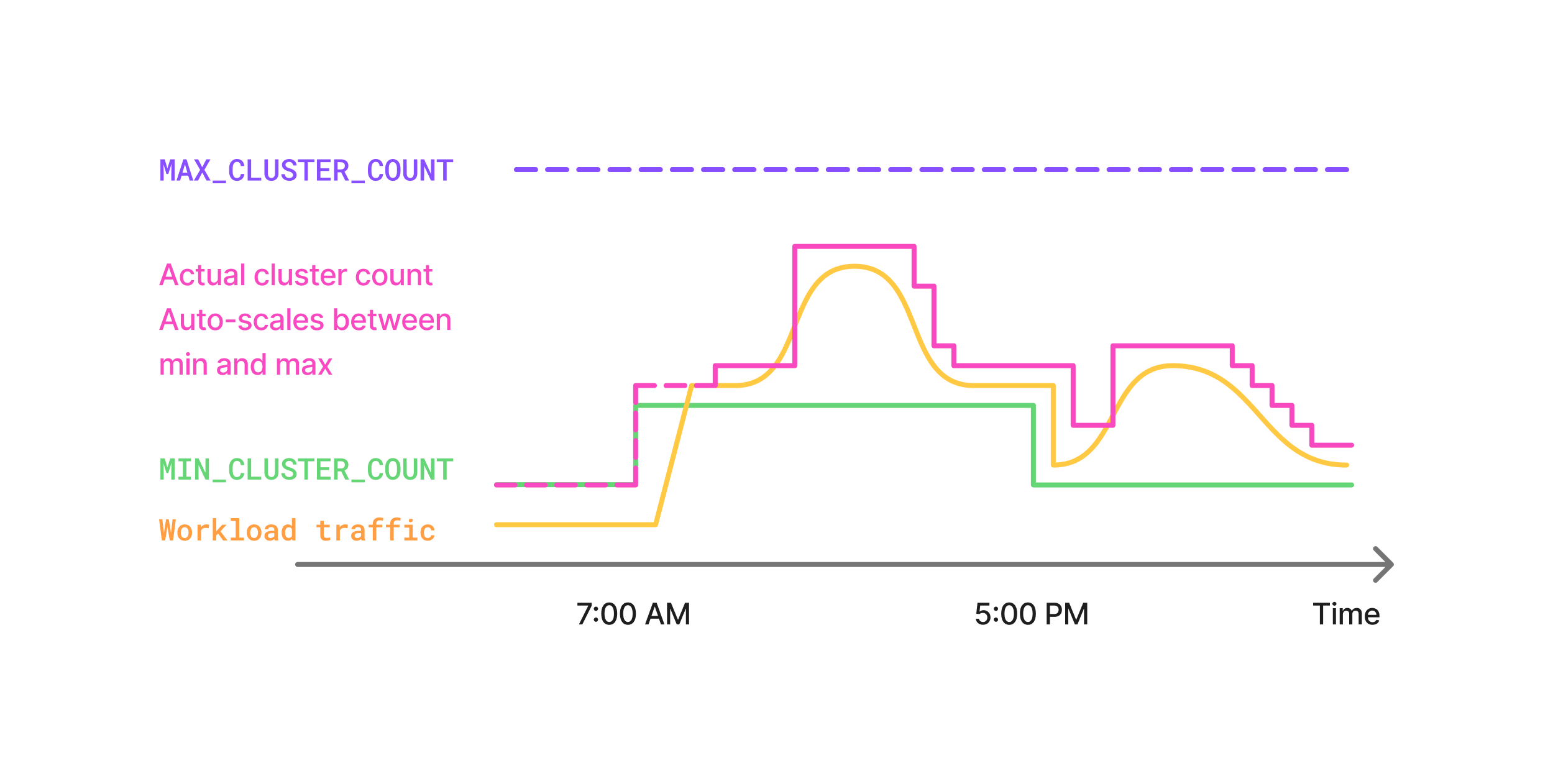
For workloads that require high-concurrency, that is, high queries per second, set the MAX_CLUSTER_COUNT using auto-scaling policy to accommodate peak concurrency for your workload and MIN_CLUSTER_COUNT to accommodate base concurrency. Typically, we recommend using scheduled scaling to configure MIN_CLUSTER_COUNT to warm up warehouses before workload surges, and using MAX_CLUSTER_COUNT to handle unpredictable spikes in concurrency.
Dropping an interactive warehouse
You can run the DROP WAREHOUSE command to remove an interactive warehouse entirely. Dropping an interactive warehouse removes the associations between that warehouse and any tables. However, you can still use other interactive warehouses to query those same tables.
Limitations of interactive warehouses
- Snowflake interactive warehouses are optimized for short-running queries. You should configure a fallback warehouse. Queries running more than 5 seconds will be transparently re-run on the fallback warehouse to ensure resources on the interactive warehouse are freed up for low-latency queries. This provides workload isolation.
- If a query consistently times out, that’s a signal that it might not be suitable for use with interactive warehouses. Commonly, applying some of the performance tuning techniques can help reduce query latency. See Performance considerations for more details.
- Interactive warehouses support auto-suspend and auto-resume. The minimum auto-suspend interval is 24 hours (86400 seconds). This is different from auto-scaling, in which clusters will run for a minimum of 1 hour. Manual suspension/resume of interactive warehouse is supported with a minimum 1 hour billing period. Expect significant query latency when you resume an interactive warehouse, because the data cache needs to warm up again. For more information, see Resuming and suspending an interactive warehouse.
- Proactive warming is limited to 10 tables. You can query any table without proactive warming. This is a temporary limitation to prevent overloading of the system. This limit will be increased in the future. If you need to add more than 10 tables, contact Snowflake Support.
- You can’t run CALL commands to call stored procedures in an interactive warehouse.
- You can’t use the
->>pipe operator. That operator uses stored procedures behind the scenes.
Working with interactive tables
Interactive tables are a specialized table type designed for maximum performance with interactive warehouses.
Creating an interactive table
Table creation follows the standard CTAS (CREATE TABLE AS SELECT) syntax, with the additional INTERACTIVE keyword that defines the table type.
The CREATE INTERACTIVE TABLE command also requires a CLUSTER BY clause.
Specify one or more columns in the CLUSTER BY clause to match the WHERE clauses in your queries. The columns you specify in the CLUSTER BY clause can significantly affect the performance of queries on the interactive table. Therefore, choose the clustering columns carefully. For more information about choosing the best clustering columns, see Clustering Keys & Clustered Tables.
Note
You run the CREATE INTERACTIVE TABLE command with a standard warehouse. You only use the interactive warehouse in later steps, to query the interactive table.
The following command creates an interactive table containing the same columns and data
as a standard table. The CLUSTER BY clause refers to a column named id from the source table.
Specifying auto-refresh for an interactive table
Interactive table also support automatic refresh mode, similar to dynamic tables. It supports most dynamic table features. To make an interactive table automatically refresh, specify the TARGET_LAG clause with an interval.
When you specify TARGET_LAG, you must also specify the WAREHOUSE clause and the name of a standard warehouse that Snowflake will use for regular maintenance refreshes.
You can also optionally specify INITIALIZATION_WAREHOUSE to run initial refreshes on a separate warehouse. Initial refreshes often process more data than maintenance refreshes. In many cases, you can use a larger warehouse, such as 2XL, for the initial refresh and a smaller warehouse, such as S, for ongoing maintenance refreshes.
The time interval for the TARGET_LAG clause lets you specify the maximum lag in terms of some number of minutes, hours, or days:
If you don’t specify a unit, the number represents seconds. The minimum value is 60 seconds, or 1 minute.
For example, the following CREATE INTERACTIVE TABLE statement defines an interactive table that lags no more than 20 minutes behind a specified source table, uses a larger warehouse for the initial refresh, and uses a smaller warehouse for ongoing maintenance refreshes:
For more information about choosing an appropriate lag time that balances costs and freshness of data, see How Snowflake uses target lag. For guidance on using separate warehouses for initial and maintenance refreshes, see WAREHOUSE vs INITIALIZATION_WAREHOUSE. Similar considerations apply to interactive tables as to dynamic tables.
You can also manually trigger a refresh for a dynamic interactive table by running:
Materialized view support for interactive tables
You can create materialized views on interactive tables. An interactive materialized view precomputes and stores the results of a query on an interactive table, which can further improve query performance for common aggregation patterns.
To create an interactive materialized view, use the INTERACTIVE keyword in the CREATE MATERIALIZED VIEW statement:
After you create the interactive materialized view, you must add both the materialized view and the underlying base table to your interactive warehouse:
Interactive tables and storage lifecycle policies
You can use storage lifecycle policies to archive or expire specific table rows based on conditions that you define, such as data age or other criteria.
Limitations of interactive tables
-
Interactive tables don’t support the following features:
- Data manipulation language (DML) commands such as UPDATE and DELETE. The recommended workflow is to use auto-refresh interactive tables (by setting TARGET_LAG) and apply DML to the source table instead. The auto-refresh mechanism is more efficient and cost-effective than using DML on the interactive table. The only DML that you can perform is INSERT OVERWRITE.
- Fail-safe. This data recovery mechanism isn’t available for interactive tables. However, you can still use Time Travel with interactive tables.
- Query insights. They currently aren’t collected or available for queries executing on interactive tables to help reduce query execution latency when queries are executed using SDKs. Snowsight queries still produce insights, but at a cost of higher query latency.
-
You can’t perform the following operations:
-
Use an interactive table as the source for a standard (non-interactive) materialized view. To create a materialized view on an interactive table, use the INTERACTIVE keyword. See Materialized view support for interactive tables.
-
Modify properties of an interactive table by using ALTER TABLE clauses such as ADD COLUMN or REMOVE COLUMN. ALTER TABLE operations that you can perform include:
- Renaming the table.
- Modifying columns to set or unset comments.
- Setting or unsetting masking policies on columns.
- Adding or unsetting a masking policy, join policy, aggregation policy, or row access policy on the table.
- Adding a storage lifecycle policy to the table, or dropping a storage lifecycle policy from the table.
-
Use streams with an interactive table.
-
Create a dynamic table with an interactive table as a base table.
-
Use the RESAMPLE clause for queries on an interactive table.
-
Set the Time Travel retention period using CREATE INTERACTIVE TABLE or ALTER TABLE. Interactive tables inherit the DATA_RETENTION_TIME_IN_DAYS value from their parent schema, database, or account.
-
Using standard and Iceberg tables (Public Preview)
You can use interactive warehouses to query standard tables and Iceberg tables directly, without copying or transforming your data into interactive tables. This zero-copy approach lets you benefit from the performance characteristics of interactive warehouses on your existing data.
Performance considerations
For guidance on query best practices, data layout, warehouse sizing, troubleshooting slow or queuing queries, search optimization, and AI-assisted tuning with Cortex Code, see Performance for Snowflake interactive analytics.
Cloud availability
For the list of supported AWS, GCP, and Azure regions, see Cloud availability for Snowflake interactive analytics.
Disaster recovery and replication
When added to a replication group, interactive tables and warehouses are replicated to the target account. Interactive table replication behaves the same as standard table replication.
Interactive warehouse replication assumes interactive warehouse support in the target region. Snowflake doesn’t validate interactive warehouse replication in the target region at this time. When using interactive warehouses and replication you must ensure that target region supports interactive warehouses.
The interactive warehouse in the target account will auto-resume upon querying. However, due to cache warming requirements, the performance of the warehouse is not guaranteed. To ensure consistent performance, you must keep the warehouse running in the target region.
Cost and billing considerations
Interactive warehouses incur compute charges when active. The minimum billable period for an interactive warehouse is one hour, and at one-second granularity thereafter.
Note
If you resume an interactive warehouse that was suspended (whether manually or through auto-resume), that operation results in a new minimum billable period charge. That charge applies even if you were already being billed for that period because of other recent activity in the warehouse. Therefore, avoid suspending and resuming an interactive warehouse multiple times within a short period. The 24-hour minimum auto-suspend interval helps prevent excessive suspend/resume cycles.
Note that this differs from auto-scaling, where the minimum billing period for each cluster is 1 hour, with per-second billing after 1 hour. Auto-scaled clusters will remain up and running until the 1 hour minimum billing period has elapsed unless explicitly spun down due to a warehouse suspend or changes to MAX_CLUSTER_COUNT.
Interactive tables incur standard storage costs. The price for storage of interactive tables is the same as for standard tables per TB.
For more information about cost and billing for interactive warehouses and interactive tables, see the Snowflake service consumption table.
Affected SQL statements
This feature introduces changes to the following Snowflake SQL commands:
- ALTER WAREHOUSE: new ADD TABLES and DROP TABLES clauses.
- CREATE INTERACTIVE TABLE: creates interactive tables with required CLUSTER BY clause.
- CREATE INTERACTIVE WAREHOUSE: creates interactive warehouses with an optional TABLES clause.
- CREATE MATERIALIZED VIEW: new optional INTERACTIVE keyword for creating materialized views on interactive tables.
- SHOW INTERACTIVE TABLES: lists interactive tables in your account, database, or schema.