Build and configure pipelines with Pipeline Builder
This topic describes how to build a pipeline on the Pipeline Builder canvas and configure its tasks, task graphs, and Code Bundles. For a first end-to-end walkthrough, see Get started with Pipeline Builder.
Create or open a pipeline
You can start a pipeline in the following ways:
- From the workspace Home tab: Select Pipeline Builder. The new project is created at the root of the workspace.
- From the file explorer: Select Create, and then select Pipeline Builder.
- From a folder in the file explorer: For any folder that isn’t a DCM project, select +, and then select Pipeline Builder. The new project is created in that folder.
- From an existing DCM project: Hover over the project folder in the file explorer, and then select the Open pipeline builder icon.
For a new project, in the Create Pipeline Builder dialog, enter a Name, select the Database and schema for the project’s DCM project object, and then select Create.
To reopen a pipeline, switch to its Pipeline Builder tab if it’s still open. Otherwise, select the Open pipeline builder icon on its project folder.
Project files
A Pipeline Builder project is a DCM project folder. It contains:
manifest.yml: the project’s manifest, including its targets and templating variables.- A definition file, such as
pipeline.yml, that holds the tasks, task graphs, and Code Bundles you build on the canvas. sources/: the folder for other DCM definition files.
Put the notebooks, Python files, and .sql files that your tasks run anywhere in the project folder except sources/ and out/.
If the project has more than one definition file, use the file picker at the left of the canvas toolbar to choose the file that new tasks are written to.
The canvas
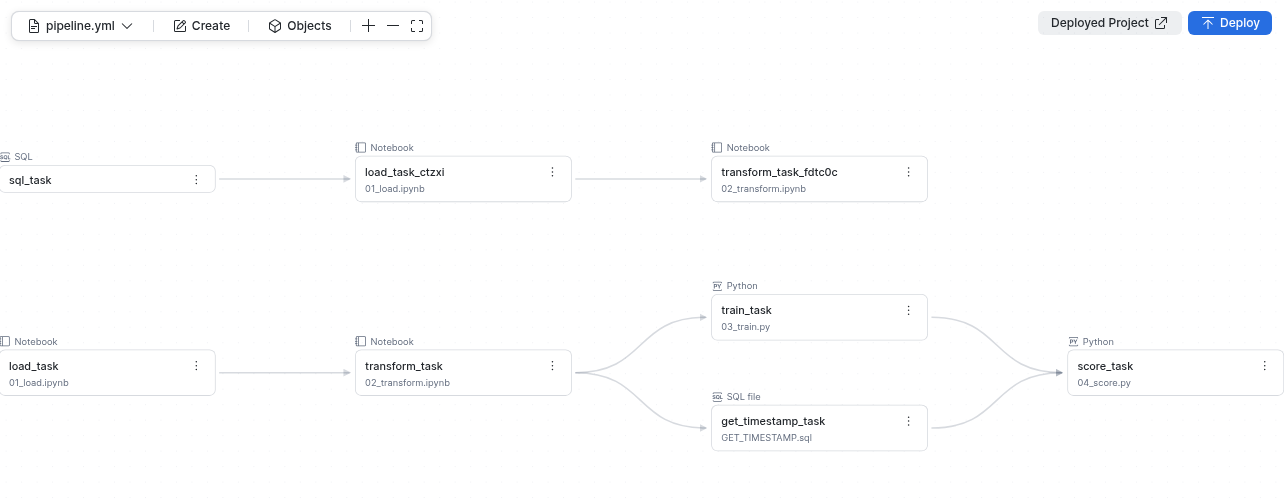
The canvas has the following controls:
- Definition file picker (for example, pipeline.yml): the file that new tasks are written to.
- Create: adds a task.
- Objects: opens the list of Code Bundles and task graphs that the project defines.
- Zoom in, Zoom out, and Fit to view.
- Deployed Project: opens the deployed DCM project in Snowsight. This button appears after the project has been deployed at least once.
- Deploy: plans and deploys the project. For more information, see Deploy, run, and monitor pipelines.
Each card on the canvas is a task. A badge above the card shows its type, such as Notebook, Python, SQL, or SQL file, and the card shows the file it runs. Select a card to open its settings drawer, or select the ⋮ menu on the card for more actions.
Add tasks
To add a task, do one of the following:
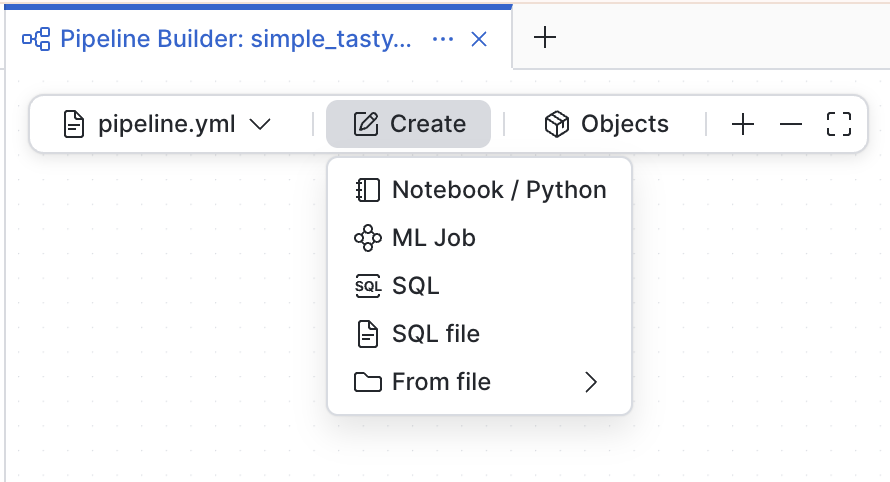
- Select Create on the canvas toolbar, and then select a task type.
- Drag a
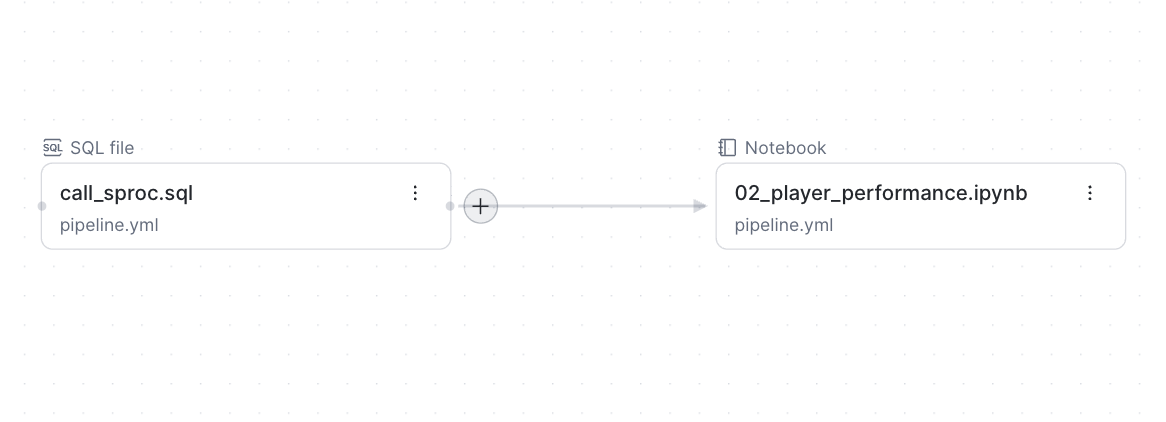
.py,.ipynb, or.sqlfile from the file explorer onto the canvas. - Hover over a card and select + on its incoming or outgoing connector to add a task that runs before or after it.
- Drag a file onto the left or right side of an existing card. When the Run Before or Run After hint appears, drop the file to add a task that runs before or after that card.
Task types
| Task type | Runs | Notes |
|---|---|---|
| Notebook / Python | An .ipynb or .py file from a Code Bundle. | Select the Bundle and the Entrypoint file. Notebooks must run on a compute pool. |
| ML Job | Python files as an ML Job. | An ML Job uses a Code Bundle with the ML bundle type. |
| SQL | SQL that you write in the task. | Enter the SQL in the task’s Source editor. Use a SQL task to call stored procedures or run other Snowflake objects. |
| SQL file | A .sql file. | For Source, select Workspace files to pick a file in the project, Stage to pick a file on a stage, or Stage URI to enter a stage path. |
Use Create > From file to pick a .py, .ipynb, or .sql file from the project instead of dragging it.
When you add a task from a .py or .ipynb file, Pipeline Builder reuses a Code Bundle that already includes the file, or creates one. If
the bundle doesn’t have a code_bundle.yml file, the task gets a default runtime, compute pool, and warehouse that you can change on the
Specification tab. For more information, see Manage Code Bundles.
When you add a task with + on a card that runs a Code Bundle, the new task uses the same bundle and specification. Select its Entrypoint to choose the file it runs.
Connect tasks
To make one task run after another, drag from the outgoing connector on the right of the upstream card to the incoming connector on the left of the downstream card. A task can have more than one predecessor, and a task can be the predecessor of more than one task.
You can also add predecessors in the task’s settings drawer, on the Task tab, under Dependencies > Predecessors. Enter predecessors as fully qualified names.
Pipeline Builder refuses connections that the task graph can’t support, and explains why on the canvas. For example:
- Connected tasks must be in the same schema.
- A graph can have only one root.
- A graph can only include tasks defined in this project.
- Some of these tasks already belong to another graph.
- This would create a loop.
To remove a connection, hover over it and select the Disconnect icon, or remove the predecessor from the downstream task’s Predecessors list. If removing the connection also cuts other tasks off from the graph’s root, Pipeline Builder lists the connections that have to go with it. Select Disconnect all to remove them.
Work with task graphs
When you connect two or more tasks, Pipeline Builder creates a task graph that contains them. It doesn’t ask first. The task with no predecessors becomes the graph’s root.
When Pipeline Builder creates the graph, it moves graph-wide settings, such as the schedule, from the root task to the graph. It moves values that the tasks share, such as the warehouse, to the graph’s task defaults. Tasks keep any values that differ from the defaults.
To open a task graph’s settings, do one of the following:
- Select Objects, select Task graphs, and then select the graph.
- Select a task in the graph, select the Graph tab, and then select Edit graph settings.
For the settings you can change, see Configure task graph settings and task defaults.
Merge task graphs
If you connect a task in one task graph to the root of another task graph, the Merge task graphs dialog opens. For Task graph to keep, select the graph whose settings the combined graph uses, such as its name, schedule, retries, and task defaults. Then select Merge. The tasks in the other graph join the graph you keep.
Root-task-based graphs
A project can also contain graphs that are built from a root task with AFTER dependencies instead of a task graph object, for example
graphs that you defined before you used Pipeline Builder. In the settings drawer, the Graph tab for those tasks shows
Belongs to legacy graph, and the root task’s drawer shows This is a legacy graph. For these graphs, graph-wide settings, such as the
schedule, are on the root task.
To convert a root-task-based graph to a task graph object, select Convert to task graph in the root task’s drawer, or on the root card’s ⋮ menu. All the tasks in the graph must be in one schema.
Root-task-based graphs and task graphs can be on the same canvas.
Disconnect and delete tasks
- If you disconnect tasks so that two or more of them form a separate tree, that tree becomes its own task graph. A task that’s left on its own becomes a standalone task.
- To delete a task, select Delete on the card’s ⋮ menu. If you delete the root, the graph starts from the next task instead, if the rest of the graph still has a single root. If you delete the last tasks in a graph, the task graph is deleted too.
Deleting a task on the canvas removes it from the definition file. The task is dropped from your account the next time you deploy.
Task graphs defined in SQL
If you use DEFINE TASK in a .sql file instead of the Pipeline Builder canvas or a .yml file, the canvas shows the task graph as
read-only. The Graph tab of its tasks shows Belongs to task graph (defined in SQL). To change the graph, open the .sql file and edit it.
Configure a task
Select a card to open the task’s settings drawer. The drawer header shows the task’s fully qualified name and the definition file it’s defined in. The drawer has the following tabs:
| Tab | Contains |
|---|---|
| General | The task Name and Comment, what the task runs, and the warehouse. For a standalone task, it also has the schedule. |
| Specification | How a notebook or Python task runs: bundle type, compute, and runtime properties. Shown for Code Bundle tasks only. |
| Task | Serverless, execution, reliability, notification, session, governance, and dependency settings. |
| Graph | The graph the task belongs to, with a link to its settings. |
Turn on YAML in the drawer to see the task’s YAML definition. For more information, see Edit the pipeline as YAML.
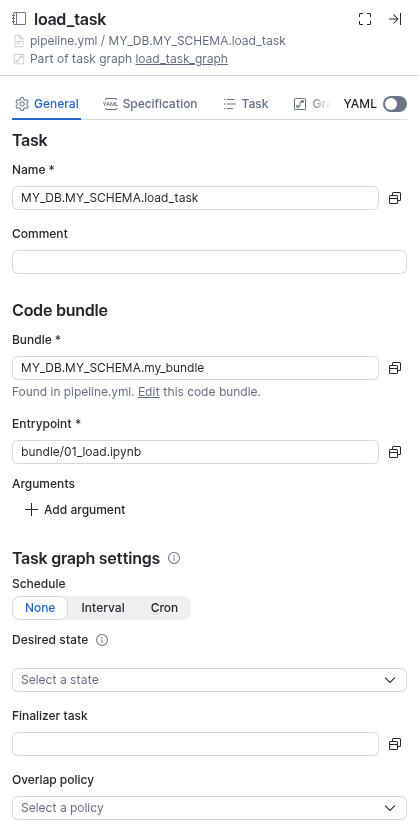
All names are fully qualified. If a value is close to an object that exists, such as a name with the wrong case or extra spaces, the field shows an error with a Fix action that corrects it.
General tab
- Task: the task Name and an optional Comment.
- Code bundle (Notebook / Python and ML Job tasks): the Bundle that holds the code, the Entrypoint file to run, and the Arguments to pass to it. Select Add argument to add an argument.
- Source (SQL and SQL file tasks): the SQL to run, or the
.sqlfile to run. - Schedule (standalone tasks only): None, Interval, or Cron. Tasks in a task graph use the graph’s schedule.
- Execution: the Warehouse the task uses. In a task graph, a task without a warehouse uses the graph’s default warehouse.
Specification tab
The Specification tab sets how a Code Bundle runs the task’s file. For a full description of the specification fields, see code_bundle.yml reference.
A Code Bundle can have a code_bundle.yml file in its root folder. If it does, that file’s specification is the default for every task
that uses the bundle. To override it for a task, choose a different specification on the task’s Specification tab. If the bundle
doesn’t have a code_bundle.yml file, you must choose a specification for each task that uses it.
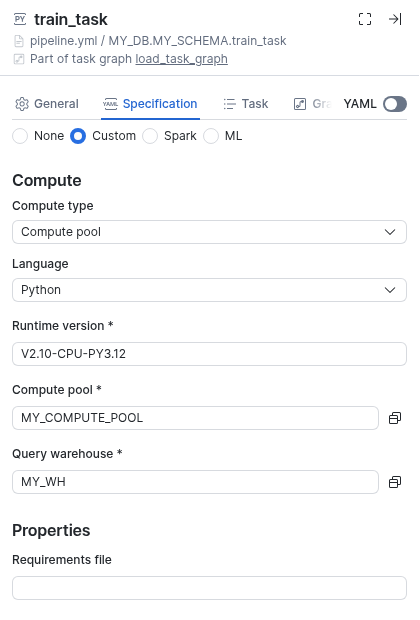
- Bundle type:
- None: use the specification in the bundle’s
code_bundle.ymlfile. The tab shows that file’s YAML, read-only. - Custom: run a notebook or Python file with the compute you set on this tab.
- Spark (Python file tasks only): run the file as a Spark workload.
- ML (Python file tasks only): run the file as an ML Job.
- None: use the specification in the bundle’s
- Compute type (Python file tasks only): a compute pool or a warehouse. Notebook tasks always run on a compute pool.
- Language: the language and Runtime version.
- Compute pool, Min instances, and Target instances, for compute pool tasks.
- Query warehouse: the warehouse that runs SQL queries that the file issues.
- Properties: for example, a Requirements file or Python dependencies, Jars, and Spark configuration, depending on the bundle type.
- Configuration: Environment variables, Secrets, External access integrations, Artifact repositories, and Stage mounts.
Task tab
The settings on the Task tab are the parameters of the CREATE TASK command. For what each one does, see that page.
| Section | Settings |
|---|---|
| Serverless | Serverless initial warehouse size, Min statement size, and Max statement size, for serverless tasks. |
| Execution | Execute as user and Resource group. Standalone tasks also have Desired state, Overlap policy, and Config (JSON). |
| Reliability & limits | Timeout (ms). Standalone tasks also have Auto retry attempts, Suspend after # of failures, and Minimum trigger interval (seconds). |
| Notifications | Standalone tasks only: Error integration and Success integration. |
| Session parameters | Session parameters to set when the task runs. |
| Governance | Tags and Contacts. |
| Dependencies | Predecessors, Predecessors condition, and Additional conditions. A standalone task can also set Finalizes root task. |
In a task graph, the graph owns the schedule, desired state, overlap policy, retries, and notifications. Set them in the task graph settings.
Run a task based on how its predecessors finished
By default, a task runs after all its predecessors succeed. To change this, set a Predecessors condition, such as At least one failed or None failed. To add a SQL check that must also be true, such as whether a stream has data or what a predecessor returned, use Additional conditions. For the options and examples, see Run tasks conditionally.
Configure task graph settings and task defaults
The task graph’s drawer has the following sections:
- Task graph object: the graph’s Name and Comment.
- Task graph settings:
- Schedule: None, Interval, or Cron. For more information, see Schedules.
- Desired state: Resumed or Suspended after you deploy.
- Finalizer task: a task that runs after all other tasks in the graph finish. The finalizer can’t also be a member of the graph.
- Overlap policy: whether a new run can start while a previous run is still in progress.
- Auto retry attempts and Suspend after # of failures.
- Minimum trigger interval (seconds).
- Error integration and Success integration: the notification integrations that receive error and success notifications.
- Config (JSON): a configuration that tasks in the graph can read.
- Task defaults: values that every task in the graph uses unless the task sets its own, such as Warehouse, Execute as user, Task comment, Timeout (ms), serverless sizes, Log level, and Trace level.
- Tasks in this graph: the graph’s tasks, with its root marked Root.
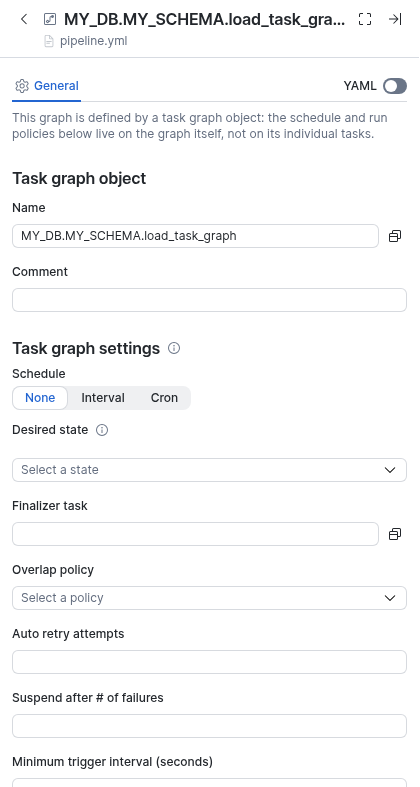
For more information about these properties, see CREATE TASK GRAPH.
Schedules
- None: the graph or task runs only when you run it manually or when another trigger starts it.
- Interval: the graph or task runs at a fixed interval, such as every 60 minutes.
- Cron: the graph or task runs on a cron expression in a time zone that you choose, such as
0 6 * * *inAmerica/Los_Angeles.
A task graph or standalone task needs a schedule to be Resumed. Without a schedule, you can still deploy it and run it manually. See Run a task graph.
Manage Code Bundles
To see the project’s Code Bundles, select Objects, and then select Code bundles. Each card shows:
- Source: where the bundle’s files come from. Pipeline Builder bundles use project files as their source (
type: asset). - Defined in: the definition file that defines the bundle.
- Used by: the tasks that run the bundle.
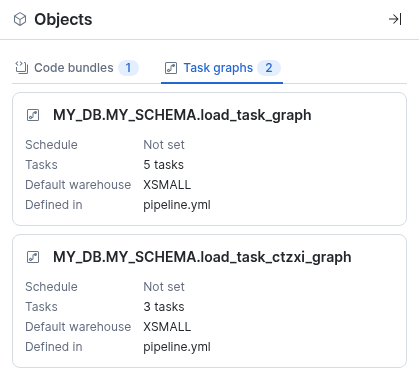
Select a bundle to edit it, or select New code bundle to create one. To edit a task’s bundle from the task drawer, select Edit this code bundle under Bundle.
A Code Bundle that’s defined with CREATE CODE BUNDLE in a .sql file can be used by tasks, but you edit it in the .sql file.
To give a bundle a default specification, add a code_bundle.yml file to the bundle’s source folder. Tasks that use the bundle with the
None bundle type use that specification. For more information, see Snowflake Code Bundles.
Use objects and variables from the DCM project
When you pick a warehouse, compute pool, database, schema, or other object in the drawer, the picker lists:
- Objects that already exist in your account.
- Objects that don’t exist yet but are defined in the same DCM project.
This lets a pipeline use a warehouse or schema that the same deployment creates. DCM creates the objects in the right order.
To use a templating variable from the project’s manifest.yml file instead of a fixed value, select the Variables tab in the picker,
and then select the variable. The field shows the variable as {{ variable_name }}, and the value comes from the target you deploy to. For
more information, see Object definition templating.
Edit the pipeline as YAML
Every change you make on the canvas is written to the definition file, and every change you make in the file appears on the canvas.
- To see one object’s YAML, turn on YAML in its drawer.
- To edit the whole pipeline, open the definition file, such as
pipeline.yml, from the file explorer.
For example, a task graph of two notebook tasks that runs every day looks like this:
Use CoCo to build a pipeline
CoCo for Pipeline Builder is coming soon. When it’s available, CoCo can create or change a pipeline for you:
- To create a pipeline, select Generate with Cortex in the Create Pipeline Builder dialog. Describe the pipeline in the Prompt field, including the order the steps run in, the schedule, and dependencies, and then select Generate.
- To change a pipeline, use the
/pipeline-builderskill in the CoCo chat.
CoCo writes its changes to the definition file, so you can review them on the canvas before you deploy.