Deploy, run, and monitor pipelines
A pipeline doesn’t run until you deploy it. Deploying creates or updates the tasks, task graphs, and Code Bundles in your account. After that, you run the task graphs on a schedule or on demand, and monitor their runs in Snowsight or with SQL.
Deploy from the canvas
-
Select Deploy in the upper-right corner of the canvas. If you don’t see it, collapse the workspace’s bottom pane.
Pipeline Builder plans the changes to the DCM project. If the DCM project object doesn’t exist in your account yet, the Project does not exist dialog asks you to confirm that Pipeline Builder should create it.
-
In the Review planned changes dialog, review the objects that the deployment creates, alters, or drops.
-
Select Deploy.
While the deployment runs, the Deploy button changes to Cancel. Select it to stop the deployment. When the deployment finishes, the Deployed Project button appears next to Deploy.
If the plan finds nothing to change, Pipeline Builder shows No changes to deploy. and doesn’t deploy.
Deploying from the canvas always uses the desired states set in the project files. To set every task and task graph to resumed or suspended in one step, or to add a deployment alias, deploy from the DCM project controls in the workspace’s bottom pane. For more information, see Open the DCM project controls.
Redeploy after changes
Each deployment brings the account in line with the project files:
- Tasks and task graphs that you add are created.
- Tasks and task graphs that you change are altered. You can change a task graph while it’s running. The changes apply to the next run.
- Tasks and task graphs that you delete from the canvas or the definition file are dropped.
- Other objects in the DCM project, such as Code Bundles, are also created, altered, or dropped to match the project files. For example, a Code Bundle is updated when you add or change files that it includes.
Open the deployed project
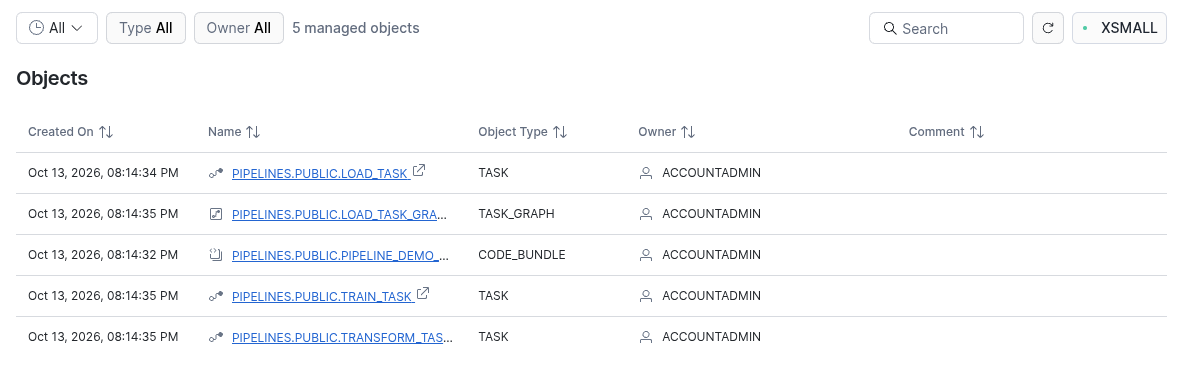
Select Deployed Project on the canvas toolbar. The DCM project opens in Snowsight on the Objects tab, which lists the tasks, task graphs, Code Bundles, and any other objects the project manages. Select an object to open its details page in a new browser tab.
Run a task graph
A task graph runs on its schedule when its Desired state is Resumed. To set the desired state, see Configure task graph settings and task defaults.
To run a task graph now, whether it’s resumed or suspended:
- Select Deployed Project.
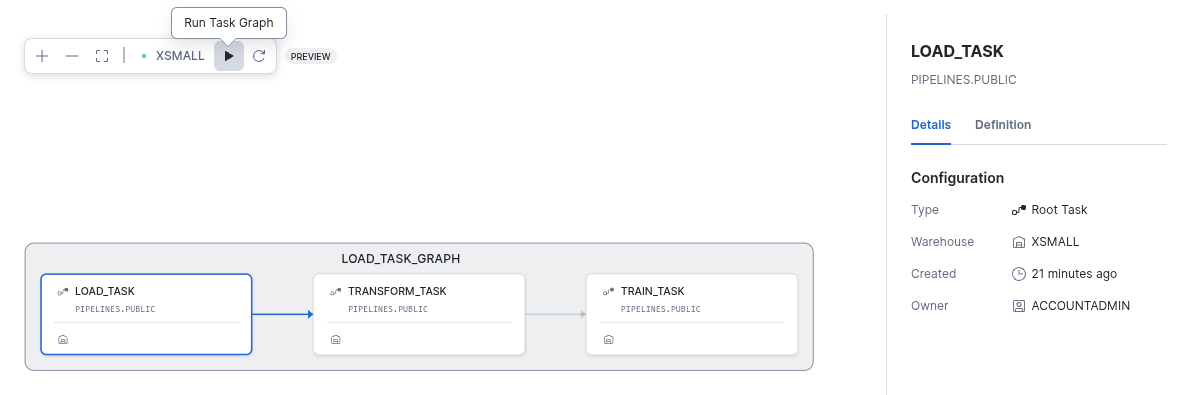
- On the Objects tab, select the task graph to open its details page. If the tasks aren’t part of a task graph object, select one of the tasks instead.
- Select the Graph tab.
- Select the Run Task Graph icon.
You can also run a task graph with SQL:
A task that belongs to a task graph runs only as part of its graph. You can’t run it on its own. For more information, see EXECUTE TASK GRAPH.
Monitor runs
To see a task graph’s runs in Snowsight, open the task graph’s details page and select the Overview tab. If the tasks aren’t part of a task graph object, open one of the tasks’ details pages and select the Run History tab.
To monitor runs with SQL, see Monitoring task graphs.
DCM deployment details
A pipeline is a DCM project. DCM gives your pipeline the following benefits:
- Declarative management: The project files describe the objects you want, not the steps to create them. Each deployment compares the files with your account and creates, alters, or drops objects to match, so you don’t write or order the DDL yourself.
- Plan before you deploy: A plan shows every change that a deployment would make before anything changes in your account.
- Multiple environments: You can deploy the same project to different targets, such as development and production, with different values for each.
You can also deploy and inspect a pipeline with the DCM project controls in your workspace, the DCM project’s details page in Snowsight, and DCM SQL commands. Use these when you need more control than the canvas Deploy button gives you.
Open the DCM project controls
The DCM project controls are in the workspace’s bottom pane, which is collapsed by default. To open them:
- In the status bar at the bottom of the workspace, select the bottom pane icon, to the left of the Git branch name.
- In the bottom pane, select the tab with your pipeline’s name.
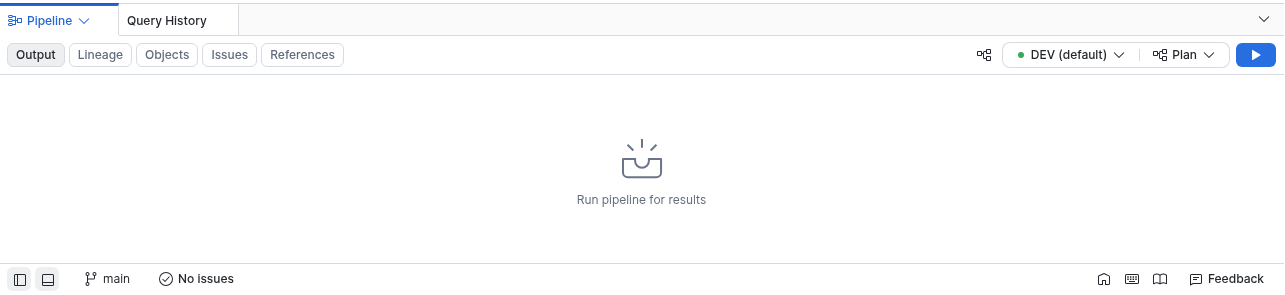
The controls appear on the right side of the pane: the target menu, the operation menu, and the play icon. The pane also has Output, Lineage, Objects, Issues, and References tabs for the project.
While the bottom pane is open, the canvas hides its Deploy button. To deploy from the canvas again, collapse the pane.
Targets
A DCM project deploys to a target, such as DEV or PROD. Each target names the DCM project object and account that a deployment goes to, and can set different values for the project’s variables. The canvas deploys to the project’s current target.
To see or change the current target, open the DCM project controls, and then select the target menu, for example DEV (default). The menu shows each target’s DCM project name and owner. To edit a target, select its pencil icon.
To deploy the same pipeline to production, add a target for it in the project’s manifest.yml file. For more information, see
Project targets and
Object definition templating.
Deploy with the DCM project controls
To deploy from the DCM project controls instead of the canvas, select Deploy in the operation menu, and then select the play icon. The Deploy DCM Project dialog opens. In addition to the Project and Target, you can set a Deployment alias, a name that makes the deployment easier to find later in the deployment history.
To preview the changes before you deploy, select Plan in the operation menu instead, and then select the play icon. For more information, see Plan a DCM project.
To troubleshoot a failed deployment, see Monitor and troubleshoot DCM Projects.