Configure an Apache Iceberg™ REST catalog integration with outbound private connectivity
This topic explains how to configure a catalog integration for Apache Iceberg™ tables managed in a remote catalog that complies with the open source Apache Iceberg™ REST OpenAPI specification.
With this configuration, you can use the catalog integration to connect to a remote Iceberg REST catalog through a private IP address instead of over the public internet.
The following diagram shows how an Iceberg table uses a catalog integration with an external Iceberg catalog.
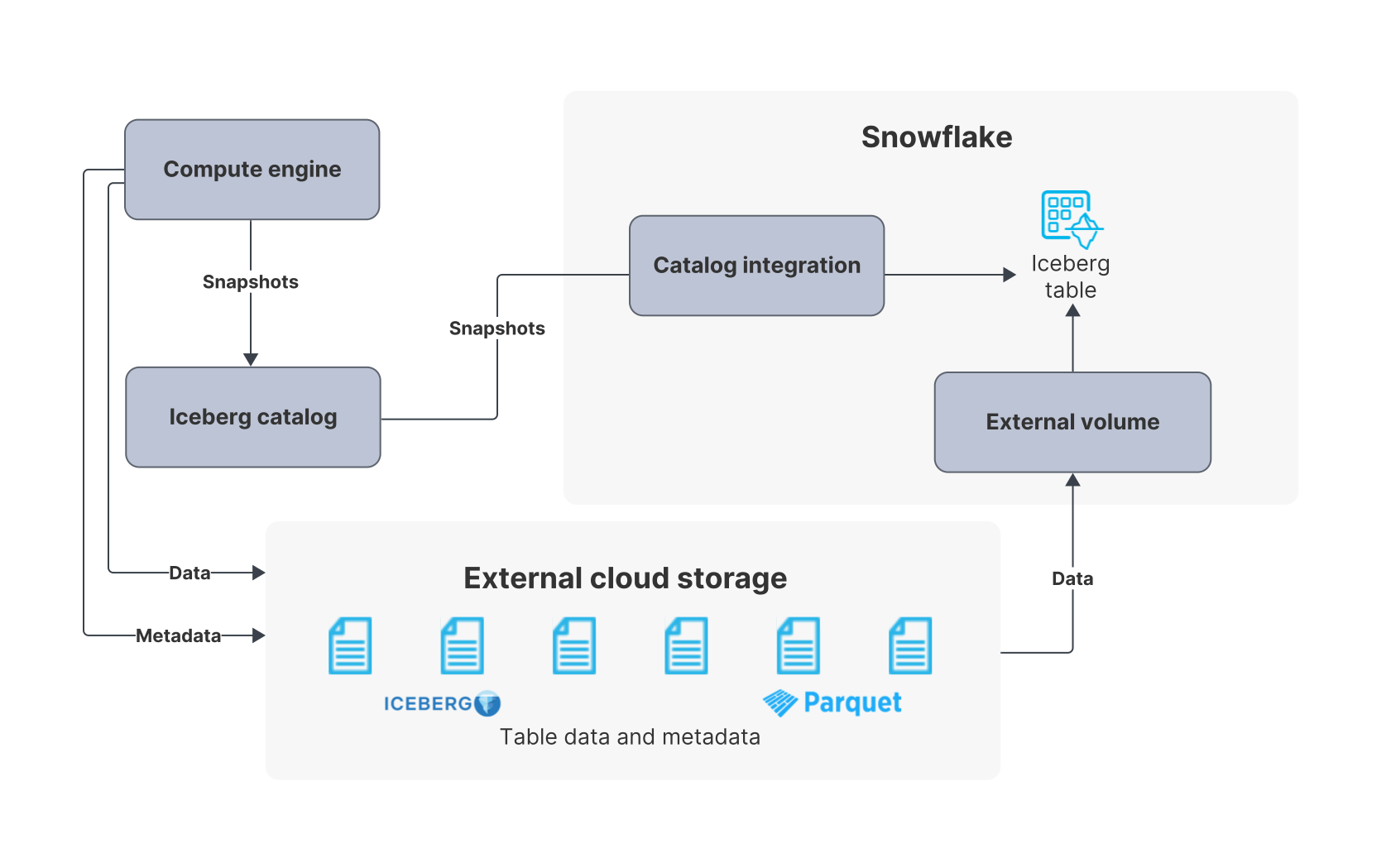
For general information about outbound private connectivity in Snowflake, including outbound private connectivity costs, see Private connectivity for outbound network traffic.
This topic covers the configuration steps for the following catalog types:
- Generic Iceberg REST catalogs
- AWS Glue Data Catalog
- Databricks Unity Catalog
- Amazon S3 Tables
Note
- Private connectivity is only supported for catalog integrations on AWS that use AWS PrivateLink and Azure that use Azure Private Link.
- Private connectivity is only available within the same cloud provider; the catalog and the Snowflake deployment must be running in the same cloud provider.
- To use catalog-vended credentials with private connectivity to storage, see Configure private connectivity to storage for catalog-vended credentials.
- For Amazon S3 Tables, this catalog-server private connectivity flow is required when you use private connectivity. S3 Tables uses catalog-vended credentials. For the complete S3 Tables flow, including the bucket policy and the paired S3 storage endpoint, see Configure a catalog integration for Amazon S3 Tables.
Step 1: Gather private connectivity information for your catalog
You must gather private connectivity information to specify it later when you provision a corresponding private connectivity endpoint in the Snowflake VPC or VNet. When you provision a corresponding private connectivity endpoint, you create an AWS PrivateLink endpoint in Snowflake when your Snowflake account is hosted in AWS or you create an Azure private endpoint when your Snowflake account is hosted on Azure.
-
To gather private connectivity information for your catalog, see the documentation for the remote REST Iceberg catalog.
The following example is an AWS VPC Endpoint Service ID in AWS:
com.amazonaws.vpce.us-west-2.vpce-svc-0123456789abcdef.
You must find the provider service name and host name for your AWS Glue Data Catalog:
-
To obtain your provider service name (
<provider_service_name>), copycom.amazonaws.<region>.glueinto your text editor where<region>is the AWS region where your Iceberg tables are stored.An example of a provider service name is
com.amazonaws.us-west-2.glue. For more information, see Creating an interface VPC endpoint for AWS Glue in the AWS documentation. -
To obtain your host name (
<host_name>), copyglue.<region>.amazonaws.cominto your text editor where<region>is the AWS region where your Iceberg tables are stored.An example of a host name is
glue.us-west-2.amazonaws.com. For more information, see Connecting to the Data Catalog using AWS Glue Iceberg REST endpoint in the AWS documentation.
Note
Alternatively, to retrieve these values, you can use the describe-vpc-endpoint-services subcommand from the AWS command line. For more information, see Provision private connectivity endpoints.
You must find the PrivateLink VPC endpoint service ID for your Databricks Unity Catalog and your Databricks workspace host name:
-
To find your PrivateLink VPC endpoint service ID (
<vpc_endpoint_service_id>), see PrivateLink VPC endpoint services in the Databricks documentation.This topic contains the list of the VPC endpoint service IDs for each AWS region.
-
Copy the endpoint service ID for the region where your tables are hosted, which is the value for Workspace (including REST API), into a text editor.
An example of a VPC endpoint service ID is
com.amazonaws.vpce.us-west-2.vpce-svc-0129f463fcfbc46c5.For more information about PrivateLink at Databricks, see Configure Front-end PrivateLink in the Databricks documentation.
-
To find your Databricks workspace host name (
<databricks_workspace_host_name>), follow these steps:-
Retrieve your Databricks workspace URL.
For instructions, see Get identifiers for workspace objects in the Databricks documentation.
This topic includes an example Databricks workspace URL.
-
Copy your Databricks workspace URL into a text editor.
-
Remove
https://from your Databricks workspace URL.The resulting value is your Databricks workspace host name.
For example, if your Databricks per-workspace URL is
https://dbc-a1a11111-1a11.cloud.databricks.com, your Databricks workspace host name isdbc-a1a11111-1a11.cloud.databricks.com.
-
You must find the resource ID for your Databricks workspace in the Azure portal and your Databricks workspace host name:
-
To find the resource ID for your Databricks workspace in the Azure portal (
<databricks_workspace_resource_id>), follow these steps:-
In the Azure portal, navigate to your Databricks workspace.
-
On the Overview page, in the Essentials section, select the JSON View link.
The resource ID for your Databricks workspace is displayed in the Resource ID field. An example of this resource ID is
/subscriptions/1111-22-333-4444-55555/resourceGroups/my-rg/providers/Microsoft.Databricks/workspaces/my-databricks-workspace. -
Copy the resource ID into a text editor.
-
-
To find your Databricks workspace host name (
<databricks_workspace_host_name>), follow these steps:-
Retrieve your Databricks per-workspace URL.
For instructions, see Determine per-workspace URL in the Azure Databricks documentation.
-
Copy your Databricks per-workspace URL into a text editor.
-
Remove
https://from your Databricks per-workspace URL.The resulting value is your Databricks workspace host name.
For example, if your Databricks per-workspace URL is
https://adb-1234567890123456.12.azuredatabricks.net, your Databricks workspace host name isadb-1234567890123456.12.azuredatabricks.net.
-
Amazon S3 Tables is a fully managed AWS service. You don’t gather any catalog-side endpoint information; AWS publishes the provider service name and host name as standard values for each AWS region.
- Provider service name (
<provider_service_name>):com.amazonaws.<region>.s3tables - Host name (
<host_name>):s3tables.<region>.amazonaws.com
Replace <region> with the AWS region where your S3 Tables bucket lives (for example, us-west-2).
For background, see Configure a catalog integration for Amazon S3 Tables.
Step 2: Provision a private connectivity endpoint
In this step, you provision a private connectivity endpoint in the Snowflake VPC or VNet to enable Snowflake to connect to the remote Iceberg REST catalog by using private connectivity.
-
To provision a private connectivity endpoint, call the SYSTEM$PROVISION_PRIVATELINK_ENDPOINT system function.
For instructions on specifying the arguments for this system function, see the documentation for the remote REST Iceberg catalog that you want to connect to through private connectivity.
The following code block shows an example of provisioning an AWS PrivateLink endpoint:
-
To provision a private connectivity endpoint, call the SYSTEM$PROVISION_PRIVATELINK_ENDPOINT system function:
Where:
<provider_service_name>is the provider service name that you copied when you gathered private connectivity information for your catalog.<host_name>is the host name that you copied when you gathered private connectivity information for your catalog.
For example:
Note
You only need to provision one private connectivity endpoint in the Snowflake VPC. This is because, with AWS Glue, you can use one Glue private connectivity endpoint to access everything managed by the AWS Glue Data Catalog in the same region. For more information, see Creating an interface VPC endpoint for AWS Glue in the AWS documentation.
You only need to provision one private connectivity endpoint. Unity requires just one private connectivity endpoint to access everything managed by the Unity Catalog in the same region.
-
To provision a private connectivity endpoint, call the SYSTEM$PROVISION_PRIVATELINK_ENDPOINT system function:
Where:
-
<vpc_endpoint_service_id>is the PrivateLink VPC endpoint service ID that you copied when you gathered private connectivity information for your catalog -
<databricks_workspace_host_name>is the Databricks workspace host name that you retrieved when you gathered private connectivity information for your catalogNote
If you have multiple Databricks workspaces in the same AWS region, you can use a wildcard with your Databricks workspace URL.
For example:
-
-
To provision a private connectivity endpoint, call the SYSTEM$PROVISION_PRIVATELINK_ENDPOINT system function:
Where:
<databricks_workspace_resource_id>is the resource ID for your Databricks workspace in the Azure portal that you copied when you gathered private connectivity information for your catalog.<databricks_workspace_host_name>is the Databricks workspace host name that you retrieved when you gathered private connectivity information for your catalog.databricks_ui_apiis the sub-resource value for an Azure Databricks workspace.
For example:
To provision a private connectivity endpoint for the S3 Tables service, call the SYSTEM$PROVISION_PRIVATELINK_ENDPOINT system function:
Replace <region> with your AWS region (for example, us-west-2).
Note
Private connectivity for Amazon S3 Tables also requires a private connectivity endpoint for S3 storage. For the complete flow, including the storage endpoint and the bucket policy, see Configure a catalog integration for Amazon S3 Tables.
Step 3: Verify the endpoint status
In this step, you verify the endpoint status of the private connectivity endpoint in the Snowflake VPC or VNet that you provisioned in the previous step.
-
To verify the endpoint status, call the SYSTEM$GET_PRIVATELINK_ENDPOINTS_INFO system function:
The endpoint is ready to use when the
statuschanges frompendingtoavailable.
Step 4: Additional catalog-specific configuration
Complete the additional configuration steps for your catalog type.
Note
For some catalogs or some types of private connectivity endpoints, you also need to approve the connection or allowlist the private connectivity endpoints on the catalog server side.
- To complete the additional configuration steps, see the documentation for the remote REST Iceberg catalog, and then proceed to the next step.
No additional configuration is required. Proceed to the next step.
In this step, you register the Snowflake endpoint in Databricks to accept the traffic coming from the VPC endpoint.
Complete configuration steps in Databricks
Before you register the Snowflake VPC endpoint, ensure that you complete the following configurations in Databricks:
- Your workspace must be located in a customer-managed VPC.
- Your Databricks account must be in the enterprise subscription.
- You must set up a private access configuration.
For more information, see Azure Databricks: Configure Front-end PrivateLink in the Databricks documentation.
Register the Snowflake VPC endpoint
To register the VPC endpoint, complete the following steps:
-
In Snowflake, call the SYSTEM$GET_PRIVATELINK_ENDPOINTS_INFO system function, and then copy the value for
snowflake_endpoint_namein the response:For example, the output to copy looks like
vpce-11111aaaa11aaaa11. This value is the VPC endpoint ID in your Snowflake account. -
In Databricks, register the Snowflake VPC endpoint ID by specifying the VPC endpoint ID value that you copied in the previous step.
For instructions, see Manage VPC endpoint registrations in the Databricks documentation.
-
In Databricks, add a private access setting, and then specify the VPC endpoint that you registered in the previous step.
For instructions, see Manage private access settings in the Databricks documentation.
Complete configuration steps in Databricks
Before you register the Snowflake VPC endpoint, ensure that you complete the required configurations in Databricks, which includes deploying Azure Databricks in your Azure virtual network. For all these required configurations, see Requirements for configuring Front-end Private Link in the Azure Databricks documentation.
Approve the private connectivity from Snowflake
To approve the private connectivity from Snowflake, complete the following steps:
- In the Azure portal, navigate to your Azure Databricks workspace.
- In the sidebar, click Networking.
- Click Private endpoint connections.
- From the list of private endpoint connections, click the checkbox next to the private endpoint connection that you want to approve.
- Above the list, click the Approve button.
No additional configuration is required. Proceed to the next step.
Step 5: Create a catalog integration
In this step, to enable private connectivity, you configure a catalog integration for the catalog REST endpoint.
-
To configure this catalog integration, run the CREATE CATALOG INTEGRATION command.
For example:
Important
To use outbound private connectivity, you must specify
CATALOG_API_TYPE=PRIVATEwhen you create the integration.For more information, including the supported authentication methods, see CREATE CATALOG INTEGRATION (Apache Iceberg™ REST).
-
To configure this catalog integration, follow the steps in Configure a catalog integration for AWS Glue Iceberg REST.
Important
To use outbound private connectivity, you must specify
CATALOG_API_TYPE = AWS_PRIVATE_GLUEwhen you create the integration instead ofCATALOG_API_TYPE = AWS_GLUE.For example:
-
To create a REST catalog integration to connect to Databricks Unity Catalog, use the CREATE CATALOG INTEGRATION (Apache Iceberg™ REST) command.
Important
- To use outbound private connectivity, you must specify
CATALOG_API_TYPE = PRIVATEas one of theREST_CONFIGparameters when you create the integration. - For
CATALOG_URIandOAUTH_TOKEN_URI, you must use the standard public hostname, which is your Databricks workspace URL, not the name of the private endpoint. Snowflake automatically routes traffic through the provisioned private endpoint whenCATALOG_API_TYPEis set toPRIVATE. To find your Databricks workspace URL, see Get identifiers for workspace objects in the Databricks documentation.
Example: Bearer token authentication
To create a bearer token, which is called a personal access token (PAT) in Databricks, see Databricks on AWS: Create personal access tokens for workspace users in the Databricks documentation.
Example: OAuth authentication with service principal
The following example uses OAuth authentication with a Databricks service principal. You must have a service principal configured in Databricks with the necessary credentials, which are the
client_idandclient_secret. For instructions on adding a service principal, see Databricks on AWS: Add service principals to your account in the Databricks documentation.Where:
<databricks_workspace_url>is your Databricks workspace URL, which you retrieved when you gathered private connectivity information for your catalog. For example,https://dbc-a1a11111-1a11.cloud.databricks.comis a Databricks workspace URL.
- To use outbound private connectivity, you must specify
-
To create a REST catalog integration to connect to Databricks Unity Catalog, use the CREATE CATALOG INTEGRATION (Apache Iceberg™ REST) command.
Important
- To use outbound private connectivity, you must specify
CATALOG_API_TYPE = PRIVATEas one of theREST_CONFIGparameters when you create the integration. - For
CATALOG_URIandOAUTH_TOKEN_URI, you must use the standard public hostname, which is your Databricks workspace URL, not the name of the private endpoint. Snowflake automatically routes traffic through the provisioned private endpoint whenCATALOG_API_TYPEis set toPRIVATE. To find your Databricks workspace URL, see Determine per-workspace URL in the Azure Databricks documentation.
Example: Bearer token authentication
To create a bearer token, which is called a personal access token (PAT) in Databricks, see Azure Databricks: Create personal access tokens for workspace users in the Azure Databricks documentation.
Example: OAuth authentication with service principal
The following example uses OAuth authentication with a Databricks service principal. You must have a service principal configured in Databricks with the necessary credentials, which are the
client_idandclient_secret. For instructions on adding a service principal, see Azure Databricks: Add service principals to your account in the Databricks documentation.Where:
<databricks_per_workspace_url>is your Databricks per-workspace URL, which you retrieved when you gathered private connectivity information for your catalog. For example,https://adb-1234567890123456.12.azuredatabricks.netis a Databricks per-workspace URL.
- To use outbound private connectivity, you must specify
To configure this catalog integration, run the CREATE CATALOG INTEGRATION (Apache Iceberg™ REST) command
with CATALOG_API_TYPE = AWS_PRIVATE_S3TABLES and catalog-vended credentials enabled.
Important
For S3 Tables with outbound private connectivity, you must specify CATALOG_API_TYPE = AWS_PRIVATE_S3TABLES,
ACCESS_DELEGATION_MODE = VENDED_CREDENTIALS, and DEFAULT_STORAGE_CONFIG = (USE_PRIVATELINK_ENDPOINT = TRUE).
For example:
For the full S3 Tables setup, including IAM role configuration and the bucket policy, see Configure a catalog integration for Amazon S3 Tables.
Step 6: Verify your catalog integration
-
To verify your catalog integration configuration, call the SYSTEM$VERIFY_CATALOG_INTEGRATION function.
For more information, including an example, see Use SYSTEM$VERIFY_CATALOG_INTEGRATION to check your catalog integration configuration.
(Optional) Step 7: Update your catalog configuration
We recommend that you update the configuration for your remote catalog so that it’s only accessible through private connectivity.
- To disable public access to your catalog, see the documentation for the remote catalog that you want to connect to through private connectivity.
AWS Glue Data Catalog doesn’t support restricting access to only allowlisted VPC endpoints.
- To disable public access to your catalog, see Databricks on AWS: Configure Front-end PrivateLink in the Databricks documentation.
- To disable public access to your catalog, see Configure Front-end Private Link in the Azure Databricks documentation.
No additional configuration is required at the catalog level. For Amazon S3 Tables, restricting access to allowlisted VPC endpoints is configured through the S3 Tables bucket policy. For instructions, see Configure a catalog integration for Amazon S3 Tables.
Next steps
This section contains some tasks that you can perform after you configure your catalog integration:
- Monitor your private connectivity endpoints
- Configure an external volume with outbound private connectivity
- Create a catalog-linked database
- Write to your remote catalog
Monitor your private connectivity endpoints
- To monitor your private connectivity endpoints, see OUTBOUND_PRIVATELINK_ENDPOINTS view in the ACCOUNT_USAGE schema.
- To explore the cost of your private connectivity endpoints, see Outbound private connectivity costs.
Configure an external volume with outbound private connectivity
To enable private connectivity between Snowflake and your storage buckets, configure an external volume with outbound private connectivity.
For more information about external volumes, see Configure an external volume.
Note
To use catalog-vended credentials with private connectivity to storage, see Configure private connectivity to storage for catalog-vended credentials.
- To configure an external volume with outbound private connectivity, follow the instructions for your cloud provider:
Create a catalog-linked database
-
To create a Snowflake database that is connected to your external Iceberg REST catalog, create a catalog-linked database.
For more information, see Create a catalog-linked database.
Note
When you create the catalog-linked database, specify a catalog integration that is configured with outbound private connectivity.
Write to your remote catalog
After you configure a catalog integration for Apache Iceberg™ REST and create a catalog-linked database, you can write to your remote catalog.
- To write to your remote catalog, see Write to your remote catalog.