Serving online features
Online feature serving stores the latest feature values keyed by entity so applications can fetch features in milliseconds rather than running warehouse queries. The Online Feature Store uses a managed Postgres serving layer for ultra-low-latency reads (typically under 10 ms at P50), stream ingestion with end-to-end freshness typically under 200 ms at P50, time-windowed aggregations, and REST APIs. Enable online serving on a feature view when you create it, or update an existing feature view later.
The Online Feature Store is well suited for real-time ML applications such as fraud detection, recommendations, and personalization. It stays integrated with your batch feature pipeline for training while serving the same feature values at inference time.
The following table highlights key features of the Online Feature Store:
| Use | Description |
|---|---|
| Batch online feature views | Serve the latest row per entity key from batch feature views. |
| Stream feature views | Ingest events in real time and serve updated features with end-to-end freshness typically under 200 ms at P50. Includes stream sources, transformations, and backfill. |
| Real-time feature views | Compute features at query time from request inputs and upstream feature views. |
| REST ingest and query API | HTTP endpoints for streaming data ingestion and online feature retrieval. |
| Feature groups | Bundle multiple feature views into one versioned set for online reads and training. |
| Real-time model inference | Retrieve online features automatically when you call a model deployed for real-time inference. |
For batch-only workloads that don’t need the online service, stream ingest, real-time feature views, or REST APIs, you can also serve features from hybrid tables. See Online serving with hybrid tables.
Resources
For a hands-on walkthrough, see the Online Feature Store quickstart notebook.
How the Online Feature Store works
The online store stays in sync with your offline feature pipeline automatically, so you don’t need separate sync jobs or extra infrastructure.
The Online Feature Store receives feature data in two ways:
- From the offline store: Feature values computed in the offline pipeline are
synchronized to the online store on a schedule you configure with
target_lag. - From a stream or request source: For features that must reflect the latest events or request context, features are computed as events arrive or at request time. See Stream feature views and Real-time feature views.
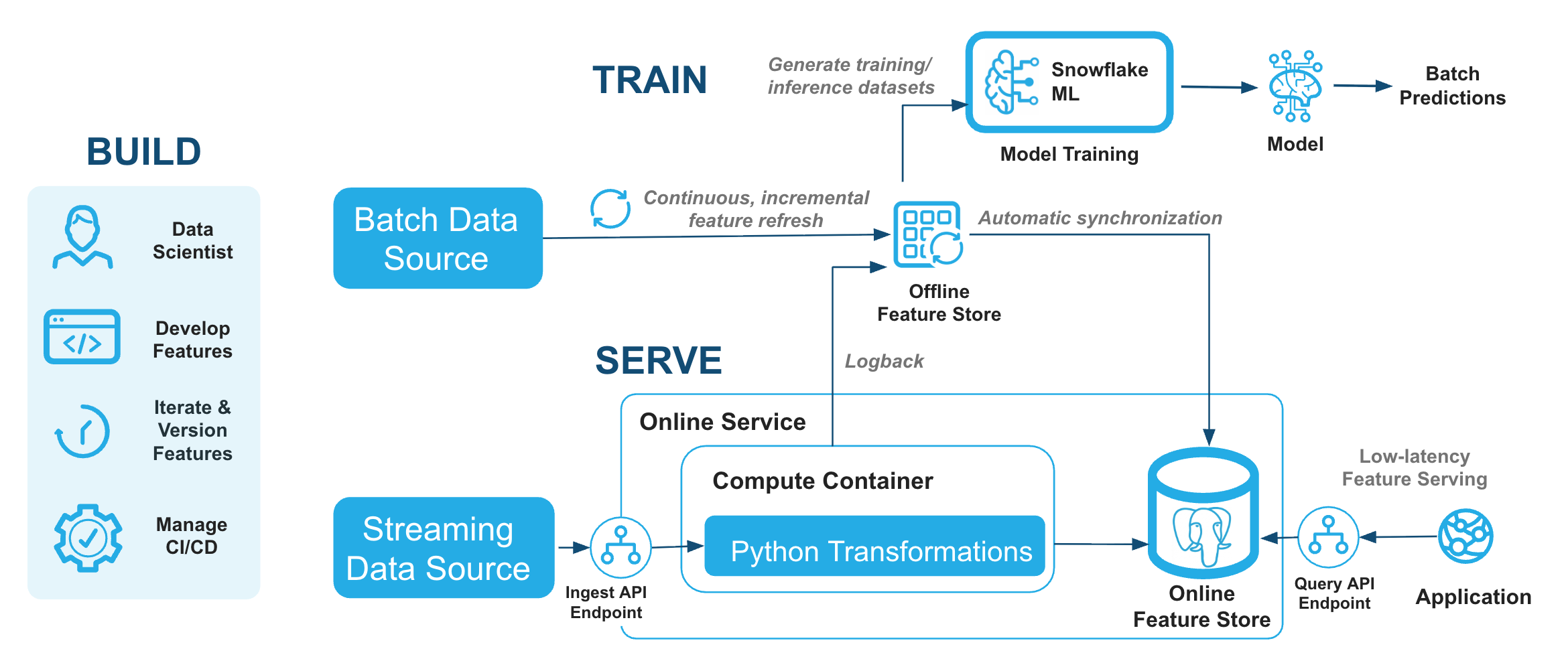
For real-time ML workloads, serving latency and data freshness matter most.
Serving latency is how long the store takes to return feature values at inference time. The Online Feature Store typically serves features in under 10 ms at P50 through the REST query API.
Data freshness is the end-to-end lag from a source event to an updated served feature value. For example, when a user generates clickstream events, freshness includes the time to ingest events, compute features, update the online store, and make values available for retrieval. With stream feature views, end-to-end feature freshness is typically under 200 ms at P50.
Regional availability
The Online Feature Store is available for the Amazon Web Services (AWS) and Microsoft Azure cloud service providers (CSPs). Google Cloud Platform (GCP) isn’t currently supported.
The online service creates a Snowflake Postgres instance in the same region as your Snowflake account, so the Online Feature Store is available in the regions where Snowflake Postgres is available. For the list of regions, see Snowflake Postgres regional availability.
U.S. public sector regions (AWS GovCloud and Azure Government) and regions in China aren’t supported.
Setup is the same on AWS and Azure, including network policies for the REST endpoint and PrivateLink URL configuration.
Enabling online serving for feature views
Before you create an online feature store, complete the following:
-
Install the Snowflake ML Python package:
-
Configure Feature Store access control for producer and consumer roles.
-
Set up authentication using a Programmatic Access Token (PAT) or key pair authentication. For details, see Base URL and authentication. If using a PAT:
-
If your account has Tri-Secret Secure enabled, configure Postgres CMK before creating the online service. Without this, you’ll receive:
SnowparkSQLException: (1304): Postgres CMK setup required for Tri-Secret Secure accounts. See Snowflake Postgres Tri-Secret Secure.
You can create the feature store the same way you create an offline feature store. For details, see Creating or connecting to a feature store. There is no special parameter you need to set at the feature store level to enable online serving.
Configure the online store details in the Feature View definition, pass an OnlineConfig with store_type=OnlineStoreType.POSTGRES when defining the feature view.
The following example creates a batch feature view that passes columns from the source
table to the online store. The online store serves the latest row per entity key.
The following are the OnlineConfig parameters:
| Parameter | Type | Description | Default |
|---|---|---|---|
enable | Boolean, optional | Specifies whether online feature serving should be enabled for the feature view. | False |
target_lag | Str, optional | Target data freshness lag in a "<num> (seconds|minutes|hours|days|s|m|h|d)" format. Used for offline-to-online sync only; not used for stream feature views. | 1 minute |
store_type | Enum, optional | Online store implementation. Set to OnlineStoreType.POSTGRES for the Online Feature Store. | OnlineStoreType.HYBRID_TABLE |
Note
refresh_freq controls how often the offline dynamic table refreshes when source data
changes. OnlineConfig.target_lag controls how often those offline values sync to the
online store. These settings act independently. In the example above, the effective lag from
source data to the online store is approximately refresh_freq + online_config.target_lag.
Warning
When store_type=OnlineStoreType.POSTGRES, keep the combined length of the feature view
name and version at 45 characters or fewer. The Postgres-backed online store maps feature
views to internal Postgres object names subject to Postgres identifier limits. Names that
are too long are rejected with an error. See
Feature view name length with Postgres online serving.
For existing feature views, update the online serving configuration with update_feature_view:
Create the online service
The online service is a managed serving layer for low-latency online reads. Create it once per feature store before registering feature views with online serving enabled. The online service enables you to ingest data into the online store and read features from the online store using a REST API.
The create_online_service method takes the Snowflake account role names for the
producer (creates and operates on feature views) and consumer (reads feature views and
entities). These are the same roles you configure in
Feature Store access control.
Database roles are not supported and are rejected at creation time.
The role calling create_online_service must have the CREATE SCHEMA privilege on the
feature store database.
Important
The online service begins billing as soon as you create it. Compute charges accrue
continuously while the service is running, whether or not it is serving traffic. The
default service size is S. For how the online service is billed, see
Cost and billing considerations.
For testing or development, call drop_online_service() when you’re done to stop
billing. In production, keep the service running to serve online traffic.
The online service can take several minutes to provision on first creation. Poll the status
until it reaches RUNNING:
Check the online service status
To see the status of the online service and the components behind it, call
SYSTEM$GET_FEATURE_STORE_ONLINE_SERVICE_STATUS with the database and schema of your
feature store:
The result includes the status of the Snowflake Postgres instance that stores online features and the status of the online service runtime instances that serve the ingest and query endpoints. It also lists the service endpoints. For more information, see PrivateLink URL configuration.
From Python, use get_online_service_status() to check the overall service status and
its accompanying message:
The online service can serve requests only when its status is RUNNING.
After the service reaches RUNNING, each feature view that you enable for online serving also
needs its online feature table to finish setup before it can serve reads. For more information,
see Check online feature tables.
Choose an online service size
Note
Requires snowflake-ml-python version 1.54 or later.
The online service is provisioned at a size that determines its serving capacity. To pin a
size at creation, pass the size keyword argument. Larger sizes serve more concurrent reads
and ingestion throughput at higher cost.
The size argument accepts one of the following values (case-insensitive):
| Size | Notes |
|---|---|
XS | Prototyping and experiments. Runs on a single compute node without high availability, so don’t use it for production traffic. Available only at creation; an XS service can’t be resized later. |
S | Light or early-stage production: a small working set and low QPS (roughly tens of QPS). |
M | Steady production traffic with a moderate working set. Roughly double S (roughly 100 to 300 QPS). |
L | Larger working sets or higher query and ingest QPS (roughly 300 to 500+ QPS). Roughly double M. |
XL | High-throughput serving with a large in-memory working set (500+ QPS, with more latency headroom). |
2XL | Very high throughput or very large working sets. Roughly double XL. |
3XL | The largest workloads, with the most memory and serving headroom. |
Sizes S through 3XL are designed for production and include high availability with
redundant compute nodes.
The QPS ranges are rough, order-of-magnitude starting points for directional guidance, not guarantees. Your actual size depends on your workload, so use these to pick a starting size and then right-size against real traffic. See Estimate the size you need for the factors that drive sizing.
When you omit size, the service is created at the default size, S. Accounts that cap the available
size are provisioned at their cap instead. To read the size a service is provisioned at, check
the size attribute on the status returned by get_online_service_status(). This attribute is
None for services created before sizes were recorded.
To change the size of an existing online service, see Resize the online service.
Estimate the size you need
Note
These are rough guidelines, not performance guarantees. The right size depends on your data and traffic, so benchmark your own workload and adjust. Because you can resize a running service up or down, you don’t have to get this exactly right up front: start conservatively and scale based on what you observe.
The online store keeps feature values in memory for low-latency reads, so the size you need is driven mainly by these factors:
- Working set size. The total online data that must fit in memory: roughly the number of entity keys multiplied by the number and size of the features across all online feature views. This is usually the dominant factor. Size for headroom above your current data rather than for an exact fit.
- Read throughput and concurrency. Your sustained and peak query QPS, and how many features (or feature groups) each request fetches.
- Ingest throughput. Your sustained and peak write and stream-ingest QPS.
- Latency target. Retrieval latency is typically under 10 ms at P50 (see Retrieval latency performance and benchmarking). Holding a tight latency target under high concurrency needs more headroom.
Each step up the tiers (S to M to L, and so on) roughly doubles the memory and serving
headroom available to the service. As a starting point:
- Use
XSorSfor prototyping and light workloads. - Move up a tier or two for steady production traffic, based on your working set and peak QPS.
- Leave headroom for background work. Backfills, offline to online syncs, and feature view re-registration can run alongside peak serving traffic, so provision enough that they don’t compete with online reads.
If you’re unsure, start one tier above your minimum estimate, watch latency and utilization under real traffic, and resize from there. Use the Online Feature Store Benchmark Kit to measure your workload before committing to a size.
Signs a service is underprovisioned. When a service is too small for its load, read latency rises (especially P90 and P99), latency gets more variable, and a severely overloaded service starts returning query or ingest errors. Watch request volume, latency percentiles, and error rate on the Online Serving tab of the Feature Store monitoring view, including while background jobs run at peak traffic. If latency trends toward your target or errors climb, resize up a tier.
Resize the online service
Note
Requires snowflake-ml-python version 2.0.0 or later.
As your serving load changes, resize a running online service up or down with
alter_online_service. Pass the target size as a keyword argument:
Brief downtime during resize
A resize ends with a database failover that causes about 20 seconds of downtime, during which online queries and ingestion return errors. Plan resizes for a low-traffic window and make sure your clients retry. The service serves normally for the rest of the resize, which can otherwise run for hours.
The size argument accepts one of S, M, L, XL, 2XL, or 3XL (case-insensitive).
Unlike creation, XS isn’t a valid source or
target: it’s a prototyping tier, so reaching another size from an XS service means re-creating
the service.
Keep the following in mind when resizing:
- Resize up or down. You can move to any other tier in a single call, in either direction and
any distance (for example,
Sdirectly toL, or2XLdown toM).alter_online_servicewill raise an error if you request the size the service is already running at. - The service must be
RUNNING. Requesting a different size while a resize is already in flight is rejected. Re-requesting the size a resize is already converging to does nothing. - Resizing runs in the background.
alter_online_servicereturns as soon as the request is recorded. The change then runs in the background and can take hours on a large service. The service serves online reads and stream ingestion for most of the resize, except for about 20 seconds of downtime at the final database failover, when queries and ingestion return errors. The service reports statusUPDATING_SIZEwhile the change converges. An accepted resize can’t be cancelled: drop and re-create the service to stop one early.
Poll get_online_service_status() until the status is RUNNING and size is the size you
requested:
Autoscaling
In addition to its fixed size, the online service autoscales the number of compute nodes based on load. This helps the service handle bursts of concurrent query and ingest requests without resizing to a larger size.
Autoscaling is based on aggregated CPU usage. When CPU usage rises above 80%, Snowflake adds compute nodes, and when the load subsides, Snowflake removes them. The service never drops below the baseline node count for its size. For more information about how CPU-based autoscaling works, see How CPU-based autoscaling works.
Autoscaling adds serving and ingest capacity, but it doesn’t add capacity to the underlying online store, and it adjusts the node count only within the bounds of the provisioned size. If your workload needs more memory, storage, or maximum capacity, resize the online service to a larger size instead.
Each compute node added beyond the baseline is billed as online service autoscale compute. For more information, see What the online service bills for.
To monitor autoscaling activity, use the Concurrency chart on the Stream Ingest tab of the Feature Store monitoring dashboard. For more information, see Monitoring.
Read from the online store
Use the online store to retrieve feature values for specific entity keys at inference time.
You can read from a single feature view or from a feature group
that bundles multiple feature views into one versioned set. Feature groups let your model call
read_feature_group once instead of querying each feature view separately, and the same group
can be passed to generate_training_set for training. You can also query features through the
REST query API, including requests with object_type=feature_group.
Read a single feature view
Use read_feature_view with store_type="online" to look up features from the Postgres online store.
First get a reference to the feature view object:
Then read features from the online store:
Read a feature group
When a model consumes features from multiple feature views, register a Feature group and use
read_feature_group to fetch all member features in one round-trip.
Retrieval latency performance and benchmarking
The Postgres-backed online store is optimized for low-latency feature retrieval. Retrieval latency is typically under 10 ms at P50 at 2,000 queries per second (QPS).
Actual latency depends on factors such as the number of features per entity, the number of entity keys per request, network distance between the caller and the online service, and the payload size.
The first requests after a period of inactivity, or after the online service is resumed or resized, can see higher latency while the service warms up. To avoid cold-start latency, send continuous retrieval traffic for at least 10 seconds before you send latency-sensitive requests or measure latency.
To measure latency in your own environment, we have released a Online Feature Store Benchmark Kit, which provides scripts and instructions for running reproducible latency benchmarks against your online service.
Stream feature views
Stream feature views allow you to ingest events in real time and serve updated
features with end-to-end freshness typically under 200 ms at P50. They use a StreamSource to define the event schema
and a StreamConfig to specify the transformation logic and historical backfill data.
Stream ingest freshness
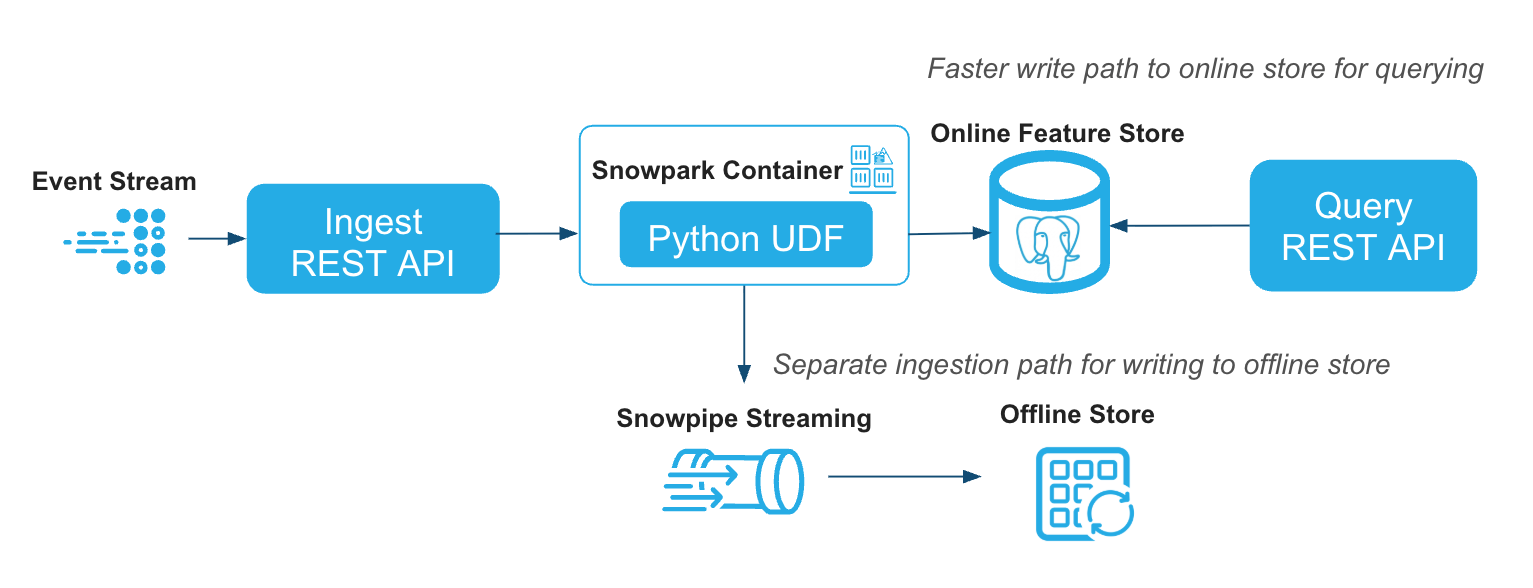
Stream feature views receive online data directly from the REST API. End-to-end streaming ingest freshness, from when an event is ingested to when it can be read from the online store, is typically under 200 ms at P50 and under 500 ms at P99. Actual end-to-end freshness varies by region and workload. The offline refresh frequency for a feature view does not affect online data freshness.
To measure online data freshness in your own environment, send continuous traffic and allow at least 10 seconds of warmup time. Ingestion API response latency is a useful proxy for freshness, but end-to-end freshness also includes the time until the updated values can be read from the online store.
To monitor stream ingest latency over time, use the Stream Ingest tab of the Feature Store monitoring dashboard. For more information, see Monitoring.
Data ingested via streaming API is simultaneously written into the offline store in Snowflake via a dual-write path. As with batch feature views, you can use the offline data for training or batch inference.
Register a stream source
A StreamSource defines the schema for events that will be ingested in real time.
The column names and types must exactly match what is sent through the REST API.
You can manage stream sources with:
fs.list_stream_sources(): List all registered stream sourcesfs.delete_stream_source(name): Delete a stream sourcefs.ingest(name, records): Ingest a list of records (dicts) into a named stream source
Create a stream feature view
A stream feature view uses a StreamConfig to link a registered stream source, a
transformation function, and a backfill DataFrame. The online store serves the latest
row per entity key.
Define the transformation function
The transformation function (transformation_fn) must be a named Python function
that takes a pandas DataFrame as input and returns a pandas DataFrame as output
(pd.DataFrame -> pd.DataFrame). Snowflake applies it to incoming stream events at
ingest time and to historical backfill data at registration time, so live and
backfilled features use the same logic. Lambdas and callable classes aren’t supported.
Inside the function, you can use pandas, numpy, re, copy, and Python built-ins.
Provide backfill data
backfill_df is a Snowpark DataFrame of historical events that match your
StreamSource schema. When you register the feature view, Snowflake runs
transformation_fn on this data server-side and loads the results into the online
store. That seeds serving with existing feature values before live events arrive
through the Ingest API.
Use a permanent table or view for backfill_df. Its SQL must be re-executable from
a fresh session, so avoid temporary tables, cached results, or DataFrames created from
local data. Column names and types must match the registered stream source. Do not pass
feature_df on a stream feature view; use backfill_df instead.
Register the stream feature view
Pass the stream source, transformation function, and backfill DataFrame in
StreamConfig, then register the feature view with Postgres online serving enabled:
Stream feature view with time-windowed aggregation
You can combine stream ingestion with time-windowed aggregation to compute rolling metrics (such as total spend over 48 hours) that update continuously as new events arrive. For details on defining time-windowed aggregation features and which aggregations are supported for Postgres online serving, see Time-windowed aggregation features.
To get fresher online features, you can further enable continuous aggregation by setting the feature aggregation method as
FeatureAggregationMethod.CONTINUOUS. This instructs the online service to maintain running aggregates as events arrive
through the Ingest API, rather than periodically re-tiling from the offline store.
Real-time feature views
Many ML features can’t be precomputed because they depend on information that only exists at the time of request. For example, a fraud model needs the current transaction amount to compare against historical averages. A pricing model needs the live exchange rate to convert a stored balance. A recommendation model needs the user’s current location to weight nearby offers.
Real-time feature views solve this by running a Python function (compute_fn) at
query time rather than precomputing and storing results. When you call
read_feature_view, the online service evaluates the function against the latest
values from upstream feature views together with per-request inputs you provide,
and returns the computed result in the same call.
Common use cases include:
- Features from request-time data: Incorporate values that are only available at inference time, such as the current transaction amount, user GPS coordinates, or device context.
- Derived features from upstream feature views: Combine or transform values from one or more precomputed feature views into new features, such as a risk score that multiplies a transaction amount by a stored fraud probability.
- Post-processing on the fly: Apply null imputation, normalization, unit conversion, or other cleanup to stored feature values before they reach the model.
Author the compute function
The compute function receives pandas DataFrames as input and returns a pandas
DataFrame. The first parameter receives the per-request data (from the
RequestSource), and each subsequent parameter receives the latest feature
values from one of the source feature views. The returned DataFrame must
contain the columns declared in output_schema.
The framework aligns input rows by position: row 0 of every input DataFrame corresponds to the same entity key. You don’t need to handle join keys in the function; they’re added to the output automatically.
The function must be a named function defined at module level or in a notebook
cell. Lambdas and callable classes aren’t supported. The number of parameters
must match the number of entries in RealtimeConfig.sources.
Inside the function, you can use pandas, numpy, re, copy, and Python
built-ins. Other imports aren’t supported and cause an error at registration
time.
Define and register
Wrap the compute function in a RealtimeConfig together with its sources and
the output schema, then attach it to a FeatureView.
The sources list begins with an optional RequestSource (for per-request
input), followed by one or more registered feature views or feature view
slices. Don’t include entity join keys in RequestSource.schema; the server
adds them automatically. Feature groups can’t be used as sources for a
real-time feature view.
Read real-time features from the online store
When reading a real-time feature view, pass a request_context DataFrame
with one row per entity key. Each row provides the per-request inputs for
the corresponding key.
Two row-alignment rules apply:
request_contextmust have exactly as many rows as there are entity keys.- Row i of
request_contextis paired withkeys[i], and the result preserves that order.
If a source feature view has no stored value for a requested entity key, the
corresponding DataFrame passed to compute_fn omits that row. Handle
missing values inside the function (for example, with .fillna(0.0)) to
ensure deterministic output.
Real-time feature views don’t have offline storage at the feature view level;
read_feature_view always reads through the online service. To generate a
training set that combines batch and real-time features, see
Feature groups.
REST API
In addition to the Python SDK, the online service exposes REST endpoints for
streaming data ingestion and online feature retrieval. These endpoints enable
integration with non-Python applications. Query requests accept either a feature view or a
feature group through the
object_type parameter.
For the complete API specifications, see:
Base URL and authentication
Online reads through the Python SDK (read_feature_view, read_feature_group) and
REST query calls both require authentication and network connectivity to the online
service. Set a SNOWFLAKE_PAT environment variable or configure key-pair JWT
authentication as described in the setup prerequisites. The sections below cover
endpoint URLs and PrivateLink routing. Client IPs must also be allowed by the network policy
that applies to the authenticating user; see
HTTP 401: client IP not allowed.
Each online service has ingest and query endpoint URLs. Retrieve them from the online service status:
PrivateLink URL configuration
By default, endpoint_url returns the PrivateLink URL when the account has
PrivateLink enabled. If the account doesn’t have a PrivateLink URL, it uses
SPCS-internal URLs when running inside SPCS, or falls back to the public URL
otherwise. For information about setting up private connectivity, see
Snowpark Container Services private connectivity.
To list all available endpoints (public, PrivateLink, and internal), run:
To override the default URL routing, pass online_service_access when
initializing the Feature Store:
Valid values:
OnlineServiceAccess.PUBLIC: Force the public REST API URL.OnlineServiceAccess.PRIVATELINK: Force the PrivateLink REST API URL.OnlineServiceAccess.INTERNAL: Force the SPCS-internal REST API URL.
All REST requests must include an Authorization header and set
Content-Type: application/json. You can authenticate with either a PAT or
a key pair JWT.
Using a PAT:
Serve model predictions with online features
When an application such as a fraud check or a recommendation widget needs a prediction, it usually has only an entity ID, such as a user or transaction ID. The model needs the latest feature values for that entity to make the prediction.
Snowflake real-time inference hosts a model from the Snowflake Model Registry as a managed service with a dedicated HTTP endpoint that scales with request volume. When you connect that service to the Online Feature Store, it looks up the feature values for each request from the online store before it invokes the model. Your application sends entity IDs and receives predictions in a single call, without fetching features separately through the Python SDK or the Query REST API. For more information about real-time inference, see Deploy models for real-time inference (REST API).
When your online feature store uses OnlineStoreType.POSTGRES, pass feature_sources_per_function to
create_service() to map a registered feature view to a model method (such as predict). At inference time, the
model service fetches any missing feature columns from the feature view before invoking the model. You can send only
entity IDs in the request payload and let the service retrieve the rest.
mv is a ModelVersion object from the Snowflake Model Registry. Obtain it with reg.get_model("my_model").version("v1"), where reg is a snowflake.ml.registry.Registry object.
For more details, see Online Feature Store integration in the real-time inference documentation.
Cost and billing considerations
This section describes billing for online serving using the Feature Store online service. The rates for the Feature Store online service are listed in the Snowflake Service Consumption Table.
What the online service bills for
The online service bills for three components:
- Online service compute. An hourly credit rate set by the size of the online service. Each size has its own rate, and larger sizes cost more. To choose a size, see Choose an online service size. The online service is always on so that it can serve real-time inference requests at any time, so compute is billed for every hour the service exists, whether or not it is serving traffic. The rate covers all of the serving and ingest infrastructure included in that size.
- Online service autoscale compute. An hourly credit rate for each additional compute node that the service adds beyond the baseline for its size. You’re billed only for those extra nodes, and only while they’re running. For when autoscaling happens, see Autoscaling.
- Online service storage. A monthly rate per terabyte for the feature data stored in the online store.
On your bill, online service compute and autoscale compute roll up into a single Feature Store Online Service compute total for your account. Online service storage appears as a separate line item.
Example: Estimate monthly cost
Suppose you run an online service at size M for a full month (730 hours) with 2 TB of
feature data in the online store. During a 48-hour peak, the service autoscales by two
compute nodes beyond the baseline for its size. The monthly cost is the sum of the three
billing components.
This example uses the following rates. For the current rates, always refer to Table 1(j), Table 1(k), and Table 3(h) of the Snowflake Service Consumption Table. The credit price of $2 per credit is for illustration only, your price per credit depends on your contract.
| Component | Unit rate | Usage | Monthly cost |
|---|---|---|---|
Online service compute (M) | 4.14 credits per hour | 730 hours = 3,022.20 credits | $6,044.40 |
| Online service autoscale compute | 0.396 credits per node per hour | 2 nodes x 48 hours = 38.02 credits | $76.04 |
| Online service storage | $465.00 per TB per month | 2 TB | $930.00 |
| Total | $7,050.44 |
Other costs considerations
Online service charges cover only the online serving and ingest infrastructure. Other parts of a Feature Store pipeline are billed through their own services and appear as separate items on your bill:
| Activity | Description | Billed as |
|---|---|---|
| Offline refresh | Batch feature pipelines that compute feature values in the offline store. | Virtual warehouse compute (dynamic tables) |
| Offline to online sync | Materializing and synchronizing feature values from the offline store into the online store. | Virtual warehouse compute |
| Stream offline writeback | Writing processed stream events back to the offline store. | Snowpipe Streaming |
Monitor online service cost
Online service usage is reported under its own service types:
| Service type | Billing component | Where to find it |
|---|---|---|
ONLINE_FEATURE_STORE_COMPUTE | Online service compute | METERING_HISTORY, USAGE_IN_CURRENCY_DAILY |
ONLINE_FEATURE_STORE_AUTOSCALE_COMPUTE | Online service autoscale compute | METERING_HISTORY, USAGE_IN_CURRENCY_DAILY |
ONLINE_FEATURE_STORE_STORAGE | Online service storage | USAGE_IN_CURRENCY_DAILY |
To see hourly credit consumption for online service compute and autoscale compute in an account, query the METERING_HISTORY view. Latency for this view can be up to 3 hours.
To see daily usage and cost in your currency for all three billing components, including storage, query the USAGE_IN_CURRENCY_DAILY view in the ORGANIZATION_USAGE schema:
You can also see online service consumption on the Cost Management pages in Snowsight. Costs for offline refresh, sync, and stream writeback appear under their own service types. See Other costs considerations.
Tips on reducing feature store costs
- Use
XSfor development. For development purposes, use theXSsize for testing. - Drop services you aren’t using. The online service bills every hour it exists. Call
drop_online_service()when you’re done. - Right-size the service. Start with the size that fits your working set and peak load, watch latency and utilization, and resize down if the service is consistently underused.
- Set
refresh_freqfor your training needs. A shorterrefresh_freqrefreshes the offline dynamic table more often and increases its cost. Choose the longest interval your workflow can tolerate. - Prefer incremental refresh. Incremental refresh of the offline dynamic table is generally cheaper than full refresh. See Refresh modes.
Managing offline to online sync
For batch feature views with online serving enabled, Snowflake refreshes the offline
dynamic table on refresh_freq and syncs values to the online store on
OnlineConfig.target_lag.
You can also suspend refresh, trigger refreshes manually, and inspect refresh history through the Python SDK.
Refresh modes
Snowflake uses the following refresh modes when updating the offline dynamic table:
- Incremental refresh: Snowflake tracks changes in the sources and merges only the new or updated rows into the store. This is the preferred and most efficient mode.
- Full refresh: Snowflake drops all existing data in the table and reloads everything from the source. This mode is more resource-intensive and is used when an incremental refresh is not possible.
Set refresh_mode to INCREMENTAL, FULL, or AUTO on the feature view to choose a
mode explicitly, or use AUTO to let Snowflake pick the most efficient available mode.
For Postgres online serving, the Online Service syncs the online store automatically on
target_lag. Manual online refresh isn’t supported on that path.
Suspend and resume refresh
Use suspend_feature_view and resume_feature_view to pause or restart refresh for a
feature view. These calls affect both the offline dynamic table and the online store so
offline and online data stay consistent.
Trigger a refresh manually
Use refresh_feature_view to trigger a refresh outside the scheduled interval. Pass
store_type=StoreType.OFFLINE to refresh the offline dynamic table.
Note
Manual online refresh isn’t supported when store_type=OnlineStoreType.POSTGRES. Postgres
online stores are refreshed automatically by the Online Service.
View refresh history
Use get_refresh_history to inspect past refresh jobs for the offline store or online
store. To monitor refresh jobs in Snowsight, see
Monitoring and Observability.
Troubleshooting
This section lists common Online Feature Store issues and actionable workarounds you can apply from your account or client environment. Limitations of the Online Feature Store are listed under Known limitations.
Check online service status
When online reads or ingests fail, first
check the online service status and confirm that
the service is RUNNING. Then check the online feature tables for the affected feature views.
Check online feature tables
A RUNNING online service doesn’t mean every feature view is ready to serve. When you
enable online serving on a feature view that uses OnlineStoreType.POSTGRES, Snowflake creates
an online feature table for it and reports
whether that table’s online store finished setup. To check the online feature tables for a
feature view, run SHOW ONLINE FEATURE TABLES:
Check these columns in the output:
| Column | Description |
|---|---|
setup_status | Setup outcome for the online feature table. |
setup_error_msg | Error returned when setup failed. NULL unless setup_status is SETUP_FAILED. |
setup_time | Time when the setup status was last written. |
scheduling_state | Whether the table’s refresh schedule is RUNNING or SUSPENDED. Independent of setup_status. If a refresh fails, the table is suspended. Check the refresh history for the cause. |
A new table starts at SETUP_NOTREADY and then moves to one of these outcomes:
| Status | Meaning |
|---|---|
SETUP_NOTREADY | The table was created. Online-store setup has not finished. |
SETUP_READY | Online-store setup succeeded. The table can ingest and serve. |
SETUP_FAILED | Online-store setup failed. See setup_error_msg. |
Wait until setup_status is SETUP_READY before you depend on online reads for that feature
view. After you register the feature view, SETUP_NOTREADY typically lasts a few seconds. The
online service can already be RUNNING while the table is still being provisioned. Online
feature tables created before this status was recorded appear as SETUP_READY.
If setup_status is SETUP_FAILED, fix the cause in setup_error_msg if it identifies one, and
then re-register the feature view so setup runs again:
If several online feature tables fail setup together, drop and recreate the online service, and then re-register the feature views:
If setup still fails, or the table stays at SETUP_NOTREADY for more than 5 minutes, see
Online feature table setup failed.
View refresh diagnostics
Use get_refresh_history(..., verbose=True) to diagnose offline and online refresh
issues for a feature view. Setting verbose=True returns all backend history columns.
By default, the method returns only the name, state, refresh start and end times, and
refresh action.
To inspect offline refresh history for a feature view and version, run:
To inspect online feature table refresh history, pass store_type=StoreType.ONLINE.
The feature view must have online storage enabled:
Refresh history describes feature view refresh operations, not online service health.
To check service health, use
get_online_service_status() and
inspect status.status and status.message.
Monitor online serving health
Monitor warehouse usage and refresh execution times alongside online service status and refresh diagnostics.
Monitor warehouse usage
Review the load on the warehouse used to refresh your online feature tables. In Snowsight, open Compute » Warehouses, select the warehouse, and review its activity for the period you’re investigating. Look for queued queries or increased load that coincides with slower refreshes. For details and required privileges, see Monitoring warehouse load.
Inspect refresh execution times
In Snowsight Query History, find ALTER ONLINE FEATURE TABLE ... REFRESH statements:
- Set the time range and Warehouse filter for the refreshes you’re investigating.
- Use the SQL Text filter to search for
ALTER ONLINE FEATURE TABLE. Look for statements with theREFRESHaction; the table name appears beforeREFRESH. - Review Status and Duration, and open a query’s details to inspect execution time and any reported error.
Object already exists error on online service creation
If you receive the following error when calling create_online_service():
A previous online service creation was interrupted or left in a partial state. Drop the existing online service and recreate it:
Backfill fails and online table stays empty
When a stream feature view backfill job fails, it sets backfill_status to FAILED. The
SDK cleans up the $BACKFILL staging table by design and doesn’t retry. The online table
can then poll an empty staging table every 10 seconds and skip updates indefinitely. The
system can’t self-heal from this state.
Diagnose the root cause:
Workaround: re-register the feature view with overwrite=True to reset state and
trigger a fresh backfill:
Related caveats:
- If the feature view source is a SQL view rather than a base table, backfill is more likely to fail. Use a base table as the source where possible.
- For datasets larger than 10 million rows, use at least an XL warehouse. A backfill failure with no obvious SQL error can indicate out-of-memory on an undersized warehouse.
Online table initial sync is stuck
After create_online_service() or register_feature_view(), the online table can show
initial sync running indefinitely without raising an error.
Diagnose task history:
Workaround: drop and recreate the online service to reset internal state:
If sync hangs again, re-register the feature view:
Online feature table setup failed
If SHOW ONLINE FEATURE TABLES
reports setup_status = SETUP_FAILED, the online feature table did not finish
setup. setup_error_msg has the reason. Online reads for that feature view
are not ready.
Confirm the online service is RUNNING:
Fix the cause if setup_error_msg identifies one, then re-register the
feature view so setup can run again:
If multiple online feature tables report SETUP_FAILED at the same time and
re-registering the feature views doesn’t resolve it, the problem is likely with
the online service rather than individual tables. As a last resort, drop and
recreate the online service, then re-register the feature views.
Dropping the online service stops all online serving
Dropping the online service stops online serving for every feature view in the feature store until you recreate the service and setup completes. Avoid this in production unless other fixes have failed.
Online service unreachable (DNS resolution with PrivateLink)
Error:
Accounts with both public and PrivateLink endpoints can resolve to a PrivateLink hostname
when online_service_access isn’t set or is set to OnlineServiceAccess.PRIVATELINK. That
hostname isn’t DNS-resolvable from machines outside the private network, such as a
developer laptop.
Set online_service_access when you construct the FeatureStore to match the network
your client runs on. For more context, see
PrivateLink URL configuration.
HTTP 401: client IP not allowed
Error:
The online service endpoint authenticates each request as the Snowflake user that owns the PAT or key pair JWT, and then enforces the network policy that applies to that user. This error means the client IP isn’t allowed by that network policy. A network policy set on the user takes precedence over the account-level network policy, so a request can succeed for one user or client machine and fail for another. For more information, see Network policy precedence.
PATs have an additional requirement: the user must be subject to a network policy to authenticate with the token. For details, see Network policy requirements.
Workaround: ask your Snowflake account admin to find the network policy that applies to the user and add the client IP to a network rule in its allowed list:
SET VALUE_LIST replaces the rule’s existing values, so include the IPs that are already allowed.
Note
The online service’s own network rules are managed by Snowflake, aren’t listed by
SHOW NETWORK RULES, and don’t control which client IPs can reach the online service
endpoint. Don’t try to modify them to resolve this error.
If online reads worked before and suddenly fail with HTTP 401, check whether the network policy that applies to the user or account, or the network rules it references, were recently modified.
Python UDF fails with dataclasses import blocked
Error (often surfaced through the Online Service REST API):
When a Python transform returns a list of dicts (for example,
[{"COL": val}]), pandas can lazy-load the dataclasses module during deserialization.
Snowflake UDFs block that import, so the transform fails. The error might appear as a
generic HTTP 500 from the online service.
Construct the output DataFrame directly instead of using a list of dicts:
Feature group read fails when a member feature view is unhealthy
Error:
Reading a feature group aggregates results from multiple feature views. If one member feature view’s online table is stuck (hung sync, failed backfill), the entire group read can fail even when other members are healthy. For more information about feature groups, see Feature groups.
Read each member feature view individually to find the failing one:
Apply the workaround for the failing feature view (see Backfill fails and online table stays empty or Online table initial sync is stuck), then retry the feature group read.
Offline read returns incorrect feature values
Symptoms:
read_feature_view(..., store_type="online")returns expected feature values for all users.read_feature_view(..., store_type="offline")returns entity keys but incorrect feature values for some users (for example, a count of0when the online read shows a value greater than zero).- Offline refresh history, the transform UDF table, and the underlying dynamic table look healthy.
This divergence is often caused by the session TIMEZONE parameter. Offline reads through the
Python SDK can interpret timestamp columns using the session timezone rather than the timezone
stored in the feature table. Online reads through the Postgres-backed online store do not show
the same behavior because those timestamps are handled as NTZ/UTC. Offline-only or hybrid-table
feature views can also use TIMESTAMP_LTZ, so you can’t assume all offline data is stored in UTC.
Workaround: set the session timezone to UTC before calling read_feature_view with
store_type="offline":
Snowflake is working on timezone-aware offline reads for a future release. Until then, use UTC for any notebook, job, or pipeline that reads offline feature views. For a general summary, see Known limitations on the feature views page.
Feature view name length with Postgres online serving
PostgreSQL limits identifier length (NAMEDATALEN is a compile-time constant; the usable
length is 63 characters). This limit can’t be changed at runtime or through Snowflake
account configuration.
When you enable online serving with OnlineStoreType.POSTGRES, the online service creates
internal Postgres objects for each feature view. Snowflake adds fixed metadata padding to
the feature view name and version when building those internal names. As a result, the
combined length of the feature view name and version must not exceed 45 characters.
If the combined length exceeds this limit, register_feature_view and update_feature_view raise
an error before creating any objects.
Snowflake allows longer feature view names for offline-only feature views and for Snowflake SQL identifiers generally (for example, version strings up to 128 characters). Those longer limits do not apply to Postgres-backed online serving.
Workaround: Use abbreviated feature view names and short version strings before
registering with OnlineStoreType.POSTGRES. Plan naming conventions before migrating large
feature view catalogs to the online store.
Example: A feature view named sender_document_sender_device_ip_address_count_endtoend_uuid_new_city
(69 characters) with version V1 exceeds the limit. Shorten the name (and version if needed)
so len(name) + len(version) <= 45.
Known limitations
- CLONE is not supported for feature stores. Using CREATE SCHEMA … CLONE on a schema that hosts a feature store does not clone the feature store. The operation might copy some offline schema objects (such as metadata tables, transformation UDFs, and dynamic tables) but does not copy feature store registration, entities, feature views, online serving configuration, or stream pipelines. The result is incomplete and is not supported.
- Tri-Secret Secure requires Postgres CMK setup. Accounts with Tri-Secret Secure enabled on PrivateLink must complete Postgres CMK setup before creating the online service. Without CMK configuration, online service creation fails. For more information, see Snowflake Postgres Tri-Secret Secure.
- Entity name length limit. Entity names are limited to 32 characters. Longer names raise an error.
- Feature name length with Postgres online serving. For non-tiled (passthrough) feature
views, feature names can be up to 62 characters (the 63-byte Postgres identifier limit minus
a 1-byte margin). For tiled or aggregation feature views, source column names, including
entity join keys, can be up to 30 characters because tile column prefixes consume the budget.
Names you give aggregated features with
.alias()aren’t limited. - Hybrid table online serving doesn’t support Iceberg-backed feature views. For more information, see Online feature retrieval with Iceberg-backed feature views.
- update_feature_view warehouse propagation. The
update_feature_view()function does not propagate warehouse changes to the online feature table. To update the warehouse for an online feature table, use direct SQL:ALTER ONLINE FEATURE TABLE <db>.<schema>.<online_feature_table_name> SET WAREHOUSE = <warehouse_name>;. - Ordered-N aggregation limit. For
last_n,first_n,last_distinct_n, andfirst_distinct_naggregations,nmust be at most 100. This limit is enforced at feature view definition on all backends.