Set up Openflow - Snowflake Deployment: Connect to private data sources
Data Connectivity Proxy (DCP) lets connectors on an Openflow - Snowflake Deployment reach private data sources in your VPC or on-premises network. You deploy a lightweight agent in your network which establishes an encrypted tunnel to Snowflake over port 443. As a result, Snowflake never needs inbound access into your network.
While the agent enables network connectivity to data sources, all data processing still happens in Openflow runtimes hosted by Snowflake. Connector state stays with the runtime, so replacing an agent doesn’t change it.
When to use DCP with Openflow
DCP is for Snowflake Deployments, where the runtime runs in Snowflake and can’t otherwise reach hosts behind your firewall.
Choose a connectivity option based on where the runtime runs and whether Snowflake can already reach the source:
| Option | Use when | What it does not cover |
|---|---|---|
| The source is reachable from Snowflake on the public internet (or another path Snowflake already allows), and you only need to allowlist the source host and port. | Private hostnames that Snowflake can’t resolve or reach. Use outbound private connectivity or DCP for those. | |
The source is a cloud service that offers a private endpoint, such as Amazon S3 or Azure Storage. You provision a private endpoint in Snowflake and create the network rule with TYPE = PRIVATE_HOST_PORT, so traffic uses the cloud provider’s private connectivity instead of the public internet. | Hosts in your own network with no cloud private endpoint service in front of them, such as an on-premises database. Snowflake accounts that aren’t on Business Critical Edition. Use DCP for those. | |
| You want to keep an Openflow - Snowflake Deployment and still ingest from databases, Kafka brokers, or APIs that only your network can reach. | Moving the runtime and data processing itself into your VPC. If that is a need, use Openflow - BYOC. |
For a fuller comparison, see How DCP compares to other private connectivity options.
Prerequisites
Before you configure Openflow to use DCP, make sure you have:
- An Openflow - Snowflake Deployment and a runtime. See Set up Openflow - Snowflake Deployment - Task overview.
- An execute-as role for the runtime, with
USAGEon the DCP external access integration. See Set up Openflow - Snowflake Deployment: Create the execute-as role and external access integrations. - An existing Data Connectivity Proxy object that’s enabled. See Create a DCP object in Snowflake.
- A DCP agent deployed where it can:
- Make outbound TCP/TLS connections on port 443 to Snowflake DCP endpoints. See Outbound ports.
- Resolve Snowflake DNS names. See DNS.
- Reach the private data source (host and port) from the agent host. See Deploy the agent.
Configure Openflow to use the proxy
After the proxy object is enabled and the agent is connected, complete the following steps to ensure Openflow connectors can connect to your data source. To verify the agent is connected, see Verify the agent is connected.
The following diagram shows where each component runs and how the connection is established:
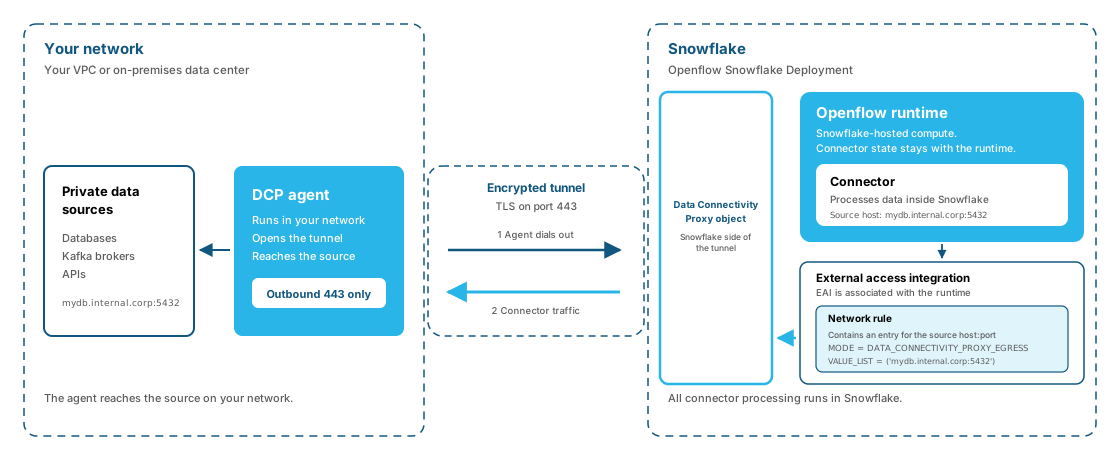
Create a network rule for your data source
This network rule of mode DATA_CONNECTIVITY_PROXY_EGRESS ensures that any
traffic to the specified TARGET_HOSTNAME:TARGET_PORT is routed through DCP and
not through public internet gateways. You can specify multiple hostname and port
combinations in a network rule.
Note
TARGET_HOSTNAME requires a fully qualified domain name. Network rule creation
fails if you provide an IP address instead.
Create an external access integration for your data source
An external access integration provides secure access to external resources for
Openflow runtimes and connectors. Associate it with the Data Connectivity Proxy
object, and with Openflow runtimes. Its ALLOWED_NETWORK_RULES determine which
endpoints are accessible through the integration.
Associate the integration with the DCP object if you didn’t set
EXTERNAL_ACCESS_INTEGRATIONS when you created the proxy:
Grant the execute-as role and Openflow admin access to the integration
Grant USAGE on the DCP external access integration to the execute-as role
associated with the runtime:
To allow users to associate the DCP external access integration with a runtime,
grant USAGE to the role that users use to create or update runtimes:
Attach the external access integration to the runtime
The Openflow runtime also needs the same external access integration so the connector is allowed to open connections to the destination.
To attach it in the Openflow UI:
- Sign in to Snowsight.
- In the navigation menu, select Ingestion » Openflow.
- Select Launch Openflow.
- Navigate to the runtime listing to view your existing runtimes, or create one as described in Set up Openflow - Snowflake Deployment: Create runtime.
- In the runtime list view, select
 next to the
runtime » External access integrations. Pick the DCP external access
integration and select Save. You can select more than one integration if
the runtime also needs allowlisted public destinations.
next to the
runtime » External access integrations. Pick the DCP external access
integration and select Save. You can select more than one integration if
the runtime also needs allowlisted public destinations.
On a gen 2 runtime, you can do the same thing in SQL. To add the integration to an existing runtime:
To create a runtime with the integration already attached:
Adding or removing integrations with ALTER OPENFLOW RUNTIME requires
OWNERSHIP on the runtime. To confirm which integrations are attached, run
DESCRIBE OPENFLOW RUNTIME and check the external_integrations column.
Configure the connector with the private DNS name
Set the connector’s source host and port to the same fully qualified hostname you listed in the DCP network rule. Don’t substitute a Snowflake hostname, a proxy URL, or the source’s private IP.
The host and port have to match the network rule exactly. The rest of the
connection string works as usual, so keep the scheme and any parameters your
source requires. For example, if the network rule lists
mydb.internal.corp:5432, a PostgreSQL connector can use
jdbc:postgresql://mydb.internal.corp:5432/mydb?sslmode=require.
Then run the connector’s usual connectivity check from the Openflow UI. A successful check confirms the path from the Snowflake-hosted runtime through the DCP tunnel to the source.
Start your connector and validate that data is being ingested successfully.
Considerations
- The agent must be able to resolve the hostname you use in the network rule and in the connector. If you don’t have DNS for the target, add a host entry on the agent host (not in Snowflake), as described in Create a network rule for the private destination.
- Enable the Data Connectivity Proxy object before you expect connector traffic. If the object exists but is disabled, the agent can appear to connect and then retry with an error that the agent isn’t known or is disabled. See Agent shows disconnected or down health.
- Deploy more than one agent in separate failure domains if you need redundancy. Connector checkpoints remain in Openflow if you replace an agent. See High availability.
- Rotate the bootstrap credential before it expires. Rotation is a DCP agent operation; you don’t reconfigure the Openflow connector when the token changes. See Rotate the bootstrap token without downtime.
Troubleshooting Openflow connectivity
If the connector can’t reach the source after the agent is running, check the Openflow side first:
| Symptom | Likely cause | What to check |
|---|---|---|
| Connector fails to connect; public allowlisted sources on the same runtime still work | The DCP external access integration isn’t on the runtime, or the runtime role lacks USAGE | Confirm the DCP external access integration is selected on the runtime and granted to the runtime role |
(gen 1 connectors) Your connector fails to run with the following error:
| The external access integration attached to the runtime doesn’t include the network rule that provides access to the source through DCP. The hostname and port defined in the network rule included in the EAI don’t match the hostname and port in the connection string. | Make sure your network rule is defined using the correct source hostname and port, is attached to the correct EAI, and matches the connection string that you are using in the connector. |
(gen 2 connectors) Source connectivity validation fails with error message:
There is no egress Network Rule in | The external access integration attached to the runtime doesn’t include the network rule that provides access to the source through DCP. The hostname and port defined in the network rule included in the EAI don’t match the hostname and port in the connection string. | Make sure your network rule is defined using the correct source hostname and port, is attached to the correct EAI, and matches the connection string that you are using in the connector. |
(gen 2 connectors) Source connectivity validation fails with error message: Failed to connect to the source database. Failed to establish Database Connection (gen 1 connectors) Your connector fails with error message:
| The agent host can’t reach the source, or the proxy object is disabled | Verify agent-to-source reachability and that the proxy is enabled. See Connector can’t reach a private source. |
For agent startup errors, bootstrap JWT issues, outbound port 443, DNS to Snowflake, and Prometheus metrics, see Troubleshoot Data Connectivity Proxy and Monitor Data Connectivity Proxy.