Multi-Location Resilience for Data Pipelines
Multi-location resilience for data pipelines helps you safeguard your data
pipelines against potential region-wide cloud provider outages. This feature
ensures that after you fail over to a secondary location, your data pipelines
(specifically those using Snowpipe and COPY INTO) resume loading new data
with minimal interruption and no duplicate data.
This feature works cross-cloud, allowing your primary and secondary storage locations to span entirely different cloud providers (for example, failing over from AWS to Azure), as well as cross-region within the same cloud.
Responding to an outage
Go to Fail over data pipelines, and
run its steps in your target account, the account that holds the replicas. To
confirm that you’re connected to your target account, run
SHOW FAILOVER GROUPS. It returns a row for each account
in your failover group, and in the row whose account_name is the current
account, is_primary is false. The first step of the runbook shows how to
identify your setup. After you run the runbook’s steps, confirm that ingestion resumed, as described in
Verify data pipelines after failover or failback. If you need to create stages, integrations,
or pipes during the outage, see Create stages, integrations, or pipes during an outage. To move
back after the outage, see
Fail back data pipelines.
To set up multi-location resilience or find the topic for a task, see Set up, fail over, and verify.
How multi-location resilience works
Source and target accounts
The multi-location resilience topics use two fixed labels for the two Snowflake accounts, and they never change meaning:
- Source account: The account where you create the objects during setup. It’s the primary account until you fail over, and then it’s the secondary account until you fail back.
- Target account: The account that holds the replicas. It’s the secondary account until you fail over, and then it’s the primary account until you fail back.
The words primary and secondary describe a role that swaps when you fail over. The words source and target describe the account itself and don’t change. Every step in these topics names the account that you must be connected to.
This feature relies on a shared-responsibility model:
- Snowflake’s role: Snowflake replicates the tables that your pipelines load, and their load history (ingestion state), to your target account. After a failover, Snowflake uses this state to prevent duplicates and to load only the files that weren’t loaded in the primary location.
- Your role: Make sure that your producer writes new files to your secondary cloud storage location, either all the time (dual-write) or after an outage starts (single-write). Snowflake doesn’t replicate the files in your cloud storage. For more information, see Choose how your producer writes files.
What Snowflake replicates
Snowflake replicates your pipelines through the failover group that holds your pipeline databases. Replication is asynchronous, so your replicas can lag behind your source account by up to twice your refresh interval. Each refresh copies a table and its load history at the same point in time, so in your target account the two always match, and a failover doesn’t result in duplicate data. For example, with dual-write, if your replicas are four hours behind, loading four hours of queued notifications brings the table up to date.
The load history also covers files that an outage interrupts. If an outage
interrupts a COPY INTO statement, the statement rolls back completely.
Snowpipe can commit a large file in parts. The replicated load history records
the parts that Snowpipe committed, and after a failover the pipe in your target
account loads the rest of the file.
What else replicates, and what doesn’t:
- Stages, pipes, and tasks: These replicate as part of the databases in your failover group, so you don’t recreate them in your target account.
- Integrations: These are account-level objects, so setup adds them to the group explicitly, as described in Add your integrations to the failover group.
- Not replicated: The files in your cloud storage and the messages in your cloud message queues.
Your refresh interval also sets your Recovery Point Objective (RPO) for table
changes that don’t come from Snowpipe or COPY INTO. For more information, see
Stage, pipe, and load history replication.
What you configure
To make your pipelines resilient, you configure up to two types of resources:
- Multi-Location Storage Integration (MLSI): Securely connects Snowflake to
multiple external cloud storage locations across regions or clouds. You always
need an MLSI, whether you want resilience for
COPY INTOfrom external stages alone or for your full Snowpipe pipeline. - Multi-Queue Notification Integration (MQNI): Connects Snowflake to multiple third-party cloud message queues, ensuring continuous receipt of new file notifications. You need an MQNI only for Snowpipe, that is, for continuous data loading. On Google Cloud and Azure, and across cloud providers, Snowpipe requires one. On Amazon S3, it’s optional but recommended: your pipes can instead read Amazon Simple Queue Service (SQS) notifications directly. For the trade-offs between the two paths, see Choose a notification path for Amazon S3.
Both resources hold a list of locations or queues, plus one ACTIVE value that
names the one in use. On Amazon S3, each queue in an MQNI is an Amazon Simple
Notification Service (SNS) topic, and Snowflake subscribes its own Amazon SQS queue to the active topic.
You set ACTIVE independently in each account, so your
source account can use its primary location while your target account is already
pointed at the secondary one.
For Snowpipe across cloud providers where one of the two providers is AWS, create the MQNI with Scenario A.
If you load data only with COPY INTO <table>, whether you run the statements
yourself or in tasks, you don’t need an MQNI. During setup, skip
Configure notifications for multi-location resilience
and Rebind SQS-only pipes. After a
failover or failback, skip the
pipe status check. Also skip any item
that’s marked for Snowpipe or for an MQNI. Run every other step that applies to dual-write or single-write, whichever your producer uses. Where a step covers both
pipes and COPY INTO jobs, follow the instructions for COPY INTO jobs.
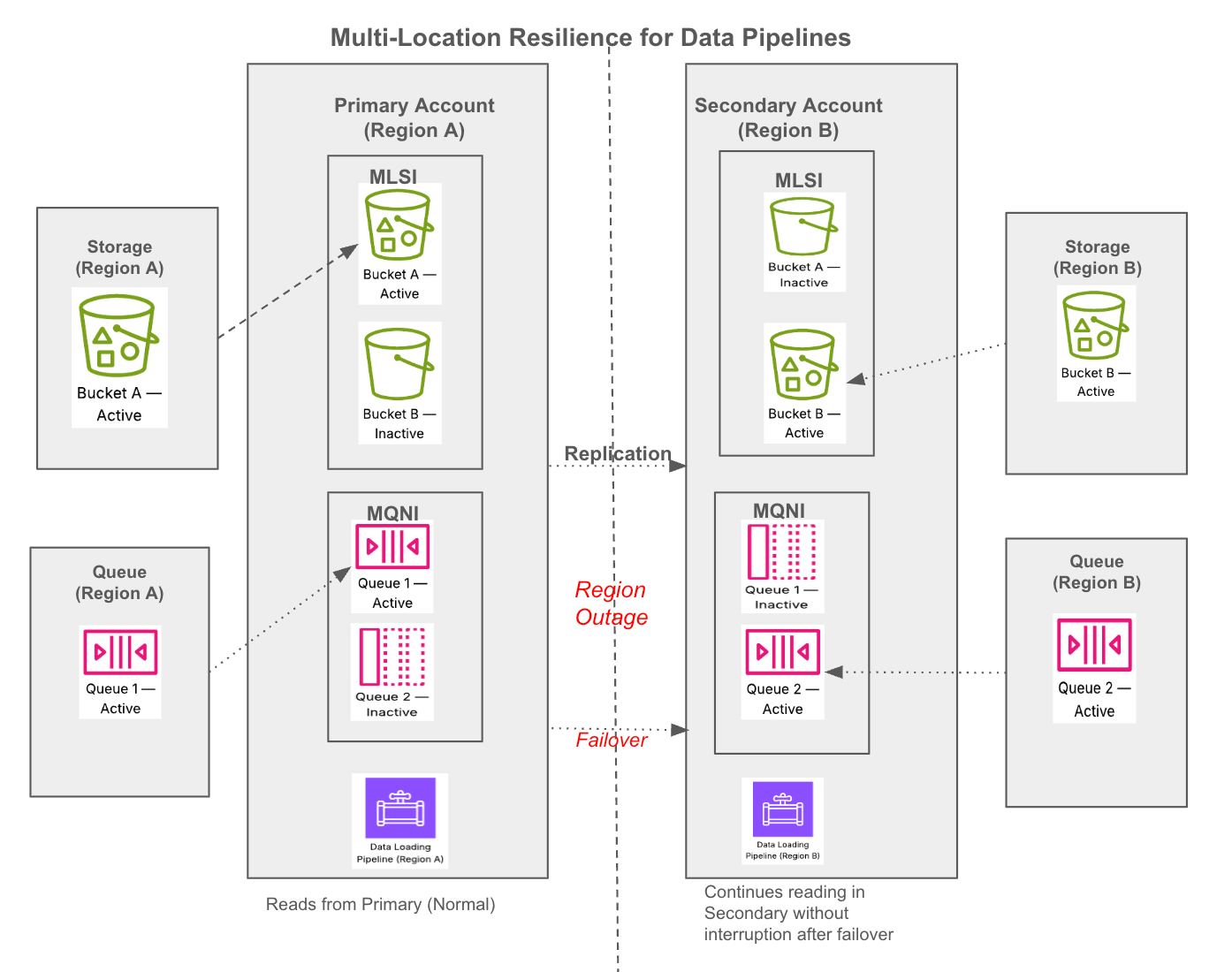
The source account holds the integrations, and the target account holds replicas of them. Each account sets its own active storage location and active queue. Failing over promotes the target account, which is already pointed at the secondary location.
What happens when you fail over and fail back
- Before a failover: After you complete Point your target account at your secondary location during setup, the pipes in your target account read notifications from their queue and record each file, but they don’t load it, because the replicated databases in your target account are read-only.
- Failover: You promote your target account. Because you set
ACTIVEin both accounts during setup, failover requires no storage or notification reconfiguration in Snowflake. With single-write, you also point your producer at your secondary location. The pipes then load each recorded file that the replicated load history doesn’t include, and then new files as they arrive. For the steps, see Fail over your pipelines. - Failback: After your primary location recovers, you refresh the failover group in your source account, so that it gets the latest tables and load history from your target account, and then you promote your source account. With single-write, before that refresh, you also copy files that only your source account loaded to your secondary location so that your target account loads them, and you point your producer back at your primary location. After you fail back, you reconcile files. For the steps, see Fail back your pipelines.
Requirements and considerations
Before configuring this feature, review the following:
Prerequisites
This feature builds on Snowflake account replication. Before you start setup, you must already have the following in place:
- Business Critical Edition (or higher). Both accounts must use this edition, because failover and storage integration replication require it.
- A target account in a second region or cloud. The account must belong to the same organization as your source account, and replication must be enabled for both accounts. For more information, see Replicating databases and account objects across multiple accounts.
- A failover group that already replicates your pipeline databases. The
group must include the databases that contain the tables, stages, pipes, and
tasks that you want to protect.
Setup alters this group, as described in
Add your integrations to the failover group, but doesn’t create one. To see what you already have, run
SHOW FAILOVER GROUPS in your source account. Throughout
the multi-location resilience topics,
my_fgis the name of that existing group. Refresh the group at least once every 14 days, and preferably much more often: pipes in your target account keep notification records for 14 days, and the failover steps read refresh history from the last 14 days. - A secondary cloud storage location for each primary location, in the region that you want to fail over to. The location (bucket or container) must use the same folder structure as your primary location, and your producer must write new files to it using the same relative paths. For more information, see How paths resolve in each location.
- Permissions in your cloud provider. You or your cloud administrator must be able to grant Snowflake access to both storage locations and, if you use Snowpipe auto-ingest, to the messaging service in both regions. On AWS, that means creating AWS Identity and Access Management (IAM) policies and roles, adding event notifications to both buckets, and, if you use Amazon SNS, editing SNS topic access policies. On Azure, it means granting consent for Snowflake’s apps in your Microsoft Entra ID tenant, assigning roles on both storage accounts, and creating Event Grid subscriptions and storage queues. On Google Cloud, it means granting Snowflake’s service accounts access to both buckets and creating Pub/Sub topics, subscriptions, and bucket notifications.
- The roles and warehouses that your loads use, in your target account. A
replicated task is resumed in your target account only if the group replicates the task’s
owner role. After a failover, your own
COPY INTOstatements and any tasks that use a warehouse also need a warehouse in your target account. IncludeROLESandWAREHOUSESin the group’sOBJECT_TYPES, or create the warehouses in your target account yourself. Adding an object type drops objects of that type that you created directly in your target account, as described in Replicate your integrations to the target account. For more information, see Replication and tasks.
If you don’t have a failover group yet, set up account replication first by following Replicating databases and account objects across multiple accounts, and then return to this topic.
Supported ingestion methods
This feature exclusively supports file-based data loading through Snowpipe
(auto-ingest) and COPY INTO <table>. It doesn’t support Openflow or Snowpipe
Streaming.
Considerations
- Billing: This feature incurs standard replication charges (data transfer and compute resources), billed to your target account.
- Stage modification downtime: If you change an existing stage to use an MLSI and the stage then resolves to a different location, Snowflake marks the stage’s pipes invalid, and you must recreate them. The same change drops the stage’s directory table, and the change fails if external tables use the stage. Snowflake recommends creating new stages during setup. For more information, see Associate the MLSI with your external stages.
- Active locations and queues: Set a different active storage location and a different active queue in your source and target accounts. Using the same active queue in both accounts isn’t supported and can result in notification loss. Snowflake doesn’t check whether the same queue is active in both accounts. Using the same active storage location in both accounts means that failing over doesn’t move your ingestion to a healthy region.
- Queue message retention: After you complete Point your target account at your secondary location during setup, the pipes in your target account read notifications from their queue even before a failover. Snowflake records each file and removes the record when replicated load history shows that your source account loaded the file or tried to. Otherwise, Snowflake keeps the record for 14 days. If you fail over during that time, the pipes load the file. The queue’s own retention matters only while the pipes in your target account aren’t reading it, for example before you finish setting up your target account. On Amazon S3, the Snowflake-managed SQS queue retains messages for 14 days. On Azure and Google Cloud, your queue retains messages for the period that you configure.
- Directory table: Creating a directory table on a stage that uses an MLSI isn’t currently supported.
Choose how your producer writes files
How you recover “in-flight” files during an outage depends on whether your producer writes each file to both cloud storage locations (dual-write) or only to the primary location (single-write). This guide assumes that every producer that writes to the stages in a failover group uses the same method.
Dual-write (recommended)
Your producer application writes files to both your primary and secondary cloud storage buckets simultaneously. Because your secondary queue receives a notification for every file, the pipes in your target account record every file before a failover.
- What happens on failover: The replicated database in your target account becomes writable. Snowpipe uses the replicated load history to deduplicate files. If an outage prevented a file from finishing in the primary location, the pipe in your target account already has the file’s notification from the secondary queue. Because the replicated load history doesn’t include the file, the pipe loads it.
- What happens on failback: After the primary location recovers, you refresh the failover group in your source account and then fail back. Snowpipe then starts ingesting new files automatically, because the refresh synced the load history from your target account to your source account.
- Result: No missing data, no duplicates. Snowflake handles reconciliation automatically in both directions.
- Requirement: Refresh the failover group at least once every 14 days, and preferably much more often. Before a failover, pipes in your target account keep a record of each notification for 14 days. Your refresh interval determines how many files your target account has to load after a failover.
- Action needed: Promote your target account to fail over, as described in Fail over your pipelines. Before you fail back, let your target account finish loading, and then refresh the failover group so that your source account has the latest tables and load history, as described in Fail back your pipelines.
Single-write
Your producer writes only to the primary cloud storage. During an outage, you reroute the producer to start writing new files to the secondary cloud storage.
- What happens on failover: The target account immediately begins processing
new files routed to the secondary bucket. However, any in-flight files trapped
in the impacted primary location are left behind temporarily. Rows that
Snowpipe or your
COPY INTOjobs loaded in the primary location after your last successful replication are also missing from your target account until you reconcile them. - What happens on failback: When the primary location recovers and you fail
back to your source account, Snowpipe automatically processes any file
notifications that were still unread in the queue when the outage began. On
their next run, your
COPY INTOstatements load files in your primary location that weren’t loaded before the outage, becauseCOPY INTOskips files that the table’s load metadata records as loaded. If your source account had read a file’s notification but hadn’t loaded the file before the outage, the failback refresh discards that notification. To reconcile those files, see step 9 of Fail back your pipelines. - Result: No duplicates. However, any files where the cloud notification completely failed to generate because of the outage (or where the outage outlasted your queue’s message retention period) require manual intervention.
- Action needed: Reconcile files twice: before you fail back, to keep rows that exist only in your source account, and after you fail back, to load files that were never loaded. For both procedures, see Fail back your pipelines.
Set up, fail over, and verify
Use the following topics:
- Set up multi-location resilience for data pipelines: Before an outage, configure your integrations, stages, notifications, and target account once, and validate your setup. The setup topic lists the tasks in order, and the table of sections for each pipeline type shows which sections your pipelines need.
- Manage multi-location resilience after setup: After setup, add pipes or change the active queue.
- Fail over data pipelines: During an outage, move ingestion to your secondary location.
- Fail back data pipelines: After the outage, move ingestion back to your primary location.
- Verify data pipelines after failover or failback: After a failover or failback, confirm that ingestion resumed.
- Troubleshoot data pipelines after failover or failback: If a check fails, find the symptom and the fix.