- description:
Setting up the SMA
Snowpark Migration Accelerator: Configuration and Settings
Setting up a new project with the Snowpark Migration Accelerator (SMA) is a simple process. This page explains all available settings, updates, and customization options within the application.
Updating the Application
The Snowpark Migration Accelerator (SMA) automatically checks for new versions when you start the program. If a newer version is available, you’ll see a notification message in the upper-right corner of your screen.

If you select “Update Now,” the application will immediately download and install the latest version.
.png)
After the download completes, click “Close and Install” to update the application.

After the application restarts, you can verify the current version number in the top-right corner of the window.

Check for Updates
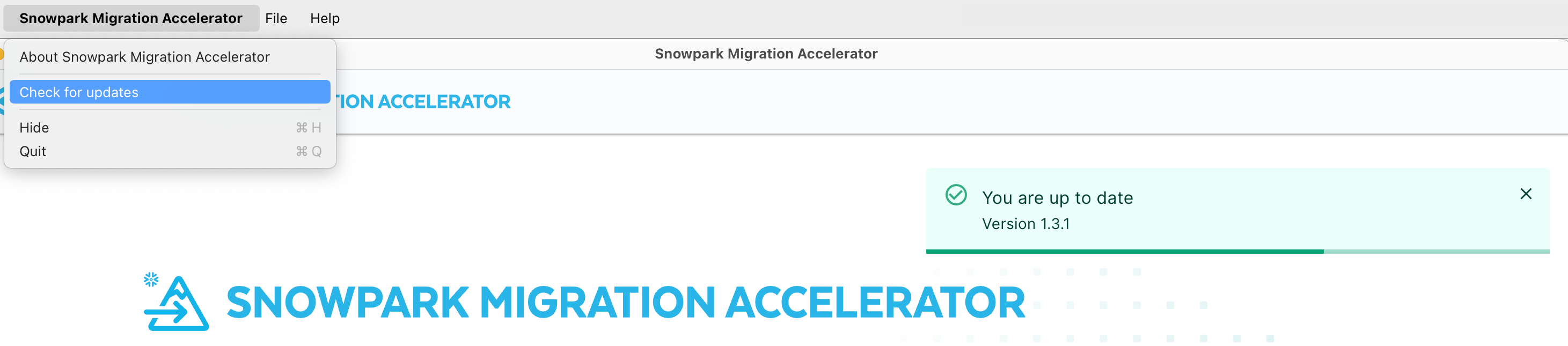
To check for a new version of the application, click the “Check for Updates” option in the menu.
If your application is up to date, you will see a notification in the top right corner confirming this status.
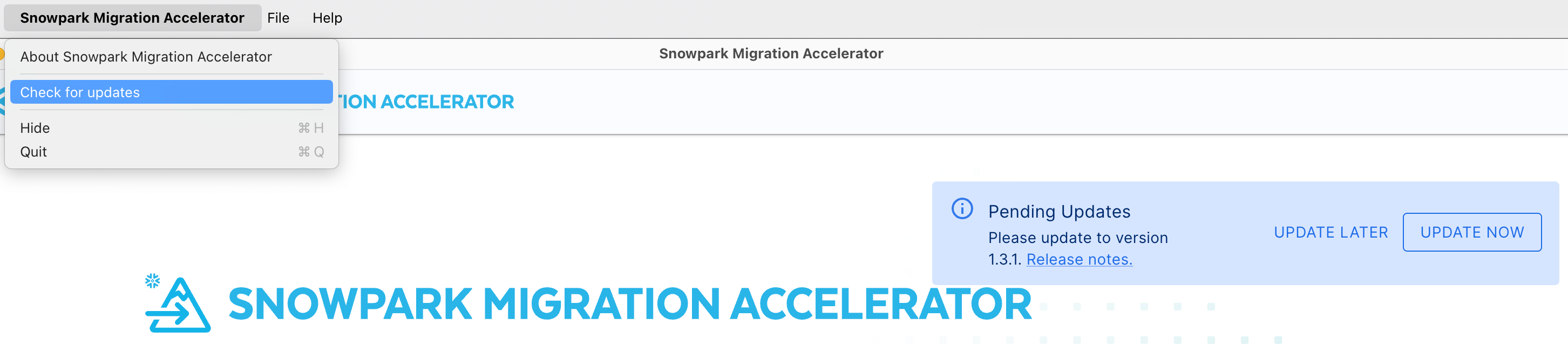
If your application is not running the latest version, you will be prompted to update it.
Conversion Settings
Before starting a conversion, you can change the conversion settings from the Conversion Settings page. On this page, choose one of the following options:
.png)
- Customize settings: Opens the Conversion settings dialog so you can adjust advanced conversion options.
- Default Settings: Uses the default conversion settings and proceeds with the conversion workflow.
When you open Customize settings, the dialog organizes settings by category (for example, Pandas, DBX, and Checkpoints):
.png)
For example, under Pandas, you can enable Convert Pandas API to Snowpark API to automatically convert supported Pandas API usage to the Snowpark Pandas API during conversion.
Select Save settings to apply your changes. Select Reset settings to restore defaults, or Cancel to close the dialog without saving.
About
To view the version information for your Snowpark Migration Accelerator installation, click the About Snowpark Migration Accelerator option in the menu.
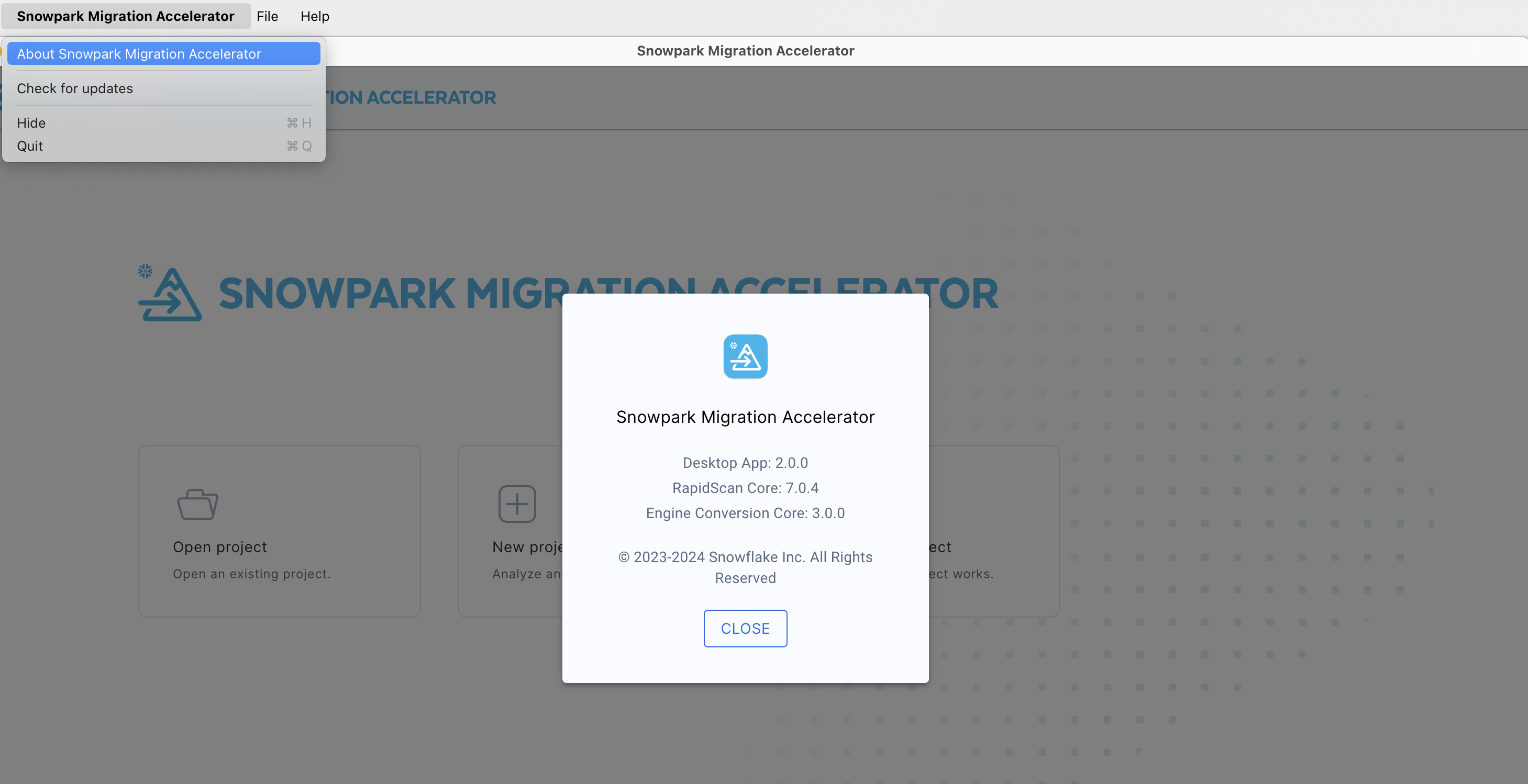
To review changes between different versions, check the release notes.
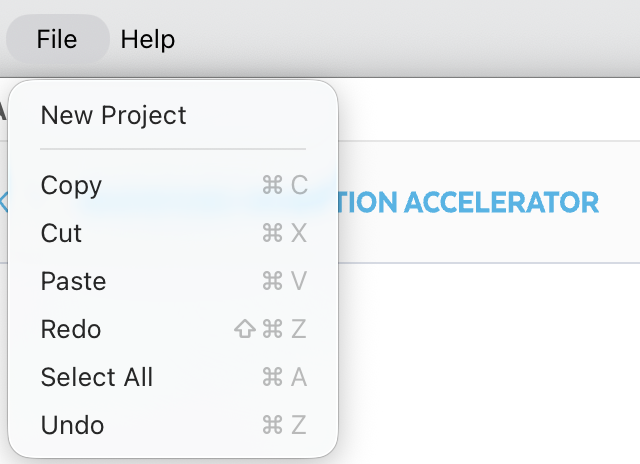
File Menu
From the File menu, you can create a new project by selecting New Project
Help Menu
The help menu provides several support options tailored to your specific needs.
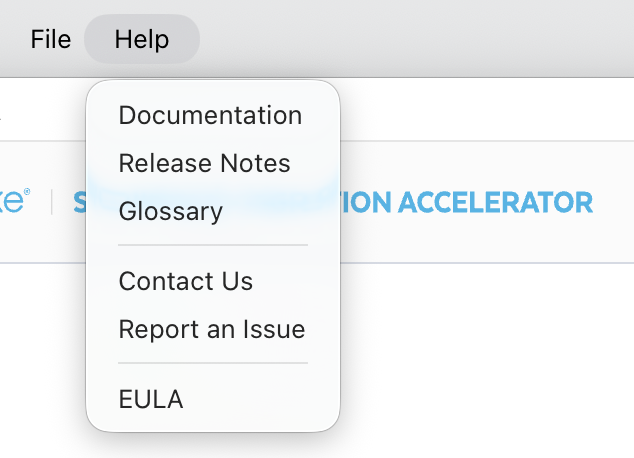
The following sections describe each option available in the help menu.
Documentation
To return to the main documentation page (Welcome!), click here.
Release Notes
The release notes can be found in the general section of our documentation site. Click here to view them.
Glossary
The Glossary option directs you to the Glossary section, where you can find definitions of terms used throughout this documentation.
Contact Us
The Contact Us button opens your default email application. When clicked, it allows you to send an email to sma-info@snowflake.com to discuss any questions or concerns about the Snowpark Migration Accelerator.
For additional ways to reach the Snowpark Migration Accelerator (SMA) team, visit the contact us section.
Report an Issue
You can report issues at any time. This includes problems encountered while running the tool or any other concerns related to using the tool.
When you select this issue, a form will be displayed.
.png)
To help us resolve your issue quickly, provide:
- A detailed description of the problem
- Your email address so we can contact you
- Any relevant files, such as screenshots showing the problem
- Log files from when you ran the tool
After submitting the issue, the SMA support team will be notified. If you provided your email address, our team will contact you promptly.
EULA
This link directs you to the End User License Agreement (EULA) page where you can review the terms of use.
Let’s start using the Snowpark Migration Accelerator (SMA) tool to convert your code.