Extracting information from documents with AI_
AI_EXTRACT is a Cortex AI Function that lets you extract structured information, such as entities, lists, and tables, from text or document files, by asking questions in natural language or by describing information to be extracted. It can be used with other functions to create custom document processing pipelines for a variety of use cases (see Cortex AI Functions: Documents).
AI_EXTRACT can process documents of various formats in multiple languages and extract information from both text-heavy paragraphs and content in a graphical form, such as logos, handwritten text (for example, signatures), tables, or checkmarks. AI_EXTRACT can extract information in the following structured formats:
- Entity: Ask questions in natural language or describe the information to be extracted (such as city, street, or ZIP code).
- List (or array): You can provide a JSON schema to extract an array or list of information present in the document, such as the name of all account holders in a bank statement or a list of all addresses in a Document.
- Table: Provide a JSON schema to extract tabular data present in the document by specifying the table title and a list of columns that should be extracted.
AI_EXTRACT scales automatically with your workload by processing multiple documents simultaneously. Documents can be processed directly from object storage to avoid unnecessary data movement.
AI_EXTRACT supports documents on stages that use client-side or server-side encryption, including in accounts that use PrivateLink or other network policies that restrict public network access to stages.
Tip
For more information on AI_EXTRACT, including supported languages, regional availability, and cost, see AI_EXTRACT.
Extraction quality
AI_EXTRACT uses arctic-extract, a proprietary vision-based large language model (LLM) that delivers high extraction accuracy.
The following table presents the model’s scores on various standard benchmarks, with the scores of other popular models for comparison:
Visual question answering (VQA)
| Offering | DocVQA score |
|---|---|
| Human evaluation | 0.9811 |
| Snowflake Arctic-Extract | 0.9433 |
| Azure OpenAI GPT-o3 | 0.9339 |
| Google Gemini 2.5-Pro | 0.9316 |
| Google Anthropic Claude 4 Sonnet | 0.9119 |
| Azure Document Intelligence + GPT-o3 | 0.8853 |
| Google Document AI + Gemini | 0.8497 |
| Azure OpenAI GPT-o3 | 0.9339 |
| AWS Textract | 0.8313 |
Text-only question answering (SQuAD v2)
| Offering | ANLS | Exact match |
|---|---|---|
| Snowflake Arctic-Extract | 81.18 | 78.74 |
| Anthropic Claude 4 Sonnet | 80.54 | 77.10 |
| Meta LLaMA 3.1 405B | 80.37 | 76.56 |
| Meta LLaMA 4 Scout | 74.30 | 70.70 |
| OpenAI GPT 4.1 | 70.71 | 66.81 |
| Meta LLaMA 3.1 8B | 59.13 | 54.48 |
Question optimization for extracting information
When you work with AI_EXTRACT, use natural language to ask questions about your documents. To ask a question that returns an accurate answer, follow these guidelines:
- Use plain English.
- For each question, know what answers you expect.
- Be specific; for example, if the document includes several dates (such as issuing date and signature date), do not ask “What is the date?” without including more details.
- Ask for a single value in each question.
- Do not expect AI_EXTRACT to guess your intentions or have extended knowledge in a specific domain.
Consider the following document as an example. This purchase and sale agreement includes information such as the offer expiration date, the names of the buyers and the seller, and the included items.
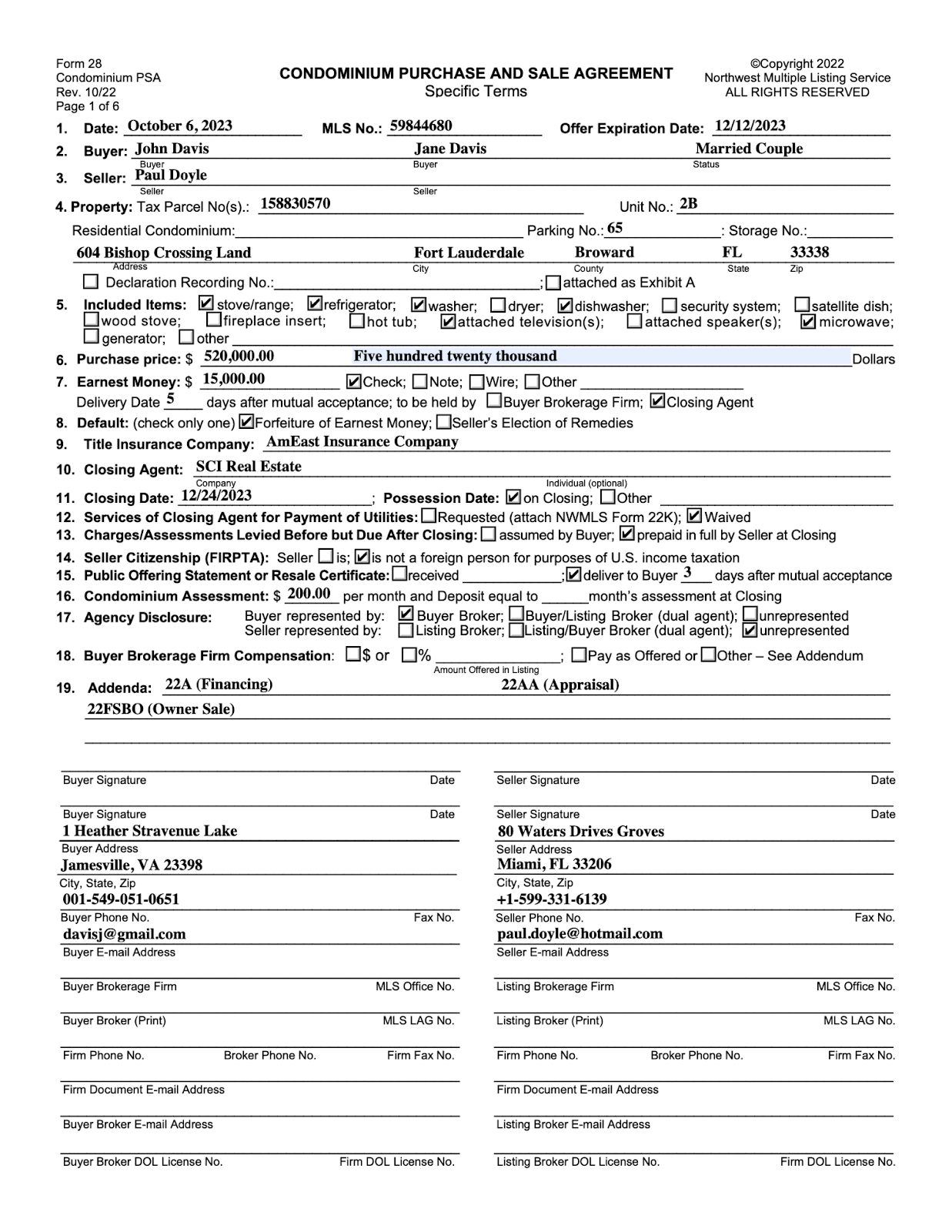
The following table provides examples of questions you can ask AI_EXTRACT and the expected answers.
| Example question | Answer |
|---|---|
| What is the date of this agreement? | 'October 6, 2023' |
| Who is the buyer of the condo? | 'John Davis', 'Jane Davis' |
| What home appliances are included with the unit? | 'stove/range', 'refrigerator', 'washer', 'dishwasher', 'attached television(s)', 'microwave' |
| What items are not included with the flat? | 'dryer', 'security system', 'satellite dish', 'wood stove', 'fireplace insert', 'hot tub', 'attached speaker(s)', 'generator' |
| Is there a dryer in the flat? | 'No' |
| What addenda are attached to this purchase and sale agreement? | '22A (Financing)', '2AA (Appraisal)', '22FSBO (Owner Sale)' |
| What is the seller’s fax number? | None |
| Is the buyer’s signature present on the form? | 'No' |
| What is the MLS number? | '59844680' |
| What is the property’s address? | '604 Bishop Crossing Land, Fort Lauderdale, Broward County, FL, 33338' |
Table extraction best practices
This section provides best practices when working with table extraction in AI_EXTRACT.
Use one schema for a specific type of document
Each extraction workload must contain documents of the same type, and the data that you want to extract should be similar for most of the tables. If the number of columns in the source document differs from one document to another, but all documents contain a defined subset of columns to be extracted and the common columns have the same or a similar name and location, then those common columns can be extracted.
For example, invoices may have different numbers of columns with various data, but if all of the tables have the same first
three columns — Item Description, Quantity, and Price — that data can be extracted.
Use natural language to define column names
You can copy the column names from the document so that they’re exactly the same.
For example, don’t name the columns product_code or REPORT_DATE; instead, name them Product Code or Report Date.
Skip the empty rows
When you create a fine-tuning dataset, skip the rows with no answer (where the returned answer would be None).
Define the columns in the same order they appear in the document
To improve accuracy, define the columns in the same order as they appear in the document, which is usually from left to right, or top to bottom for the transposed tables. If you choose to define the order differently, training might be needed.
However, for columns where values are the same for multiple rows, such as Invoice Number and Invoice Date, add these columns at the beginning.
For example:
Invoice NumberInvoice DateItem CodeItem NameQuantity
Define values using casing from the document
When possible, define values using casing (uppercase and lowercase) from the document. If the casing in the document is varied, use capitalization.
Use the description field
The description field in the AI_EXTRACT response format is optional; in most cases, you don’t have to fill it in. However, if there
are multiple similar tables in a document, the model might answer inaccurately. If the answers come from a different source table
than expected or the model can’t find the table, try using the description field. Add information that helps the model identify
the right table, such as the table title or number.
Add a section column to describe the layout of the table
If the table is divided into multiple named sections, add a section column. This helps the model understand the layout better and
improve the accuracy. For example, you can name the column Section, Item section, or Item category. If there is a second
level of nesting in the sections, you can add two columns: Section and Subsection.
To group values, create an additional column
You can add a column to the existing table to group values. In this way, you can join results from the whole document set in a single table; for example:
| Invoice Number | Item Details | Item Price | Quantity |
|---|---|---|---|
| A | Item A1 | 10.00 | 1 |
| A | Item A2 | 20.00 | 1 |
| A | Item A3 | 30.00 | 1 |
| B | Item B1 | 15.00 | 1 |
| B | Item B2 | 25.00 | 1 |
| B | Item B3 | 35.00 | 1 |
Note that the value in the first column is repeated for corresponding items.
Make the column names distinguishable between documents
Try to semantically distinguish a column. Don’t use names such as col1, val1, item1.
In some cases, transposition can work better, especially when the row names don’t differ between documents or differ slightly and are within a closed set of values.
Note that training on the specified column set might improve the results.
Use the parent name as a prefix when working with hierarchical headers
To extract information from tables with hierarchical headers, join the header path using each parent name as a prefix. For example, for the following table, define the columns as:
Category A Type X Column 1Category A Type Y Column 2Category A Type Y Column 3Category B Column 4Category B Column 5

Transpose the tables if needed
You can extract information from transposed tables by using values from the first column of the table in the document as column names in the output table.
For example, for the following table, name the columns:
Type A: Item 1Type A: Item 2Type B: Item 3Type B: Item 4
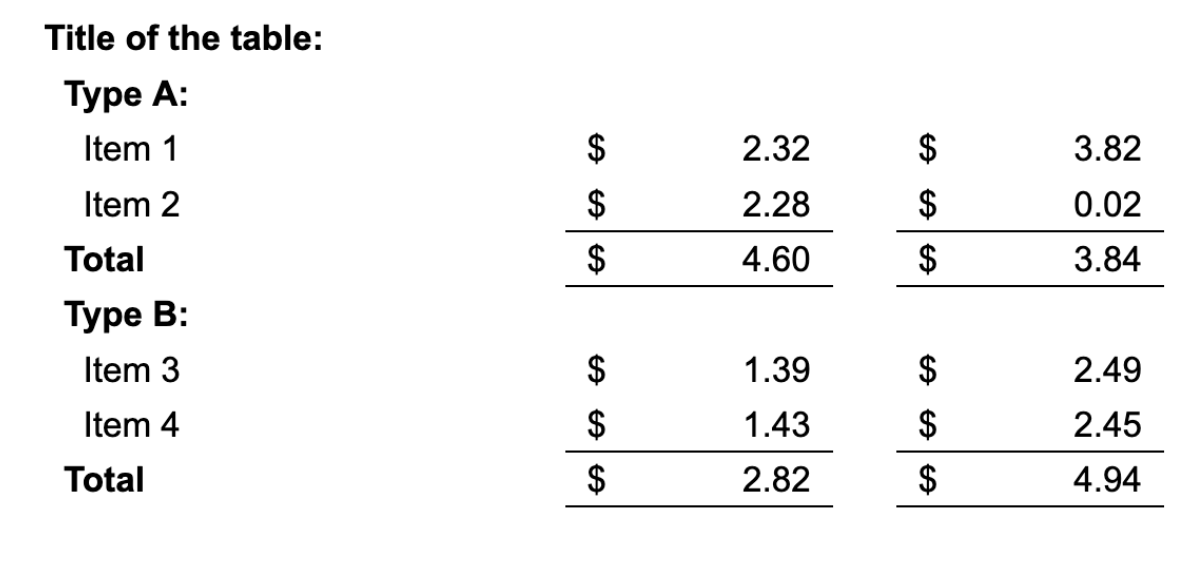
Note that this example includes hierarchical headers.
For large tables, split the document
The model for table extraction returns answers that are up to 4096 tokens long. This means that the model stops extracting when it reaches that limit. You can approach this in the following ways:
-
If the table covers several pages, split the document into multiple one-page documents, and join the results in postprocessing.
-
If the table is so dense that the data can’t be extracted even from a single page, divide the table by columns.
For example, if the table contains 10 columns, try defining two separate values: one with 5 columns from the left half, and the other with 5 columns from the right half of the table. You might need to experiment with the column choice for best results.
Create names for the columns that don’t have a name in the document
If the first column in the document doesn’t have a name, you must create that name yourself when defining the value. You can approach it in the following ways:
- Use the table title or a significant part of the title.
- Create a descriptive name that represents the data in the column; for example,
description,type of asset,year,category.
Compare data from two different periods of time
If you want to compare data from two different periods of time, for example, years 2023 and 2024 in financial documents such as annual reports, you can prefix the columns with “current” and “previous”. Note that training might be needed to improve the results.
Examples: Extract information from a purchase and sale agreement
The following examples extract information from the condominium purchase and sale agreement which you can view in the Question optimization for extracting information section.
Extract an entity
Extract the seller name and the offer expiration date:
Result:
Extract checkbox information
Extract information about items that are not included, based on the checkboxes marked in the document:
Result:
Extract signature status
Extract information about whether the agreement has been signed:
Result:
Extract a list of entities
Extract a list of buyer names:
Result:
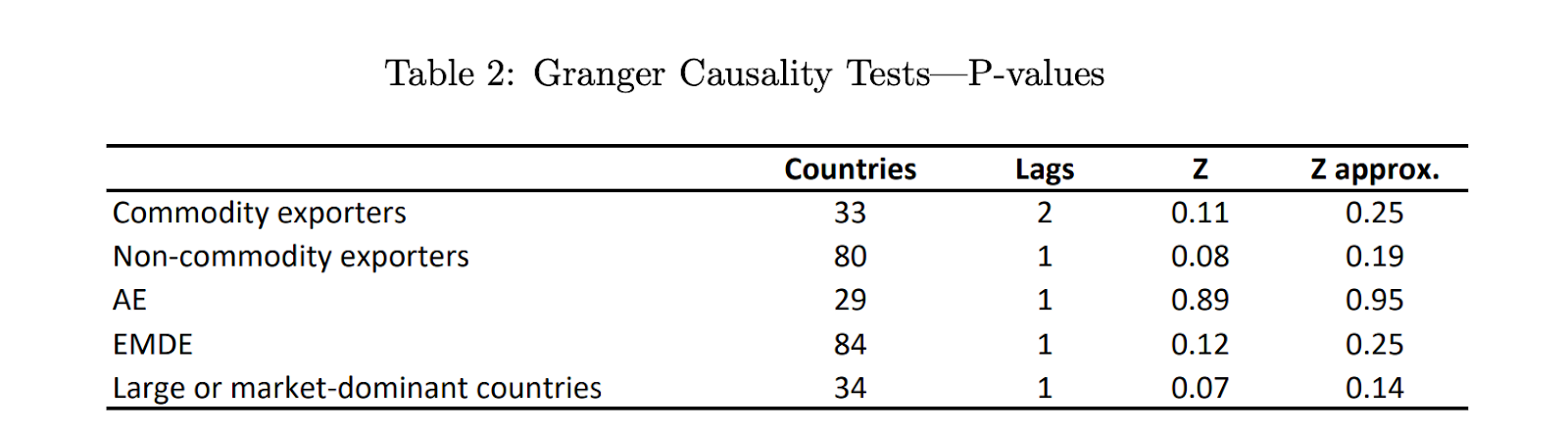
Example: Extract information from a table
This example extracts information from the following document:
Result:
Legal notices
The data classification of inputs and outputs are as set forth in the following table.
| Input data classification | Output data classification | Designation |
|---|---|---|
| Usage Data | Customer Data | Generally available functions are Covered AI Features. Preview functions are Preview AI Features. [1] |
For additional information, refer to Snowflake AI and ML.