Access Apache Iceberg™ tables with an external engine through Snowflake Horizon Catalog
Access Snowflake-managed Apache Iceberg™ tables by using an external query engine through Snowflake Horizon Catalog. To ensure this interoperability with external engines, Apache Polaris™ is integrated into Horizon Catalog. In addition, Horizon Catalog exposes the Apache Iceberg™ REST API (Horizon Iceberg REST Catalog API). This API lets you access the tables by using external query engines.
You can use Horizon Catalog, which is available in all your existing Snowflake accounts, to read and write to Snowflake-managed Iceberg tables with external query engines.
You can also access externally managed Iceberg tables in a catalog-linked database through the same Horizon IRC endpoint. For instructions, see Access externally managed Apache Iceberg™ tables in a catalog-linked database with an external engine through Snowflake Horizon Catalog.
Query Iceberg tables
By connecting an external query engine to Iceberg tables through Horizon Catalog, you can perform the following tasks:
- Use any external query engine that supports the open Iceberg REST protocol to query these tables, such as Apache Spark™.
- Query any existing and new Snowflake-managed Iceberg tables in a new or existing Snowflake account by using a single Horizon Catalog endpoint.
- Query the tables by using your existing users, roles, policies, and authentication in Snowflake.
- Use vended credentials.
For more information about Snowflake Horizon Catalog, see Snowflake Horizon Catalog.
Write to Iceberg tables
You can read and write to Snowflake-managed Iceberg v2 and v3 tables from external engines through the Horizon Iceberg REST Catalog API.
To write to tables, follow the workflow for accessing Iceberg tables by using an external query engine. When you configure access control, ensure that you configure write access to your tables.
Then write to Iceberg tables.
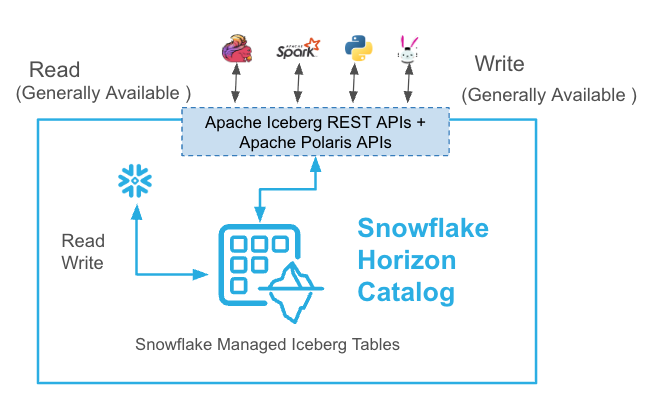
The following diagram shows external query engines reading and writing to Snowflake-managed Iceberg tables through Horizon Catalog and Snowflake reading and writing to these tables:
Billing
- The Horizon Iceberg REST Catalog API is available in all Snowflake editions.
- The API requests are billed as 0.5 credit per million calls and charged as Cloud Services.
- For cross-region data access, standard cross-region data egress charges as stated in the Snowflake Service Consumption Table are applicable.
Note
Billing for this feature is scheduled to begin in second half of 2026, subject to change.
Supported external engines and catalogs
The following tables, although not exhaustive, show many external engines and catalogs that integrate with the Horizon Iceberg REST Catalog API. This integration enables access to Snowflake managed Iceberg tables through external systems.
Supported external engines
The following external query engines integrate with the Horizon Iceberg REST Catalog API:
| Product | Access Snowflake-managed Iceberg tables through Horizon Catalog |
|---|---|
| Apache Doris™ | ✔ |
| Apache Flink™ | ✔ |
| Apache Spark™ | ✔ |
| Dremio | ✔ |
| DuckDB | ✔ |
| PyIceberg | ✔ |
| StarRocks | ✔ |
| Trino | ✔ |
Supported external catalogs
The following external catalogs integrate with the Horizon Iceberg REST Catalog API:
| Product | Access Snowflake-managed Iceberg tables through Horizon Catalog | Comment |
|---|---|---|
| Apache Polaris™ | ✔ | |
| AWS Glue | ✔ | For instructions on how to configure this integration, see Access Snowflake Horizon Catalog data using catalog federation in the AWS Glue Data Catalog in the AWS Big Data Blog. |
| Palantir Foundry | ✔ | For instructions on how to configure this integration, see Iceberg tables (virtual tables only) in the Palantir documentation. |
| Databricks Unity Catalog | Not announced | |
| Google BigLake Metastore | ✔ | For instructions on how to configure this integration, see Configure a catalog integration for Google Cloud BigLake Metastore. |
| Microsoft Fabric / Synapse | In development |
Prerequisites
Retrieve the account identifier for your Snowflake account that contains the Iceberg tables that you want to access. For instructions, see Account identifiers. You specify this identifier when you connect an external query engine to your Iceberg tables.
Tip
To get your account identifier by using SQL, you can run the following command:
(Optional) Private connectivity
For secure connectivity, consider configuring Inbound and Outbound private connectivity for your Snowflake account while you access the Horizon Catalog endpoint.
Note
Private connectivity is only supported for Snowflake-managed Iceberg tables stored on Amazon S3 or Azure Storage (ADLS).
Workflow for accessing Iceberg tables by using an external query engine
To access Iceberg tables by using an external query engine, complete the following steps:
- Create Iceberg tables
- Configure access control
- Obtain an access token for authentication
- Verify access token permissions
- (Optional) Configure data protection policies
- Connect an external query engine to Iceberg tables through Horizon Catalog
- Query Iceberg tables or write to Iceberg tables
Step 1: Create Iceberg tables
Important
If you already have Snowflake-managed Iceberg tables that you want to access, you can skip this step.
In this step, you create Snowflake-managed Iceberg tables that use Snowflake as the catalog, so you can access them with an external query engine. For instructions, see the following topics:
- Tutorial: Create your first Apache Iceberg™ table: A tutorial that shows how to create a database, create a Snowflake-managed Iceberg table, and load data into the table.
- Create a Snowflake-managed Iceberg table: Example code for creating a Snowflake-managed Iceberg table.
Step 2: Configure access control
Important
If you already have roles that are configured with access to the Iceberg tables that you want to access, you can skip this step.
In this step, you configure access control for the Snowflake-managed Iceberg tables that you want to access with an external query engine. For example, you can set up the following roles in Snowflake:
- data_engineer role, which has access to all schemas and all Snowflake-managed Iceberg tables in a database.
- data_analyst role, which has access to one schema in the database and only access to two Snowflake-managed Iceberg tables within that schema.
For more information, see the following sections:
Configure read access to your Iceberg tables
To query Iceberg tables, the role used to perform the operation must have the SELECT privilege on the Iceberg table and the USAGE privilege on the parent database and schema. For an example of granting these privileges to a role, see Example: Set up a service account user.
Important
The role that has the OWNERSHIP privilege on an Iceberg table must maintain the USAGE privilege on the external volume associated with the table. If the owner role doesn’t have USAGE on the external volume, any read or write table operation that asks for vended credentials will fail.
Example: Set up a service account user
The following example sets up a service account user in Snowflake with read-only access to an Iceberg table:
- Creates a
data_engineerrole. - Grants the
data_engineerrole USAGE and MONITOR privileges on theiceberg_test_dbdatabase and itspublicschema. - Grants SELECT privileges on the
test_tableIceberg table. - Creates a service user named
horizon_rest_srv_account_userand assigns thedata_engineerrole to that user.
(Optional) Apply future grants on Iceberg tables
To ensure access to any new Iceberg tables created in a schema, use the GRANT … ON FUTURE ICEBERG TABLES syntax.
The following example grants the data_engineer role access to any Iceberg tables created under a schema named my_schema.
For more information about access control in Snowflake, see the following topics:
Configure write access to your Iceberg tables
The following table describes the privileges required for write operations on Iceberg tables:
| Operation | Necessary privileges |
|---|---|
| Data Manipulation Language (DML) operations | Important A role used to execute the operation must have all of the following privileges:
|
| CREATE ICEBERG TABLE | A role used to execute the operation must have the following privileges:
|
| CREATE SCHEMA | A role used to execute the operation must have the CREATE SCHEMA privilege on the parent database. |
| Rename a table | A role used to execute the operation must have the OWNERSHIP privilege on the table. Important To move the table to a new schema, ensure that your role also has the CREATE ICEBERG TABLE privilege on the destination schema. |
| All other operations on a table | A role used to execute the operation must have the OWNERSHIP privilege on the table in addition to the privileges on the schema and database. For example, you must have these privileges to run the ALTER ICEBERG TABLE … ADD COLUMN or ALTER ICEBERG TABLE … DROP COLUMN operation. |
For more information about access control in Snowflake, see the following topics:
Step 3: Obtain an access token for authentication
In this step, you obtain an access token, which you must have to authenticate to the Horizon Catalog endpoint for your Snowflake account. You need to obtain an access token for each user — service or human — and role that is configured with access to Snowflake-managed Iceberg tables. For example, you need to obtain one access token for a user with DATA_ENGINEER role and another user with a DATA_ANALYST role.
You specify this access token later when you connect an external query engine to Iceberg tables through Horizon Catalog.
You can obtain an access token by using one of the following authentication options:
- External OAuth
- Key-pair authentication
- Programmatic access token (PAT)
- Workload Identity Federation (WIF) / OIDC
External OAuth
If you’re using External OAuth, generate an access token for your identity provider. For instructions, see External OAuth overview.
Note
For External OAuth, alternatively, you can configure your connection to the engine with automatic token refresh instead of specifying an access token.
Key-pair authentication
If you use key-pair authentication, to obtain an access token, you sign a JSON web token (JWT) with your private key.
The following steps cover how to generate an access token for key-pair authentication:
- Configure key-pair authentication
- Grant a role to the user
- Generate a JSON Web Token (JWT)
- Generate an access token
Step 1: Configure key-pair authentication
In this step, you perform the following tasks:
- Generate a private key
- Generate a public key
- Store the private and public keys securely
- Grant the privilege to assign a public key to a Snowflake user
- Assign the public key to a Snowflake user
- Verify the user’s public key fingerprint
For instructions, see Configuring key-pair authentication.
Step 2: Grant a role to the user
To grant to the key-pair authentication user the Snowflake role that has privileges to the tables you want to access, run the GRANT ROLE command.
For example, to grant the ENGINEER role to the my_service_user user, run
the following command:
Step 3: Generate a JSON Web Token (JWT)
In this step, you use Snowflake CLI to generate a JSON Web Token (JWT) for key-pair authentication.
Note
- You must have Snowflake CLI installed on your machine.
- You can also use Python, Java, or Node.js to generate a JWT. For an example, see the following sections:
Use snow connection generate-jwt to generate a JWT:
These options override the account, user, and private key in your Snowflake CLI connection, so the JWT is issued for the key-pair user from the previous steps.
Where:
-
<private_key_file>is the path to your private key file that corresponds to the public key assigned to your Snowflake user. For example:/Users/jsmith/.ssh/rsa_key.p8. -
<account_locator>is the account locator for your Snowflake account. The JWT is issued from--account, not from a host name.To find your account locator, see Locate your Snowflake account information in Snowsight and view the Account locator in the Account Details dialog.
-
<user_name>is the user name for a Snowflake user with the public key assigned to the user.
Step 4: Generate an access token
Important
To generate an access token, you must first generate a JWT. You must first generate a JWT because you use the JWT to generate the access token.
Use a curl command to generate an access token:
Where:
<account_identifier>is the account identifier for your Snowflake account, in the format<organization_name>-<account_name>. To find the account identifier, see Supported external engines and catalogs. An example of an account identifier ismyorg-myaccount.<role>is the Snowflake role that is granted access to Iceberg tables, such as ENGINEER.<JWT_token>Is the JWT that you generated in the previous step.
Programmatic access token (PAT)
If you use PATs, generate a PAT for authentication.
First, you generate a PAT, which you use to connect an external query engine to Iceberg tables. Then, you generate an access token, which you only use to verify the permissions for your PAT.
Step 1: Generate a PAT
For instructions on how to configure and generate a PAT, see Using programmatic access tokens for authentication.
The following example creates a programmatic access token (PAT) for the service account user that you created in the previous step by using the ALTER USER … ADD PROGRAMMATIC ACCESS TOKEN (PAT) command:
Step 2: Generate an access token for your PAT
In this step, you generate an access token for your PAT.
Attention
You only specify the access token that you generate in this step when you verify the permissions for your PAT. When you connect an external query engine to Iceberg tables, you must specify your PAT that you generated in the previous step, not the access token that you generate in this step.
Use a curl command to generate an access token for your PAT:
Where:
<account_identifier>is the account identifier for your Snowflake account, in the format<organization_name>-<account_name>. To find the account identifier, see Supported external engines and catalogs. An example of an account identifier ismyorg-myaccount.<role>is the Snowflake role that is granted to your PAT and has access to the Iceberg tables that you want to query or write to, such as ENGINEER.<PAT_token>is the value for the PAT token that you generated in the previous step.
Workload Identity Federation (WIF) / OIDC
If you are running your external query engine in an environment that supports OpenID Connect (OIDC), you can use Workload Identity Federation (WIF) for secretless authentication.
First, configure your Snowflake account to trust your external identity provider. You must create a Snowflake service user and
configure the WORKLOAD_IDENTITY property. For prerequisite instructions, see Workload identity federation.
Once your Snowflake service user is configured to accept OIDC tokens from your provider, your external query engine must fetch its short-lived OIDC token dynamically at runtime.
When you connect your external query engine to Iceberg tables through Horizon Catalog, you must pass the fetched OIDC token as a credential. The external catalog performs a token exchange with Snowflake to retrieve a valid access token bound to the scope you define. You must also specify the workload identity provider using a custom header in your catalog configuration.
Example: Apache Spark™ configuration for WIF / OIDC
To authenticate using WIF / OIDC in Apache Spark™, supply the fetched OIDC token to the .credential property, define the .scope
property with your required Snowflake role, and add the X-Snowflake-Workload-Identity-Provider header to your Iceberg REST catalog
configuration.
Where:
<fetched_oidc_token>is the short-lived OIDC token generated by your compute environment’s native identity provider.<role>is the Snowflake role that has access to the Iceberg tables you want to query or write to.
Step 4: Verify access token permissions
In this step, you verify the permissions for the access token that you obtained in the previous step.
Verify access to the Horizon IRC endpoint
Use a curl command to verify that you have permission to access your Horizon IRC endpoint:
Where:
-
<account_identifier>is the account identifier for your Snowflake account, in the format<organization_name>-<account_name>. To find the account identifier, see Supported external engines and catalogs. An example of an account identifier ismyorg-myaccount. -
<access_token>is your access token that you generated. If you’re using a PAT, this value is the access token you generated, not the personal access token (PAT) you generated. -
<database_name>is the name of the database that contains the Iceberg tables that you want to access.Important
If your database was created without quotes around the name, you must specify the database name in all capital letters, even if it was created with lowercase letters.
Example return value:
Retrieve the metadata for a table
You can also make a GET request to retrieve the metadata for a table. Snowflake uses the loadTable operation to load table metadata from your REST catalog.
Where:
<account_identifier>is the account identifier for your Snowflake account, in the format<organization_name>-<account_name>. To find the account identifier, see Supported external engines and catalogs. An example of an account identifier ismyorg-myaccount.<database_name>is the database of the table whose metadata you want to retrieve.<namespace_name>is the namespace of the table whose metadata you want to retrieve.<table_name>is the table whose metadata you want to retrieve.<access_token>is your access token that you generated. If you’re using a PAT, this value is the access token you generated, not the personal access token (PAT) you generated.
Important
If your database, namespace, or table was created without quotes around the name, you must specify the database, namespaces, or table name in all capital letters, even if the object was created with lowercase letters.
Token auto-refresh for key-pair authentication
By default, the key-pair JWT has a 1-hour lifespan. To enable auto-refresh for sessions longer than 1 hour, you must first extend the JWT lifespan for your account (contact Snowflake support to configure this). Once extended, you can configure the Iceberg REST catalog client to automatically refresh the access token for the duration of the JWT’s validity.
When you use the .credential property (instead of .token) along with the .oauth2-server-uri property, the Apache Iceberg REST
catalog client uses the OAuth2 client_credentials flow to:
- Exchange the JWT for an access token by calling the Snowflake Polaris token endpoint.
- Parse the
expires_invalue from the token response to determine when the token expires. - Automatically request a new access token before the current one expires.
To enable automatic token refresh, replace the .token property in your Spark configuration with the .credential and
.oauth2-server-uri properties:
Where <your_JWT_token> is the JWT generated using your private key (see Step 3: Generate a JSON Web Token (JWT)).
(Optional) Step 5: Configure data protection policies
In this step, you configure data protection policies for Iceberg tables. If you don’t have tables that you need to protect with Snowflake data policies, you can proceed to the next step.
Note
Tables protected by data protection policies can be accessed over the Horizon Iceberg REST API and by using Apache Spark™.
For instructions on how to configure data protection policies, see Enforce data protection policies on Apache Iceberg™ tables from external query engines.
Step 6: Connect an external query engine to Iceberg tables through Horizon Catalog
In this step, you connect an external query engine to Iceberg tables through Horizon Catalog. With this connection, you can access the tables by using the external query engine.
The external engines use the Apache Iceberg™ REST endpoint exposed by Snowflake. For your Snowflake account, this endpoint is in the following format:
The example code in this step shows how to set up a connection in Spark, and the example code is in PySpark. For more information, see the following sections:
- Connect by using External OAuth or key pair authentication
- Connect by using a programmatic access token (PAT)
Connect by using External OAuth or key pair authentication
Use one of the following configurations to connect:
- To access Iceberg tables that don’t have Snowflake data protection policies configured, connect an external query engine without enforcing data policies.
- To access Iceberg tables that have Snowflake row access and masking policies configured, connect an external query engine with data policies enforced.
Connect an external query engine without enforcing data policies
- To connect the external query engine to Iceberg tables by using External OAuth or key pair authentication. Use the following example code.
This code doesn’t enforce data protection policies:
Where:
-
<account_identifier>is your Snowflake account identifier for the Snowflake account that contains the Iceberg tables that you want to access. To find this identifier, see Supported external engines and catalogs. -
<your_access_token>is your access token that you obtained. To obtain it, see Step 3: Obtain an access token for authentication.Note
For External OAuth, alternatively, you can configure your connection to the engine with automatic token refresh instead of specifying an access token.
-
<database_name>is the name of the database in your Snowflake account that contains Snowflake-managed Iceberg tables that you want to access.Note
The
.warehouseproperty in Spark expects your Snowflake database name, not your Snowflake warehouse name. -
<role>is the role in Snowflake that is configured with access to the Iceberg tables that you want to access. For example: DATA_ENGINEER.
Important
By default, the code example is set up for Apache Iceberg™ tables stored on Amazon S3. If your Iceberg tables are stored on Azure Storage (ADLS), perform the following steps:
- Comment out the following line:
f"org.apache.iceberg:iceberg-aws-bundle:{ICEBERG_VERSION}"- Uncomment the following line:
# f"org.apache.iceberg:iceberg-azure-bundle:{ICEBERG_VERSION}"
Connect an external query engine with data policies enforced
- To connect with data protection policies enforced, see Enforce data protection policies when querying Apache Iceberg™ tables from Apache Spark™.
Connect by using a programmatic access token (PAT)
Use one of the following configurations to connect:
- If you don’t use data protection policies with the Iceberg tables that you want to access, use the configuration Connect an external query engine without enforcing data policies.
- If you use data protection policies with the Iceberg tables that you want to access, use the configuration Connect an external query engine with data policies enforced.
Connect an external query engine without enforcing data policies
- To connect the external query engine to Iceberg tables by using a programmatic access token (PAT), use the following example code.
This code doesn’t enforce data protection policies:
Where:
-
<account_identifier>is your Snowflake account identifier for the Snowflake account that contains the Iceberg tables that you want to access. To find this identifier, see Supported external engines and catalogs. -
<your_PAT_token>is your PAT that you obtained. To obtain it, see Step 3: Obtain an access token for authentication. -
<role>is the role in Snowflake that is configured with access to the Iceberg tables that you want to access. For example: DATA_ENGINEER. -
<database_name>is the name of the database in your Snowflake account that contains Snowflake-managed Iceberg tables that you want to access.Note
The
.warehouseproperty in Spark expects your Snowflake database name, not your Snowflake warehouse name.
Important
By default, the code example is set up for Apache Iceberg™ tables stored on Amazon S3. If your Iceberg tables are stored on Azure Storage (ADLS), perform the following steps:
- Comment out the following line:
f"org.apache.iceberg:iceberg-aws-bundle:{ICEBERG_VERSION}"- Uncomment the following line:
# f"org.apache.iceberg:iceberg-azure-bundle:{ICEBERG_VERSION}"
Connect an external query engine with data policies enforced
- To connect with data protection policies enforced, see Enforce data protection policies when querying Apache Iceberg™ tables from Apache Spark™.
Step 7: Access Iceberg tables
This section includes code examples for using Apache Spark™ to query and write to Iceberg tables.
Query Iceberg tables
This section provides the following code examples for using Apache Spark™ to query Iceberg tables:
- Show namespaces
- Use namespaces
- Show tables
- Query a table
Show namespaces
Use namespace
Show tables
Query a table
Write to Iceberg tables
This section provides the following code examples for using Apache Spark™ to write to Iceberg tables:
- CREATE TABLE
- INSERT INTO <table>
- ALTER TABLE … ADD COLUMN
- UPDATE TABLE … WHERE
- DELETE TABLE … WHERE
- TRUNCATE TABLE
- RENAME TABLE
- DROP TABLE
CREATE TABLE
INSERT INTO <table>
ALTER TABLE … ADD COLUMN
UPDATE TABLE … WHERE
DELETE TABLE … WHERE
TRUNCATE TABLE
RENAME TABLE
DROP TABLE
Considerations for accessing Iceberg tables with an external query engine
This section lists the considerations for accessing, querying, and writing to Iceberg tables with an external query engine.
Consider the following items when you access Iceberg tables with an external query engine:
-
Iceberg
- For tables in Snowflake:
- Only Snowflake-managed Iceberg tables are supported.
- For tables in Snowflake:
-
Listings:
- Iceberg tables that you share through auto-fulfillment for listings are accessible through the consumer account’s Horizon Iceberg REST Catalog API.
-
Network and private connectivity:
- Using network policies that are set at the user level isn’t supported with this feature.
- For Snowflake-managed network rules, egress IP addresses that are static aren’t supported.
- Explicitly granting the Horizon Catalog endpoint access to your storage accounts isn’t supported. We recommend that you use private connectivity for secure connectivity from external engines to Horizon Catalog and from Horizon Catalog to your storage account.
-
Clouds:
-
Commercial: This feature is only supported for Snowflake-managed Iceberg tables that are stored on Amazon S3, Google Cloud, or Microsoft Azure for all commercial cloud regions. S3-compatible non-AWS storage isn’t yet supported.
-
FedRAMP (Moderate): This feature is supported for Snowflake-managed Iceberg tables that are stored on FedRAMP (Moderate) deployments on AWS Commercial Gov (US) in the us-east-1 and us-west-2 regions.
-
For Iceberg tables stored on Amazon S3:
-
If you want to use SSE-KMS encryption, Snowflake must know the full Amazon Resource Name (ARN) of your AWS KMS key to vend credentials that can access the encrypted data. Do one of the following:
- Set the external volume’s
KMS_KEY_IDto the full key ARN (for example,arn:aws:kms:us-west-2:111111122222:key/1a1a11aa-aa1a-aaa1a-a1a1-000000000000). - Grant the IAM role for your external volume the
kms:DescribeKeypermission on the key so that Snowflake can resolve the ARN for you.
Note
If you don’t complete one of these options, credential vending can still succeed, but reading or writing the encrypted table data fails because the vended credential doesn’t have access to your KMS key. If access errors continue after you complete one of these options, contact Snowflake support or your account team for assistance.
- Set the external volume’s
-
-
Reading and writing Iceberg v3 tables via the Horizon Iceberg REST Catalog API is supported for customer-managed and Snowflake-managed storage.
-
For Iceberg tables stored on Azure:
- If you want to use Azure Virtual Network (VNet) for connectivity, contact customer support or your account team for assistance.
-
Consider the following items when you query (read) Iceberg tables with an external query engine:
-
Iceberg
-
Querying the following tables isn’t supported:
- Remote tables
- Snowflake native tables
- Externally managed Iceberg tables including Delta-based Iceberg tables and Snowflake-managed Iceberg tables that you loaded with data from Iceberg-compatible Parquet data files by using the COPY INTO table command
-
Reading Iceberg v2 and v3 tables is supported.
-
-
Access control:
- Tables protected by fine-grained data policies, such as masking and row access policies, can be accessed with external engines. For more information, see Enforce data protection policies on Iceberg tables from external query engines.
-
Cloned and converted tables:
- To read a cloned table with vended credentials, the role must also have access to the source table and to any other clones of the same source table. Otherwise, the request fails with an authorization error (HTTP 403). For more information, see Credential vending.
- Reading and writing converted tables is not supported with vended credentials. To read these tables, use direct access to object storage.
Consider the following items when you write to Iceberg tables with an external query engine:
-
Table operations:
-
You can’t specify a base location with your CREATE TABLE statement.
When you create a Snowflake-managed table without specifying a base location, Snowflake constructs the following path for your table:
STORAGE_BASE_URL/database/schema/table_name.randomId/[data | metadata]/ -
CREATE TABLE AS SELECT (CTAS) from an external engine is not supported.
-
Equality deletes aren’t supported.
-
Creating Iceberg tags and branches isn’t supported.
-
Writing to dynamic tables in Snowflake isn’t supported.
-
Writing to shared Iceberg tables isn’t supported.
-
Registering Iceberg tables isn’t supported.
-
-
Maintenance operations:
- You can’t roll back a table to a previous snapshot.
- You can’t upgrade an Iceberg table from v2 to v3.
-
Cloned and converted tables:
- To write to a cloned table with vended credentials, the role must also have access to the source table and to any other clones of the same source table.
- Writing to converted tables is not supported with vended credentials. To write to these tables, connect your external query engine directly to the object storage where your tables are stored.
- You can’t write to an Iceberg table that was converted from externally managed to Snowflake managed.
-
Streams:
- On Iceberg v2 tables, deletes or updates that result in copy-on-write or merge-on-read operations can cause standard streams to represent an updated or relocated row as a DELETE record followed by an INSERT record for the same row.