Working with the file system
The Workspaces file system
The files shown in the left-hand pane of the Workspaces environment represent the contents of your Workspace directory, which is the notebook’s working directory.
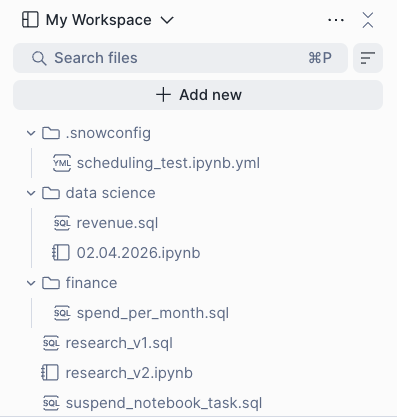
Running ls in the Workspace directory lists all files and folders in the directory, including notebooks and any other project assets.
Referencing files
You can reference files in the current Workspace directory by relative path. For example, you want to read in a notebook and a sample dataset (in CSV) that are in your workspace:
In a Python cell, run the following code:
Writing files
If you own or have the “Edit access” to the Workspace, you can create folders, save and/or remove files programmatically using a Python cell or the notebook terminal.
For example, to print your current working directory, run:
To create a folder, run:
The folder my_folder will appear in the Workspace file explorer in the left pane shortly.
To save a file in my_folder, change directory to the folder first:
Then run:
Or use:
To delete the last file, run:
Note
- If you run the commands in the terminal, click Refresh in the Workspace’s ellipsis menu to see the folders/files display or be removed.
- Appending is not supported.
The /tmp directory
The /tmp directory is also read/write and is suitable for scratch work or temporary data that does not need to persist.
An example of writing a file to /tmp:
To list files in the /tmp directory, run the following:
To store files for later use outside a Workspace, write them to a Snowflake stage with write access using Snowpark file operation APIs.
To learn more about required stage privileges, see write access. For Snowpark file operations, see Snowpark file operation APIs.