Using SQL commands to create and manage semantic views

This topic explains how to use the following SQL commands to create and manage semantic views:

This topic also explains how to call the following stored procedure and function to create a semantic view from a YAML specification and get the specification for a semantic view:

Privileges required to create or replace a semantic view

To create or replace a semantic view, you must use a role with the following privileges:

  • CREATE SEMANTIC VIEW on the schema where you are creating the semantic view.

  • USAGE on the database and schema where you are creating the semantic view.

  • SELECT on the tables and views used in the semantic view.

For information about the privileges required to query a semantic view, see Privileges required to query a semantic view.

Creating a semantic view by using the CREATE SEMANTIC VIEW command

To create a semantic view, use the CREATE SEMANTIC VIEW command.

Note

To create a semantic view from a YAML specification, call the SYSTEM$CREATE_SEMANTIC_VIEW_FROM_YAML stored procedure.

The semantic view must be valid. See How Snowflake validates semantic views.

The following example uses the TPC-H sample data available in Snowflake. This data set contains tables that represent a simplified business scenario with customers, orders, and line items.
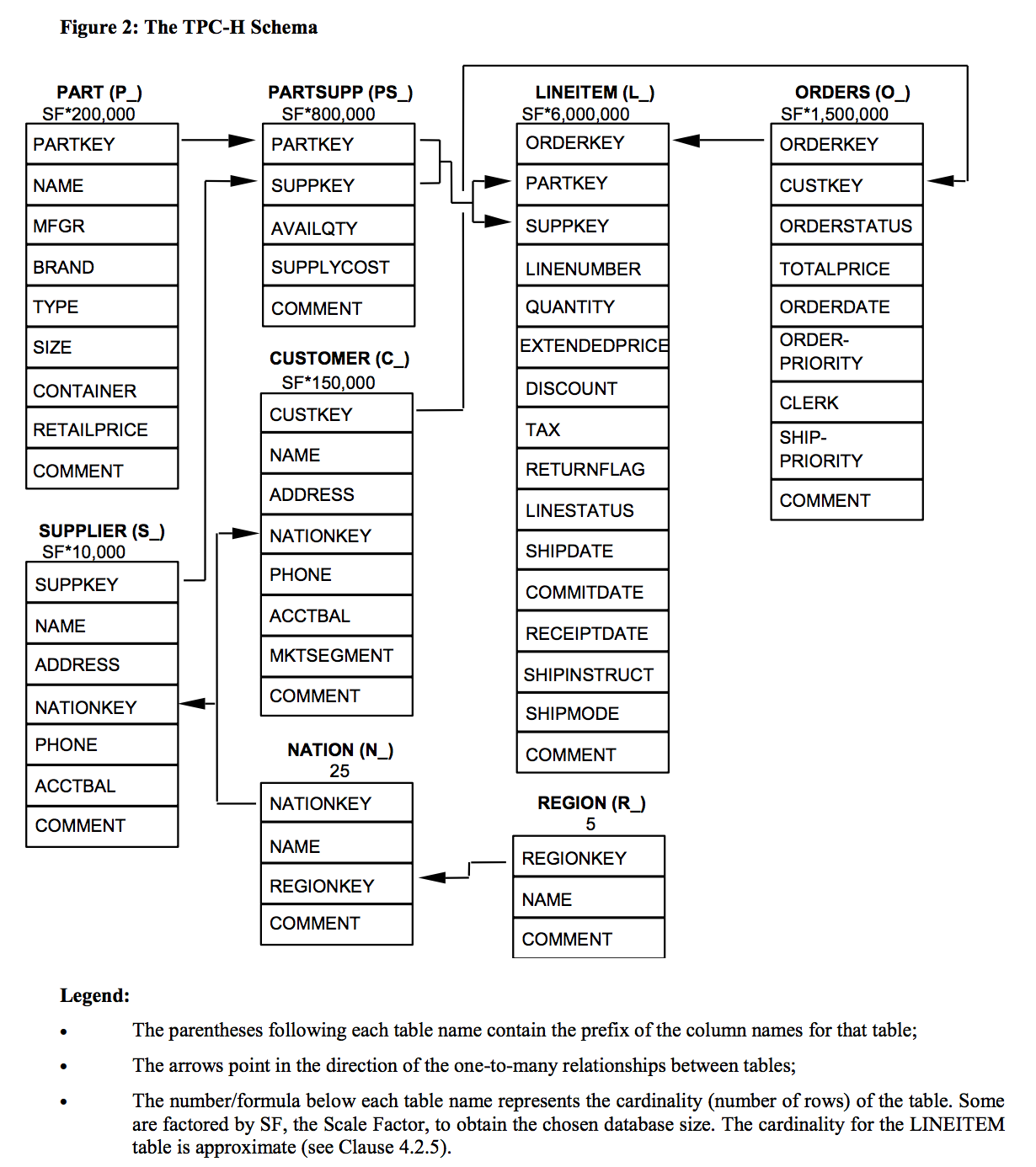
Data model of the tables used in the TPC-H sample data

The example creates a semantic view named tpch_rev_analysis, using the tables in the TPC-H data set. The semantic view defines:

  • Three logical tables (orders, customers, and line_items).

  • A relationship between the orders and customers tables.

  • A relationship between the line_items and orders tables.

  • Facts that will be used to calculate metrics.

  • Dimensions for the customer name, the order date, and the year in which the order was placed.

  • Metrics for the average value of an order and the average number of line items in an order.

CREATE SEMANTIC VIEW tpch_rev_analysis

  TABLES (
    orders AS SNOWFLAKE_SAMPLE_DATA.TPCH_SF1.ORDERS
      PRIMARY KEY (o_orderkey)
      WITH SYNONYMS ('sales orders')
      COMMENT = 'All orders table for the sales domain',
    customers AS SNOWFLAKE_SAMPLE_DATA.TPCH_SF1.CUSTOMER
      PRIMARY KEY (c_custkey)
      COMMENT = 'Main table for customer data',
    line_items AS SNOWFLAKE_SAMPLE_DATA.TPCH_SF1.LINEITEM
      PRIMARY KEY (l_orderkey, l_linenumber)
      COMMENT = 'Line items in orders'
  )

  RELATIONSHIPS (
    orders_to_customers AS
      orders (o_custkey) REFERENCES customers,
    line_item_to_orders AS
      line_items (l_orderkey) REFERENCES orders
  )

  FACTS (
    line_items.line_item_id AS CONCAT(l_orderkey, '-', l_linenumber),
    orders.count_line_items AS COUNT(line_items.line_item_id),
    line_items.discounted_price AS l_extendedprice * (1 - l_discount)
      COMMENT = 'Extended price after discount'
  )

  DIMENSIONS (
    customers.customer_name AS customers.c_name
      WITH SYNONYMS = ('customer name')
      COMMENT = 'Name of the customer',
    orders.order_date AS o_orderdate
      COMMENT = 'Date when the order was placed',
    orders.order_year AS YEAR(o_orderdate)
      COMMENT = 'Year when the order was placed'
  )

  METRICS (
    customers.customer_count AS COUNT(c_custkey)
      COMMENT = 'Count of number of customers',
    orders.order_average_value AS AVG(orders.o_totalprice)
      COMMENT = 'Average order value across all orders',
    orders.average_line_items_per_order AS AVG(orders.count_line_items)
      COMMENT = 'Average number of line items per order'
  )

  COMMENT = 'Semantic view for revenue analysis';

The next sections explain this example in more detail:

Note

For a full example, see Example of using SQL to create a semantic view.

Defining the logical tables

In the CREATE SEMANTIC VIEW command, use the TABLES clause to define the logical tables in the view. In this clause, you can:

  • Specify the physical table name and an optional alias.

  • Identify the following columns in the logical table:

    • Columns that serve as primary keys.

    • Columns that contain unique values (other than the primary key columns).

    You can use these columns to define relationships in this semantic view.

  • Add synonyms for the table (for enhanced discoverability).

  • Include a descriptive comment.

In the example presented earlier, the TABLES clause defines three logical tables:

  • An orders table containing the order information from the TPC-H orders table.

  • A customers table containing the customer information from the TPC-H customers table.

  • A line_items table containing the line items in orders from the TPC-H lineitem table.

The example uses the PRIMARY KEY clause to identify the columns to be used as primary keys for each logical table. Primary keys and unique values help determine the types of relationships between the tables (for example, many-to-one or one-to-one).

The example also provides synonyms and comments that describe the logical tables and make the data easier to discover.

TABLES (
  orders AS SNOWFLAKE_SAMPLE_DATA.TPCH_SF1.ORDERS
    PRIMARY KEY (o_orderkey)
    WITH SYNONYMS ('sales orders')
    COMMENT = 'All orders table for the sales domain',
  customers AS SNOWFLAKE_SAMPLE_DATA.TPCH_SF1.CUSTOMER
    PRIMARY KEY (c_custkey)
    COMMENT = 'Main table for customer data',
  line_items AS SNOWFLAKE_SAMPLE_DATA.TPCH_SF1.LINEITEM
    PRIMARY KEY (l_orderkey, l_linenumber)
    COMMENT = 'Line items in orders'
)

Identifying the relationships between logical tables

In the CREATE SEMANTIC VIEW command, use the RELATIONSHIPS clause to identify the relationships between the tables in the view. For each relationship, you specify:

  • An optional name for the relationship.

  • The name of the logical table containing the foreign key.

  • The columns in that table that define the foreign key.

  • The name of the logical table containing the primary key or columns with unique values.

  • The columns in that table that define the primary key or that contain unique values.

    • If you already specified PRIMARY KEY for the logical table in the TABLES clause, you don’t need to specify the primary key column in the relationship.

    • If there is a single UNIQUE keyword for the logical table in the TABLES clause, you don’t need to specify the corresponding columns in the relationship.

    You can also specify a date, time, timestamp, or numeric column, if you want to join the columns on a range.

In the example presented earlier, the RELATIONSHIPS clause specifies two relationships:

  • A relationship between the orders and customers tables. In the orders table, o_custkey is the foreign key that refers to the primary key in the customers table (c_custkey).

  • A relationship between the line_items and orders tables. In the line_items table, l_orderkey is the foreign key that refers to the primary key in the orders table (o_orderkey).

RELATIONSHIPS (
  orders_to_customers AS
    orders (o_custkey) REFERENCES customers (c_custkey),
  line_item_to_orders AS
    line_items (l_orderkey) REFERENCES orders (o_orderkey)
)

Using a date, time, timestamp, or numeric range to join logical tables

By default, when you specify a relationship between two logical tables, the tables are joined on an equality condition.

If you need to join two logical tables on a date, time, timestamp, or numeric range (where the values in a column of one table need to be in the same range as the values in a column of another table), you can specify the ASOF keyword with the column name in the REFERENCES clause:

RELATIONSHIPS(
  my_relationship AS
    logical_table_1(
      col_table_1
    )
    REFERENCES
    logical_table_2(
      ASOF col_table_2
    )
)

A query of the semantic view defined above produces an ASOF JOIN that uses the >= comparison operator in the MATCH_CONDITION clause. This joins the two tables so that the values in col_table_1 are greater than or equal to the values in col_table_2:

...
FROM logical_table_1 ASOF JOIN logical_table_2
  MATCH_CONDITION(
    logical_table_1.col_table_1 >= logical_table_2.col_table_2
  )
...

Note

No other comparison operator in MATCH_CONDITION clause is supported.

You can use the ASOF keyword for columns of the same types that you can use with ASOF JOIN.

Note

You can specify at most one ASOF keyword in the definition of a given relationship. You can specify this keyword before any column in the list.

For example, suppose that you have tables containing customer, customer address, and order data:

CREATE OR REPLACE TABLE customer(
  c_cust_id VARCHAR,
  c_first_name VARCHAR,
  c_last_name VARCHAR);

INSERT INTO customer VALUES
  ('cust001', 'Mary', 'Smith'),
  ('cust002', 'Bill', 'Wilson');

CREATE OR REPLACE TABLE customer_address(
  ca_cust_id VARCHAR,
  ca_zipcode VARCHAR,
  ca_street_addr VARCHAR,
  ca_start_date DATE,
  ca_end_date DATE
);

INSERT INTO customer_address VALUES
  ('cust001', '94025', '100 Main Street', '2024-01-01', '2024-03-31'),
  ('cust001', '94026', '200 Main Street', '2024-04-01', '2024-06-30'),
  ('cust001', '94027', '300 Main Street', '2024-07-01', NULL),
  ('cust002', '94028', '400 Main Street', '2024-01-01', '2024-04-30'),
  ('cust002', '94029', '500 Main Street', '2024-05-01', '2024-07-31'),
  ('cust002', '94030', '600 Main Street', '2024-08-01', NULL);

CREATE OR REPLACE TABLE orders(
  o_ord_id VARCHAR,
  o_cust_id VARCHAR,
  o_ord_date DATE,
  o_amount NUMBER
);

INSERT INTO orders VALUES
  ('ord100', 'cust001', '2024-02-01', 100),
  ('ord101', 'cust001', '2024-02-02', 200),
  ('ord102', 'cust001', '2024-05-01', 300),
  ('ord103', 'cust001', '2024-05-02', 400),
  ('ord104', 'cust001', '2024-08-01', 500),
  ('ord105', 'cust001', '2024-08-02', 600),
  ('ord106', 'cust002', '2024-03-01', 100),
  ('ord107', 'cust002', '2024-03-02', 200),
  ('ord108', 'cust002', '2024-06-01', 300),
  ('ord109', 'cust002', '2024-06-02', 400),
  ('ord110', 'cust002', '2024-09-01', 500),
  ('ord111', 'cust002', '2024-09-02', 600);

In this example, the customer_address table has a ca_start_date column, which indicates when the customer started residing at the specified address. The orders table has a o_ord_date column, which is the date of the order.

Suppose that you want to be able to query information about customer orders and retrieve the zip codes corresponding to where the customer resided when the orders were placed.

You can define a semantic view that specifies an ASOF join between the ca_start_date and o_ord_date columns:

CREATE OR REPLACE SEMANTIC VIEW customer_orders_view
  TABLES (
    customer_address UNIQUE (ca_cust_id, ca_start_date),
    customer UNIQUE (c_cust_id),
    orders UNIQUE (o_ord_id)
  )
  RELATIONSHIPS (
    customer_address(ca_cust_id) REFERENCES customer,
    -- Defines an ASOF JOIN on the date columns.
    orders(o_cust_id, o_ord_date)
      REFERENCES
        customer_address(ca_cust_id, ASOF ca_start_date)
  )
  FACTS (
    customer_address.f_zipcode AS ca_zipcode
  )
  DIMENSIONS (
    -- Relies on the ASOF join to retrieve the zip code
    -- where the order date is greater than or equal to
    -- the address starting date.
    orders.f_cust_zipcode AS customer_address.f_zipcode,
    orders.dim_year_month AS DATE_TRUNC('month', o_ord_date)
  )
  METRICS (
    orders.m_order_amount AS SUM(o_amount)
  );

Suppose that you query this semantic view to return the sum of the order amounts per month for each zip code:

SELECT * FROM SEMANTIC_VIEW(
  customer_orders_view
  DIMENSIONS orders.dim_year_month, orders.f_cust_zipcode
  METRICS orders.m_order_amount
);
+----------------+----------------+----------------+
| DIM_YEAR_MONTH | F_CUST_ZIPCODE | M_ORDER_AMOUNT |
|----------------+----------------+----------------|
| 2024-02-01     | 94025          |            300 |
| 2024-05-01     | 94026          |            700 |
| 2024-08-01     | 94027          |           1100 |
| 2024-03-01     | 94028          |            300 |
| 2024-09-01     | 94030          |           1100 |
| 2024-06-01     | 94029          |            700 |
+----------------+----------------+----------------+

The query effectively uses an ASOF JOIN to join the tables on the date columns, where the order date is greater than or equal to the address starting date:

...
FROM orders ASOF JOIN customer_address
  MATCH_CONDITION(
    orders.o_ord_date >= customer_address.ca_start_date
  )
  ON
    orders.o_cust_id = customer_address.ca_cust_id
...

Joining logical tables that contain ranges of values

You can use a range join when you want to join a table with another table that defines a range of possible values in the first table. For example, suppose that one table represents sales orders and has a column with the timestamp when the order was placed. Suppose that another table represents fiscal quarters and contains the distinct ranges of time that represent these quarters. You can create a semantic view that joins the two tables so that the row for an order includes the fiscal quarter in which the order was placed.

In the table that contains the ranges, each range must be distinct. No two ranges can overlap.

In the table data, if you want to specify the lowest possible value for the range or the highest possible value for the range, use NULL.

For example, the following table defines a set of ranges of times that do not overlap:

  • The first row covers the range that includes everything up to (but not including) January 1, 2024.

  • The last row covers the range that includes everything from March 20, 2024, onwards.

+----------------+------------------+-------------------------+-------------------------+
| TIME_PERIOD_ID | TIME_PERIOD_NAME | START_TIME              | END_TIME                |
|----------------+------------------+-------------------------+-------------------------|
|              1 | Before_January   | NULL                    | 2024-01-01 00:00:00.000 |
|              2 | Early_January    | 2024-01-01 00:00:00.000 | 2024-01-15 00:00:00.000 |
|              3 | Late_January     | 2024-01-15 00:00:00.000 | 2024-02-01 00:00:00.000 |
|              4 | Early_February   | 2024-02-01 00:00:00.000 | 2024-02-15 00:00:00.000 |
|              5 | Late_February    | 2024-02-15 00:00:00.000 | 2024-03-01 00:00:00.000 |
|              6 | Early_March      | 2024-03-01 00:00:00.000 | 2024-03-20 00:00:00.000 |
|              7 | After_March20    | 2024-03-20 00:00:00.000 | NULL                    |
+----------------+------------------+-------------------------+-------------------------+

Note

No two rows can contain NULL in the start column, and no two rows can contain NULL in the end column.

For cases like these, you can set up a semantic view that supports range-join queries. When you create the semantic view, you must do the following:

  1. For the logical table containing the start and end times of a time period, define a constraint that specifies that no two ranges can overlap.

    In the TABLE clause of the CREATE SEMANTIC VIEW command, specify the CONSTRAINT clause in the logical table definition. For the syntax, see the documentation for CONSTRAINT in the CREATE SEMANTIC VIEW topic.

  2. Define a relationship between the column containing the timestamp in one table and the start and end time columns in the other table.

    In the RELATIONSHIPS clause of the CREATE SEMANTIC VIEW command, use the BETWEEN clause to specify the columns containing the start and end times. For the syntax, see the documentation for RELATIONSHIP in the CREATE SEMANTIC VIEW topic.

For example, suppose that the my_time_periods table defines distinct periods of time:

CREATE OR REPLACE TABLE my_time_periods (
  time_period_id INT PRIMARY KEY,
  time_period_name VARCHAR(50),
  start_time TIMESTAMP,
  end_time TIMESTAMP
);
INSERT INTO my_time_periods (
    time_period_id, time_period_name, start_time, end_time
  ) VALUES
    (1, 'Before_January', NULL, '2024-01-01 00:00:00'::TIMESTAMP),
    (2, 'Early_January', '2024-01-01 00:00:00'::TIMESTAMP, '2024-01-15 00:00:00'::TIMESTAMP),
    (3, 'Late_January', '2024-01-15 00:00:00'::TIMESTAMP, '2024-02-01 00:00:00'::TIMESTAMP),
    (4, 'Early_February', '2024-02-01 00:00:00'::TIMESTAMP, '2024-02-15 00:00:00'::TIMESTAMP),
    (5, 'Late_February', '2024-02-15 00:00:00'::TIMESTAMP, '2024-03-01 00:00:00'::TIMESTAMP),
    (6, 'Early_March', '2024-03-01 00:00:00'::TIMESTAMP, '2024-03-20 00:00:00'::TIMESTAMP),
    (7, 'After_March20', '2024-03-20 00:00:00'::TIMESTAMP, NULL);

Suppose that the my_events table captures events that occurred within those periods of time:

CREATE OR REPLACE TABLE my_events (
  event_id INTEGER PRIMARY KEY,
  event_timestamp TIMESTAMP,
  event_name VARCHAR
);
INSERT INTO my_events (event_id, event_name, event_timestamp) VALUES
  (1, 'Login', '2024-01-15 10:00:00'::TIMESTAMP),
  (2, 'Purchase', '2024-01-15 14:30:00'::TIMESTAMP),
  (3, 'Logout', '2024-01-15 18:45:00'::TIMESTAMP),
  (4, 'Review', '2024-02-10 12:00:00'::TIMESTAMP),
  (5, 'Support', '2024-02-20 09:30:00'::TIMESTAMP),
  (6, 'Upgrade', '2024-03-05 16:00:00'::TIMESTAMP),
  (7, 'Feedback', '2024-03-25 11:00:00'::TIMESTAMP);

You can define a semantic view that joins the tables. Rows in my_events are joined with rows in my_time_periods, where the value in the event_timestamp column in my_events is within the range specified by the start_time and end_time columns in my_time_periods.

CREATE OR REPLACE SEMANTIC VIEW my_semantic_view_range_join
  TABLES (
    my_events PRIMARY KEY (event_id),
    my_time_periods UNIQUE (start_time, end_time)
      CONSTRAINT my_time_period_range DISTINCT RANGE BETWEEN start_time AND end_time EXCLUSIVE
  )
  RELATIONSHIPS (
    my_time_periods_for_events AS
      my_events(event_timestamp) REFERENCES
        my_time_periods(BETWEEN start_time AND end_time EXCLUSIVE)
  )
  DIMENSIONS (
    my_events.dim_event_name AS event_name,
    my_events.dim_event_timestamp AS event_timestamp,
    my_time_periods.dim_time_period_name AS time_period_name
  )
  METRICS (
    my_events.m_event_count AS COUNT(*)
  );

The following query demonstrates how the rows are joined:

SELECT
    sv.dim_event_name,
    sv.dim_event_timestamp,
    sv.dim_time_period_name,
    sv.m_event_count
  FROM SEMANTIC_VIEW(
    my_semantic_view_range_join
    METRICS my_events.m_event_count
    DIMENSIONS
      my_events.dim_event_name,
      my_events.dim_event_timestamp,
      my_time_periods.dim_time_period_name
  ) AS sv
  ORDER BY
    sv.dim_event_timestamp,
    sv.dim_time_period_name;
+----------------+-------------------------+----------------------+---------------+
| DIM_EVENT_NAME | DIM_EVENT_TIMESTAMP     | DIM_TIME_PERIOD_NAME | M_EVENT_COUNT |
|----------------+-------------------------+----------------------+---------------|
| Login          | 2024-01-15 10:00:00.000 | Late_January         |             1 |
| Purchase       | 2024-01-15 14:30:00.000 | Late_January         |             1 |
| Logout         | 2024-01-15 18:45:00.000 | Late_January         |             1 |
| Review         | 2024-02-10 12:00:00.000 | Early_February       |             1 |
| Support        | 2024-02-20 09:30:00.000 | Late_February        |             1 |
| Upgrade        | 2024-03-05 16:00:00.000 | Early_March          |             1 |
| Feedback       | 2024-03-25 11:00:00.000 | After_March20        |             1 |
+----------------+-------------------------+----------------------+---------------+

As shown in the examples, the dim_time_period_name dimension for each row in the results is the name of the time period that the dim_event_timestamp dimension falls into.

Defining facts, dimensions, and metrics

In the CREATE SEMANTIC VIEW command, use the FACTS, DIMENSIONS, and METRICS clauses to define the facts, dimensions, and metrics in the semantic view.

You must define at least one dimension or metric in the semantic view.

For each fact, dimension, or metric, you specify:

Note

If a metric should not be aggregated across specific dimensions, you should specify that those dimensions should be non-additive.

For information, see Identifying the dimensions that should be non-additive for a metric.

The example presented earlier defines several facts, dimensions, and metrics:

FACTS (
  line_items.line_item_id AS CONCAT(l_orderkey, '-', l_linenumber),
  orders.count_line_items AS COUNT(line_items.line_item_id),
  line_items.discounted_price AS l_extendedprice * (1 - l_discount)
    COMMENT = 'Extended price after discount'
)

DIMENSIONS (
  customers.customer_name AS customers.c_name
    WITH SYNONYMS = ('customer name')
    COMMENT = 'Name of the customer',
  orders.order_date AS o_orderdate
    COMMENT = 'Date when the order was placed',
  orders.order_year AS YEAR(o_orderdate)
    COMMENT = 'Year when the order was placed'
)

METRICS (
  customers.customer_count AS COUNT(c_custkey)
    COMMENT = 'Count of number of customers',
  orders.order_average_value AS AVG(orders.o_totalprice)
    COMMENT = 'Average order value across all orders',
  orders.average_line_items_per_order AS AVG(orders.count_line_items)
    COMMENT = 'Average number of line items per order'
)

Note

For additional guidelines on defining metrics that use window functions, see Defining and querying window function metrics.

Defining a dimension that uses a Cortex Search Service

To define a dimension that uses a Cortex Search Service, set the WITH CORTEX SEARCH SERVICE clause to the name of the Cortex Search Service. If the service is in a different database or schema, qualify the name of the service. For example:

DIMENSIONS (
  my_table.my_dimension AS my_dimension_expression
    WITH CORTEX SEARCH SERVICE my_db.my_schema.my_dimension_search_service
)

Defining derived metrics

When you define a metric, you specify the name of the logical table that the metric belongs to. This is the logical table on which the metric is aggregated.

If you want to define a metric based on metrics from different logical tables, you can define a derived metric. A derived metric is a metric that is scoped to the semantic view (rather than to a specific logical table). A derived metric can combine metrics from multiple logical tables.

In the definition of a derived metric, omit the logical table name.

For example, suppose that you want to define a metric my_derived_metric_1 that is the sum of the metrics table_1.metric_1 and table_2.metric_2. When you define my_derived_metric_1, don’t qualify the name with any logical table name:

CREATE SEMANTIC VIEW sv_with_derived_metrics
  TABLES (
    table_1 PRIMARY KEY (column_1),
    table_2 PRIMARY KEY (column_2)
  )
  ...
  METRICS (
    table_1.metric_1 AS SUM(...),
    table_2.metric_2 AS SUM(...),
    my_derived_metric_1 AS table_1.metric_1 + table_2.metric_2
  )
 ...

You can use other derived metrics in the expression. For example:

METRICS (
  ...
  my_derived_metric_1 AS table_1.metric_1 + table_2.metric_2,
  my_view_metric_2 AS my_derived_metric_1 + table_3.metric_3
)

Note the following restrictions when you define a derived metric:

  • You cannot use the same name for a derived metric and a regular metric.

  • The expression for a derived metric can use:

    • Aggregations of dimensions and facts defined in any logical table in the semantic view.

    • Scalar expressions of metrics defined in any logical table in the semantic view.

    • Other derived metrics.

    In the following example:

    • derived_metric_1 uses a scalar expression with two metrics.

    • derived_metric_2 uses an aggregation of a dimension.

    • derived_metric_3 adds an aggregation of a dimension to another derived metric.

    CREATE OR REPLACE SEMANTIC VIEW sv_derived_metrics
      TABLES (t1)
      DIMENSIONS (t1.dim1 AS t1.col1)
      METRICS (
        t1.m1 AS SUM(t1.col1),
        t2.m2 AS SUM(t1.col2),
        derived_metric_1 AS t1.m1 + t2.m2,
        derived_metric_2 AS SUM(t1.dim1),
        derived_metric_3 AS SUM(t1.dim1) + derived_metric_2
      )
      ...
    
  • You don’t need to qualify the name of a metric, dimension, or fact in the expression if the name is not ambiguous. For example:

    METRICS (
      table_1.metric_1 AS ...,
      table_1.my_unique_metric_name AS ...,
      table_2.metric_1 AS ...,
      my_derived_metric_1 AS table_1.metric_1 + my_unique_metric_name
    )
    

    Note that metric_1 needs to be qualified by table_1 because there are two metrics named metric_1, but my_unique_metric_name does not need to be qualified because the name is unique.

  • In the expression for a derived metric, you cannot use the following:

    • Aggregations of metrics.

    • Window functions.

    • References to physical columns.

    • References to facts or dimensions that are not aggregated.

  • You cannot use a derived metric in the expression for a regular metric, dimension, or fact. Only another derived metric can use a derived metric in its expression.

Specifying the relationship for a metric when multiple relationship paths exist

In some cases, you multiple relationship paths might exist between two specific logical tables in a semantic view. In these cases, when you define a metric, you must specify the relationship path to use.

The problem with multiple relationship paths

Suppose that you have two tables that contain information about flights and airports:

CREATE OR REPLACE TABLE airports (
  airport_code VARCHAR PRIMARY KEY,
  city_name VARCHAR,
  airport_region_code VARCHAR
);

INSERT INTO airports VALUES
  ('SEA', 'Seattle', 'NA'),
  ('SFO', 'San Fransico', 'NA'),
  ('PVG', 'Shanghai', 'AS');

SELECT * FROM airports;
+--------------+--------------+---------------------+
| AIRPORT_CODE | CITY_NAME    | AIRPORT_REGION_CODE |
|--------------+--------------+---------------------|
| SEA          | Seattle      | NA                  |
| SFO          | San Fransico | NA                  |
| PVG          | Shanghai     | AS                  |
+--------------+--------------+---------------------+
CREATE OR REPLACE TABLE flights (
  flight_id INTEGER PRIMARY KEY,
  departure_airport VARCHAR,
  arrival_airport VARCHAR,
  is_late BOOLEAN,
  aircraft_id INTEGER,
  departure_time DATETIME,
  arrival_time DATETIME
);

INSERT INTO flights VALUES
  (1, 'SFO', 'SEA', true, 1, '2025-01-03 06:00:00', '2025-01-03 11:00:00'),
  (2, 'SEA', 'SFO', false, 2, '2025-01-03 11:00:00', '2025-01-03 16:00:00'),
  (3, 'SEA', 'PVG', false, 3, '2025-01-03 11:00:00', '2025-01-04 11:00:00'),
  (4, 'SFO', 'PVG', true, 1, '2025-01-03 06:00:00', '2025-01-04 11:00:00');

SELECT * FROM flights;
+-----------+-------------------+-----------------+---------+-------------+-------------------------+-------------------------+
| FLIGHT_ID | DEPARTURE_AIRPORT | ARRIVAL_AIRPORT | IS_LATE | AIRCRAFT_ID | DEPARTURE_TIME          | ARRIVAL_TIME            |
|-----------+-------------------+-----------------+---------+-------------+-------------------------+-------------------------|
|         1 | SFO               | SEA             | True    |           1 | 2025-01-03 06:00:00.000 | 2025-01-03 11:00:00.000 |
|         2 | SEA               | SFO             | False   |           2 | 2025-01-03 11:00:00.000 | 2025-01-03 16:00:00.000 |
|         3 | SEA               | PVG             | False   |           3 | 2025-01-03 11:00:00.000 | 2025-01-04 11:00:00.000 |
|         4 | SFO               | PVG             | True    |           1 | 2025-01-03 06:00:00.000 | 2025-01-04 11:00:00.000 |
+-----------+-------------------+-----------------+---------+-------------+-------------------------+-------------------------+

Suppose that you define a semantic view that provides information about the total number of flights departing from and arriving to a specific city:

CREATE OR REPLACE SEMANTIC VIEW flights_sv
  TABLES (
    flights PRIMARY KEY (flight_id),
    airports PRIMARY KEY (airport_code)
  ) RELATIONSHIPS (
    flight_departure_airport AS flights(departure_airport) REFERENCES airports(airport_code),
    flight_arrival_airport AS flights(arrival_airport) REFERENCES airports(airport_code)
  ) DIMENSIONS (
    airports.city_name AS city_name
  ) METRICS (
    flights.m_flight_count AS COUNT(flight_id)
  );

The semantic view specifies two different relationships between the flights table and the airports table (flight_departure_airport and flight_arrival_airport). Because there are multiple relationship paths between the tables, querying for the m_flight_count metric and selecting the airports.city_name dimension (or any dimension in the airports table) fails:

SELECT * FROM SEMANTIC_VIEW (
  flights_sv
  METRICS flights.m_flight_count
  DIMENSIONS airports.city_name
);
010246 (42601): SQL compilation error:
Invalid dimension specified: Multi-path relationship between the dimension entity 'AIRPORTS'
  and the base metric or dimension entity 'FLIGHTS' is not supported.

Because there are multiple paths between the flights and airports tables, the query fails. If the query did not select a dimension from the airports table, the query would have succeeded.

Specifying the relationship to use

In the metric definition in the CREATE SEMANTIC VIEW command, you can specify which relationship to use in the USING clause:

METRICS (
  <table_alias>.<metric>
    [ USING ( <relationship_name> [ , ... ] )
    AS <sql_expr>
  [ , ... ]
)

Note

  • Each relationship that you specify must start from the logical table containing the metric. For example, suppose that you want to specify:

    METRICS (
      table_a.metric_a
        USING ( table_a_to_table_b )
        ...
    

    The relationship table_a_to_table_b must start from table_a:

    RELATIONSHIPS (
      table_a_to_table_b AS table_a(col_1) REFERENCES table_b(col_1)
      ...
    
  • You cannot specify a sequence of relationships (for example, table_a_to_table_b and table_b_to_table_c). Each relationship must start from the logical table containing the metric.

  • If you need to identify the relationships from the logical table containing the metric to different tables, you can specify the relationships in the USING clause. For example, suppose that you want the metric to be computed by specific relationships from table_a to table_b and from table_a to table_c. In this case, you specify both relationships in the USING clause:

    METRICS (
      table_a.metric_a
        USING ( table_a_to_table_b, table_a_to_table_c )
        ...
    
  • You cannot specify the USING clause in a derived metric.

For example, the following statement defines two additional metrics that use specific relationships:

  • m_flight_departure_count, which uses the flight_departure_airport relationship.

  • m_flight_arrival_count, which uses the flight_arrival_airport relationship.

CREATE OR REPLACE SEMANTIC VIEW flights_sv
  TABLES (
    flights PRIMARY KEY (flight_id),
    airports PRIMARY KEY (airport_code)
  ) RELATIONSHIPS (
    flight_departure_airport AS flights(departure_airport) REFERENCES airports(airport_code),
    flight_arrival_airport AS flights(arrival_airport) REFERENCES airports(airport_code)
  ) DIMENSIONS (
    airports.city_name AS city_name
  ) METRICS (
    flights.m_flight_count AS COUNT(flight_id),
    flights.m_flight_departure_count USING (flight_departure_airport) AS flights.m_flight_count,
    flights.m_flight_arrival_count USING (flight_arrival_airport) AS flights.m_flight_count
  );

When querying this view, you can specify the two new metrics that use specific relationships:

SELECT * FROM SEMANTIC_VIEW (
  flights_sv
  METRICS flights.m_flight_arrival_count, flights.m_flight_departure_count
  DIMENSIONS airports.city_name
);
+------------------------+--------------------------+--------------+
| M_FLIGHT_ARRIVAL_COUNT | M_FLIGHT_DEPARTURE_COUNT | CITY_NAME    |
|------------------------+--------------------------+--------------|
|                      1 |                        2 | San Fransico |
|                      1 |                        2 | Seattle      |
|                      2 |                     NULL | Shanghai     |
+------------------------+--------------------------+--------------+

Add dimensions that rely on the same relationships

The query in the previous example used the airports.city_name dimension, which is in the airports logical table that the relationships are based on.

If you add a dimension for a different logical table to the view, queries of that dimension benefit from the relationships that you specified earlier.

For example, suppose that you create a table named regions with additional information about the airport regions specified in the airport_region_code column of the airports table:

CREATE OR REPLACE TABLE regions (
  region_code VARCHAR PRIMARY KEY,
  region_name VARCHAR
);

INSERT INTO regions VALUES
  ('NA', 'North America'),
  ('AS', 'Asia');

SELECT * FROM regions;
+-------------+---------------+
| REGION_CODE | REGION_NAME   |
|-------------+---------------|
| NA          | North America |
| AS          | Asia          |
+-------------+---------------+

You can extend the semantic view that you defined earlier to return the region name:

  • Add a new logical table for the regions table.

  • Add a relationship between the regions and airports tables.

  • Add a dimension for the region name.

You don’t need to make any additional changes to the USING clause for the metrics because there’s a single relationship between the regions and airports tables.

CREATE OR REPLACE SEMANTIC VIEW flights_by_regions_sv
  TABLES (
    flights PRIMARY KEY (flight_id),
    airports PRIMARY KEY (airport_code),
    regions PRIMARY KEY (region_code)
  ) RELATIONSHIPS (
    flight_departure_airport AS flights(departure_airport) REFERENCES airports(airport_code),
    flight_arrival_airport AS flights(arrival_airport) REFERENCES airports(airport_code),
    airport_region AS airports(airport_region_code) REFERENCES regions(region_code)
  ) DIMENSIONS (
    airports.city_name AS city_name,
    regions.region_name AS region_name
  ) METRICS (
    flights.m_flight_count AS COUNT(flight_id),
    flights.m_flight_departure_count USING (flight_departure_airport) AS flights.m_flight_count,
    flights.m_flight_arrival_count USING (flight_arrival_airport) AS flights.m_flight_count
  );

If you query the view, specifying the region_name dimension, and there is ambiguity about which relationship to use, the USING clause determines the relationships to use:

SELECT * FROM SEMANTIC_VIEW (
  flights_by_regions_sv
  METRICS flights.m_flight_arrival_count, flights.m_flight_departure_count
  DIMENSIONS regions.region_name
);
+------------------------+--------------------------+---------------+
| M_FLIGHT_ARRIVAL_COUNT | M_FLIGHT_DEPARTURE_COUNT | REGION_NAME   |
|------------------------+--------------------------+---------------|
|                      2 |                        4 | North America |
|                      2 |                     NULL | Asia          |
+------------------------+--------------------------+---------------+

Specify relationships to different tables

If the semantic view uses dimensions from multiple tables, and you need to specify the relationships to use for these dimensions, you can specify multiple relationships in the USING clause.

For example, suppose that you create a table named weather with weather information about the airports in the airports table:

CREATE OR REPLACE TABLE weather (
  airport_code VARCHAR PRIMARY KEY,
  weather_condition VARCHAR,
  start_date DATETIME,
  end_date DATETIME
);

INSERT INTO weather VALUES
  ('SEA', 'rainy', '2025-01-01 10:00:00', '2025-01-01 12:00:00'),
  ('SEA', 'rainy', '2025-01-03 10:00:00', '2025-01-03 12:00:00'),
  ('SFO', 'sunny', '2025-01-03 05:00:00', '2025-01-03 09:00:00'),
  ('SFO', 'sunny', '2025-01-03 10:00:00', '2025-01-03 18:00:00'),
  ('PVG', 'cloudy', '2025-01-04 10:00:00', '2025-01-04 12:00:00');

SELECT * FROM weather;
+--------------+-------------------+-------------------------+-------------------------+
| AIRPORT_CODE | WEATHER_CONDITION | START_DATE              | END_DATE                |
|--------------+-------------------+-------------------------+-------------------------|
| SEA          | rainy             | 2025-01-01 10:00:00.000 | 2025-01-01 12:00:00.000 |
| SEA          | rainy             | 2025-01-03 10:00:00.000 | 2025-01-03 12:00:00.000 |
| SFO          | sunny             | 2025-01-03 05:00:00.000 | 2025-01-03 09:00:00.000 |
| SFO          | sunny             | 2025-01-03 10:00:00.000 | 2025-01-03 18:00:00.000 |
| PVG          | cloudy            | 2025-01-04 10:00:00.000 | 2025-01-04 12:00:00.000 |
+--------------+-------------------+-------------------------+-------------------------+

You can extend the semantic view that you defined earlier to return the weather condition:

  • Add a new logical table for the weather table.

  • Add two relationships between the weather and flights tables (one for departing flights and one for arrriving flights).

  • Add a dimension for the weather information.

  • Specify that the metrics should also use the two new relationships between the weather and flights tables.

CREATE OR REPLACE SEMANTIC VIEW flights_and_weather_sv
  TABLES (
    flights PRIMARY KEY (flight_id),
    airports PRIMARY KEY (airport_code),
    weather PRIMARY KEY (airport_code, start_date, end_date)
  ) RELATIONSHIPS (
    flight_departure_airport AS flights(departure_airport) REFERENCES airports(airport_code),
    flight_arrival_airport AS flights(arrival_airport) REFERENCES airports(airport_code),
    flight_departure_weather AS flights(departure_airport, departure_time) REFERENCES weather(airport_code, BETWEEN start_date AND end_date EXCLUSIVE),
    flight_arrival_weather AS flights(arrival_airport, arrival_time) REFERENCES weather(airport_code, BETWEEN start_date AND end_date EXCLUSIVE)
  ) DIMENSIONS (
    airports.city_name AS city_name,
    weather.weather_condition AS weather_condition
  ) METRICS (
    flights.m_flight_count AS COUNT(flight_id),
    flights.m_flight_departure_count USING (flight_departure_airport, flight_departure_weather) AS flights.m_flight_count,
    flights.m_flight_arrival_count USING (flight_arrival_airport, flight_arrival_weather) AS flights.m_flight_count
  );

When you query the view and specify the weather_condition dimension, the USING clause determines the relationships that are used:

SELECT * FROM SEMANTIC_VIEW (
  flights_by_regions_sv
  METRICS flights.m_flight_arrival_count, flights.m_flight_departure_count
  DIMENSIONS weather.weather_condition
);
+------------------------+--------------------------+-------------------+
| M_FLIGHT_ARRIVAL_COUNT | M_FLIGHT_DEPARTURE_COUNT | WEATHER_CONDITION |
|------------------------+--------------------------+-------------------|
|                      2 |                     NULL | cloudy            |
|                      1 |                        2 | sunny             |
|                      1 |                        2 | rainy             |
+------------------------+--------------------------+-------------------+

Define derived metrics based on metrics that use specific relationships

Although you cannot specify the USING clause in a derived metric, you can define a derived metric that uses metrics that specify the USING clause.

For example, the following semantic view defines two derived metrics:

  • global_m_departure_arrival_ratio

  • global_m_departure_arrival_sum

The definitions of these derived metrics use the flights.m_flight_departure_count and flights.m_flight_arrival_count metrics, which both specify the USING clause:

CREATE OR REPLACE SEMANTIC VIEW flights_derived_metrics_sv
  TABLES (
    flights PRIMARY KEY (flight_id),
    airports PRIMARY KEY (airport_code)
  ) RELATIONSHIPS (
    flight_departure_airport AS flights(departure_airport) REFERENCES airports(airport_code),
    flight_arrival_airport AS flights(arrival_airport) REFERENCES airports(airport_code)
  ) DIMENSIONS (
    airports.city_name AS city_name
  ) METRICS (
    flights.m_flight_count AS COUNT(flight_id),
    flights.m_flight_departure_count USING (flight_departure_airport) AS flights.m_flight_count,
    flights.m_flight_arrival_count USING (flight_arrival_airport) AS flights.m_flight_count,
    global_m_departure_arrival_ratio AS DIV0(flights.m_flight_departure_count, flights.m_flight_arrival_count),
    global_m_departure_arrival_sum AS flights.m_flight_departure_count + flights.m_flight_arrival_count
  );
SELECT * FROM SEMANTIC_VIEW (
  flights_derived_metrics_sv
  METRICS global_m_departure_arrival_ratio,
    flights.m_flight_arrival_count, flights.m_flight_departure_count
  DIMENSIONS airports.city_name
);
+------------------------+--------------------------+----------------------------------+--------------+
| M_FLIGHT_ARRIVAL_COUNT | M_FLIGHT_DEPARTURE_COUNT | GLOBAL_M_DEPARTURE_ARRIVAL_RATIO | CITY_NAME    |
|------------------------+--------------------------+----------------------------------+--------------|
|                      1 |                        2 |                         2.000000 | Seattle      |
|                      1 |                        2 |                         2.000000 | San Fransico |
|                      2 |                     NULL |                             NULL | Shanghai     |
+------------------------+--------------------------+----------------------------------+--------------+

Identifying the dimensions that should be non-additive for a metric

In some cases, a metric should not be aggregated across specific dimensions. In these cases, you can mark the dimensions as non-additive.

Understanding the problem with aggregating metrics across some dimensions

Suppose you have a table that contains the account balances of each customer’s checking and savings accounts on a specific day.

CREATE OR REPLACE TABLE bank_accounts (
  customer_id VARCHAR,
  account_type VARCHAR,
  year NUMBER,
  month NUMBER,
  day NUMBER,
  balance NUMBER
);
INSERT INTO bank_accounts VALUES
  ('cust-001', 'checking', 2024, 01, 01, 100),
  ('cust-001', 'savings', 2024, 01, 01, 110),
  ('cust-001', 'checking', 2024, 02, 10, 140),
  ('cust-001', 'savings', 2024, 02, 10, 150),
  ('cust-001', 'checking', 2024, 03, 15, 200),
  ('cust-001', 'savings', 2024, 03, 30, 210),
  ('cust-001', 'checking', 2025, 02, 15, 280),
  ('cust-001', 'savings', 2025, 02, 15, 290),
  ('cust-001', 'checking', 2025, 03, 20, 300),
  ('cust-001', 'savings', 2025, 03, 20, 310),
  ('cust-002', 'checking', 2025, 03, 30, 200),
  ('cust-002', 'savings', 2025, 03, 30, 310);
SELECT * FROM bank_accounts;
+-------------+--------------+------+-------+-----+---------+
| CUSTOMER_ID | ACCOUNT_TYPE | YEAR | MONTH | DAY | BALANCE |
|-------------+--------------+------+-------+-----+---------|
| cust-001    | checking     | 2024 |     1 |   1 |     100 |
| cust-001    | savings      | 2024 |     1 |   1 |     110 |
| cust-001    | checking     | 2024 |     2 |  10 |     140 |
| cust-001    | savings      | 2024 |     2 |  10 |     150 |
| cust-001    | checking     | 2024 |     3 |  15 |     200 |
| cust-001    | savings      | 2024 |     3 |  30 |     210 |
| cust-001    | checking     | 2025 |     2 |  15 |     280 |
| cust-001    | savings      | 2025 |     2 |  15 |     290 |
| cust-001    | checking     | 2025 |     3 |  20 |     300 |
| cust-001    | savings      | 2025 |     3 |  20 |     310 |
| cust-002    | checking     | 2025 |     3 |  30 |     200 |
| cust-002    | savings      | 2025 |     3 |  30 |     310 |
+-------------+--------------+------+-------+-----+---------+

Suppose that you want to define a semantic view that includes:

  • The following dimensions:

    • Customer ID

    • Account type

    • Year

    • Month

    • Day

  • A metric for the sum of the balance.

The following statement creates a semantic view that includes the dimensions and metrics listed above:

CREATE OR REPLACE SEMANTIC VIEW bank_accounts_sv
  TABLES (
    bank_accounts
  )
  DIMENSIONS (
    bank_accounts.customer_id_dim AS bank_accounts.customer_id,
    bank_accounts.account_type_dim AS bank_accounts.account_type,
    bank_accounts.year_dim AS bank_accounts.year,
    bank_accounts.month_dim AS bank_accounts.month,
    bank_accounts.day_dim AS bank_accounts.day
  )
  METRICS (
    bank_accounts.m_account_balance AS SUM(balance)
  );

If you want to retrieve the total balance of the checking and savings accounts for each customer at the end of each year, you can query the semantic view for the m_account_balance metric and specify the customer_id_dim and year_dim dimensions.

However, the m_account_balance metric will be the sum of the balances of each day for each customer because the metric is aggregated by the date dimensions.

SELECT * FROM SEMANTIC_VIEW(
    bank_accounts_sv
    METRICS bank_accounts.m_account_balance
    DIMENSIONS customer_id_dim, year_dim
  )
  ORDER BY customer_id_dim, year_dim;
+-------------------+-----------------+----------+
| M_ACCOUNT_BALANCE | CUSTOMER_ID_DIM | YEAR_DIM |
|-------------------+-----------------+----------|
|               910 | cust-001        |     2024 |
|              1180 | cust-001        |     2025 |
|               510 | cust-002        |     2025 |
+-------------------+-----------------+----------+

In the example above, for cust-001 in 2024, 910 is the sum of the balances for each day (100 + 110 + 140 + 150 + 200 + 210).

Preventing a metric from being aggregated across specific dimensions

To prevent the metric from being aggregated by the date dimensions, specify the date dimensions in the NON ADDITIVE BY clause when creating the semantic view:

CREATE OR REPLACE SEMANTIC VIEW bank_accounts_sv
  TABLES (
    bank_accounts
  )
  DIMENSIONS (
    bank_accounts.customer_id_dim AS bank_accounts.customer_id,
    bank_accounts.account_type_dim AS bank_accounts.account_type,
    bank_accounts.year_dim AS bank_accounts.year,
    bank_accounts.month_dim AS bank_accounts.month,
    bank_accounts.day_dim AS bank_accounts.day
  )
  METRICS (
    bank_accounts.m_account_balance
      NON ADDITIVE BY (year_dim, month_dim, day_dim)
      AS SUM(balance)
  );

Note

  • If you specify the NON ADDITIVE BY clause in a metric, you cannot refer to that metric in the definitions of metrics that are not derived. Only derived metrics can refer to metrics that specify non-additive dimensions.

Specifying the NON ADDITIVE BY clause makes the metric a semi-additive metric.

When you query this semantic view, the m_account_balance metric is no longer aggregated by the date dimensions. The query aggregates the account balances at the end of the period in each group of queried dimensions.

SELECT * FROM SEMANTIC_VIEW(
    bank_accounts_sv
    METRICS bank_accounts.m_account_balance
    DIMENSIONS customer_id_dim, year_dim
  )
  ORDER BY customer_id_dim, year_dim;
+-------------------+-----------------+----------+
| M_ACCOUNT_BALANCE | CUSTOMER_ID_DIM | YEAR_DIM |
|-------------------+-----------------+----------|
|               210 | cust-001        |     2024 |
|               610 | cust-001        |     2025 |
|               510 | cust-002        |     2025 |
+-------------------+-----------------+----------+

In the example above, for cust-001 in 2024, 210 is the sum of the checking and savings account balances for the last day of the year that contains data:

  • The last day of 2024 that contains data is 2024-03-30.

  • There is no row with that date for the checking account, so the resulting metric is the balance of the savings account (210).

As another example, if you just want the total account balance for all customers at the end of the year, you can specify the year_dim dimension.

Because the date dimensions are marked as non-additive, the query sums the values at the end of the period (by date) for the checking and savings account balances for each customer.

SELECT * FROM SEMANTIC_VIEW(
    bank_accounts_sv
    METRICS bank_accounts.m_account_balance
    DIMENSIONS year_dim
  )
  ORDER BY year_dim;
+-------------------+----------+
| M_ACCOUNT_BALANCE | YEAR_DIM |
|-------------------+----------|
|               210 |     2024 |
|               510 |     2025 |
+-------------------+----------+

During query processing, the rows are sorted by the non-additive dimensions, and the values from the last rows (the latest snapshots of values) are aggregated to compute the metric.

Note

Because the rows are sorted by the non-additive dimensions, the order in which you specify the dimensions is important. This is similar to the order in which you specify columns in the ORDER BY clause.

Specifying the sort order for non-additive dimensions

As demonstrated in the example, the metric aggregates the values of the checking and savings balances for each customer at the end of a period. If you want to change the sort order, you can specify the ASC or DESC keyword next to the dimension name. For example:

METRICS (
  bank_accounts.m_account_balance
    NON ADDITIVE BY (year_dim DESC, month_dim DESC, day_dim DESC)
    AS SUM(balance)
);

In this example, the metric evaluates to the earliest date specified by year_dim, month_dim, and day_dim.

If the dimension includes NULL values, you can use the NULLS FIRST or NULLS LAST keywords to specify whether NULL values are sorted first or last in the results:

METRICS (
  bank_accounts.m_account_balance
    NON ADDITIVE BY (
      year_dim DESC NULLS FIRST,
      month_dim DESC NULLS FIRST,
      day_dim DESC NULLS FIRST
    )
    AS SUM(balance)

Marking a fact or metric as private

If you are defining a fact or metric only for use in calculations in the semantic view and you don’t want the fact or metric to be returned in a query, you can specify the PRIVATE keyword to mark the fact or metric as private. For example:

FACTS (
  PRIVATE my_private_fact AS ...
)

METRICS (
  PRIVATE my_private_metric AS ...
)

Note

You cannot mark a dimension as private. Dimensions are always public.

When you query a semantic view that has private facts or metrics, you cannot specify a private fact or metric in the following clauses:

Some commands and functions include private facts and metrics:

Some commands and functions include private facts and metrics only under specific conditions:

Other commands and functions do not include private facts and metrics:

Providing custom instructions for Cortex Analyst

In a semantic view, you can provide instructions for Cortex Analyst that explain how to:

  • Generate the SQL statement

  • Classify questions and prompt for additional information

To provide these custom instructions, use the following clauses:

  • For instructions on how to generate the SQL statement, use the AI_SQL_GENERATION clause in the CREATE SEMANTIC VIEW command.

    For example, to tell Cortex Analyst to generate the SQL statement so that all numeric columns are rounded to two decimal points, specify the following:

    CREATE SEMANTIC VIEW my_semantic_view
      ...
      -- Definitions of logical tables, relationships, dimensions, facts, and metrics
      ...
      AI_SQL_GENERATION 'Ensure that all numeric columns are rounded to 2 decimal points.'
      ...
      -- Additional clauses
    
  • For instructions on how to classify questions, use the AI_QUESTION_CATEGORIZATION clause.

    For example, to tell Cortex Analyst to reject questions about users, specify the following:

    CREATE SEMANTIC VIEW my_semantic_view
      ...
      -- Definitions of logical tables, relationships, dimensions, facts, and metrics
      ...
      AI_QUESTION_CATEGORIZATION 'Reject all questions asking about users. Ask users to contact their admin.'
      ...
      -- Additional clauses
    

    You can also provide instructions to ask for more details, if the question isn’t clear. For example:

    AI_QUESTION_CATEGORIZATION 'If the question asks for users without providing a product_type, consider this question UNCLEAR and ask the user to specify product_type.'
    

Creating a semantic view from a YAML specification

To create a semantic view from a YAML specification, you can call the SYSTEM$CREATE_SEMANTIC_VIEW_FROM_YAML stored procedure.

First, pass TRUE as the third argument to verify that you can create the semantic view from the YAML specification.

The following example verifies that you can use a given semantic model specification in YAML to create a semantic view named tpch_analysis in the database my_db and schema my_schema:

CALL SYSTEM$CREATE_SEMANTIC_VIEW_FROM_YAML(
  'my_db.my_schema',
  $$
  name: TPCH_REV_ANALYSIS
  description: Semantic view for revenue analysis
  tables:
    - name: CUSTOMERS
      description: Main table for customer data
      base_table:
        database: SNOWFLAKE_SAMPLE_DATA
        schema: TPCH_SF1
        table: CUSTOMER
      primary_key:
        columns:
          - C_CUSTKEY
      dimensions:
        - name: CUSTOMER_NAME
          synonyms:
            - customer name
          description: Name of the customer
          expr: customers.c_name
          data_type: VARCHAR(25)
        - name: C_CUSTKEY
          expr: C_CUSTKEY
          data_type: VARCHAR(134217728)
      metrics:
        - name: CUSTOMER_COUNT
          description: Count of number of customers
          expr: COUNT(c_custkey)
    - name: LINE_ITEMS
      description: Line items in orders
      base_table:
        database: SNOWFLAKE_SAMPLE_DATA
        schema: TPCH_SF1
        table: LINEITEM
      primary_key:
        columns:
          - L_ORDERKEY
          - L_LINENUMBER
      dimensions:
        - name: L_ORDERKEY
          expr: L_ORDERKEY
          data_type: VARCHAR(134217728)
        - name: L_LINENUMBER
          expr: L_LINENUMBER
          data_type: VARCHAR(134217728)
      facts:
        - name: DISCOUNTED_PRICE
          description: Extended price after discount
          expr: l_extendedprice * (1 - l_discount)
          data_type: "NUMBER(25,4)"
        - name: LINE_ITEM_ID
          expr: "CONCAT(l_orderkey, '-', l_linenumber)"
          data_type: VARCHAR(134217728)
    - name: ORDERS
      synonyms:
        - sales orders
      description: All orders table for the sales domain
      base_table:
        database: SNOWFLAKE_SAMPLE_DATA
        schema: TPCH_SF1
        table: ORDERS
      primary_key:
        columns:
          - O_ORDERKEY
      dimensions:
        - name: ORDER_DATE
          description: Date when the order was placed
          expr: o_orderdate
          data_type: DATE
        - name: ORDER_YEAR
          description: Year when the order was placed
          expr: YEAR(o_orderdate)
          data_type: "NUMBER(4,0)"
        - name: O_ORDERKEY
          expr: O_ORDERKEY
          data_type: VARCHAR(134217728)
        - name: O_CUSTKEY
          expr: O_CUSTKEY
          data_type: VARCHAR(134217728)
      facts:
        - name: COUNT_LINE_ITEMS
          expr: COUNT(line_items.line_item_id)
          data_type: "NUMBER(18,0)"
      metrics:
        - name: AVERAGE_LINE_ITEMS_PER_ORDER
          description: Average number of line items per order
          expr: AVG(orders.count_line_items)
        - name: ORDER_AVERAGE_VALUE
          description: Average order value across all orders
          expr: AVG(orders.o_totalprice)
  relationships:
    - name: LINE_ITEM_TO_ORDERS
      left_table: LINE_ITEMS
      right_table: ORDERS
      relationship_columns:
        - left_column: L_ORDERKEY
          right_column: O_ORDERKEY
      relationship_type: many_to_one
    - name: ORDERS_TO_CUSTOMERS
      left_table: ORDERS
      right_table: CUSTOMERS
      relationship_columns:
        - left_column: O_CUSTKEY
          right_column: C_CUSTKEY
      relationship_type: many_to_one
  $$,
TRUE);

If the specification is valid, the stored procedure returns the following message:

+----------------------------------------------------------------------------------+
| SYSTEM$CREATE_SEMANTIC_VIEW_FROM_YAML                                            |
|----------------------------------------------------------------------------------|
| YAML file is valid for creating a semantic view. No object has been created yet. |
+----------------------------------------------------------------------------------+

If the YAML syntax is invalid, the stored procedure throw an exception. For example, if a colon is missing:

relationships
  - name: LINE_ITEM_TO_ORDERS

the stored procedure throws an exception, indicating that the YAML syntax is invalid:

392400 (22023): Uncaught exception of type 'EXPRESSION_ERROR' on line 3 at position 23 :
  Invalid semantic model YAML: while scanning a simple key
   in 'reader', line 90, column 3:
        relationships
        ^
  could not find expected ':'
   in 'reader', line 91, column 11:
          - name: LINE_ITEM_TO_ORDERS
                ^

If the specification refers to a physical table that does not exist, the stored procedure throws an exception:

base_table:
  database: SNOWFLAKE_SAMPLE_DATA
  schema: TPCH_SF1
  table: NONEXISTENT
002003 (42S02): Uncaught exception of type 'EXPRESSION_ERROR' on line 3 at position 23 :
  SQL compilation error:
  Table 'SNOWFLAKE_SAMPLE_DATA.TPCH_SF1.NONEXISTENT' does not exist or not authorized.

Similarly, if the specification refers to a primary key column that does not exist, the stored procedure throws an exception:

primary_key:
  columns:
    - NONEXISTENT
000904 (42000): Uncaught exception of type 'EXPRESSION_ERROR' on line 3 at position 23 :
  SQL compilation error: error line 0 at position -1
  invalid identifier 'NONEXISTENT'

You can then call the stored procedure without passing in the third argument to create the semantic view.

The following example creates a semantic view named tpch_analysis in the database my_db and schema my_schema:

CALL SYSTEM$CREATE_SEMANTIC_VIEW_FROM_YAML(
  'my_db.my_schema',
  $$
  name: TPCH_REV_ANALYSIS
  description: Semantic view for revenue analysis
  tables:
    - name: CUSTOMERS
      description: Main table for customer data
      base_table:
        database: SNOWFLAKE_SAMPLE_DATA
        schema: TPCH_SF1
        table: CUSTOMER
      primary_key:
        columns:
          - C_CUSTKEY
      dimensions:
        - name: CUSTOMER_NAME
          synonyms:
            - customer name
          description: Name of the customer
          expr: customers.c_name
          data_type: VARCHAR(25)
        - name: C_CUSTKEY
          expr: C_CUSTKEY
          data_type: VARCHAR(134217728)
      metrics:
        - name: CUSTOMER_COUNT
          description: Count of number of customers
          expr: COUNT(c_custkey)
    - name: LINE_ITEMS
      description: Line items in orders
      base_table:
        database: SNOWFLAKE_SAMPLE_DATA
        schema: TPCH_SF1
        table: LINEITEM
      primary_key:
        columns:
          - L_ORDERKEY
          - L_LINENUMBER
      dimensions:
        - name: L_ORDERKEY
          expr: L_ORDERKEY
          data_type: VARCHAR(134217728)
        - name: L_LINENUMBER
          expr: L_LINENUMBER
          data_type: VARCHAR(134217728)
      facts:
        - name: DISCOUNTED_PRICE
          description: Extended price after discount
          expr: l_extendedprice * (1 - l_discount)
          data_type: "NUMBER(25,4)"
        - name: LINE_ITEM_ID
          expr: "CONCAT(l_orderkey, '-', l_linenumber)"
          data_type: VARCHAR(134217728)
    - name: ORDERS
      synonyms:
        - sales orders
      description: All orders table for the sales domain
      base_table:
        database: SNOWFLAKE_SAMPLE_DATA
        schema: TPCH_SF1
        table: ORDERS
      primary_key:
        columns:
          - O_ORDERKEY
      dimensions:
        - name: ORDER_DATE
          description: Date when the order was placed
          expr: o_orderdate
          data_type: DATE
        - name: ORDER_YEAR
          description: Year when the order was placed
          expr: YEAR(o_orderdate)
          data_type: "NUMBER(4,0)"
        - name: O_ORDERKEY
          expr: O_ORDERKEY
          data_type: VARCHAR(134217728)
        - name: O_CUSTKEY
          expr: O_CUSTKEY
          data_type: VARCHAR(134217728)
      facts:
        - name: COUNT_LINE_ITEMS
          expr: COUNT(line_items.line_item_id)
          data_type: "NUMBER(18,0)"
      metrics:
        - name: AVERAGE_LINE_ITEMS_PER_ORDER
          description: Average number of line items per order
          expr: AVG(orders.count_line_items)
        - name: ORDER_AVERAGE_VALUE
          description: Average order value across all orders
          expr: AVG(orders.o_totalprice)
  relationships:
    - name: LINE_ITEM_TO_ORDERS
      left_table: LINE_ITEMS
      right_table: ORDERS
      relationship_columns:
        - left_column: L_ORDERKEY
          right_column: O_ORDERKEY
      relationship_type: many_to_one
    - name: ORDERS_TO_CUSTOMERS
      left_table: ORDERS
      right_table: CUSTOMERS
      relationship_columns:
        - left_column: O_CUSTKEY
          right_column: C_CUSTKEY
      relationship_type: many_to_one
  $$
);
+-----------------------------------------+
| SYSTEM$CREATE_SEMANTIC_VIEW_FROM_YAML   |
|-----------------------------------------|
| Semantic view was successfully created. |
+-----------------------------------------+

Modifying the comment for an existing semantic view

To modify the comment for an existing semantic view, run the ALTER SEMANTIC VIEW command. For example:

ALTER SEMANTIC VIEW my_semantic_view SET COMMENT = 'my comment';

Note

You can’t use the ALTER SEMANTIC VIEW command to change properties other than the comment. To change other properties of the semantic view, replace the semantic view. See Replacing an existing semantic view.

You can also use the COMMENT command to set a comment for a semantic view:

COMMENT ON SEMANTIC VIEW my_semantic_view IS 'my comment';

Replacing an existing semantic view

To replace an existing semantic view (for example, to change the definition of the view), specify OR REPLACE when executing CREATE SEMANTIC VIEW. If you want to preserve any privileges granted on the existing semantic view, specify COPY GRANTS. For example:

CREATE OR REPLACE SEMANTIC VIEW tpch_rev_analysis

  TABLES (
    orders AS SNOWFLAKE_SAMPLE_DATA.TPCH_SF1.ORDERS
      PRIMARY KEY (o_orderkey)
      WITH SYNONYMS ('sales orders')
      COMMENT = 'All orders table for the sales domain',
    customers AS SNOWFLAKE_SAMPLE_DATA.TPCH_SF1.CUSTOMER
      PRIMARY KEY (c_custkey)
      COMMENT = 'Main table for customer data',
    line_items AS SNOWFLAKE_SAMPLE_DATA.TPCH_SF1.LINEITEM
      PRIMARY KEY (l_orderkey, l_linenumber)
      COMMENT = 'Line items in orders'
  )

  RELATIONSHIPS (
    orders_to_customers AS
      orders (o_custkey) REFERENCES customers,
    line_item_to_orders AS
      line_items (l_orderkey) REFERENCES orders
  )

  FACTS (
    line_items.line_item_id AS CONCAT(l_orderkey, '-', l_linenumber),
    orders.count_line_items AS COUNT(line_items.line_item_id),
    line_items.discounted_price AS l_extendedprice * (1 - l_discount)
      COMMENT = 'Extended price after discount'
  )

  DIMENSIONS (
    customers.customer_name AS customers.c_name
      WITH SYNONYMS = ('customer name')
      COMMENT = 'Name of the customer',
    orders.order_date AS o_orderdate
      COMMENT = 'Date when the order was placed',
    orders.order_year AS YEAR(o_orderdate)
      COMMENT = 'Year when the order was placed'
  )

  METRICS (
    customers.customer_count AS COUNT(c_custkey)
      COMMENT = 'Count of number of customers',
    orders.order_average_value AS AVG(orders.o_totalprice)
      COMMENT = 'Average order value across all orders',
    orders.average_line_items_per_order AS AVG(orders.count_line_items)
      COMMENT = 'Average number of line items per order'
  )

  COMMENT = 'Semantic view for revenue analysis and different comment'
  COPY GRANTS;

Listing semantic views

To list semantic views in the current schema or a specified schema, run the SHOW SEMANTIC VIEWS command. For example:

SHOW SEMANTIC VIEWS;
+-------------------------------+-----------------------+---------------+-------------------+----------------------------------------------+-----------------+-----------------+-----------+
| created_on                    | name                  | database_name | schema_name       | comment                                      | owner           | owner_role_type | extension |
|-------------------------------+-----------------------+---------------+-------------------+----------------------------------------------+-----------------+-----------------+-----------|
| 2025-03-20 15:06:34.039 -0700 | MY_NEW_SEMANTIC_MODEL | MY_DB         | MY_SCHEMA         | A semantic model created through the wizard. | MY_ROLE         | ROLE            | ["CA"]    |
| 2025-02-28 16:16:04.002 -0800 | O_TPCH_SEMANTIC_VIEW  | MY_DB         | MY_SCHEMA         | NULL                                         | MY_ROLE         | ROLE            | NULL      |
| 2025-03-21 07:03:54.120 -0700 | TPCH_REV_ANALYSIS     | MY_DB         | MY_SCHEMA         | Semantic view for revenue analysis           | MY_ROLE         | ROLE            | NULL      |
+-------------------------------+-----------------------+---------------+-------------------+----------------------------------------------+-----------------+-----------------+-----------+

The output of the SHOW OBJECTS command includes semantic views. In the kind column, the type of object is listed as VIEW. For example:

SHOW OBJECTS LIKE '%TPCH_ANALYSIS%' IN SCHEMA;
+-------------------------------+---------------+---------------+-------------+------+---------+------------+------+-------+---------+----------------+-----------------+-----------+------------+------------+
| created_on                    | name          | database_name | schema_name | kind | comment | cluster_by | rows | bytes | owner   | retention_time | owner_role_type | is_hybrid | is_dynamic | is_iceberg |
|-------------------------------+---------------+---------------+-------------+------+---------+------------+------+-------+---------+----------------+-----------------+-----------+------------+------------|
| 2025-10-03 16:28:01.505 -0700 | TPCH_ANALYSIS | MY_DB         | MY_SCHEMA   | VIEW |         |            |    0 |     0 | MY_ROLE | 1              | ROLE            | N         | N          | N          |
+-------------------------------+---------------+---------------+-------------+------+---------+------------+------+-------+---------+----------------+-----------------+-----------+------------+------------+

You can also query the views for semantic views in the ACCOUNT_USAGE and INFORMATION_SCHEMA schemas.

Listing dimensions, facts, and metrics

To list the dimensions, facts, and metrics that are available in a view, schema, database, or account, you can run the following commands:

By default, the commands list the dimensions, facts, and metrics that are available in semantic views defined in the current schema:

SHOW SEMANTIC DIMENSIONS;
+---------------+-------------+--------------------+------------+---------------+--------------+-------------------+--------------------------------+
| database_name | schema_name | semantic_view_name | table_name | name          | data_type    | synonyms          | comment                        |
|---------------+-------------+--------------------+------------+---------------+--------------+-------------------+--------------------------------|
| MY_DB         | MY_SCHEMA   | TPCH_REV_ANALYSIS  | CUSTOMERS  | CUSTOMER_NAME | VARCHAR(25)  | ["customer name"] | Name of the customer           |
| MY_DB         | MY_SCHEMA   | TPCH_REV_ANALYSIS  | CUSTOMERS  | C_CUSTKEY     | NUMBER(38,0) | NULL              | NULL                           |
...
SHOW SEMANTIC FACTS;
+---------------+-------------+--------------------+------------+------------------+--------------------+----------+-------------------------------+
| database_name | schema_name | semantic_view_name | table_name | name             | data_type          | synonyms | comment                       |
|---------------+-------------+--------------------+------------+------------------+--------------------+----------+-------------------------------|
| MY_DB         | MY_SCHEMA   | TPCH_REV_ANALYSIS  | LINE_ITEMS | DISCOUNTED_PRICE | NUMBER(25,4)       | NULL     | Extended price after discount |
| MY_DB         | MY_SCHEMA   | TPCH_REV_ANALYSIS  | LINE_ITEMS | LINE_ITEM_ID     | VARCHAR(134217728) | NULL     | NULL                          |
...
SHOW SEMANTIC METRICS;
+---------------+-------------+--------------------+------------+------------------------------+--------------+----------+----------------------------------------+
| database_name | schema_name | semantic_view_name | table_name | name                         | data_type    | synonyms | comment                                |
|---------------+-------------+--------------------+------------+------------------------------+--------------+----------+----------------------------------------|
| MY_DB         | MY_SCHEMA   | TPCH_REV_ANALYSIS  | CUSTOMERS  | CUSTOMER_COUNT               | NUMBER(18,0) | NULL     | Count of number of customers           |
| MY_DB         | MY_SCHEMA   | TPCH_REV_ANALYSIS  | ORDERS     | AVERAGE_LINE_ITEMS_PER_ORDER | NUMBER(36,6) | NULL     | Average number of line items per order |
...

The following examples demonstrate how to list the dimensions, facts, and metrics for semantic views within different scopes:

  • List the dimensions, facts, and metrics in semantic views in the current database:

    SHOW SEMANTIC DIMENSIONS IN DATABASE;
    
    SHOW SEMANTIC FACTS IN DATABASE;
    
    SHOW SEMANTIC METRICS IN DATABASE;
    
  • List the dimensions, facts, and metrics in semantic views in a specific schema or database:

    SHOW SEMANTIC DIMENSIONS IN SCHEMA my_db.my_other_schema;
    
    SHOW SEMANTIC DIMENSIONS IN DATABASE my_db;
    
    SHOW SEMANTIC FACTS IN SCHEMA my_db.my_other_schema;
    
    SHOW SEMANTIC FACTS IN DATABASE my_db;
    
    SHOW SEMANTIC METRICS IN SCHEMA my_db.my_other_schema;
    
    SHOW SEMANTIC METRICS IN DATABASE my_db;
    
  • List the dimensions, facts, and metrics in semantic views in the account:

    SHOW SEMANTIC DIMENSIONS IN ACCOUNT;
    
    SHOW SEMANTIC FACTS IN ACCOUNT;
    
    SHOW SEMANTIC METRICS IN ACCOUNT;
    
  • List the dimensions, facts, and metrics in a specific semantic view:

    SHOW SEMANTIC DIMENSIONS IN my_semantic_view;
    
    SHOW SEMANTIC FACTS IN my_semantic_view;
    
    SHOW SEMANTIC METRICS IN my_semantic_view;
    

If you are querying a semantic view, you can use the SHOW SEMANTIC DIMENSIONS FOR METRIC command to determine which dimensions you can return when specifying a given metric. For details, see Choosing the dimensions that you can return for a given metric.

When you run the SHOW COLUMNS command for a semantic view, the output includes the dimensions, facts, and metrics in the semantic view. The kind column indicates if the row represents a dimension, fact, or metric.

For example:

SHOW COLUMNS IN VIEW my_db.my_schema.tpch_analysis;
+---------------+-------------+------------------------------+-----------------------------------------------------------------------------------------+----------+---------+-----------+------------+---------+---------------+---------------+-------------------------+
| table_name    | schema_name | column_name                  | data_type                                                                               | null?    | default | kind      | expression | comment | database_name | autoincrement | schema_evolution_record |
|---------------+-------------+------------------------------+-----------------------------------------------------------------------------------------+----------+---------+-----------+------------+---------+---------------+---------------+-------------------------|
| TPCH_ANALYSIS | MY_SCHEMA   | CUSTOMER_COUNT               | {"type":"FIXED","precision":18,"scale":0,"nullable":false}                              | NOT_NULL |         | METRIC    |            |         | MY_DB         |               | NULL                    |
| TPCH_ANALYSIS | MY_SCHEMA   | CUSTOMER_COUNTRY_CODE        | {"type":"TEXT","length":15,"byteLength":60,"nullable":true,"fixed":false}               | true     |         | DIMENSION |            |         | MY_DB         |               | NULL                    |
| TPCH_ANALYSIS | MY_SCHEMA   | CUSTOMER_MARKET_SEGMENT      | {"type":"TEXT","length":10,"byteLength":40,"nullable":true,"fixed":false}               | true     |         | DIMENSION |            |         | MY_DB         |               | NULL                    |
| TPCH_ANALYSIS | MY_SCHEMA   | CUSTOMER_NAME                | {"type":"TEXT","length":25,"byteLength":100,"nullable":true,"fixed":false}              | true     |         | DIMENSION |            |         | MY_DB         |               | NULL                    |
| TPCH_ANALYSIS | MY_SCHEMA   | CUSTOMER_NATION_NAME         | {"type":"TEXT","length":25,"byteLength":100,"nullable":true,"fixed":false}              | true     |         | DIMENSION |            |         | MY_DB         |               | NULL                    |
| TPCH_ANALYSIS | MY_SCHEMA   | CUSTOMER_ORDER_COUNT         | {"type":"FIXED","precision":30,"scale":0,"nullable":true}                               | true     |         | METRIC    |            |         | MY_DB         |               | NULL                    |
| TPCH_ANALYSIS | MY_SCHEMA   | CUSTOMER_REGION_NAME         | {"type":"TEXT","length":25,"byteLength":100,"nullable":true,"fixed":false}              | true     |         | DIMENSION |            |         | MY_DB         |               | NULL                    |
| TPCH_ANALYSIS | MY_SCHEMA   | C_CUSTOMER_ORDER_COUNT       | {"type":"FIXED","precision":18,"scale":0,"nullable":false}                              | NOT_NULL |         | FACT      |            |         | MY_DB         |               | NULL                    |
| TPCH_ANALYSIS | MY_SCHEMA   | LINE_ITEM_ID                 | {"type":"TEXT","length":134217728,"byteLength":134217728,"nullable":true,"fixed":false} | true     |         | FACT      |            |         | MY_DB         |               | NULL                    |
| TPCH_ANALYSIS | MY_SCHEMA   | NATION_NAME                  | {"type":"TEXT","length":25,"byteLength":100,"nullable":true,"fixed":false}              | true     |         | DIMENSION |            |         | MY_DB         |               | NULL                    |
| TPCH_ANALYSIS | MY_SCHEMA   | N_NAME                       | {"type":"TEXT","length":25,"byteLength":100,"nullable":true,"fixed":false}              | true     |         | FACT      |            |         | MY_DB         |               | NULL                    |
| TPCH_ANALYSIS | MY_SCHEMA   | AVERAGE_LINE_ITEMS_PER_ORDER | {"type":"FIXED","precision":36,"scale":6,"nullable":true}                               | true     |         | METRIC    |            |         | MY_DB         |               | NULL                    |
| TPCH_ANALYSIS | MY_SCHEMA   | COUNT_LINE_ITEMS             | {"type":"FIXED","precision":18,"scale":0,"nullable":false}                              | NOT_NULL |         | FACT      |            |         | MY_DB         |               | NULL                    |
| TPCH_ANALYSIS | MY_SCHEMA   | ORDER_AVERAGE_VALUE          | {"type":"FIXED","precision":30,"scale":8,"nullable":true}                               | true     |         | METRIC    |            |         | MY_DB         |               | NULL                    |
| TPCH_ANALYSIS | MY_SCHEMA   | ORDER_COUNT                  | {"type":"FIXED","precision":18,"scale":0,"nullable":false}                              | NOT_NULL |         | METRIC    |            |         | MY_DB         |               | NULL                    |
| TPCH_ANALYSIS | MY_SCHEMA   | ORDER_DATE                   | {"type":"DATE","nullable":true}                                                         | true     |         | DIMENSION |            |         | MY_DB         |               | NULL                    |
| TPCH_ANALYSIS | MY_SCHEMA   | O_ORDERKEY                   | {"type":"FIXED","precision":38,"scale":0,"nullable":true}                               | true     |         | FACT      |            |         | MY_DB         |               | NULL                    |
| TPCH_ANALYSIS | MY_SCHEMA   | R_NAME                       | {"type":"TEXT","length":25,"byteLength":100,"nullable":true,"fixed":false}              | true     |         | FACT      |            |         | MY_DB         |               | NULL                    |
| TPCH_ANALYSIS | MY_SCHEMA   | SUPPLIER_COUNT               | {"type":"FIXED","precision":18,"scale":0,"nullable":false}                              | NOT_NULL |         | METRIC    |            |         | MY_DB         |               | NULL                    |
+---------------+-------------+------------------------------+-----------------------------------------------------------------------------------------+----------+---------+-----------+------------+---------+---------------+---------------+-------------------------+

Viewing the details about a semantic view

To view the details of a semantic view, run the DESCRIBE SEMANTIC VIEW command. For example:

DESCRIBE SEMANTIC VIEW tpch_rev_analysis;
+--------------+------------------------------+---------------+--------------------------+----------------------------------------+
| object_kind  | object_name                  | parent_entity | property                 | property_value                         |
|--------------+------------------------------+---------------+--------------------------+----------------------------------------|
| NULL         | NULL                         | NULL          | COMMENT                  | Semantic view for revenue analysis     |
| TABLE        | CUSTOMERS                    | NULL          | BASE_TABLE_DATABASE_NAME | SNOWFLAKE_SAMPLE_DATA                  |
| TABLE        | CUSTOMERS                    | NULL          | BASE_TABLE_SCHEMA_NAME   | TPCH_SF1                               |
| TABLE        | CUSTOMERS                    | NULL          | BASE_TABLE_NAME          | CUSTOMER                               |
| TABLE        | CUSTOMERS                    | NULL          | PRIMARY_KEY              | ["C_CUSTKEY"]                          |
| TABLE        | CUSTOMERS                    | NULL          | COMMENT                  | Main table for customer data           |
| DIMENSION    | CUSTOMER_NAME                | CUSTOMERS     | TABLE                    | CUSTOMERS                              |
| DIMENSION    | CUSTOMER_NAME                | CUSTOMERS     | EXPRESSION               | customers.c_name                       |
| DIMENSION    | CUSTOMER_NAME                | CUSTOMERS     | DATA_TYPE                | VARCHAR(25)                            |
| DIMENSION    | CUSTOMER_NAME                | CUSTOMERS     | SYNONYMS                 | ["customer name"]                      |
| DIMENSION    | CUSTOMER_NAME                | CUSTOMERS     | COMMENT                  | Name of the customer                   |
| TABLE        | LINE_ITEMS                   | NULL          | BASE_TABLE_DATABASE_NAME | SNOWFLAKE_SAMPLE_DATA                  |
| TABLE        | LINE_ITEMS                   | NULL          | BASE_TABLE_SCHEMA_NAME   | TPCH_SF1                               |
| TABLE        | LINE_ITEMS                   | NULL          | BASE_TABLE_NAME          | LINEITEM                               |
| TABLE        | LINE_ITEMS                   | NULL          | PRIMARY_KEY              | ["L_ORDERKEY","L_LINENUMBER"]          |
| TABLE        | LINE_ITEMS                   | NULL          | COMMENT                  | Line items in orders                   |
| RELATIONSHIP | LINE_ITEM_TO_ORDERS          | LINE_ITEMS    | TABLE                    | LINE_ITEMS                             |
| RELATIONSHIP | LINE_ITEM_TO_ORDERS          | LINE_ITEMS    | REF_TABLE                | ORDERS                                 |
| RELATIONSHIP | LINE_ITEM_TO_ORDERS          | LINE_ITEMS    | FOREIGN_KEY              | ["L_ORDERKEY"]                         |
| RELATIONSHIP | LINE_ITEM_TO_ORDERS          | LINE_ITEMS    | REF_KEY                  | ["O_ORDERKEY"]                         |
| FACT         | DISCOUNTED_PRICE             | LINE_ITEMS    | TABLE                    | LINE_ITEMS                             |
| FACT         | DISCOUNTED_PRICE             | LINE_ITEMS    | EXPRESSION               | l_extendedprice * (1 - l_discount)     |
| FACT         | DISCOUNTED_PRICE             | LINE_ITEMS    | DATA_TYPE                | NUMBER(25,4)                           |
| FACT         | DISCOUNTED_PRICE             | LINE_ITEMS    | COMMENT                  | Extended price after discount          |
| FACT         | LINE_ITEM_ID                 | LINE_ITEMS    | TABLE                    | LINE_ITEMS                             |
| FACT         | LINE_ITEM_ID                 | LINE_ITEMS    | EXPRESSION               | CONCAT(l_orderkey, '-', l_linenumber)  |
| FACT         | LINE_ITEM_ID                 | LINE_ITEMS    | DATA_TYPE                | VARCHAR(134217728)                     |
| TABLE        | ORDERS                       | NULL          | BASE_TABLE_DATABASE_NAME | SNOWFLAKE_SAMPLE_DATA                  |
| TABLE        | ORDERS                       | NULL          | BASE_TABLE_SCHEMA_NAME   | TPCH_SF1                               |
| TABLE        | ORDERS                       | NULL          | BASE_TABLE_NAME          | ORDERS                                 |
| TABLE        | ORDERS                       | NULL          | SYNONYMS                 | ["sales orders"]                       |
| TABLE        | ORDERS                       | NULL          | PRIMARY_KEY              | ["O_ORDERKEY"]                         |
| TABLE        | ORDERS                       | NULL          | COMMENT                  | All orders table for the sales domain  |
| RELATIONSHIP | ORDERS_TO_CUSTOMERS          | ORDERS        | TABLE                    | ORDERS                                 |
| RELATIONSHIP | ORDERS_TO_CUSTOMERS          | ORDERS        | REF_TABLE                | CUSTOMERS                              |
| RELATIONSHIP | ORDERS_TO_CUSTOMERS          | ORDERS        | FOREIGN_KEY              | ["O_CUSTKEY"]                          |
| RELATIONSHIP | ORDERS_TO_CUSTOMERS          | ORDERS        | REF_KEY                  | ["C_CUSTKEY"]                          |
| METRIC       | AVERAGE_LINE_ITEMS_PER_ORDER | ORDERS        | TABLE                    | ORDERS                                 |
| METRIC       | AVERAGE_LINE_ITEMS_PER_ORDER | ORDERS        | EXPRESSION               | AVG(orders.count_line_items)           |
| METRIC       | AVERAGE_LINE_ITEMS_PER_ORDER | ORDERS        | DATA_TYPE                | NUMBER(36,6)                           |
| METRIC       | AVERAGE_LINE_ITEMS_PER_ORDER | ORDERS        | COMMENT                  | Average number of line items per order |
| FACT         | COUNT_LINE_ITEMS             | ORDERS        | TABLE                    | ORDERS                                 |
| FACT         | COUNT_LINE_ITEMS             | ORDERS        | EXPRESSION               | COUNT(line_items.line_item_id)         |
| FACT         | COUNT_LINE_ITEMS             | ORDERS        | DATA_TYPE                | NUMBER(18,0)                           |
| METRIC       | ORDER_AVERAGE_VALUE          | ORDERS        | TABLE                    | ORDERS                                 |
| METRIC       | ORDER_AVERAGE_VALUE          | ORDERS        | EXPRESSION               | AVG(orders.o_totalprice)               |
| METRIC       | ORDER_AVERAGE_VALUE          | ORDERS        | DATA_TYPE                | NUMBER(30,8)                           |
| METRIC       | ORDER_AVERAGE_VALUE          | ORDERS        | COMMENT                  | Average order value across all orders  |
| DIMENSION    | ORDER_DATE                   | ORDERS        | TABLE                    | ORDERS                                 |
| DIMENSION    | ORDER_DATE                   | ORDERS        | EXPRESSION               | o_orderdate                            |
| DIMENSION    | ORDER_DATE                   | ORDERS        | DATA_TYPE                | DATE                                   |
| DIMENSION    | ORDER_DATE                   | ORDERS        | COMMENT                  | Date when the order was placed         |
| DIMENSION    | ORDER_YEAR                   | ORDERS        | TABLE                    | ORDERS                                 |
| DIMENSION    | ORDER_YEAR                   | ORDERS        | EXPRESSION               | YEAR(o_orderdate)                      |
| DIMENSION    | ORDER_YEAR                   | ORDERS        | DATA_TYPE                | NUMBER(4,0)                            |
| DIMENSION    | ORDER_YEAR                   | ORDERS        | COMMENT                  | Year when the order was placed         |
+--------------+------------------------------+---------------+--------------------------+----------------------------------------+

Getting the SQL statement for a semantic view

You can call the GET_DDL function to retrieve the DDL statement that created a semantic view.

Note

To call this function for a semantic view, you must use a role that has been granted the REFERENCES or OWNERSHIP privilege on the semantic view.

When calling GET_DDL, pass in 'SEMANTIC_VIEW' as the object type. For example:

SELECT GET_DDL('SEMANTIC_VIEW', 'tpch_rev_analysis', TRUE);
+-----------------------------------------------------------------------------------+
| GET_DDL('SEMANTIC_VIEW', 'TPCH_REV_ANALYSIS', TRUE)                               |
|-----------------------------------------------------------------------------------|
| create or replace semantic view DYOSHINAGA_DB.DYOSHINAGA_SCHEMA.TPCH_REV_ANALYSIS |
|     tables (                                                                                                                                                                       |
|             ORDERS primary key (O_ORDERKEY) with synonyms=('sales orders') comment='All orders table for the sales domain',                                                                                                                                                                       |
|             CUSTOMERS as CUSTOMER primary key (C_CUSTKEY) comment='Main table for customer data',                                                                                                                                                                       |
|             LINE_ITEMS as LINEITEM primary key (L_ORDERKEY,L_LINENUMBER) comment='Line items in orders'                                                                                                                                                                       |
|     )                                                                                                                                                                       |
|     relationships (                                                                                                                                                                       |
|             ORDERS_TO_CUSTOMERS as ORDERS(O_CUSTKEY) references CUSTOMERS(C_CUSTKEY),                                                                                                                                                                       |
|             LINE_ITEM_TO_ORDERS as LINE_ITEMS(L_ORDERKEY) references ORDERS(O_ORDERKEY)                                                                                                                                                                       |
|     )                                                                                                                                                                       |
|     facts (                                                                                                                                                                       |
|             ORDERS.COUNT_LINE_ITEMS as COUNT(line_items.line_item_id),                                                                                                                                                                       |
|             LINE_ITEMS.DISCOUNTED_PRICE as l_extendedprice * (1 - l_discount) comment='Extended price after discount',                                                                                                                                                                       |
|             LINE_ITEMS.LINE_ITEM_ID as CONCAT(l_orderkey, '-', l_linenumber)                                                                                                                                                                       |
|     )                                                                                                                                                                       |
|     dimensions (                                                                                                                                                                       |
|             ORDERS.ORDER_DATE as o_orderdate comment='Date when the order was placed',                                                                                                                                                                       |
|             ORDERS.ORDER_YEAR as YEAR(o_orderdate) comment='Year when the order was placed',                                                                                                                                                                       |
|             CUSTOMERS.CUSTOMER_NAME as customers.c_name with synonyms=('customer name') comment='Name of the customer'                                                                                                                                                                       |
|     )                                                                                                                                                                       |
|     metrics (                                                                                                                                                                       |
|             ORDERS.AVERAGE_LINE_ITEMS_PER_ORDER as AVG(orders.count_line_items) comment='Average number of line items per order',                                                                                                                                                                       |
|             ORDERS.ORDER_AVERAGE_VALUE as AVG(orders.o_totalprice) comment='Average order value across all orders'                                                                                                                                                                       |
|     );                                                                                                                                                                       |
+-----------------------------------------------------------------------------------+

The return value includes private facts and metrics (facts and metrics that are marked with the PRIVATE keyword).

Getting the YAML specification for a semantic view

To get the YAML specification for a semantic view, call the SYSTEM$READ_YAML_FROM_SEMANTIC_VIEW function.

The following example returns the YAML specification for the semantic view named tpch_analysis in the database my_db and schema my_schema:

SELECT SYSTEM$READ_YAML_FROM_SEMANTIC_VIEW(
  'my_db.my_schema.tpch_rev_analysis'
);
+-------------------------------------------------------------+
| READ_YAML_FROM_SEMANTIC_VIEW                                |
|-------------------------------------------------------------|
| name: TPCH_REV_ANALYSIS                                     |
| description: Semantic view for revenue analysis             |
| tables:                                                     |
|   - name: CUSTOMERS                                         |
|     description: Main table for customer data               |
|     base_table:                                             |
|       database: SNOWFLAKE_SAMPLE_DATA                       |
|       schema: TPCH_SF1                                      |
|       table: CUSTOMER                                       |
|     primary_key:                                            |
|       columns:                                              |
|         - C_CUSTKEY                                         |
|     dimensions:                                             |
|       - name: CUSTOMER_NAME                                 |
|         synonyms:                                           |
|           - customer name                                   |
|         description: Name of the customer                   |
|         expr: customers.c_name                              |
|         data_type: VARCHAR(25)                              |
|       - name: C_CUSTKEY                                     |
|         expr: C_CUSTKEY                                     |
|         data_type: VARCHAR(134217728)                       |
|   - name: LINE_ITEMS                                        |
|     description: Line items in orders                       |
|     base_table:                                             |
|       database: SNOWFLAKE_SAMPLE_DATA                       |
|       schema: TPCH_SF1                                      |
|       table: LINEITEM                                       |
|     primary_key:                                            |
|       columns:                                              |
|         - L_ORDERKEY                                        |
|         - L_LINENUMBER                                      |
|     dimensions:                                             |
|       - name: L_ORDERKEY                                    |
|         expr: L_ORDERKEY                                    |
|         data_type: VARCHAR(134217728)                       |
|       - name: L_LINENUMBER                                  |
|         expr: L_LINENUMBER                                  |
|         data_type: VARCHAR(134217728)                       |
|     facts:                                                  |
|       - name: DISCOUNTED_PRICE                              |
|         description: Extended price after discount          |
|         expr: l_extendedprice * (1 - l_discount)            |
|         data_type: "NUMBER(25,4)"                           |
|       - name: LINE_ITEM_ID                                  |
|         expr: "CONCAT(l_orderkey, '-', l_linenumber)"       |
|         data_type: VARCHAR(134217728)                       |
|   - name: ORDERS                                            |
|     synonyms:                                               |
|       - sales orders                                        |
|     description: All orders table for the sales domain      |
|     base_table:                                             |
|       database: SNOWFLAKE_SAMPLE_DATA                       |
|       schema: TPCH_SF1                                      |
|       table: ORDERS                                         |
|     primary_key:                                            |
|       columns:                                              |
|         - O_ORDERKEY                                        |
|     dimensions:                                             |
|       - name: ORDER_DATE                                    |
|         description: Date when the order was placed         |
|         expr: o_orderdate                                   |
|         data_type: DATE                                     |
|       - name: ORDER_YEAR                                    |
|         description: Year when the order was placed         |
|         expr: YEAR(o_orderdate)                             |
|         data_type: "NUMBER(4,0)"                            |
|       - name: O_ORDERKEY                                    |
|         expr: O_ORDERKEY                                    |
|         data_type: VARCHAR(134217728)                       |
|       - name: O_CUSTKEY                                     |
|         expr: O_CUSTKEY                                     |
|         data_type: VARCHAR(134217728)                       |
|     facts:                                                  |
|       - name: COUNT_LINE_ITEMS                              |
|         expr: COUNT(line_items.line_item_id)                |
|         data_type: "NUMBER(18,0)"                           |
|     metrics:                                                |
|       - name: AVERAGE_LINE_ITEMS_PER_ORDER                  |
|         description: Average number of line items per order |
|         expr: AVG(orders.count_line_items)                  |
|       - name: ORDER_AVERAGE_VALUE                           |
|         description: Average order value across all orders  |
|         expr: AVG(orders.o_totalprice)                      |
| relationships:                                              |
|   - name: LINE_ITEM_TO_ORDERS                               |
|     left_table: LINE_ITEMS                                  |
|     right_table: ORDERS                                     |
|     relationship_columns:                                   |
|       - left_column: L_ORDERKEY                             |
|         right_column: O_ORDERKEY                            |
|   - name: ORDERS_TO_CUSTOMERS                               |
|     left_table: ORDERS                                      |
|     right_table: CUSTOMERS                                  |
|     relationship_columns:                                   |
|       - left_column: O_CUSTKEY                              |
|         right_column: C_CUSTKEY                             |
|                                                             |
+-------------------------------------------------------------+

Exporting a semantic view to a Tableau Data Source (TDS) file

To export a semantic view to a Tableau Data Source (TDS) file, call the SYSTEM$EXPORT_TDS_FROM_SEMANTIC_VIEW function.

The following example returns the TDS file content for the semantic view my_sv_for_export:

SELECT SYSTEM$EXPORT_TDS_FROM_SEMANTIC_VIEW('my_sv_for_export');
+-----------------------------------------------------------------------------------------------------------------------------------------------------------------------------------------------------------------------------------------------------------------------+
| SYSTEM$EXPORT_TDS_FROM_SEMANTIC_VIEW('MY_SV_FOR_EXPORT')                                                                                                                                                                                                              |
|-----------------------------------------------------------------------------------------------------------------------------------------------------------------------------------------------------------------------------------------------------------------------|
| <?xml version="1.0" encoding="UTF-8"?>                                                                                                                                                                                                                                |
| <!--Tableau compatibility notice:                                                                                                                                                                                                                                     |
| - Generated TDS schema version 18.1 is validated against Tableau Desktop 2025.2                                                                                                                                                                                       |
| - Connection customization schema version 1 enables CAP_* settings to take effect.                                                                                                                                                                                    |
| - Update these versions if your Tableau client requires a different schema.-->                                                                                                                                                                                        |
| <!--Dimensions and measures with duplicated names [DUPLICATE_DIM] are not shown in the TDS file-->                                                                                                                                                                    |
| <datasource xmlns:user="http://www.tableausoftware.com/xml/user" formatted-name="federated.0484db64fcbd48d89e8af86a62" inline="true" version="18.1">                                                                                                                  |
|   <document-format-change-manifest>                                                                                                                                                                                                                                   |
| ...                                                                                                                                 |
+-----------------------------------------------------------------------------------------------------------------------------------------------------------------------------------------------------------------------------------------------------------------------+

Copy the XML to a .tds file and open the file in Tableau Desktop.

Tableau Desktop displays a folder for each logical table in the list of folders on the left. The names of the folders use spaces instead of underscores, and each word starts with an uppercase letter. For example, the folder name for the date_dim logical table is Date Dim.

Each folder contains Tableau dimensions and measures that correspond to the dimensions, facts, and metrics in the semantic view.

The next sections provide more detail and the limitations of the conversion process:

About the conversion

The function converts dimensions, facts, and metrics in the semantic view to the following equivalents in the Tableau TDS file:

Element in the semantic view

Tableau equivalent (dimension or measure)

How the data is aggregated

Dimension

Dimension

  • For values of numeric dimensions, SUM is used.

  • Date dimensions are aggregated by year.

  • For dimensions of other types, COUNT is used.

Numeric fact

Measure

SUM

Non-numeric fact

Dimension

  • Date dimensions are aggregated by year.

  • For dimensions of other types, COUNT is used.

Numeric metric

Measure

The TDS file uses a calculated field in place of the metric. The calculated field passes the value of the metric to the Snowflake AGG function.

Non-numeric metric

Dimension

  • Date dimensions are aggregated by year.

  • For dimensions of other types, COUNT is used.

Numeric derived metric

Measure

The TDS file uses a calculated field in place of the metric. The calculated field passes the value of the metric to the Snowflake AGG function.

Non-numeric derived metric

Dimension

  • Date dimensions are aggregated by year.

  • For dimensions of other types, COUNT is used.

The following Snowflake data types are mapped to corresponding Tableau TDS data types:

Snowflake data type

Equivalent Tableau data type

NUMBER/FIXED (if the scale is greater than 0)

real

NUMBER/FIXED (if the scale is 0 or null)

integer

FLOAT or DECFLOAT

real

STRING or BINARY

string

BOOLEAN

boolean

TIME

time

DATE

date

DATETIME or TIMESTAMP

datetime

GEOGRAPHY

spatial

Semi-structured (VARIANT, OBJECT, ARRAY), structured (ARRAY, OBJECT, MAP), unstructured (FILE), GEOMETRY, UUID, VECTOR

string

The TDS file has the following capabilities customized for the connection to Snowflake:

Customization name

Value

Effect of the customization

CAP_ODBC_METADATA_SUPPRESS_EXECUTED_QUERY

yes

Prevents Tableau from actually running a query like SELECT * FROM table WHERE 1=0 to see column names.

CAP_ODBC_METADATA_SUPPRESS_PREPARED_QUERY

yes

Prevents Tableau from “preparing” a statement (sending it to Snowflake to be parsed without executing) to learn about types.

CAP_ODBC_METADATA_SUPPRESS_SELECT_STAR

yes

Prevents Tableau from using a SELECT * query to read metadata.

CAP_ODBC_METADATA_SUPPRESS_SQLCOLUMNS_API

no

Forces Tableau to enable and use the standard ODBC SQLColumns function to return column information about the semantic view. This column information includes the names, data types, and precision of columns.

CAP_DISABLE_ESCAPE_UNDERSCORE_IN_CATALOG

yes

Prevents Tableau from escaping underscores when searching for the database name.

Limitations when using a semantic view in Tableau Desktop

The following limitations apply to semantic views in Tableau Desktop:

  • You cannot create an extract from a semantic view.

    If you change your connection from Live to Extract, Tableau Desktop fails with the following error:

    SQL compilation error:
    Requested semantic expression 'XXX' in FACTS clause must be one of the following types: (DIMENSION, FACT).
    Unable to create extract
    
  • You cannot use the Measure Values field in a semantic view.

    If you select the Measure Values field in a semantic view, Tableau Desktop reports the following error:

    Unable to complete action
    
    Error Code: B9F09DDB
    SQL compilation error: error line 1 at position 7
    Invalid metric expression 'SUM(1)'.
    
  • You cannot select the Count field in a semantic view.

    If you select SemanticViewName(Count), Tableau Desktop reports the following error:

    Unable to complete action
    
    Error Code: B9F09DDB
    SQL compilation error: error line 1 at position 7
    Invalid metric expression 'SUM(1)'.
    

    Tableau Desktop cannot report the number of rows in the semantic view because the number of rows can vary, depending on the dimensions, facts, and metrics that are specified in the query.

  • You cannot drag a measure by itself.

    If you drag a measure, Tableau Desktop reports the following error:

    Unable to complete action
    
    Error Code: B9F09DDB
    SQL compilation error: error line 3 at position 8
    Invalid metric expression 'COUNT(1)'.
    
  • You cannot directly use a non-numeric metric.

    SYSTEM$EXPORT_TDS_FROM_SEMANTIC_VIEW converts non-numeric metrics to dimensions in Tableau. If you attempt to use one of these dimensions, Tableau Desktop reports the following error:

    Unable to complete action
    
    Error Code: B9F09DDB
    SQL compilation error:
    Requested semantic expression 'CUSTOMER.MIN_NAME' in DIMENSIONS clause must be one of the following types: (DIMENSION, FACT).
    

    To work around this, convert the dimension to a measure:

    1. Right-click on the dimension, and select Convert to Measure.

      This converts the dimension to a measure, using the default aggregation Count (Distinct).

    2. To use a different aggregation, right-click on the converted measure, select Default Properties » Aggregations, and select the aggregation that you want to use.

Renaming a semantic view

To rename a semantic view, run ALTER SEMANTIC VIEW … RENAME TO …. For example:

ALTER SEMANTIC VIEW sv RENAME TO sv_new_name;

Removing a semantic view

To remove a semantic view, run the DROP SEMANTIC VIEW command. For example:

DROP SEMANTIC VIEW tpch_rev_analysis;

Granting privileges on semantic views

Semantic view privileges lists the privileges that you can grant on a semantic view.

The following privileges on a semantic view are required to work with the view:

  • Any privilege (for example, MONITOR, REFERENCES, or SELECT) on a view is required to run the DESCRIBE SEMANTIC VIEW command on that view.

  • Any privilege on a view is required to display that view in the output of the SHOW SEMANTIC VIEWS command.

  • SELECT is required to query the semantic view.

Note

To query a semantic view, you don’t need the SELECT privilege on the tables used in the semantic view. You only need the SELECT privilege on the semantic view itself.

This behavior is consistent with the privileges required to query standard views.

To use a semantic view that you do not own in Cortex Analyst, you must use a role that has the REFERENCES and SELECT privileges on that view.

To grant the REFERENCES and SELECT privileges on a semantic view, use the GRANT <privileges> … TO ROLE command. For example, to grant the REFERENCES and SELECT privileges on the semantic view named my_semantic_view to the role my_analyst_role, you can run the following statement:

GRANT REFERENCES, SELECT ON SEMANTIC VIEW my_semantic_view TO ROLE my_analyst_role;

If you have a schema containing semantic views that you want to share with Cortex Analyst users, you can use future grants to grant the privileges on any semantic view that you create in that schema. For example:

GRANT REFERENCES, SELECT ON FUTURE SEMANTIC VIEWS IN SCHEMA my_schema TO ROLE my_analyst_role;