Snowpark Migration Accelerator: SMA CLI ウォークスルー
The Snowpark Migration Accelerator (SMA) helps developers migrate their Python or Scala Spark code to Snowpark. It analyzes your code and:
Snowparkとの互換性を評価します
互換性のあるSpark API 呼び出しを自動的にSnowpark API に変換します
自動変換できないコードを識別します
スクリプトやノートブックからサードパーティライブラリインポートのインベントリを作成します。
SparkとSnowparkのコードを比較した編集可能な互換性レポートを生成します
Snowflakeは、Snowpark Migration Accelerator(SMA)用のコマンドラインインターフェイス(CLI)をリリースしています。このガイドでは、 CLI をスタンドアロンのツールとして使用する方法と、スクリプト内で使用する方法の両方を説明します。
CLI の使用
You can download the Command Line Interface (CLI) from the Download and Access section. Select the version that matches your operating system. You can store the CLI in any accessible location on your machine or container.
注釈
NOTE: このウォークスルーでは、Macコンピューターのスクリーンショットを使用していますが、WindowsやLinuxユーザーでのプロセスも同様です。
パッケージファイル(.zipまたは.tar形式)をダウンロードしたら、中身を解凍します。コマンドラインインターフェイス(CLI)ツールは、解凍したファイル内の「orchestrator」フォルダーにあります。
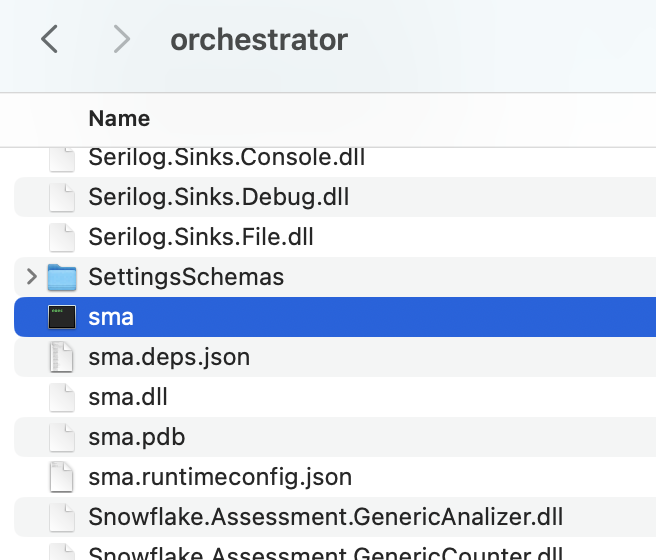
インストールフォルダーでターミナルまたはコマンドプロンプトを開き、以下のコマンドを実行して CLI のインストールを検証し、バージョンを検証します。
./sma --version
このような結果が表示されます。

The SMA Command Line Interface (CLI) is a local application that runs on your computer, similar to the SMA desktop application. To analyze your code files using the SMA CLI, these files must be stored on your local machine where the CLI can access them. The CLI supports the same file types as the regular SMA application. For a complete list of supported file types, refer to the supported filetypes in the SMA documentation.
注釈
NOTE: To test the CLI functionality, you can use the sample codebase provided in the Assessment section or refer to the Conversion walkthroughs in the SMA documentation.
SMA ドキュメントには、 CLI 引数の包括的なリストがあります。このセクションでは、最も重要なものを探ってみましょう。
The SMA CLI runs in Conversion mode by default, rather than Assessment mode. To run the CLI in assessment mode, use the -a argument. For conversion operations, you'll need a valid access code. To verify if you have a valid access code, use the following command:
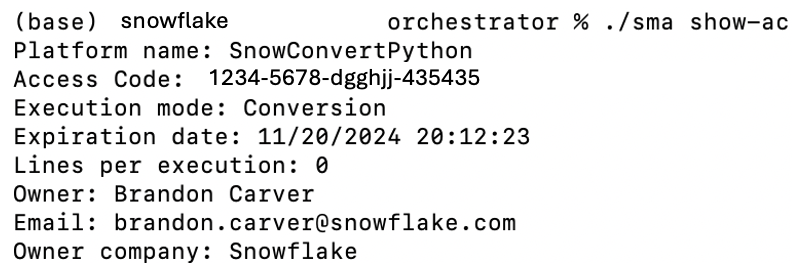
変換を実行するには、以下が必要です。
入力ディレクトリ(必須)
出力ディレクトリ(必須)
プロジェクトファイルを作成したことがない場合は、以下も必要です。
ユーザーメールアドレス
組織名
プロジェクト名
一度これらのパラメーターをセットアップしてしまえば、次回以降は入力と出力のディレクトリを指定するだけで変換できます。
この画面では実行設定の概要が表示され、続行するかどうかの確認が求められます。
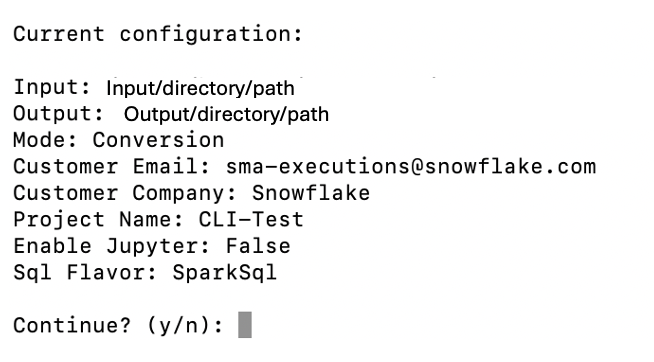
確認プロンプトをスキップするには、--yesまたは-yパラメーターを追加します。これは、自動化スクリプトから CLI を実行する場合に特に重要です。
ツールは実行中に詳細な進捗情報を提供します。
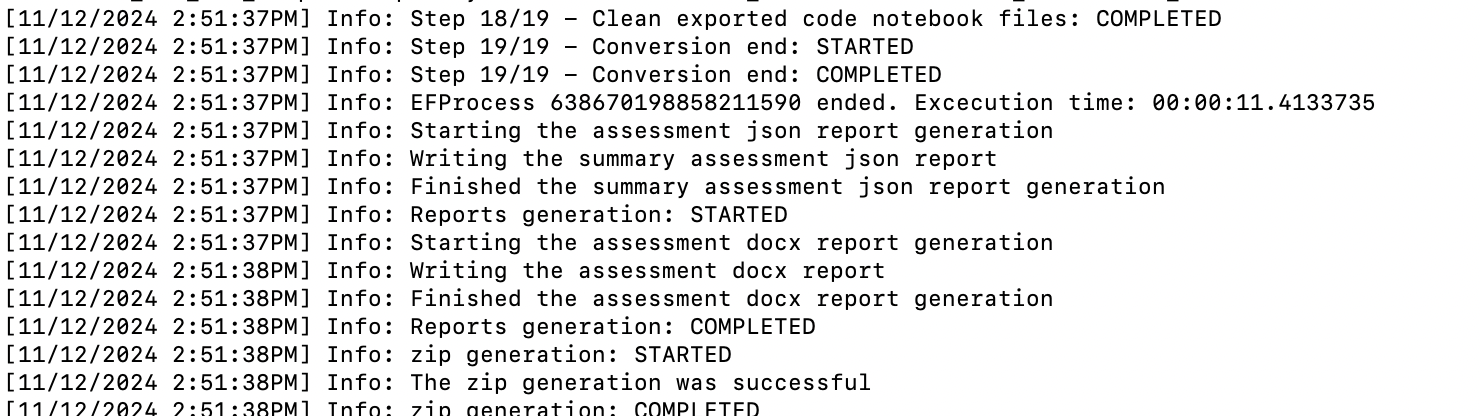
While the tool is running, it will continuously print output to the screen. When the process is complete, you will see the prompt again. The tool generates detailed output that includes all processes, issues, and completed or failed steps. You don't need to read through all of this information while it's running, as you can review it later in the Logs output folder.
出力の表示
SMA CLI は SMA アプリケーションと同じ出力を生成します。ツールを実行すると、指定した出力ディレクトリに3つのフォルダーが作成されます。
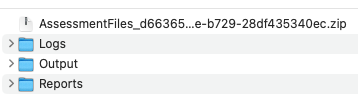
For detailed guidance on working with code that has been converted by the Snowpark Migration Accelerator (SMA), refer to the conversion walkthrough.
Using the Workspace Estimator
The SMA CLI includes a Workspace Estimator verb (we or workspace-estimator) that connects to a Databricks workspace, extracts metadata such as clusters, jobs, and runs, and optionally uploads the results to Snowflake for analysis.
Command hierarchy
The Workspace Estimator currently supports Databricks workspaces through the dbx subcommand. Running sma we dbx without a subcommand displays help listing the available subcommands:
sma we dbx run-- Runs both extraction and upload in a single invocation.sma we dbx extract-- Extracts workspace metadata to a local.zipfile only.sma we dbx upload-- Uploads a previously extracted.zipfile to Snowflake.
Authentication
A Databricks Personal Access Token (PAT) is required for extraction. You can supply it in one of two ways:
Pass it directly with
-t/--token.Set the
SMA_DBX_TOKENenvironment variable. If--tokenis omitted, the CLI defaults to this variable.
Running extraction and upload together
When you provide all required options to sma we dbx run, the CLI extracts workspace metadata and uploads the resulting .zip file in a single step.
The following table lists the available options for sma we dbx run:
Option |
Short |
Required |
Default |
Description |
|---|---|---|---|---|
|
|
Yes |
-- |
Databricks workspace URL (e.g. |
|
|
No |
|
Databricks Personal Access Token (PAT). |
|
|
No |
Current directory |
Directory where the extraction |
|
|
Yes |
-- |
Logical name for the workspace. Cannot be empty or whitespace. |
|
|
No |
30 |
Number of days to look back for cluster events (15, 30, or 60). |
|
-- |
No |
Information |
Minimum log level for diagnostic output (Trace, Debug, Information, Warning, Error, Critical). |
|
|
Yes |
-- |
Company name for this estimation. Cannot be empty or whitespace. |
|
|
Yes |
-- |
Email of the person performing the estimation. Must be a valid email address. |
Running extraction only
To extract workspace metadata without uploading, use the extract subcommand. This produces a .zip file in the specified output directory.
The extract subcommand accepts the same options listed in the run table above except --company-name and --email, which are only required for upload.
Uploading a previously extracted file
If you have already extracted workspace metadata to a .zip file, you can upload it separately using the upload subcommand.
The following table lists the available options for sma we dbx upload:
Option |
Short |
Required |
Default |
Description |
|---|---|---|---|---|
|
|
Yes |
-- |
Path to an existing |
|
|
Yes |
-- |
Company name for this estimation. Cannot be empty or whitespace. |
|
|
Yes |
-- |
Email of the person performing the estimation. Must be a valid email address. |
|
|
Yes |
-- |
Logical name for the workspace. Cannot be empty or whitespace. |
|
-- |
No |
Information |
Minimum log level for diagnostic output (Trace, Debug, Information, Warning, Error, Critical). |
プログラムによる CLI の実行
近日公開予定です。SMA チームは、 SMA コマンドラインインターフェイス(CLI)を複数のディレクトリで自動的に実行できるスクリプトを提供します。
Try out the Command Line Interface (CLI) today. If you need help or have questions, contact the Snowpark Migration Accelerator team at sma-support@snowflake.com.