dbt integration in CoCo Desktop
CoCo Desktop turns any workspace that contains a dbt_project.yml into a full dbt development
environment. The controls you need live on the Project Action Bar at the bottom of the window.
Pick a project, choose how it runs, and start a command. The Current Project output channel
records the command transcript. After the command finishes, CoCo Desktop also focuses the surface
that holds that result: SQL Results for Show, the Lineage view for Run and Build,
and the Current Project channel for other operations. Compiled SQL is separate: after compile
artifacts exist, View Compiled SQL in the editor title bar opens the compiled file beside your
model.
Note
The Project Action Bar is the dbt layout you get by default. To go back to the previous dbt view,
open User Settings, set dbt.redesign to false, and reload the window.
Getting started
For guided, in-context help while you work, use the
dbt-projects-on-snowflake
bundled skill. We recommend invoking the skill with /dbt-projects-on-snowflake and describing what you
want in plain language.
CoCo Desktop scans your workspace for dbt_project.yml files. When it finds at least one project,
the Project Action Bar appears at the bottom of the window with the first project it found selected.
Use the project picker to switch. The bar shows in
Editor view, not in Agent
view, and it stays hidden if you hid it yourself. The bar has two layouts, one for each execution
mode.
Project Action Bar
Snowflake-managed layout
In Snowflake-managed mode, the Project Action Bar shows the pickers that a server-side run needs, plus a two-part operation control. The main part runs the selected operation. The chevron next to it opens the list of operations.

| Control | What it does |
|---|---|
| Project picker | Selects the dbt project to run. The run uses your active CoCo Desktop Snowflake connection. |
| profile | Selects the target within the profile named in your project’s dbt_project.yml. The picker reads targets from dbt_projects_profiles.yml when that file is in the project root, and from profiles.yml otherwise. |
| Environment | Selects a named environment from env.yml, or None. See SQL environment variables and private Git package support. |
| Additional flags | Free-text flags appended to the dbt command, for example --full-refresh or --vars '{"key": "value"}'. |
| Operation control | A two-part control. Select the main part (labeled with the current operation, for example Build) to run that operation. Select the chevron to open the list and choose Deps, Seed, Compile, Run, Test, Build, Retry, Parse, Docs generate, List, Show, Snapshot, or Run operation. After you choose an operation, the main part runs it. While a run is in progress, the control becomes Stop. |
| Snowflake control | Opens Settings at dbt.executionMode so you can change the execution mode. It opens Workspace Settings when the workspace sets that value, and User Settings otherwise. |
Select the run options control next to the operation control to set the runtime and network access for the run.
| Field | Purpose |
|---|---|
| dbt Version | The Snowflake-managed runtime for the run, for example dbt Core 1.12.3 or dbt 2.0.0. |
| External Access Integration | The EAI to attach when dbt needs network access to fetch packages declared in packages.yml. The list shows the integrations that SHOW EXTERNAL ACCESS INTEGRATIONS returns for your active role. Leave it empty if your project uses only local packages. |
Note
With dbt Core, an EAI is required for dbt deps. With the dbt Fusion engine, dbt deps runs implicitly during dbt compile and dbt run if dbt_packages is missing, so the EAI may also be needed for those commands.
dbt deps is what populates dbt_packages. Nothing else installs or updates the packages in it, so a packages.yml edit such as a version bump doesn’t reach dbt_packages until deps runs again. With the dbt Fusion engine, the implicit run doesn’t cover that case, because it only happens when dbt_packages is missing. Run Deps after you change packages.yml. In Snowflake-managed mode, CoCo Desktop syncs dbt_packages/ back to your project after a Deps run, or when your local packages folder is missing or empty.
Local layout
In local mode, the Project Action Bar is a compact command line for the local dbt CLI.

| Control | What it does |
|---|---|
| Project picker | Selects the dbt project to run. The local dbt CLI resolves profiles.yml for the run. |
| Python Interpreter | Selects the Python interpreter that provides the local dbt CLI. |
| Command box | Takes a free-form dbt command, for example run --select my_model+. Type the command without dbt, then press Enter or select Run. |
| Run | Runs the command you typed. Output streams line by line to the Current Project output channel. While the command runs, Run becomes Stop and the command box is disabled. |
| Switch to Snowflake-managed | Switches the execution mode to Snowflake-managed and swaps the bar to the Snowflake-managed layout. You can’t switch modes while a dbt command is running. |
Show and hide the Project Action Bar
You can hide the Project Action Bar to get its row of vertical space back. There are three ways to do it:
- Run View: Toggle Project Action Bar from the Command Palette. This both hides and shows the bar.
- In the menu bar, select View > Appearance > Project Action Bar. The check mark shows whether the bar is currently visible.
- Right-click the project name at the left end of the Project Action Bar and select Hide. This method can only hide the bar.
When you hide the bar with the Command Palette or the View menu, CoCo Desktop remembers that choice for this workspace on this machine. The bar stays hidden until you show it again with the Command Palette or View > Appearance > Project Action Bar.
If you’re in Agent view or if CoCo Desktop doesn’t detect a dbt project, the Project Action Bar won’t be visible at that time.
Execution mode
CoCo Desktop can run dbt commands two ways:
| Mode | Where dbt runs | What it requires |
|---|---|---|
| Local (default) | The local dbt CLI on your machine | A working local dbt installation |
| Snowflake-managed | Inside Snowflake via EXECUTE DBT PROJECT FROM WORKSPACE | An active Snowflake connection, but no local dbt installation |
In Snowflake-managed mode, your dbt project files are synced to a Snowflake workspace under your
account, dbt executes server-side, and generated artifacts (target/, root files such as
package-lock.yml, and logs) are synced back to your local project directory when the run
finishes. Only generated files come back, not the project files you uploaded. dbt_packages/ is
only synced back after a Deps run, or when your local packages folder is missing or empty. A run
that you cancel, or that fails before dbt itself runs, syncs no generated artifacts back. Output,
lineage, compiled SQL, and query results work the same way in both modes. The difference is where
the work happens.
The dbt.executionMode setting determines which mode CoCo Desktop uses to run the dbt project. You
can change the mode from the Project Action Bar: select Switch to Snowflake-managed in the local
layout, or select the Snowflake control in the Snowflake-managed layout, which opens Settings at
dbt.executionMode. You can also edit the setting directly in User Settings or Workspace
Settings.
Commands that connect to Snowflake need a valid profile, and each mode reads a different file. In
Local mode, the local dbt CLI reads only profiles.yml, exactly as documented by dbt, and
resolves it from your machine (~/.dbt/profiles.yml unless you point dbt somewhere else). In
Snowflake-managed mode, the workspace reads dbt_projects_profiles.yml when present and falls
back to profiles.yml, and at least one of those files must be in the project root. For the fields
each file needs, see
Prerequisites for Snowflake-managed mode.
This split is deliberate. Both files can live in the project root at once, and the local dbt CLI
doesn’t recognize dbt_projects_profiles.yml, so adding it never disrupts anyone’s existing local
dbt workflow. That means hybrid teams (teams where some members run dbt with the local dbt CLI and
others use Workspaces) can share one Git-versioned project and switch modes without editing
connection settings for each other.
For the underlying Snowflake feature, see Workspaces for dbt projects on Snowflake.
What happens when you run a command
When you run a dbt command in Snowflake-managed mode, CoCo Desktop:
- Ensures a workspace exists in your account at
USER$.PUBLICnamedcoco_smws_<folder>_<hash>, where<folder>is the name of your local project folder and<hash>is a 6-character identity prefix derived from the project path. The workspace is created on first use and reused on subsequent runs. - Syncs your project files to the workspace. Only files that changed since the last sync are
uploaded, so subsequent runs are fast. Your local
dbt_packages/folder isn’t uploaded. The workspace gets its own copy of the packages when you run Deps, which installs them server-side. - Executes the dbt command on Snowflake via
EXECUTE DBT PROJECT FROM WORKSPACE. The warehouse, database, schema, and role specified in the active target (selected with the profile picker, defined indbt_projects_profiles.ymlorprofiles.ymlunder theprofile:named indbt_project.yml) are used for the run. - Syncs generated artifacts back to your local project directory so compiled SQL and lineage reflect the server-side run. Only generated files come back. A run that you cancel, or that fails before dbt itself runs, syncs nothing back.
The Current Project output channel records the dbt execution: the command, the output, and the
status. The SQL statement is EXECUTE DBT PROJECT FROM WORKSPACE in Snowflake-managed mode. Select
Stop to cancel a running command.
SQL environment variables and private Git package support
A single Git-versioned env.yml file lets you:
- Give each developer an isolated configuration through context functions.
- Build robust orchestration by pulling runtime metadata from live SQL into each run.
- Manage multiple environments and secrets, including authenticating
dbt depsagainst private Git packages.
CoCo Desktop supports environment variables defined in an env.yml file, but only in Snowflake-managed mode.
When you run a command, Snowflake resolves env.yml before the run to inject the environment variables.
Use the Environment picker on the Project Action Bar to select a named environment, and override
individual environment variables for a single run. The resolved values flow into
dbt_projects_profiles.yml when that file is present, or into profiles.yml otherwise.
For env.yml authoring, environment selection, value precedence, secrets, and the full reference, see Use SQL environment variables and private Git packages for dbt Projects on Snowflake.
Prerequisites for Snowflake-managed mode
-
An active Snowflake connection signed in via the connection picker.
-
A
dbt_projects_profiles.ymlorprofiles.ymlfile in each dbt project folder. Thetypemust besnowflakeand thewarehouse,database,schema, androlefields must be set. Unlike dbt Core, theaccountanduserfields can be left empty or with arbitrary values, because the workspace runs under your current Snowflake user and account context. See Workspaces for dbt projects on Snowflake for the full requirements. If both files are present, Snowflake usesdbt_projects_profiles.ymland ignoresprofiles.ymlfor compilation and subsequent commands. For more information, see Use dbt_projects_profiles.yml for a unified development-to-production experience. -
Personal databases enabled on your account. Snowflake workspaces are created in a personal database, which an account administrator must enable. See the personal database requirement.
-
An external access integration, only if your
packages.ymlreferences remote packages (for example, packages from the dbt Packages hub or a Git repository). Select the EAI once from the Project Action Bar. CoCo Desktop remembers it for that project and reuses it on subsequent runs. Local-only dependencies don’t require one. See Workspaces for dbt projects on Snowflake: dependencies for setup details.
Project size limit
When you deploy a specific dbt project folder as a dbt
project object, that folder can contain at most 100,000 files across all folders, including
generated target/ and dbt_packages/ artifacts. See
Limitations, requirements, and considerations for dbt Projects on Snowflake.
Inspecting your workspaces
Each project gets a dedicated Snowflake workspace named coco_smws_<folder>_<hash>. The <folder>
part is the name of your local project folder, lowercased and with every non-alphanumeric character
replaced by an underscore. It isn’t the name: field in dbt_project.yml. The <hash> part is a
6-character identity prefix derived from the project path, so two folders with the same name get
different workspaces. To list the workspaces CoCo Desktop has created in your account:
Workspaces persist between sessions, so the next sync only uploads what’s changed. If a workspace is dropped externally, for example by an administrator, CoCo Desktop re-creates it and performs a full sync on the next run.
Editor title actions
With a dbt model open in the editor, the editor title bar adds a Run Project File button (its
tooltip reads Run dbt for Current Model). Open its menu to run Compile, Run, Test,
Build, List, or Show for that model. Running an operation this way also selects that
model’s project in the Project Action Bar. The button is disabled while a dbt command is running for
the project or while packages aren’t in the Snowflake workspace yet, and Compile stays disabled
until the model appears in the project’s manifest.json, which happens after the project is parsed
or compiled once. Select the gear on an enabled menu item, Run with flags…, to fill the
Project Action Bar with that operation and --select <model> instead of running it, so you can add
flags first. The Project Action Bar remains the main way to run a project.
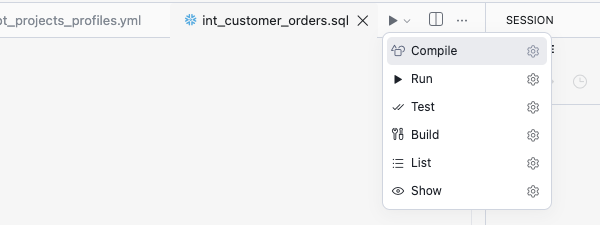
A dbt SQL model also gets a View Compiled SQL action in the editor title bar. It’s disabled until the compiled file exists, with the tooltip Compile project to view compiled SQL., and it opens the compiled SQL beside your model.
Where results appear
dbt results land in the workbench views you already use for SQL work. Output, SQL Results, and Lineage are panel views, so you can resize the panel, drag any of them into a sidebar, and leave the one you want open next to your editor while a run finishes. Compiled SQL opens as a regular editor pane.
| Surface | What it shows |
|---|---|
| Output | The Current Project channel records each run: the command that ran, a running status, the dbt output (including per-model progress during dbt run or dbt build), and a completed, failed, or cancelled status. Local runs stream as dbt writes them. Snowflake-managed runs return their output when the run finishes. |
| SQL Results | Rows returned by the Show operation (dbt show) open in SQL Results, where you can sort and scan them like any other query result. Show doesn’t open an editor pane. Results are the same in local and Snowflake-managed mode. |
| Lineage | A workbench view with the interactive dependency graph for your project. It’s also the surface CoCo Desktop focuses after a Run or a Build finishes, while the transcript stays in the Current Project channel. |
| Compiled SQL | Compiled output opens as an editor pane when you select View Compiled SQL in the editor title bar, after the file exists in your project’s target/compiled folder. Because it’s an editor pane, you get syntax highlighting, search, and copy the same as any other file. This is the exact query dbt would run against your warehouse. Compiling doesn’t open the pane on its own. |
Lineage
The Lineage view renders an interactive directed acyclic graph (DAG) of your dbt project. It shows how models, sources, and other resources relate to each other.
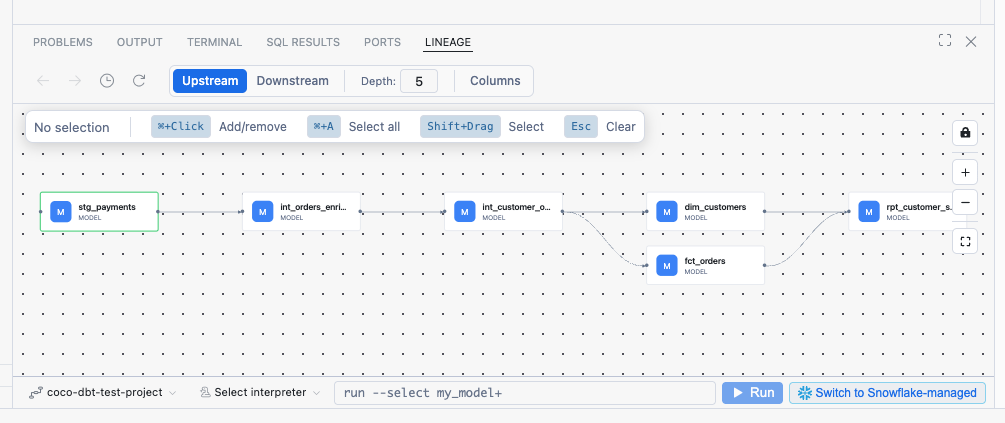
The Lineage view with the Upstream graph at depth 5.
- Upstream / Downstream: Toggle between viewing ancestors (upstream) or dependents (downstream) of the selected node.
- Depth: Control how many levels of dependencies to display (default: 5).
- Navigation: Use the back/forward arrows to navigate through previously viewed nodes.
- Refresh: Re-parse the project and update the graph.
- Selection: Click a node to select it. Command+click (macOS) or Ctrl+click (Windows and Linux) adds or removes a node, Shift+drag selects a region, Command+A or Ctrl+A selects everything, and Esc clears the selection. The hint bar in the view labels these with the macOS keys on every platform.
Tip
Select one or more nodes in the lineage graph, then use the “Add to Chat” action to attach the selected models as context to your AI conversation. This helps the agent understand your project structure when answering questions or generating code.
Project detection
CoCo Desktop automatically detects dbt projects by scanning your workspace for dbt_project.yml
files, up to five folders deep, skipping folders such as target/, dbt_packages/, node_modules,
and Python virtual environments. Opening a dbt file doesn’t change which project the Project Action
Bar targets: use the project picker for that, or run an operation from the editor title bar, which
selects that file’s project. The Lineage view focuses the model for the file you’re editing when
that file belongs to the project that’s currently selected.
For the profile file each execution mode reads, and the project-root requirement in Snowflake-managed mode, see Execution mode.
Settings
| Setting | What it controls |
|---|---|
dbt.enabled | Turns dbt integration and project discovery off. It’s on by default. Set it to false when you want CoCo Desktop to stop scanning for dbt_project.yml files. With discovery off, the project list clears and the Project Action Bar has nothing to show. |
dbt.allowListFolders | Restricts project discovery to the listed folders under each workspace root, for example analytics or analytics/core. An empty list scans everything. Matching is case-sensitive and by path segment: analytics includes analytics/core, not analytics-old/core. . or / means the workspace folder root and matches everything, the same as an empty list. |
dbt.executionMode | The execution mode for dbt commands, either local or snowflake-managed. Switch to Snowflake-managed writes to it: to Workspace Settings when the workspace already sets it, and to User Settings otherwise. |
dbt.snowflakeManaged.executionTimeout | How long to wait, in seconds, for a Snowflake-managed EXECUTE DBT PROJECT before cancelling. The default is 14400 (4 hours) and the minimum is 60. When the wait expires, CoCo Desktop cancels the statement and reports the run as failed. |
dbt.redesign | Whether CoCo Desktop uses the Project Action Bar layout. It’s on by default. |
To go back to the previous dbt view:
- Open User Settings.
- Set
dbt.redesigntofalse. - Reload the window.