Installation, onboarding, and authentication
This guide walks you through the CoCo Desktop interface and shows you how to connect it to your Snowflake account so you can start asking questions, exploring data, and building workflows in plain English.
Get CoCo Desktop
Download the latest version. Available for macOS and Windows.
Windows installer choice: The downloads page offers two Windows installer types:
- User installer (recommended): Installs CoCo Desktop for the current user only. Doesn’t require administrator rights and supports automatic updates without needing elevated permissions.
- System installer: Installs for all users on the machine. Requires administrator rights and is intended for IT-managed deployments to managed workstations or when you want a machine-wide install.
Before you sign in, confirm your Snowflake role has the required database roles:
Access requirements
To use CoCo Desktop, your Snowflake role must have either SNOWFLAKE.CORTEX_USER or SNOWFLAKE.CORTEX_AGENT_USER. By default, SNOWFLAKE.CORTEX_USER is available to all users through the PUBLIC role. Administrators can restrict access by revoking this role from PUBLIC or by setting per-user daily credit limits. See Access control requirements and Daily credit usage limits for CoCo.
Onboarding and sign in
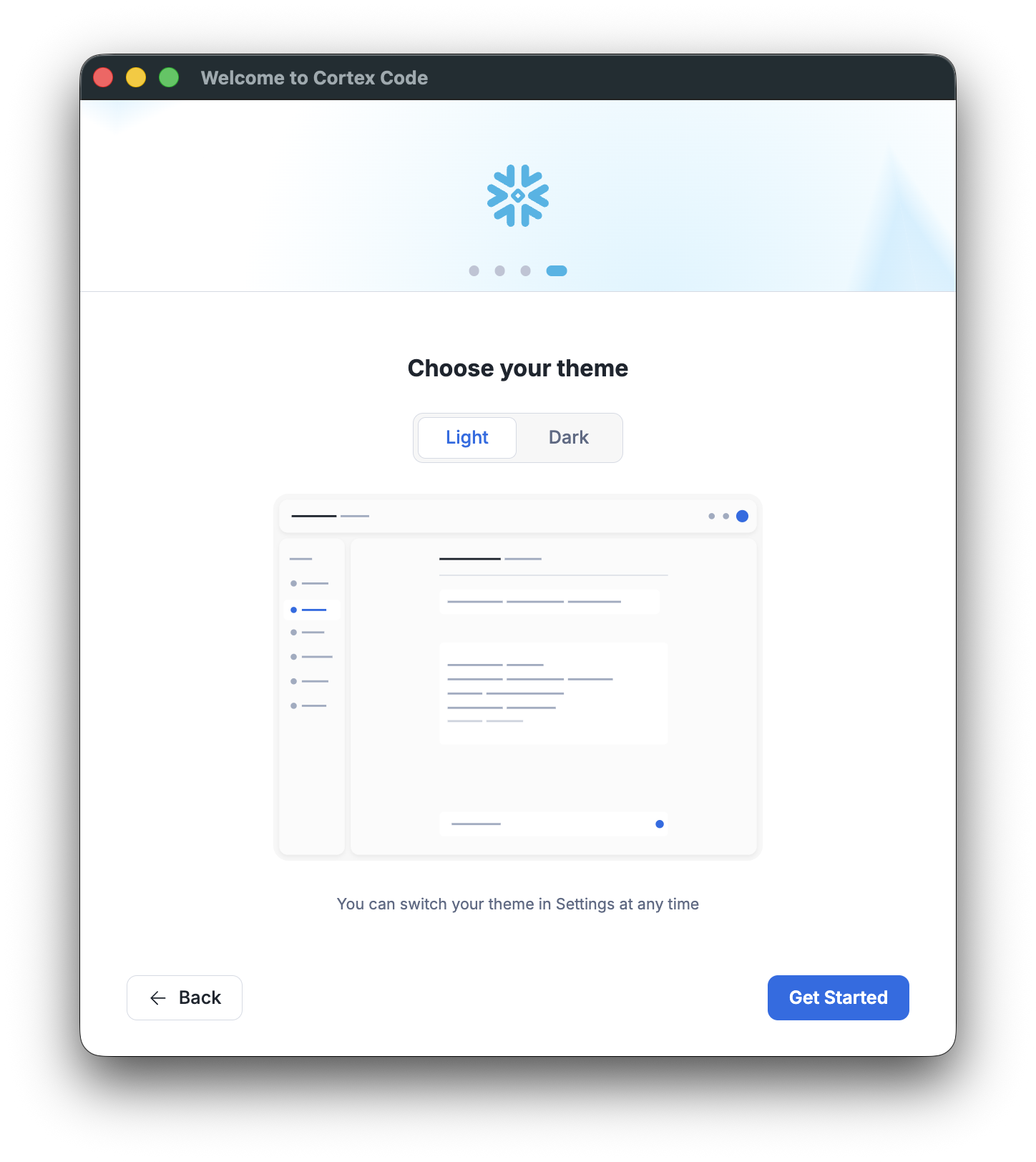
On first launch, CoCo Desktop guides you through a four-step setup flow: welcome → connect → mode → theme. A progress indicator at the top of the window shows which step you’re on, and you can use Back to revisit an earlier step. If you already have a ~/.snowflake/connections.toml file (for example, from CoCo CLI), your existing connections are detected automatically.
Step-by-step
- Welcome. Launch CoCo Desktop. The Welcome screen introduces CoCo. Click Next to begin setup.
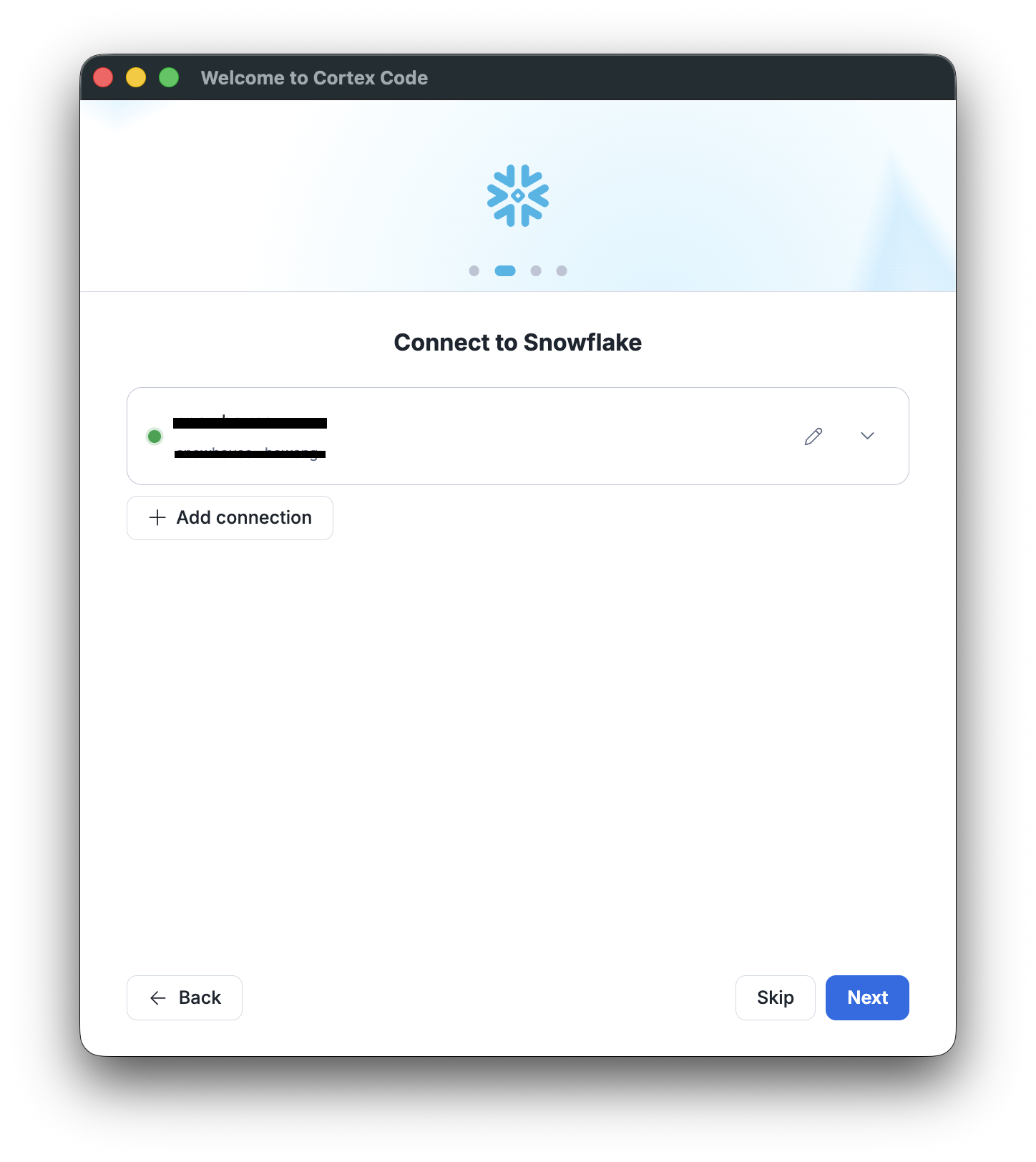
- Connect to Snowflake. If existing connections are detected (from a
connections.tomlfile), they appear in a list with a status dot. Select one, use the edit (pencil) icon to modify it, or click the chevron to expand its connection details. Click Add connection to create a new one. Click Next to continue, or Skip to set up later.
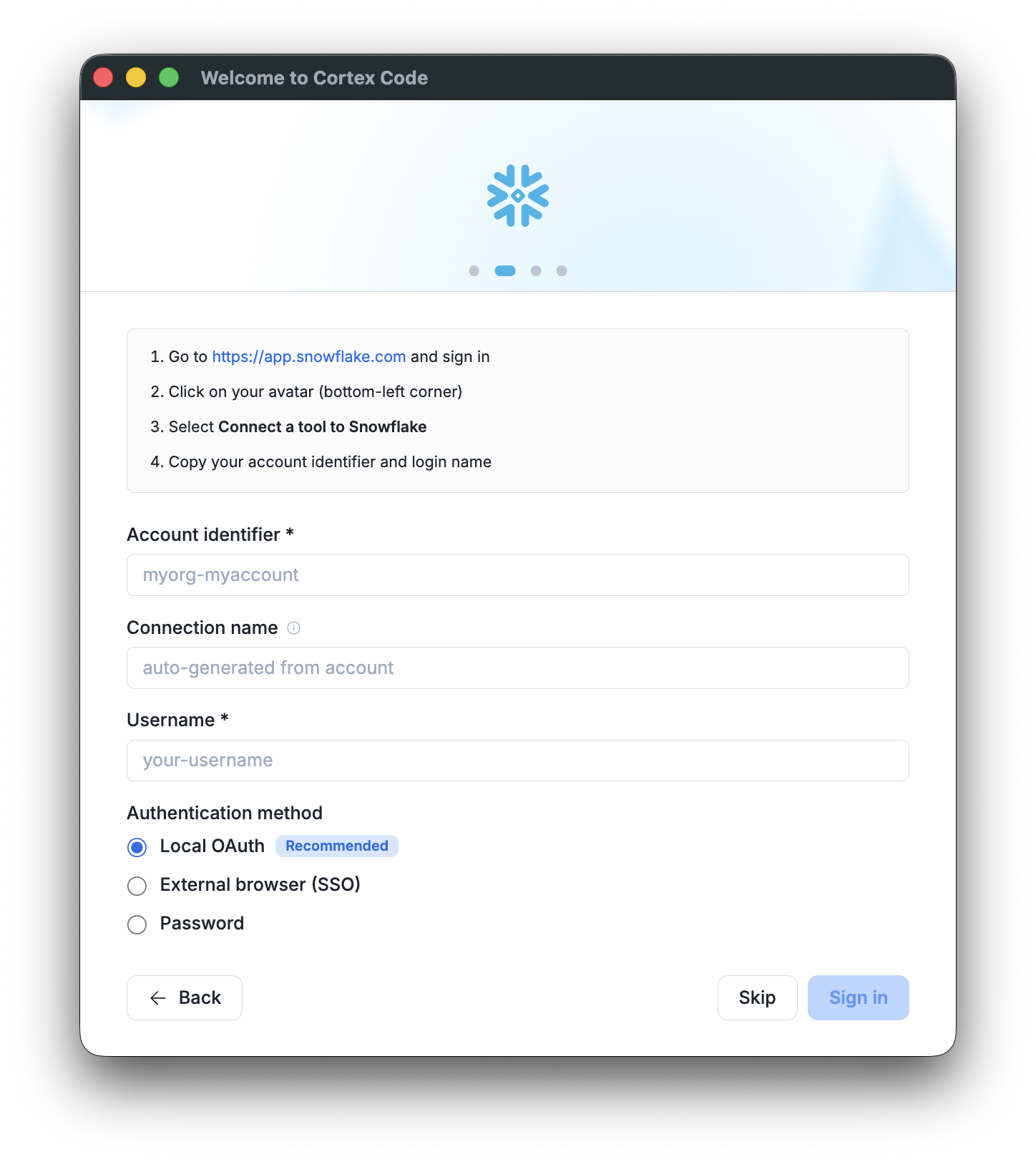
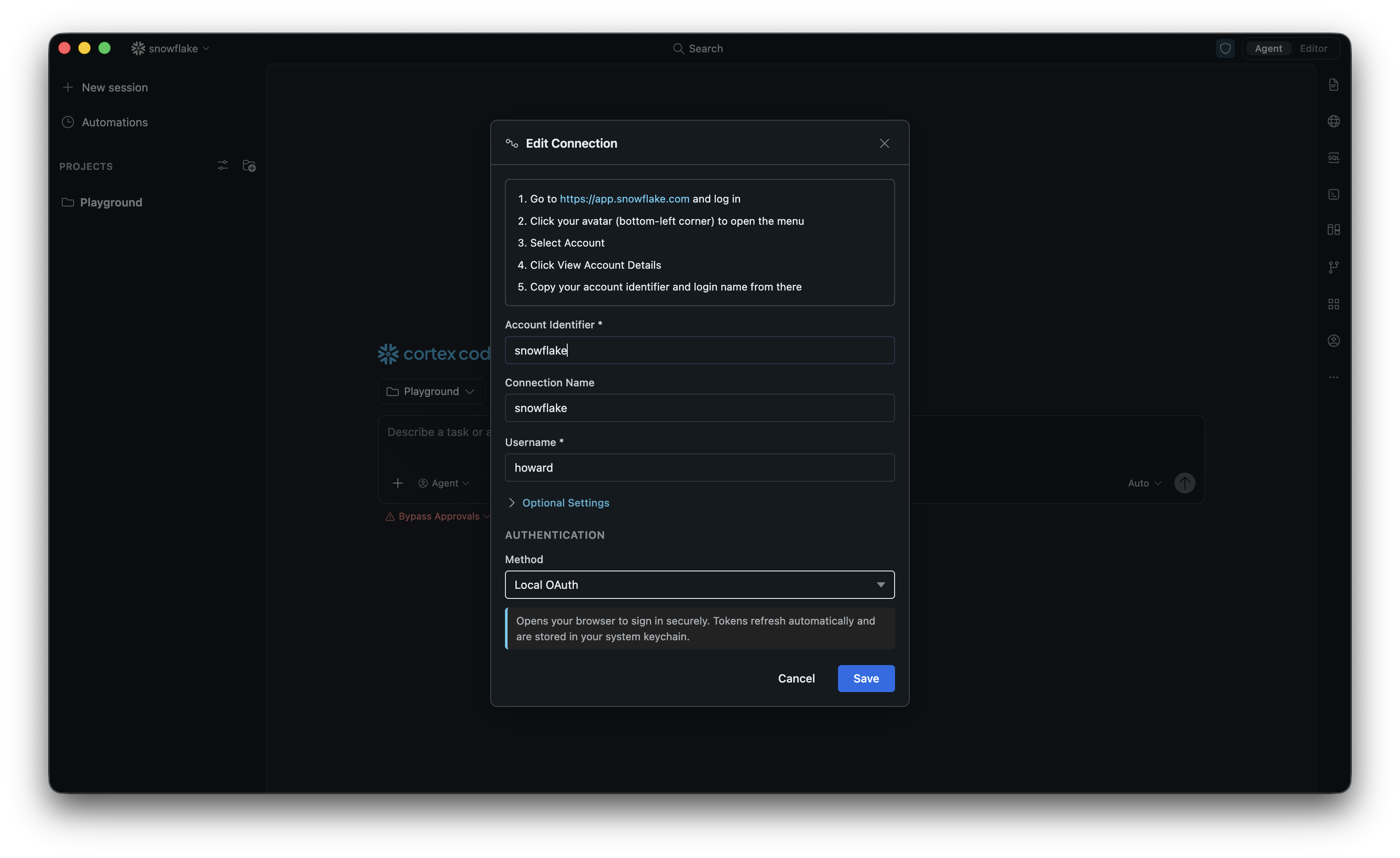
When adding a connection, fill in the form. The panel includes inline instructions for finding your account identifier and login name in Snowsight (app.snowflake.com → your avatar → Connect a tool to Snowflake):
- Account identifier: for example,
myorg-myaccount(see Find your account identifier). - Connection name: a friendly label, auto-generated from the account identifier.
- Username: your Snowflake login name.
- Authentication method: Local OAuth (recommended), External browser (SSO), or Password.
Click Sign in to store the connection and authenticate. For OAuth or SSO, complete sign-in in your browser when prompted.
-
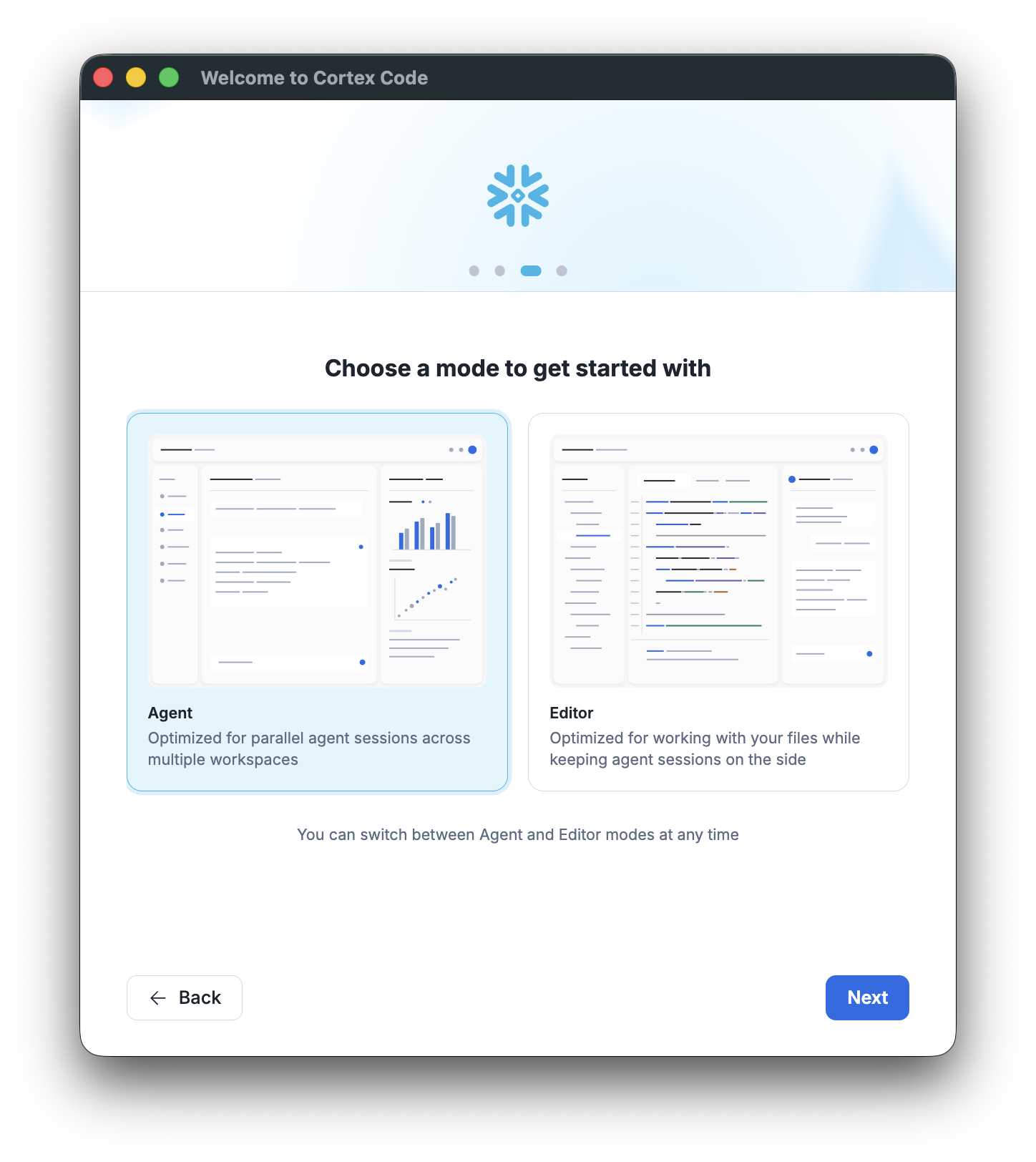
Choose a view. Pick how CoCo starts up:
- Agent: optimized for parallel agent sessions across multiple workspaces.
- Editor: optimized for working with your files while keeping agent sessions on the side.
You can switch between Agent view and Editor view at any time. Click Next.
- Choose your theme. Select Light or Dark (you can change it later in Settings), then click Get Started to launch the main app.
Tip
If your browser doesn’t open automatically for OAuth/SSO, use the “Browser didn’t open?” link in the app to copy the sign-in URL and open it manually.
Find your account identifier
- Sign in at app.snowflake.com.
- Click your avatar in the bottom-left corner and select Connect a tool to Snowflake.
- Copy the account identifier (
orgname-accountname) and your login name. You can also read the account identifier from the URL:https://app.snowflake.com/orgname/accountname/.
Manage connections after setup
You can add, edit, or switch connections at any time from within the app:
Open the connection menu: Click the connection name in the top navigation bar to reveal a dropdown with connection management options:
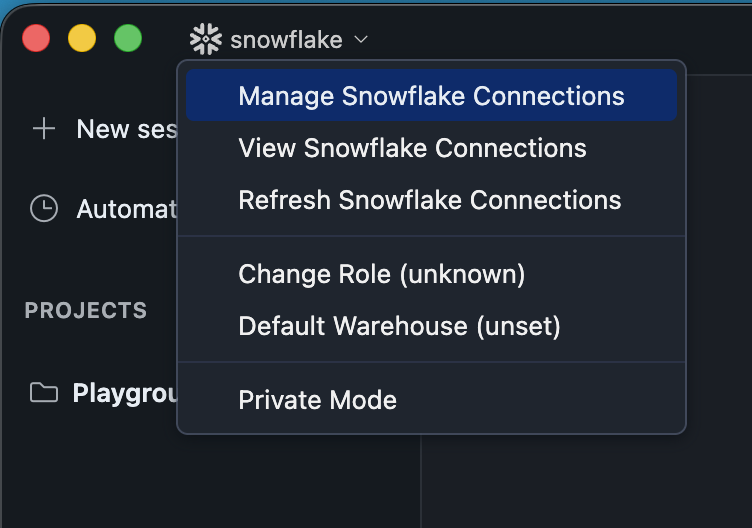
- Manage Snowflake Connections: Opens the connection manager dialog where you can switch between connections, add new ones, or edit/delete existing ones.
- View Snowflake Connections: Shows your
connections.tomlfile for quick reference. - Refresh Snowflake Connections: Reloads connections from disk (useful after manually editing the config file).
- Change Role: Switch your active Snowflake role without disconnecting.
- Default Warehouse: Choose the warehouse new sessions use. CoCo persists the choice to your Snowflake user with
ALTER USER SET DEFAULT_WAREHOUSEand updates yourconnections.tomllocally, so subsequent connections use the selected warehouse without setting it each session. - Private Mode: Toggle private mode for sensitive work.
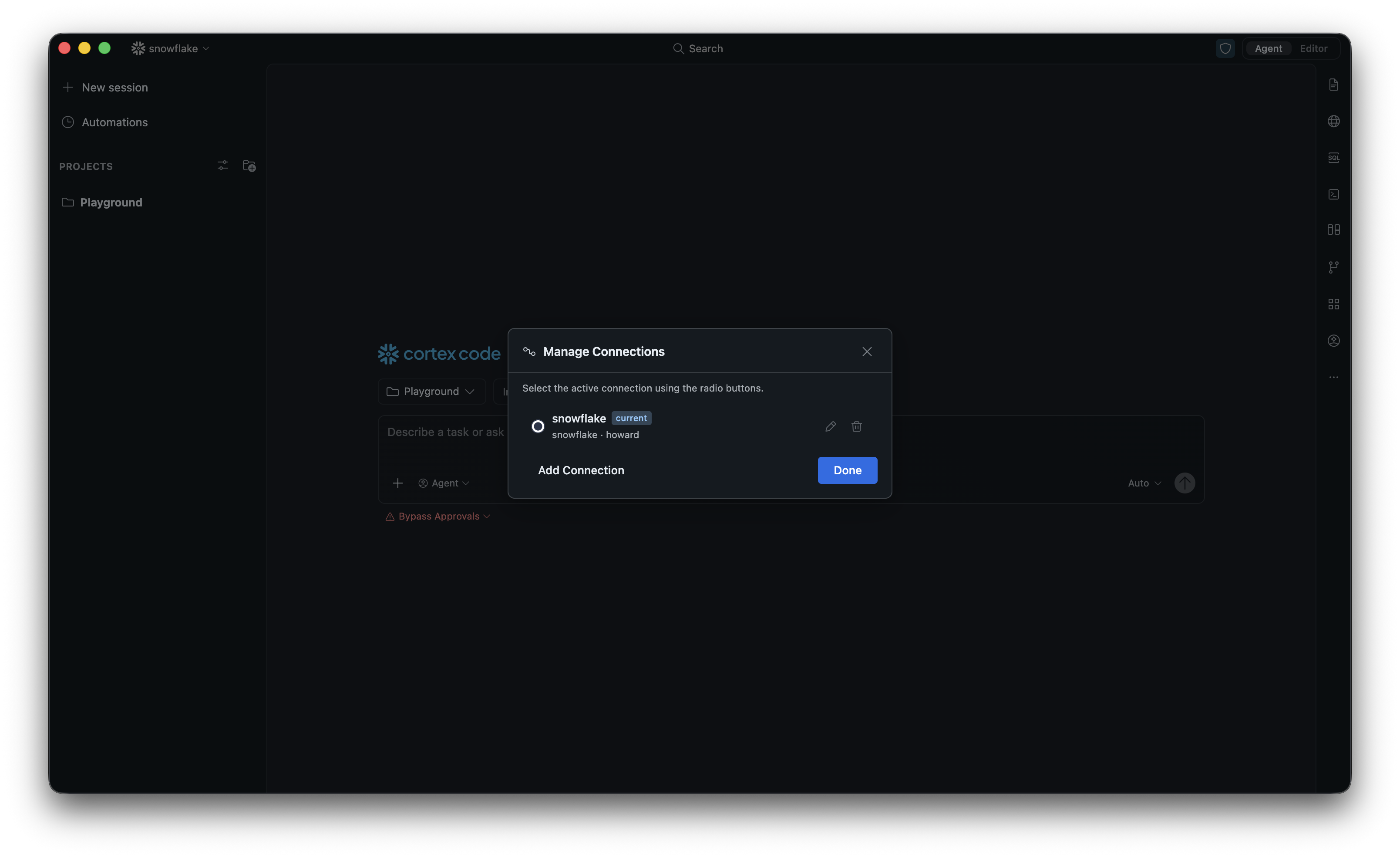
Manage Connections dialog: Select Manage Snowflake Connections to open this dialog. Use the radio buttons to switch between connections, the edit (pencil) icon to modify a connection, or the trash icon to delete one. Click Add Connection to create a new connection.
Edit or add a connection: Clicking the edit icon or Add Connection opens the Edit Connection dialog. This form works the same as the onboarding form: fill in your Account Identifier, Connection Name, Username, and Authentication Method, then click Save.
Tip
You can also type /connections in the chat input to quickly open the connection manager, or use the “Sign in to Snowflake” starter card if no connection is active.
Default warehouse
CoCo Desktop lets you set a default warehouse for your active connection at any time. The warehouse is persisted server-side on your Snowflake account so it applies across all sessions and devices.
Set or change the default warehouse
- Click your connection name in the top navigation bar to open the connection dropdown.
- Select Set Default Warehouse.
- Choose a warehouse from the list and confirm.
The selected warehouse becomes active immediately and is used for all subsequent queries in this and future sessions.
Note
The default warehouse set here is stored server-side on your Snowflake account.
UI walkthrough
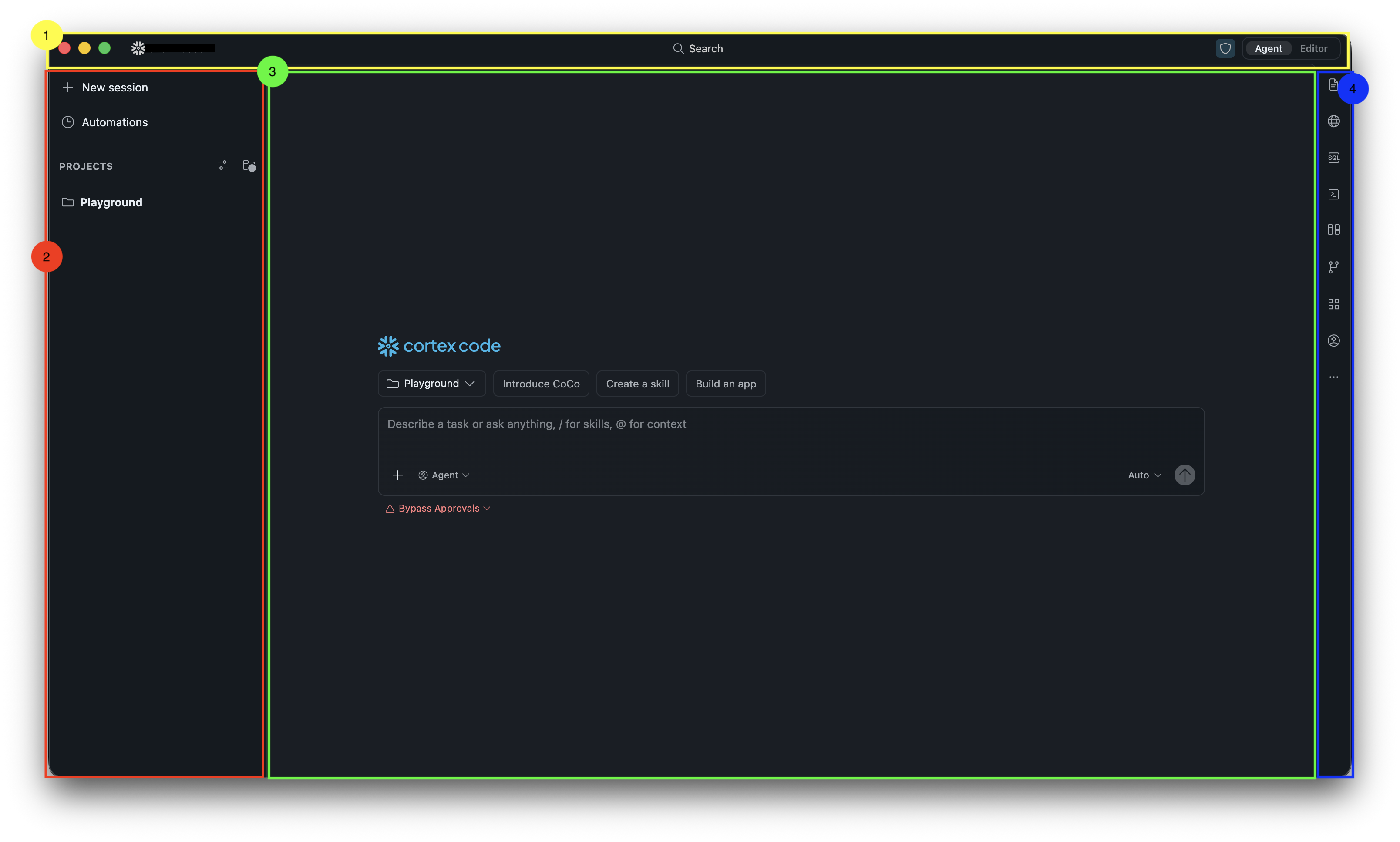
The CoCo Desktop interface has four key areas:
- Top Navigation Bar: Shows your active Snowflake connection, a global Search, and the Agent/Editor view toggle on the right that switches how the assistant operates.
- Left Sidebar: Create a New Session, open Automations, and browse your Projects. Each project corresponds to a working directory on your computer.
- Main Chat Area: The central area where your conversation with the assistant happens: messages, tool runs, code, SQL results, charts, and file diffs all appear here. The input bar sits at the bottom: type your messages, use
/to invoke skills and@to add context, and pick your mode (Agent or Editor), model, and approval preferences. On a new session it also shows starter prompt chips. - Right Toolbar: A vertical strip of quick-access icons for the in-app browser, SQL, Snowflake objects, the file explorer, source control, and more.
Updates
CoCo Desktop keeps itself up to date automatically:
- The app checks for new versions in the background, downloads them, and prompts you to install. Installing applies the update and restarts the app.
- Significantly outdated installations are required to update before you can continue, so you stay on a supported version with the latest fixes.
Updates are managed by the app itself; you don’t need to download a new installer for routine version bumps. For the security rationale behind staying current, see Auto-update.
Authentication methods
CoCo Desktop supports several ways to sign in to Snowflake. Pick the one that fits your account.
Local OAuth (recommended)
Opens your browser to sign in securely. Tokens are cached in your operating system’s keychain so you don’t have to sign in every time. This is the default and recommended option.
External Browser (SSO)
Sign in through your organization’s Identity Provider (Okta, Azure AD, etc.). Requires that SSO is configured for your Snowflake account.
Password
Traditional username and password. If your account has MFA enabled, you’ll be prompted in your authenticator app on sign-in.
Note
Storing passwords in plain text is not recommended. Prefer OAuth or SSO when available.
Key Pair (JWT)
Authenticate with an RSA key pair. Common for service accounts and automated workflows. Configure this
by editing your connections.toml directly.
If your private key is encrypted, set the passphrase with private_key_passphrase. CoCo
Desktop also reads private_key_file_pwd (the Snowflake connector’s parameter name) as a fallback.
Connection file reference
CoCo Desktop reads connection settings from ~/.snowflake/connections.toml. You can
edit this file directly, set defaults like warehouse and role, and define multiple named connections.
Common fields
| Field | Description |
|---|---|
account | Account identifier (orgname-accountname). Required. |
host | Snowflake host URL override. Use this for PrivateLink connections or government regions where the account identifier alone can’t resolve the endpoint (for example, myorg-myaccount.privatelink.snowflakecomputing.com). |
user | Your Snowflake username. Required. |
authenticator | Sign-in method (for example, oauth_authorization_code, externalbrowser, snowflake). |
warehouse | Default warehouse for queries. |
role | Default role. |
database | Default database. |
schema | Default schema. |
client_store_temporary_credential | Cache OAuth/SSO tokens so you don’t re-sign-in each launch. |
Credential security
CoCo Desktop stores authentication tokens using your operating system’s built-in encryption:
- macOS: Keychain
- Windows: Data Protection API (DPAPI)
- Linux: System secret service (libsecret / GNOME Keyring)
This lets the app reconnect automatically on subsequent launches without asking you to sign in again.
Troubleshooting
Connection test failures
| Error | What it means | How to fix it |
|---|---|---|
| Account not found | The account identifier is incorrect. | Verify it at app.snowflake.com. |
| Authentication failed | Wrong password, expired token, or SSO mismatch. | Re-enter credentials or sign in again via browser. |
| Connection failed | Network or firewall issue. | Check your network connection and firewall settings. |
| File not found | A referenced file (private key, token file) is missing. | Verify the path in your connections.toml. |
Browser doesn’t open for OAuth/SSO
- Make sure you have a default browser configured.
- Use the fallback link displayed in the app to sign in manually.
Re-run onboarding
Open the command palette and run Reset Onboarding to see the setup flow again on the next launch.
Collect diagnostic logs
CoCo Desktop writes diagnostic logs to disk. When you report a connection or startup problem to
Snowflake Support, include the most recent main.log, which is where connection errors are
recorded.
macOS
~/Library/Application Support/Cortex Code/logs/<timestamp>/main.log: the primary log, including connection errors.~/.snowflake/cortex/logs/coco.log: the shared CoCo log.
Windows
%APPDATA%\Cortex Code\logs\<timestamp>\main.log: the primary log, including connection errors.%APPDATA%\Cortex Code\logs\<timestamp>\window<N>\exthost\: the extension host logs.
Note
On Windows, CoCo Desktop doesn’t create a %USERPROFILE%\.snowflake\cortex\logs\ directory. Use the
%APPDATA% paths instead.
To find the log entries for a failed connection:
- Open the log directory for your operating system.
- Open the most recent timestamped subdirectory, for example
20260625T221146. - Open
main.logand search for[error]entries.
Connection failures are recorded in the following form:
Best practices
- Use OAuth or SSO for the most secure sign-in experience: no passwords stored on disk.
- Enable credential caching (
client_store_temporary_credential = true) so you don’t have to sign in again on every launch. - Set a default warehouse (during setup, from the connection menu, or in
connections.toml) to avoid errors when running queries. - Name connections descriptively (for example,
prod-analytics,dev-sandbox) so they’re easy to pick from the dropdown.