CoCo Desktop
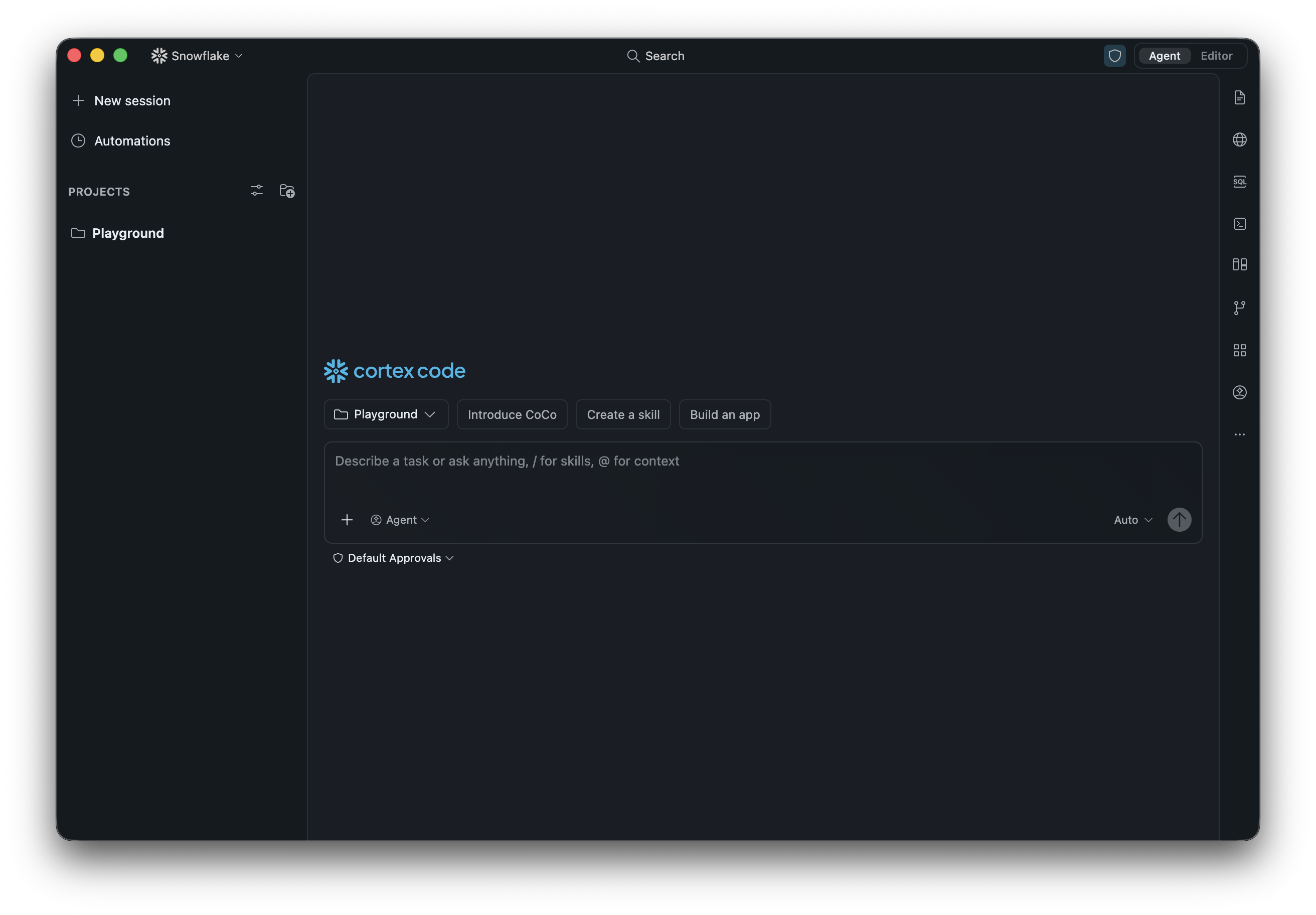
CoCo Desktop is a native macOS/Windows desktop application that brings CoCo’s full agentic capabilities into an IDE-like surface: file editor, integrated terminal, agentic AI loop, agentic browser, agentic notebook, and deep Snowflake awareness.
To use CoCo inside a code editor you already use, such as Visual Studio Code, instead of a separate app, see Cortex Code in your code editor.
Get CoCo Desktop
Download the latest version. Available for macOS and Windows.
Access control requirements
The user’s active role must have one of the following database roles granted to use CoCo Desktop:
| Database role | Notes |
|---|---|
| SNOWFLAKE.CORTEX_USER or SNOWFLAKE.CORTEX_AGENT_USER | At least one of these database roles is required. SNOWFLAKE.CORTEX_AGENT_USER grants access to Cortex Agents and agentic surfaces, including CoCo Desktop and Snowflake Intelligence. |
By default, SNOWFLAKE.CORTEX_USER is granted to the PUBLIC role, so all users in the account have access to CoCo Desktop without additional configuration. SNOWFLAKE.CORTEX_AGENT_USER is not granted to PUBLIC by default and must be explicitly granted to roles that need it. To restrict access, revoke SNOWFLAKE.CORTEX_USER from PUBLIC and grant it only to specific roles. For details, see Cortex LLM privileges.
Important
Revoking SNOWFLAKE.CORTEX_USER from PUBLIC also removes access to other Covered AI Features, including Cortex AI functions (AI_COMPLETE, AI_TRANSLATE, AI_CLASSIFY, and others). If you need finer-grained control, use the daily credit usage limit parameter to block Desktop access without affecting other AI features.
Account administrators can additionally control access by setting per-user daily credit limits.
Setting the account-level CORTEX_CODE_DESKTOP_DAILY_EST_CREDIT_LIMIT_PER_USER parameter to 0
blocks all users, and you can then selectively allow access for individual users by assigning
them a positive value. See Daily credit usage limits for CoCo.
For information about how CoCo Desktop is billed, including subscription and pay-as-you-go options, see CoCo Desktop billing.
Note
On self-service trial accounts, AI features are disabled by default. To enable them, an account administrator must add a credit card to the account. Adding a credit card doesn’t upgrade the trial to a paid account or end the trial period.
What’s new
See Release notes for the latest features, improvements, and fixes in each version.
Restrict a chat
Use a Restricted Session Scope (RSS) to reduce what CoCo can do in the current chat. You can apply read-only access, allow only selected roles, or block selected roles. An RSS only narrows the privileges available through your roles and any administrator-enforced scope.
To restrict the current chat:
- Select +, then Restrict this session.
- Select Read only to apply a read-only ceiling, or select Restrict by role.
- For a role restriction, apply a saved allowlist or blocklist, or create a custom restriction by
selecting roles and choosing Allow or Block. CoCo stores a custom definition in
USER$<username>.RSSso that you can reuse it in CoCo Desktop, CoCo CLI, or SQL.
After an RSS is active, you can switch to another RSS, but you can’t remove or relax the restriction in the current chat. Start a new chat to run without the user-managed RSS.
For RSS behavior, role inheritance details, and instructions for other CoCo clients, see Restrict a CoCo chat.
Supported models
CoCo can use the Cortex large language models your role has access to, including Claude, OpenAI GPT, Gemini, and Grok models. New models are added as they’re released, so instead of a fixed list, CoCo shows you the models that are currently available to you. That in-product list is authoritative.
You can pick a specific model, or one of these Auto options that choose a model for you:
- Auto: Snowflake selects the model.
- Auto Intelligent: Favors the most capable models. Highest quality, highest cost.
- Auto Efficient: Optimizes for cost. Lowest cost, and might reduce quality on hard tasks.
Two things determine which models you can choose:
- Model access: the models granted to your active role. Snowflake Cortex controls model access
with role-based access control (RBAC). A user with the
ACCOUNTADMINrole grants a per-model application role, orCORTEX-MODEL-ROLE-ALLfor all current and future models, to each role that needs it. By default, users inherit access to all models through theSNOWFLAKE.PUBLICbootstrap grant. To list the models your active role can use, runSHOW CORTEX BASE MODELS IN SCHEMA SNOWFLAKE.MODELS. For more information, see SHOW CORTEX BASE MODELS. For how to restrict model access, see Control model access. - Regional availability: whether the model runs in your account’s region, or is reachable
through cross-region inference. For per-model regions, see
Regional availability. If a
model isn’t available in your region, a user with the
ACCOUNTADMINrole must enable cross-region inference.
To see which model CoCo Desktop is using or to switch models, use the model picker in the chat input.
Get started
| Topic | Description |
|---|---|
| Installation, onboarding, and authentication | Download, install, and sign in |
| Navigation | Agent view, Editor view, and layout controls |
| Agent view and Editor view | When to use each view |
| Agent mode and Plan mode | Planning before implementing |
Features
| Topic | Description |
|---|---|
| Agents | Subagents for parallel, specialized tasks |
| Building apps | Scaffold and deploy Streamlit and Snowflake App Runtime apps |
| Context management | Track and free up the conversation context window |
| Data visualization | Inline charts from query results |
| Semantic code search | Search your codebase in plain English with tgrep |
| SQL Playground | Run and explore SQL interactively |
| dbt integration | Build, test, and deploy dbt models |
| Agentic browser | Browse and interact with web content |
| Agentic notebook | Jupyter notebooks with AI assistance |
| Automations | Automate recurring agent workflows |
Customization and extensibility
| Topic | Description |
|---|---|
| Plugins | Install or create plugin packages |
| Skills | Custom instructions the agent follows |
| Hooks | Scripts that run on events like session start |
| MCP support | Connect external tools via Model Context Protocol |
| Instruction files | Project-level agent instructions |
| Personalization | Custom instructions and built-in tool toggles |
| Memory | Remember context across conversations |
| Permission modes | Control what the agent can do without asking |
Monitoring and history
| Topic | Description |
|---|---|
| Usage history view | Monitor usage and token consumption |
Security
| Topic | Description |
|---|---|
| Security | Trust model, recommended baseline, and limits |
| Managed settings | Centrally configure the app for your organization |
| FAQ | Answers to common setup and platform questions |
Legal notices
Where your configuration of Cortex Code uses a model provided on the Model and Service Pass-Through Terms, your use of that model is further subject to the terms for that model on that page.
The data classification of inputs and outputs are as set forth in the following table.
| Input data classification | Output data classification | Designation |
|---|---|---|
| Usage Data | Customer Data | Covered AI Features [1] |
For additional information, refer to Snowflake AI and ML.