Snowflake CoCo for Google Sheets
Overview
Snowflake CoCo for Google Sheets™ brings CoCo directly into Google Sheets. It adds CoCo as a chat pane inside the spreadsheet you already use, connected to your live Snowflake data. From the pane you can query data, build pivot tables and charts, write formulas, and format your sheets using natural language, and then refresh that data later, without exporting data out of Snowflake and without learning a separate tool. It also extends Snowflake governance into Google Sheets: queries run under your own role, so access control, masking, and row access policies continue to apply to the data that reaches your spreadsheet.
The add-on is part of Snowflake CoCo. For an overview of the other CoCo experiences, see CoCo.
Requirements
- Google Sheets in a web browser on a computer. The add-on doesn’t run in the Google Sheets apps for Android or iOS.
- A Snowflake account with Snowflake Cortex and CoCo enabled. Cross-region inference is required only when the model you select isn’t available in your region.
Key capabilities
- Query with natural language or SQL: Describe the data you want in plain language and CoCo generates and runs the query, loading live results into your sheet. Power users can provide SQL and CoCo runs it as written.
- Explore your data without SQL: Browse the databases, schemas, tables, and
semantic views your role can access, or describe what you are looking for,
and CoCo finds the matching objects and pulls the data into your sheet. Enter
/catalogin the pane to browse the catalog and pick columns. See Browse the catalog. - Build pivots, charts, and formulas: Ask CoCo in chat to pivot a result set, add or change a chart, or construct a formula, and CoCo creates the corresponding native Google Sheets pivot tables, charts, and formulas so you can keep working in familiar spreadsheet tools.
- Format and organize your sheets: Ask CoCo to format cells, add conditional formatting or data validation rules, sort a range, find and replace text, fill a series, create named ranges, insert or delete rows and columns, and add or manage sheets.
- Use governed objects and semantic views: Query the tables, views, and semantic views you are permissioned for. Metric definitions come from Snowflake semantic views rather than being recreated per spreadsheet, so results stay consistent across users and reports.
- Intelligently refresh data: Re-run the queries to get the latest data on demand, and review the new results before they’re applied. See Intelligent refresh.
- Run commands and CoCo skills: Enter
/in the pane to see the built-in commands/catalog,/feedback, and/refresh, followed by the available skills. Use skills such as report generation, analysis, and summaries from inside the spreadsheet. - Use MCP connectors: Let CoCo use the external MCP servers you’ve connected to Snowflake, and choose which ones it uses in your chats. See Use MCP connectors.
- Attach files: Add images, PDFs, SQL scripts, and other files to a message so CoCo can read them. See Attach files.
- Preview before every change: See a clear before-and-after of every write and accept or reject it before it is applied. See Review changes and track sources.
- Trace every written cell: Follow the citation attached to each value back to the query or metric that produced it, so any number in the spreadsheet can be verified.
Some features of Snowflake CoCo for Microsoft Excel aren’t available in Google Sheets. See Limitations.
How it works
Snowflake CoCo for Google Sheets runs as a Google Workspace add-on and opens a CoCo pane in a sidebar next to your sheet. When you make a request, CoCo interprets it, runs the corresponding query or action against your Snowflake account using your privileges, and writes the results into the sheet. Data is read from Snowflake at query time, so the results reflect your live data when CoCo writes them. CoCo saves the query behind each result it loads, so you can bring the data up to date later without asking for it again. See Intelligent refresh.
The CoCo pane connects to Snowflake directly from your browser. The add-on’s Apps Script code, which runs on Google’s servers, is the only part that reads and writes the spreadsheet. It never receives your Snowflake sign-in tokens, and it has no permission to make network requests.
When you install the add-on, Google asks you to allow the permissions that the add-on requests: to see, edit, create, and delete all your Google Sheets spreadsheets; to display and run third-party web content in prompts and sidebars, which is how the CoCo pane appears; to see your primary Google Account email address; and to see your personal info, including any personal info you’ve made publicly available. The add-on needs the broader spreadsheet permission because it creates and resizes tables through the Google Sheets API, which access to only the current spreadsheet doesn’t allow. The add-on reads and writes only the spreadsheet where you open the pane.
Before CoCo writes anything to your spreadsheet, it shows a preview of the change and records a citation to the source of each written value. For more information about these behaviors, see Review changes and track sources.
The add-on brings the same capabilities as other CoCo experiences into Google Sheets. For background on how CoCo works, see CoCo.
Install the add-on
Snowflake CoCo for Google Sheets is available on the Google Workspace Marketplace. You install it once for your Google Account, and it’s then available in every spreadsheet that you open. Google updates the add-on for you when Snowflake publishes a new release.
A Google Workspace administrator can instead install the add-on for everyone in your organization, so users don’t install it themselves. See Install the add-on for your organization. If your organization restricts which Marketplace apps users can install, ask your Google Workspace administrator to allow or install the add-on.
Installing the add-on only makes it available in Google Sheets. Before you can sign in from the pane, an account administrator creates a security integration for your Snowflake account and gives you the OAuth client ID. See Create a security integration for OAuth.
To install the add-on, follow these steps:
- Go to the
Snowflake CoCo for Google Sheets
listing on the Google Workspace Marketplace, and select Install. You can also open the listing from Google
Sheets: select Extensions > Add-ons > Get add-ons, and then search for
Snowflake CoCo. - Review the permissions that the add-on requests, and allow them.
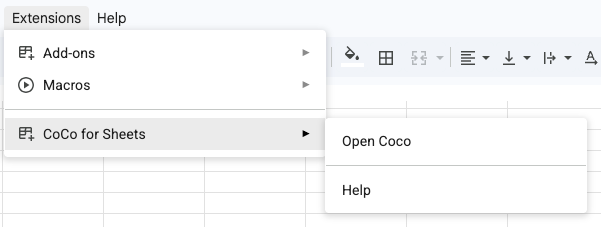
- Open a spreadsheet in Google Sheets, and select Extensions > Snowflake CoCo for Google Sheets > Open Coco. The Snowflake CoCo pane opens on the right side of the spreadsheet.
Install the add-on for your organization
A Google Workspace administrator can install Snowflake CoCo for Google Sheets for everyone in the organization, or for specific organizational units and groups, from the Google Admin console. The users you install it for get the add-on in every spreadsheet, and they don’t need to install it themselves. To install apps for your organization, you must be signed in as a Google Workspace super administrator. See Install Marketplace apps for your organization.
To install the add-on for your organization, follow these steps:
-
In the Google Admin console, go to Menu > Apps > Google Workspace Marketplace apps > Apps list.
-
Select Install app. Search the Google Workspace Marketplace for
Snowflake CoCo for Google Sheets, and select it. -
Select Admin install, then select Continue. Review the data access requirements, developer terms, and developer policies.
-
Choose who gets the add-on:
- To install it for everyone, select Everyone at your organization.
- To install it for specific users, select Certain groups or organizational units, then select Next. Select the organizational units and groups, then select Select.
-
Select Finish.
Note the following about this method:
- Google notes that changes can take up to 24 hours to apply, though they typically apply sooner. After the add-on appears, users open the pane as described in Get started.
- Installing the add-on doesn’t connect it to your Snowflake account. An account administrator still creates an OAuth security integration and shares the client ID with users. See Create a security integration for OAuth.
- To change who has the add-on, or to uninstall it, see Install Marketplace apps for your organization.
Get started
- Install Snowflake CoCo for Google Sheets. See Install the add-on. If your Google Workspace administrator installed the add-on for your organization, skip this step.
- Open the pane. In your spreadsheet, select Extensions > Snowflake CoCo for Google Sheets > Open Coco.
- Sign in. In the pane, enter your Snowflake account identifier and the OAuth client ID for your account, then select Sign in with Snowflake. Your account administrator provides the client ID. See Sign in from the pane.
- Choose a role (optional). Your session uses the role you entered when you signed in, or your default role. To use a different role, in the pane header select More (…) > Settings, then select it under Role. Changing the role signs you in again as that role.
- Start asking. Describe what you want in the pane, and CoCo returns the result in your sheet. Refine, pivot, chart, or format the results from the same conversation.
The pane closes when you reload the spreadsheet. To open it again, select Extensions > Snowflake CoCo for Google Sheets > Open Coco.
Example prompts
The following table lists example prompts for common tasks. For accurate results, include the context CoCo needs, such as the database, schema, and objects you want to work with:
| Task | Example prompt |
|---|---|
| Load data | “Show last quarter’s revenue by region.” |
| Explore without SQL | “Find tables related to customer churn and pull in the churn rate by month.” |
| Pivot | “Pivot these results by product line and quarter.” |
| Chart | “Add a bar chart of total sales by month.” |
| Formula | “Add a column that calculates margin as profit divided by revenue.” |
| Format | “Highlight the rows where margin is below 10%.” |
| Consistent metrics | “Using the revenue semantic view, show revenue by segment for last quarter.” |
Sign in from the pane
- In the pane, enter your account identifier in Account identifier and the client ID in OAuth client ID. Optionally, enter a role in Role. If you leave Role empty, your session uses your default role.
- Select Sign in with Snowflake. A sign-in page opens in a new browser tab.
- In the browser tab, sign in with your own Snowflake credentials. The page then shows a sign-in code.
- Select Copy code. The code can be used only once, and it expires in about a minute.
- Return to the pane, paste the code in Paste your sign-in code or select Paste, and then select Finish sign-in.
Suggestions and queued messages
After CoCo answers, it can suggest up to three follow-up requests under the latest answer. One suggestion shows at a time; select See more to show the rest. Select a suggestion to send it.
You can keep typing while CoCo works on a request. When you press Enter during a running request, CoCo queues your message and runs it after the current request finishes. You can queue up to five messages. For each queued message, you can edit it, remove it, or drag it to change the order. To give CoCo your message during the current request instead, select Send now on the queued message. CoCo reads the message between steps without stopping its work. If CoCo doesn’t read the message in time, it runs the message as the next request.
Review changes and track sources
CoCo previews every change before it is written to your spreadsheet. When CoCo proposes a write, it shows a before-and-after of the affected cells so you can accept or reject the change. Nothing changes in the spreadsheet until you select Accept.
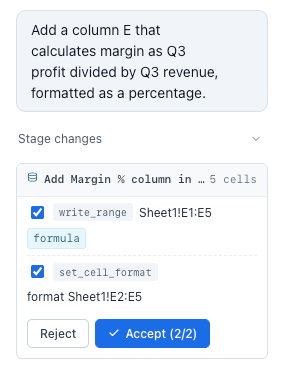
How many undo steps it takes to reverse an accepted change depends on the change:
- A change to cell values can be reversed with a single undo.
- A change that combines structural edits, such as cell formatting, frozen rows, and conditional formatting, can take several undo steps.
- A large query result is written in batches, so reversing it can take several undo steps.
Every value CoCo writes back carries a citation to the query or metric that produced it. Citations let you trace any
number in the spreadsheet back to its source in Snowflake, so results can be verified rather than taken on trust. CoCo
stores citations in a hidden sheet named _CORTEX_CITATIONS in the same spreadsheet.
Intelligent refresh
CoCo can re-run the Snowflake queries behind the data it loaded, so you can bring a spreadsheet up to date without asking for the data again. Snowflake CoCo for Google Sheets refreshes data only when you start a refresh. It doesn’t refresh data when the spreadsheet opens.
Refresh data from the pane
When CoCo loads the results of a Snowflake query into your sheet, it writes the results as plain cells, creates a named
range over them whose name starts with CocoTable_, and saves the query with the spreadsheet. CoCo finds the data
later by its named range, not by a cell address, so moving the data, inserting rows above it, or renaming the sheet
doesn’t break refresh. If you ask CoCo to turn the data into a Google Sheets table, or you convert it to a table
yourself, the table keeps the saved query.
To start a refresh, use any of the following. All three run the same refresh:
- In the pane header, select Refresh data.
- On an empty chat, select Refresh sheet data.
- In the pane, enter
/refresh. The/menu describes the command as “Re-run the Snowflake queries behind data on this sheet.”
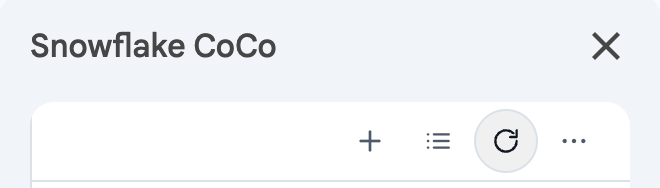
By default, a refresh covers the data on the active sheet that CoCo loaded from a query. To refresh specific results, select cells that overlap them before you start the refresh. CoCo refreshes each result that the selection touches, always in full. Selecting a single cell doesn’t narrow the refresh. If the selected cells don’t touch data that CoCo loaded from a query, nothing is refreshed.
CoCo re-runs each saved query directly, without a request to the model, under your current role and warehouse. It then shows the new results as a preview that you accept or reject. When a refresh covers more than one result, you choose which results to apply. Only read-only queries run: if a saved query isn’t read-only, CoCo skips that result and tells you. You can’t start a refresh while another preview is waiting for you to accept or reject it.
Refresh has the following limits:
- If the new results have more or fewer rows or columns than the data they replace, CoCo inserts or deletes cells only below or beside the data, and any table or named range in those cells moves with them. If the shift would split a table or named range, CoCo doesn’t refresh that data, and it names the table or named range that’s in the way. Move the data, or move the table or named range that’s in the way, and then run the refresh again.
- A refresh counts toward the Google Sheets cell limit like any other write. If the refreshed data doesn’t fit in the spreadsheet, CoCo doesn’t write it. See Limitations.
- If a refresh stops partway, for example because you stop it or the connection to Snowflake is lost, the data can hold a mix of old and new rows. CoCo reports how many rows it wrote and doesn’t retry. Run the refresh again to finish it.
Browse the catalog
Use /catalog to pick the data you want from the Snowflake catalog without writing SQL or describing it in chat. Enter
/catalog in the pane, and the Pull data dialog opens over the pane. To close it without pulling data, select
Cancel or the close button, or press Esc.
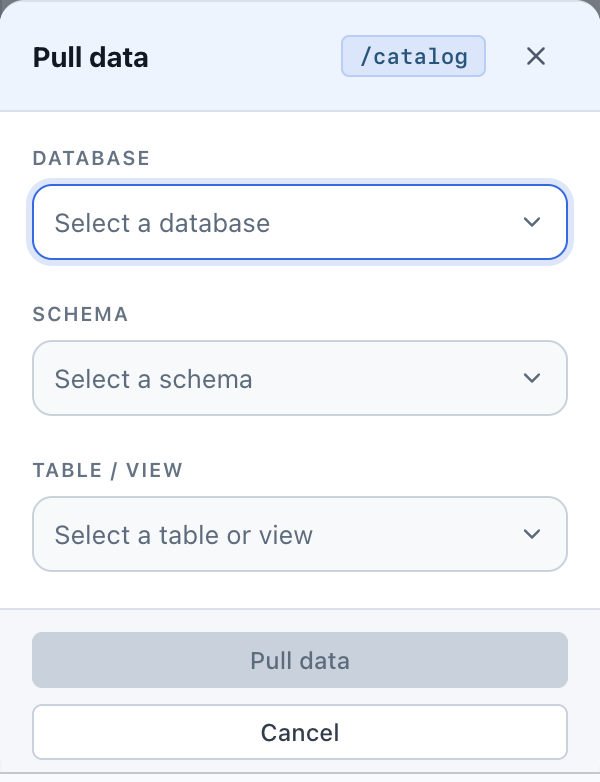
To pull data with /catalog, follow these steps:
-
In the Pull data dialog, select a database, a schema, and a table, view, or semantic view. The list shows only the objects your role can access.
-
Choose the fields to pull:
- For a table or view, select columns under Columns. Use the search box to find columns, or use the select-all toggle to select every column.
- For a semantic view, select Add under Dimensions, Metrics, or Facts. In the dialog that opens, search for fields and select the ones you want. To select every field that the search shows, select Select all. Fields that you already added are tagged added and can’t be selected again. When every field is selected, the toggle changes to Clear all.
-
Optionally, choose Unique values to return only distinct rows, or All rows to return every row.
-
Optionally, add filters. The filter for a field depends on its type:
- Text and
BOOLEANfields: pick values from a list. If the list doesn’t show the value you want, search for it and select the option to match rows that contain your text in Snowflake. DATEandTIMESTAMPfields: enter a From date and a To date.TIMEfields: enter a From time and a To time.- Numeric fields: enter a Min value and a Max value.
- Semantic view metrics: enter a Min value and a Max value for the metric’s total.
VARIANT,OBJECT,ARRAY,BINARY,GEOGRAPHY,GEOMETRY, andVECTORfields can’t be filtered.
- Text and
-
Select Pull data. The dialog closes, and CoCo runs the query in the chat and shows the results as a preview that you accept or reject.
In Google Sheets, CoCo writes the pulled data below the existing data on the active sheet. If the result has more rows
than fit there, CoCo asks before it writes: “The query has N rows, which is more than can fit. Click Accept to import
the first M, or Reject to import nothing.” Like other query results, pulled data goes into a named range whose name
starts with CocoTable_, and CoCo saves its query so you can refresh it later.
The dialog remembers the database and schema you used last, so the next /catalog starts there. It forgets them when
you sign out. It doesn’t remember the fields you picked.
Use MCP connectors
CoCo can use the external MCP servers that you’ve connected to Snowflake, so it can work with tools and data outside Snowflake from the pane. To set up MCP servers and connect to them, see MCP Connectors. You can’t connect a server from the pane.
To choose which connectors CoCo uses, in the pane header select More (…) > Capabilities, and then select MCP Connectors. The page lists each MCP server that you’re connected to, with its name and fully qualified name:
- Each connected server has a switch that controls whether CoCo uses it in your chats. Servers are on by default, so a server that you connect later starts on. Turn off a server to leave it out of your chats.
- A server whose sign-in expired shows a Needs reconnecting badge. CoCo can’t use it until you reconnect it.
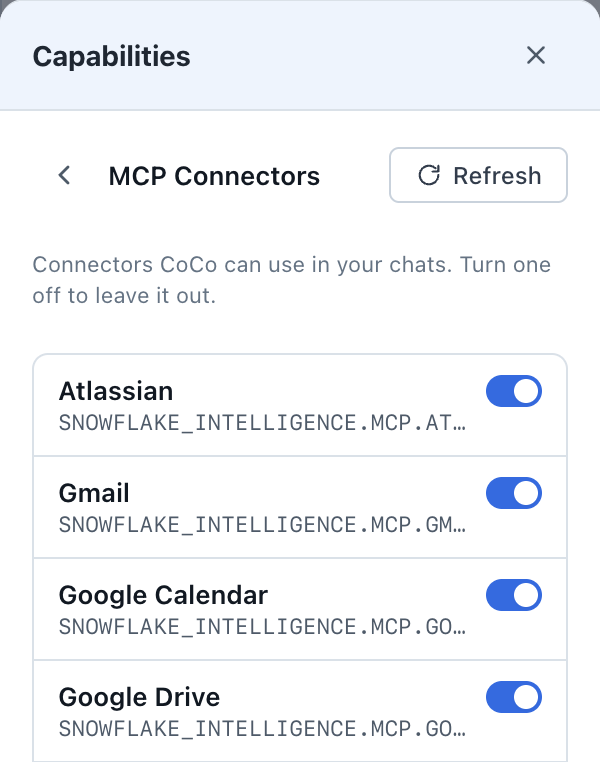
CoCo checks for your connectors when you open the pane, and loading them the first time can take a couple of minutes. To check again, select Refresh. If you have no connected MCP servers, the page shows “No connectors available”.
To use a server, your active role needs the USAGE privilege on it, and you need to have signed in to the server.
Attach files
You can attach files to a message so that CoCo can read them while it works on your request. To attach a file, in the message box select Add context (+) > Upload files. You can also paste a file or drag it into the message box.
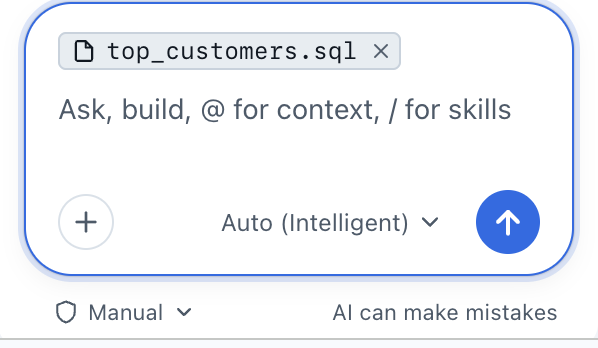
You can attach the following kinds of files:
- Images: Up to 20 images per message, each up to 5 MB.
- Documents: CSV, JSON, text (
.txt), SQL (.sql), YAML (.yamlor.yml), PDF, PowerPoint (.pptx), Excel (.xlsx), Tableau (.twb,.twbx,.tds, or.tdsx), and Power BI (.pbixor.pbit) files, each up to 10 MB. Word documents (.docx) and Markdown (.md) files aren’t supported.
To attach documents, you must sign in with Snowflake OAuth and have a workspace selected. If you don’t have a workspace selected, you can attach only images, and the Upload files item reads “Attach images to your message”. CoCo uploads each document to your personal workspace so it can read the file. A message with a document attached must also include text.
When you reopen a chat, its messages show your text but not the attached documents.
Authentication and access control
You sign in to Snowflake from the pane using OAuth. CoCo authenticates with your own Snowflake identity and operates under Snowflake role-based access control (RBAC). It doesn’t store or modify your credentials, and it performs only the actions your active role permits. Snowflake CoCo for Google Sheets supports OAuth sign-in only. It doesn’t support programmatic access tokens. For the steps to sign in, see Sign in from the pane.
Your sign-in tokens stay in the CoCo pane in your browser. Requests to Snowflake also come from your browser, so your account’s network policies evaluate your own IP address.
Create a security integration for OAuth
Before anyone can sign in from the pane with OAuth, an account administrator creates a Snowflake OAuth security
integration for a custom client. You create the integration once per Snowflake account, not once per user. Only users
with the ACCOUNTADMIN role, or a role with the global CREATE INTEGRATION privilege, can run this command.
Snowflake CoCo for Google Sheets and Snowflake CoCo for Microsoft Excel use the same OAuth redirect URI. If your account already has a security integration for Snowflake CoCo for Microsoft Excel, Snowflake CoCo for Google Sheets can use the same integration and the same client ID, and you don’t need to create another one.
Register the add-on as a public client. The pane runs in your browser, so it can’t store a client secret, and the add-on uses Proof Key for Code Exchange (PKCE) instead. The following example creates an integration for Snowflake CoCo for Google Sheets:
Important
Set OAUTH_REDIRECT_URI to exactly https://ai.snowflake.com/static/excel/oauth/callback.html. Snowflake compares this
value to the one the add-on sends, so any difference, such as a trailing slash or a different host, makes sign-in fail.
The URL contains excel because Snowflake CoCo for Google Sheets and Snowflake CoCo for Microsoft Excel share the same
OAuth callback page.
OAUTH_ENFORCE_PKCE = TRUE requires PKCE on every authorization. PKCE is optional by default, and Snowflake
recommends requiring it to make the OAuth flow more secure. The refresh token settings keep users signed in across
sessions: OAUTH_REFRESH_TOKEN_VALIDITY is in seconds, so 86400 is one day.
The example uses CREATE SECURITY INTEGRATION IF NOT EXISTS rather than CREATE OR REPLACE. Replacing an existing
integration generates a new client ID and invalidates its refresh tokens, which signs out every user of the add-on. To
change the settings of an existing integration, use
ALTER SECURITY INTEGRATION (Snowflake OAuth).
To get the client ID that the add-on uses, call SYSTEM$SHOW_OAUTH_CLIENT_SECRETS. The integration name is case-sensitive and must be uppercase:
Snowflake generates the client ID when you create the integration, so the value is unique to your account. Share the client ID with the people who use the add-on. After they install the add-on and open the pane, they enter the client ID and your account identifier, then sign in with their own Snowflake credentials. See Sign in from the pane.
By default, Snowflake blocks the ACCOUNTADMIN, ORGADMIN, GLOBALORGADMIN, and SECURITYADMIN roles from
authenticating through OAuth, so users sign in with a non-privileged role. To limit the integration to specific roles,
add ALLOWED_ROLES_LIST. For the full set of parameters, see
CREATE SECURITY INTEGRATION (Snowflake OAuth). For
more information about custom clients, see
Snowflake OAuth for custom clients.
Access control requirements
Because queries run under your role, CoCo can read only the databases, schemas, tables, views, and semantic views that your active role is authorized to access, and masking and row access policies apply automatically. Query results are written into your spreadsheet, but the underlying data remains governed by Snowflake.
Limitations
The following limits come from Google Sheets:
- The CoCo sidebar is a fixed 300 pixels wide, and you can’t resize it.
- The pane can’t open by itself. You open it from the Extensions menu each time, and you open it again after every reload of the spreadsheet.
- The add-on doesn’t run in the Google Sheets apps for Android or iOS.
- Google Sheets limits the total number of cells in a spreadsheet, and empty columns count toward that limit. CoCo checks a query result against the limit before it writes. If the result fits only without the destination sheet’s trailing empty columns, CoCo tells you in the preview that it will delete those columns when you accept. If the result doesn’t fit, CoCo refuses the import. CoCo applies the same check to a refresh. If the refreshed data fits only without the sheet’s trailing empty columns, CoCo deletes those columns when you accept the refresh. If the refreshed data doesn’t fit, CoCo doesn’t write it.
CoCo also limits how many rows a query result can bring in. A single import or refresh writes at most 1,048,575 data rows. If a query returns more rows, CoCo writes only the first 1,048,575, and the preview says so: “The query has N rows. Only the first M are imported.” CoCo then applies the Google Sheets cell limit check to the rows it imports.
The following Snowflake CoCo for Microsoft Excel features aren’t available in Google Sheets:
CORTEXfunctions in cells, such as=CORTEX.ASK().- Live pivots and the
/pivotcommand. CoCo computes live pivots in Snowflake and redraws them when you change the layout. In Google Sheets,/pivotdoesn’t appear in the/menu. To pivot data in Google Sheets, ask CoCo in chat to create a Google Sheets pivot table. - Refresh when the workbook opens. In Google Sheets, CoCo refreshes data only when you start a refresh. See Intelligent refresh.
Feedback
To report a bug or send feedback to Snowflake, enter /feedback in the pane. The Send feedback dialog opens,
where you choose the type of feedback, describe it, and optionally attach images. Then select Send.
Cost
Snowflake CoCo for Google Sheets is billed based on token consumption, consistent with other CoCo experiences, and doesn’t require a separate per-seat license. Pricing details are provided in the Snowflake Service Consumption Table.
Any Snowflake compute or storage consumed separately from CoCo usage is billed at standard Snowflake on-demand rates, as described in the Snowflake Service Consumption Table. Examples include virtual warehouse compute used to run your queries and storage costs.
Refreshing data from the pane doesn’t consume CoCo tokens. The spreadsheet stores
the SQL behind each result that CoCo loaded, and a refresh runs that saved SQL directly, without a request to the
model. This applies to Refresh data, Refresh sheet data, and /refresh. Each refresh still uses virtual
warehouse compute to run the queries. If you ask CoCo in a chat message to refresh data, that request consumes CoCo
tokens like any other CoCo request.
To set daily credit usage limits for CoCo users, see Managing CoCo credit usage limits.
Legal notices
Where your configuration of Cortex Code uses a model provided on the Model and Service Pass-Through Terms, your use of that model is further subject to the terms for that model on that page.
The data classification of inputs and outputs are as set forth in the following table.
| Input data classification | Output data classification | Designation |
|---|---|---|
| Usage Data | Customer Data | Covered AI Features [1] |
For additional information, refer to Snowflake AI and ML.
Snowflake’s use of raw or derived user data received from the Sheets API will adhere to the Google User Data Policy, including the Limited Use requirements.
Google Sheets is a trademark of Google LLC.