Snowflake CoCo for Google Sheets
Overview
Snowflake CoCo for Google Sheets brings CoCo directly into Google Sheets. It adds CoCo as a chat pane inside the spreadsheet you already use, connected to your live Snowflake data. From the pane you can query data, build pivot tables and charts, write formulas, and format your sheets using natural language, without exporting data out of Snowflake and without learning a separate tool. It also extends Snowflake governance into Google Sheets: queries run under your own role, so access control, masking, and row access policies continue to apply to the data that reaches your spreadsheet.
The add-on is part of Snowflake CoCo. For an overview of the other CoCo experiences, see CoCo.
Requirements
- Google Sheets in a web browser on a computer. The add-on doesn’t run in the Google Sheets apps for Android or iOS.
- A Snowflake account with Snowflake Cortex and CoCo enabled. Cross-region inference is required only when the model you select isn’t available in your region.
Key capabilities
- Query with natural language or SQL: Describe the data you want in plain language and CoCo generates and runs the query, loading live results into your sheet. Power users can provide SQL and CoCo runs it as written.
- Explore your data without SQL: Browse the databases, schemas, tables, and
semantic views your role can access, or describe what you are looking for,
and CoCo finds the matching objects and pulls the data into your sheet. Enter
/catalogin the pane to browse the catalog and pick columns. - Build pivots, charts, and formulas: Ask CoCo to pivot a result set, add or change a chart, or construct a formula, and CoCo creates the corresponding Google Sheets objects so you can keep working in familiar spreadsheet tools.
- Format and organize your sheets: Ask CoCo to format cells, add conditional formatting or data validation rules, sort a range, find and replace text, fill a series, create named ranges, insert or delete rows and columns, and add or manage sheets.
- Use governed objects and semantic views: Query the tables, views, and semantic views you are permissioned for. Metric definitions come from Snowflake semantic views rather than being recreated per spreadsheet, so results stay consistent across users and reports.
- Run CoCo skills: Use skills such as report generation, analysis, and summaries from inside the spreadsheet.
Enter
/in the pane to see and select the available skills. - Preview before every change: See a clear before-and-after of every write and accept or reject it before it is applied. See Review changes and track sources.
- Trace every written cell: Follow the citation attached to each value back to the query or metric that produced it, so any number in the spreadsheet can be verified.
Some features of Snowflake CoCo for Excel aren’t available in Google Sheets. See Limitations.
How it works
Snowflake CoCo for Google Sheets runs as an Apps Script project in your spreadsheet and opens a CoCo pane in a sidebar next to your sheet. When you make a request, CoCo interprets it, runs the corresponding query or action against your Snowflake account using your privileges, and writes the results into the sheet. Data is read from Snowflake at query time, so the results reflect your live data when CoCo writes them. CoCo doesn’t refresh the results afterward. To get current data, ask CoCo to run the query again.
The CoCo pane connects to Snowflake directly from your browser. The add-on’s Apps Script code, which runs on Google’s servers, is the only part that reads and writes the spreadsheet. It never receives your Snowflake sign-in tokens, and it has no permission to make network requests. The script asks Google for access only to the spreadsheet that it’s copied into, plus permission to show its menu and sidebar.
Before CoCo writes anything to your spreadsheet, it shows a preview of the change and records a citation to the source of each written value. For more information about these behaviors, see Review changes and track sources.
The add-on brings the same capabilities as other CoCo experiences into Google Sheets. For background on how CoCo works, see CoCo.
Install the add-on
During the current stage of the preview, Snowflake CoCo for Google Sheets is distributed as an Apps Script file,
Code.gs, that you copy into a spreadsheet’s Apps Script project. You copy it once into each spreadsheet where you use
the add-on. Snowflake plans to make the add-on available on the Google Workspace Marketplace in a later stage of the
preview.
Note
After the add-on is available on the Google Workspace Marketplace, a Google Workspace administrator can install it for the whole organization. The add-on is then available in every spreadsheet for every user, and users don’t need to copy the script.
Copying the script only makes the add-on available in the spreadsheet. Before you can sign in from the pane, an account administrator creates a security integration for your Snowflake account and gives you the OAuth client ID. See Create a security integration for OAuth.
To add the add-on to a spreadsheet, follow these steps:
- Open the spreadsheet in Google Sheets.
- Select Extensions > Apps Script. The Apps Script editor opens in a new browser tab.
- Rename the project to
CoCo for Sheets. Google Sheets shows the project name as the add-on’s submenu under Extensions. - Replace the contents of
Code.gswith the file athttps://ai.snowflake.com/static/sheets/releases/prod/Code.gs. - In Project Settings, turn on the setting that shows the manifest file,
appsscript.json, in the editor. Then replace the contents ofappsscript.jsonwith the file athttps://ai.snowflake.com/static/sheets/releases/prod/appsscript.json. - Save the project, then reload the spreadsheet.
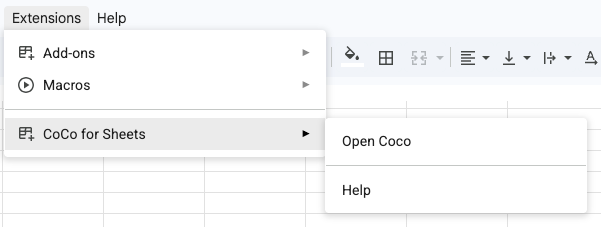
- Select Extensions > CoCo for Sheets > Open Coco. The first time you open the pane, Google asks you to authorize the script. After you authorize it, the Snowflake CoCo pane opens on the right side of the spreadsheet.
Get started
- Add Snowflake CoCo for Google Sheets to your spreadsheet. See Install the add-on.
- Open the pane. In your spreadsheet, select Extensions > CoCo for Sheets > Open Coco.
- Sign in. In the pane, enter your Snowflake account identifier and the OAuth client ID for your account, then select Sign in with Snowflake. Your account administrator provides the client ID. See Sign in from the pane.
- Choose a role (optional). Your session uses the role you entered when you signed in, or your default role. To use a different role, in the pane header select More (…) > Settings, then select it under Role. Changing the role signs you in again as that role.
- Start asking. Describe what you want in the pane, and CoCo returns the result in your sheet. Refine, pivot, chart, or format the results from the same conversation.
The pane closes when you reload the spreadsheet. To open it again, select Extensions > CoCo for Sheets > Open Coco.
Example prompts
The following table lists example prompts for common tasks. For accurate results, include the context CoCo needs, such as the database, schema, and objects you want to work with:
| Task | Example prompt |
|---|---|
| Load data | “Show last quarter’s revenue by region.” |
| Explore without SQL | “Find tables related to customer churn and pull in the churn rate by month.” |
| Pivot | “Pivot these results by product line and quarter.” |
| Chart | “Add a bar chart of total sales by month.” |
| Formula | “Add a column that calculates margin as profit divided by revenue.” |
| Format | “Highlight the rows where margin is below 10%.” |
| Consistent metrics | “Using the revenue semantic view, show revenue by segment for last quarter.” |
Sign in from the pane
- In the pane, enter your account identifier in Account identifier and the client ID in OAuth client ID. Optionally, enter a role in Role. If you leave Role empty, your session uses your default role.
- Select Sign in with Snowflake. A sign-in page opens in a new browser tab.
- In the browser tab, sign in with your own Snowflake credentials. The page then shows a sign-in code.
- Select Copy code. The code can be used only once, and it expires in about a minute.
- Return to the pane, paste the code in Paste your sign-in code or select Paste, and then select Finish sign-in.
Review changes and track sources
CoCo previews every change before it is written to your spreadsheet. When CoCo proposes a write, it shows a before-and-after of the affected cells so you can accept or reject the change. Nothing changes in the spreadsheet until you select Accept.
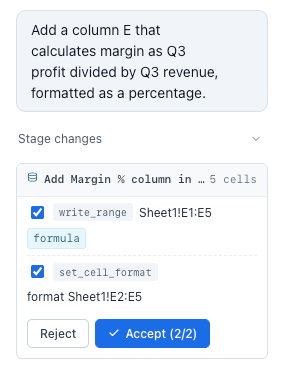
How many undo steps it takes to reverse an accepted change depends on the change:
- A change to cell values can be reversed with a single undo.
- A change that combines structural edits, such as cell formatting, frozen rows, and conditional formatting, can take several undo steps.
- A large query result is written in batches, so reversing it can take several undo steps.
Every value CoCo writes back carries a citation to the query or metric that produced it. Citations let you trace any
number in the spreadsheet back to its source in Snowflake, so results can be verified rather than taken on trust. CoCo
stores citations in a hidden sheet named _CORTEX_CITATIONS in the same spreadsheet.
Authentication and access control
You sign in to Snowflake from the pane using OAuth. CoCo authenticates with your own Snowflake identity and operates under Snowflake role-based access control (RBAC). It doesn’t store or modify your credentials, and it performs only the actions your active role permits. Snowflake CoCo for Google Sheets supports OAuth sign-in only. It doesn’t support programmatic access tokens. For the steps to sign in, see Sign in from the pane.
Your sign-in tokens stay in the CoCo pane in your browser. Requests to Snowflake also come from your browser, so your account’s network policies evaluate your own IP address.
Create a security integration for OAuth
Before anyone can sign in from the pane with OAuth, an account administrator creates a Snowflake OAuth security
integration for a custom client. You create the integration once per Snowflake account, not once per user. Only users
with the ACCOUNTADMIN role, or a role with the global CREATE INTEGRATION privilege, can run this command.
Snowflake CoCo for Google Sheets and Snowflake CoCo for Excel use the same OAuth redirect URI. If your account already has a security integration for Snowflake CoCo for Excel, Snowflake CoCo for Google Sheets can use the same integration and the same client ID, and you don’t need to create another one.
Register the add-on as a public client. The pane runs in your browser, so it can’t store a client secret, and the add-on uses Proof Key for Code Exchange (PKCE) instead. The following example creates an integration for Snowflake CoCo for Google Sheets:
Important
Set OAUTH_REDIRECT_URI to exactly https://ai.snowflake.com/static/excel/oauth/callback.html. Snowflake compares
this value to the one the add-on sends, so any difference, such as a trailing slash or a different host, makes sign-in
fail. The URL contains excel because Snowflake CoCo for Google Sheets and Snowflake CoCo for Excel share the same
OAuth callback page.
OAUTH_ENFORCE_PKCE = TRUE requires PKCE on every authorization. PKCE is optional by default, and Snowflake
recommends requiring it to make the OAuth flow more secure. The refresh token settings keep users signed in across
sessions: OAUTH_REFRESH_TOKEN_VALIDITY is in seconds, so 86400 is one day.
The example uses CREATE SECURITY INTEGRATION IF NOT EXISTS rather than CREATE OR REPLACE. Replacing an existing
integration generates a new client ID and invalidates its refresh tokens, which signs out every user of the add-on. To
change the settings of an existing integration, use
ALTER SECURITY INTEGRATION (Snowflake OAuth).
To get the client ID that the add-on uses, call SYSTEM$SHOW_OAUTH_CLIENT_SECRETS. The integration name is case-sensitive and must be uppercase:
Snowflake generates the client ID when you create the integration, so the value is unique to your account. Share the client ID with the people who use the add-on. After they add the add-on to a spreadsheet and open the pane, they enter the client ID and your account identifier, then sign in with their own Snowflake credentials. See Sign in from the pane.
By default, Snowflake blocks the ACCOUNTADMIN, ORGADMIN, GLOBALORGADMIN, and SECURITYADMIN roles from
authenticating through OAuth, so users sign in with a non-privileged role. To limit the integration to specific roles,
add ALLOWED_ROLES_LIST. For the full set of parameters, see
CREATE SECURITY INTEGRATION (Snowflake OAuth). For
more information about custom clients, see
Snowflake OAuth for custom clients.
Access control requirements
Because queries run under your role, CoCo can read only the databases, schemas, tables, views, and semantic views that your active role is authorized to access, and masking and row access policies apply automatically. Query results are written into your spreadsheet, but the underlying data remains governed by Snowflake.
Limitations
The following limits come from Google Sheets:
- The CoCo sidebar is a fixed 300 pixels wide, and you can’t resize it.
- The pane can’t open by itself. You open it from the Extensions menu each time, and you open it again after every reload of the spreadsheet.
- The add-on doesn’t run in the Google Sheets apps for Android or iOS.
- Google Sheets limits the total number of cells in a spreadsheet, and empty columns count toward that limit. CoCo checks a query result against the limit before it writes. If the result fits only without the destination sheet’s trailing empty columns, CoCo tells you in the preview that it will delete those columns when you accept. If the result doesn’t fit, CoCo refuses the import.
The following Snowflake CoCo for Excel features aren’t available in Google Sheets:
CORTEXfunctions in cells, such as=CORTEX.ASK().- Intelligent refresh, including Refresh data,
/refresh, and Refresh when this workbook opens. Query results are written to the sheet as cell values, and CoCo doesn’t refresh them.
Feedback
To report a bug or send feedback to Snowflake, enter /feedback in the pane.
Cost
Snowflake CoCo for Google Sheets is billed based on token consumption, consistent with other CoCo experiences, and doesn’t require a separate per-seat license. Pricing details are provided in the Snowflake Service Consumption Table.
Any Snowflake compute or storage consumed separately from CoCo usage is billed at standard Snowflake on-demand rates, as described in the Snowflake Service Consumption Table. Examples include virtual warehouse compute used to run your queries and storage costs.
To set daily credit usage limits for CoCo users, see Managing CoCo credit usage limits.
Monitor usage
During the current stage of the preview, usage from Snowflake CoCo for Google Sheets is recorded in the CORTEX_CODE_CLI_USAGE_HISTORY view. To query usage across all CoCo surfaces in a single view, use SNOWFLAKE_COCO_USAGE_HISTORY.
Legal notices
Where your configuration of Cortex Code uses a model provided on the Model and Service Pass-Through Terms, your use of that model is further subject to the terms for that model on that page.
The data classification of inputs and outputs are as set forth in the following table.
| Input data classification | Output data classification | Designation |
|---|---|---|
| Usage Data | Customer Data | Covered AI Features [1] |
For additional information, refer to Snowflake AI and ML.