Editing and running Notebooks in Workspaces
Set the execution context
Notebooks in Workspaces do not automatically set a database or schema. To query data, you must define the execution context in a cell using the following SQL commands:
To ensure notebooks run consistently across environments and clients, use fully qualified names for tables and other objects. For example:
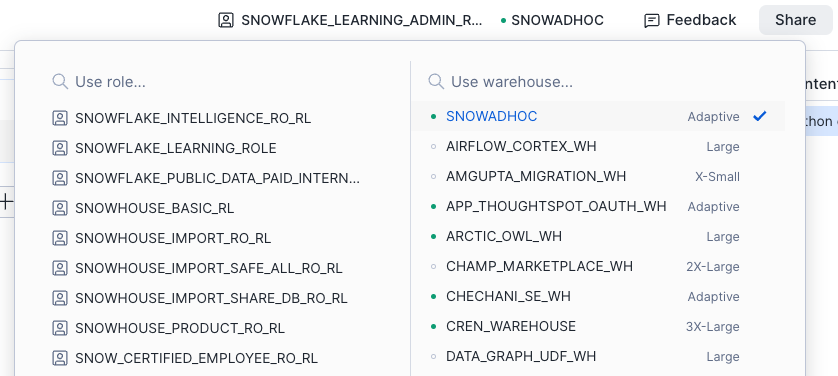
Use the role and warehouse picker
You can set the active role and warehouse for your notebook.
Use the picker at the top left of the Notebooks editor:
Run the following SQL commands:
The query warehouse is used to run SQL queries and Snowpark pushdown compute invoked by the notebook. It is also used to render the interactive datagrid, but there is no credit charge for this operation.
To learn more about credit usage, see Setting up compute.
Create a Snowpark session
Snowpark is a Snowflake developer framework that lets you build data pipelines, transformations, and machine learning logic directly inside Snowflake without moving data out of the platform. It provides APIs that operate on Snowflake data as DataFrames, pushing computation down to Snowflake’s engine for scalability, performance, and security.
To use Snowpark Python APIs in Notebooks, first create a Snowpark session in a Python cell:
Run cells
There are four supported execution options:
Run all cells
Run one single cell
Run current cell and all above cells (via the cell’s ellipsis menu)
Run current cell and all below cells (via the cell’s ellipsis menu)
Cancel cell execution
Use Stop at the top of the notebook or Cancel execution in a cell.
Both actions stop the currently executing cell and any queued cells triggered by Run all.
Note
The Run all button may temporarily change to Stop when the notebook is connecting or reconnecting to the service.
Cell names
You can assign names to cells to make navigation easier and provide contextual labels.
If an imported .ipynb file already contains name or title metadata, those values are used automatically.
Cell referencing
Bidirectional SQL to Python cell referencing allows you to reuse results and variables across cells in either language, enabling seamless transitions between SQL and Python workflows.
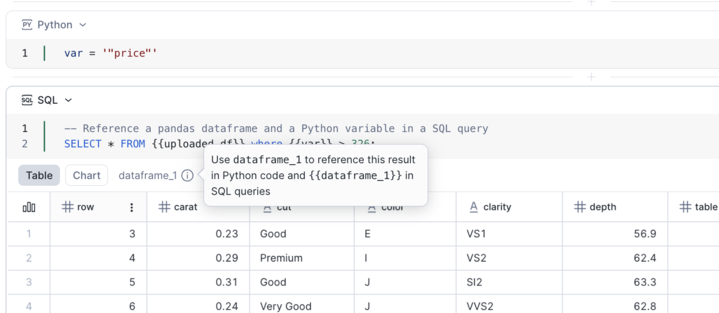
You can hover over the result tooltip to see the DataFrame name you can use to reference the result in Python and SQL.
Referencing SQL cell results
Each SQL cell exposes its result as a pandas DataFrame pointer named dataframe_x.
In SQL, reference it using double curly braces:
{{dataframe_1}}.In Python, reference it directly as a pandas DataFrame:
dataframe_1.
Referencing Python variables
To reference Python variables in SQL queries, wrap them in double curly braces. For example:
DataFrame variables are also supported when referencing Python variables in SQL.
Example workflow
Python cell
SQL cell referencing Python variable
SQL cell referencing SQL cell results
The result of a SQL cell provides a DataFrame pointer called dataframe_1. You can reference it in another SQL query:
Interactive datagrid
The datagrid supports:
Scrolling
Search
Filtering
Sorting
Chart creation without code
Built-in chart builder
Provides a consistent user experience for data manipulation and visualization across editing surfaces in Workspaces.
Minimap and cell status
The minimap generates a table of contents from Markdown headers and displays a comprehensive in-session status for each cell (running, succeeded, failed, and modified).
Global search and replace
You can search for keywords across all cells in the current notebook. If you’re editing a particular cell, press esc to exit the edit mode for that cell first.
To search keywords across all cells in the current notebook, do the following:
To search for keywords, select Search in the minimap, or use the keyboard shortcut CTRL + F.
Matching keywords in all cells are shown. Optionally, you can replace the search term with the desired value using Replace next or Replace all.
Notebook kernel
The notebook kernel remains active as long as the notebook service is in the RUNNING state, allowing uninterrupted execution of critical,
long-running processes such as ML training and data engineering jobs.
Actions that do not affect kernel execution:
Navigating to other pages
Working elsewhere in Snowsight
Closing your browser
Shutting down your computer
You can shut down or restart the kernel using the Connected dropdown.
Note
Using Shut down kernel or Restart kernel will clear variables in memory but retain any user-installed packages. If you want a completely clean environment with only the pre-installed packages, you must restart the service or create a new service and connect to it.
If the notebook service is suspended, the notebook kernel is also shut down. For more information, see Setting up compute.
Cell output
Cell outputs in a notebook in Workspaces (both private and shared workspaces) are accessible to the user who executed the notebook.
Cell outputs are not saved to the
.ipynbfile. To export and share outputs, choose Export as HTML. For interactive sessions in Workspaces, Export as HTML can be accessed from the ellipsis menu in the top right of each notebook file. For scheduled notebooks, it can be accessed in each past execution’s result page.The exported HTML file has the following behaviors:
The collapsed state of each cell’s code and output is saved.
Tables and DataFrames are capped at 1,000 rows and default to the Table view. You can toggle to Chart and configure it in the HTML file.
Jupyter magics
Notebooks in Workspaces run the IPython (Interactive Python) kernel and provide standard Jupyter cell and line magics. Run %lsmagic to view available magics.
For example, you can use the %run magic command to invoke another notebook:
In a Python cell of
notebook_a, call%run path/to/notebook_b.ipynb. This executesnotebook_bin the same Python process asnotebook_a.For variables and pandas DataFrames in
notebook_bto render innotebook_acell results, make sure to explicitly print them. For example:print(var)ordisplay(df).
Developer tools
Developer tools include the Terminal, the Scratchpad, and the Variables Explorer. These tools allow you to explore and interact with your data and the notebook environment.
To access the developer tools, in the control bar at the top of the notebook, select <icon>:ui:Tools.

You must be connected to a notebook service to use the developer tools. Switching to a different service will restart the tools.
Using the Terminal
The Terminal lets you run any shell command in the notebook’s container environment:
Install dependencies -
pip install,pip list, or check installed packages.Manage files -
ls,pwd, navigate directories, and view files.Run parallel jobs
Monitor compute resource usage
Example for installing and running htop for monitoring compute resource usage in real time:
Using the Scratchpad
The Scratchpad is an exploratory space for you to quickly experiment — for example, with code, ideas, calculations, or notes — without worrying about structure or polish. Commands that you execute in the Scratchpad do not change the notebook file.
You can do the following in the Scratchpad:
Quick ad-hoc queries - Test SQL without adding cells to your notebook.
Data exploration - Verify table contents, schemas, or run exploratory queries.
Debugging - Verify data or test query fragments before adding them to a notebook cells.
One-off operations - Run commands that don’t need to be saved (such as SHOW GRANTS or DESCRIBE TABLE).
Results stay visible while you work but aren’t saved with the notebook.
Using the Variables Explorer
The Variables Explorer is a visual tool that lets you inspect the variables currently loaded in your session while you are working interactively. It shows the Name, Type, Shape, and Preview for each variable. Variables are updated when a cell finishes running.