SnowConvert AI - Preview Features Settings
Preview Features Settings
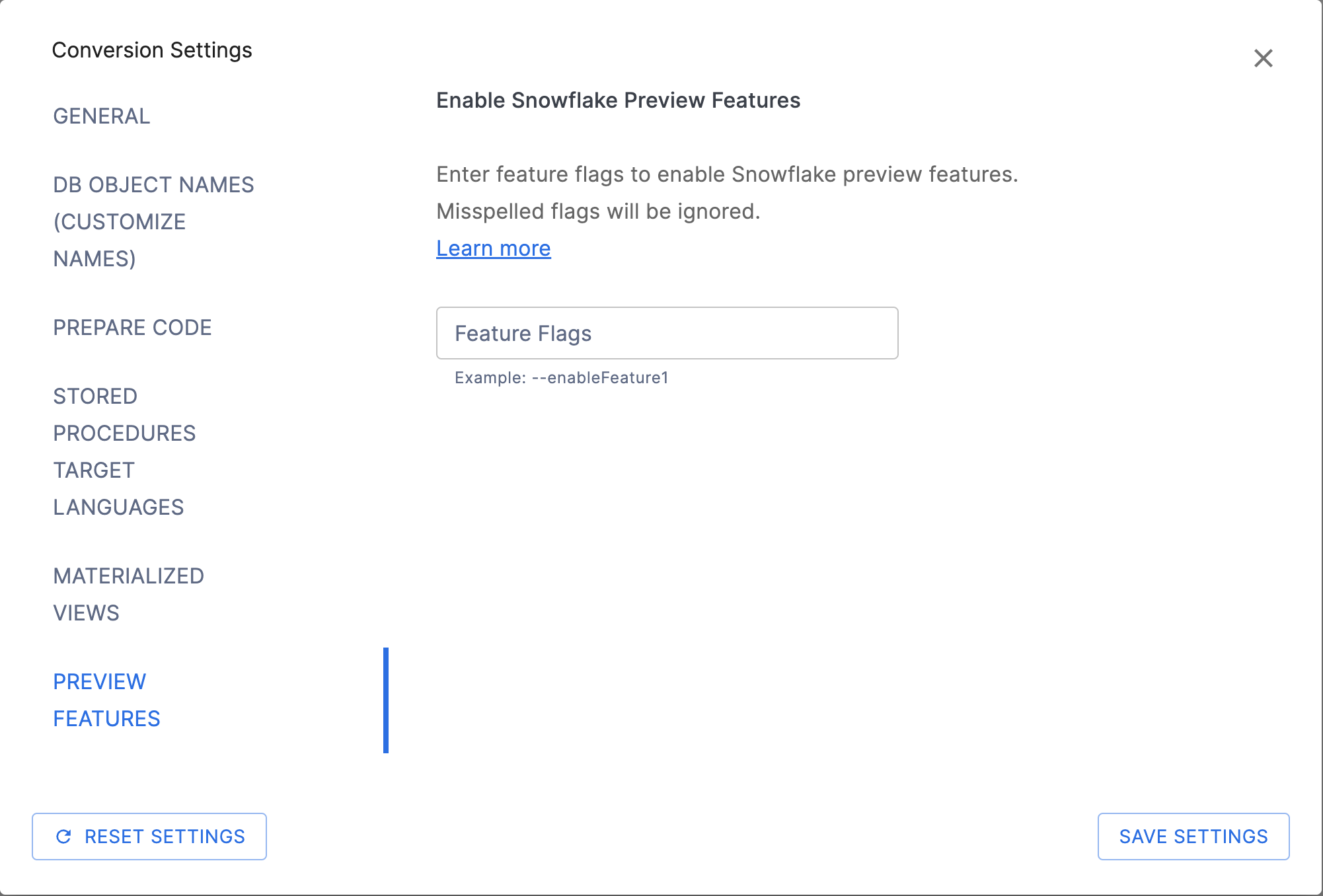
The Preview Features Settings in SnowConvert AI allow you to enable conversions that utilize Snowflake Public Preview features. By entering any of the available flags in the textbox, SnowConvert AI can generate code that takes advantage of Snowflake features that are currently in public preview status, rather than being limited to only generally available (GA) Snowflake features.
Warning
Preview features are Snowflake features that are available for evaluation and testing purposes but are not yet generally available (GA). They should not be used in production systems. For more details about Snowflake preview features, see the Snowflake Preview Terms of Service.
Understanding Snowflake Preview Features
Snowflake Public Preview features are new capabilities that have been implemented and tested in Snowflake but may not have complete usability or corner-case handling. When you enable preview features in SnowConvert AI, the conversion process can generate code that uses these preview features when they provide better conversion results.
How to Use Preview Features
- Enable in SnowConvert AI: Enter any of the available flags in the textbox within the Preview Features Settings to allow SnowConvert AI to generate code using Snowflake preview features
- Enable in Snowflake: Ensure that preview features are enabled in your Snowflake account using system functions like
SYSTEM_ENABLE_PREVIEW_ACCESS - Test thoroughly: Always test the converted code in a non-production Snowflake environment when using preview features
Important Considerations
- Snowflake account compatibility: Your Snowflake account must have preview features enabled to use the generated code
- Feature stability: Snowflake preview features may change behavior or be removed in future Snowflake releases
- Production restrictions: Code using preview features should not be deployed to production Snowflake environments
- Documentation: SnowConvert AI may add comments indicating when preview features are being used
Accessing Preview Features Settings
To configure preview features in SnowConvert AI:
- Navigate to the Conversion Settings section in the SnowConvert AI interface
- Select the Preview Features tab or section
- Enter any of the available flags in the textbox to allow SnowConvert AI to use Snowflake preview features. Please be sure that each flag is spelled correctly; if any flag is misspelled, all flags will be ignored during conversion.
- Proceed with conversion - SnowConvert AI will automatically use preview features when they improve conversion results.
Using Preview Features from CLI
When using SnowConvert AI from the command line interface (CLI), you can enable preview features by using the --previewFlags argument. The value must be wrapped with quotes and contain the flags in the following format:
Example:
For multiple flags:
Best Practices
- Understand implications: Ensure you understand that the converted code will require Snowflake preview features to be enabled
Note
For the most current information about which Snowflake preview features SnowConvert AI can utilize, consult the latest SnowConvert AI release notes or contact support.
Available Preview Features
The following section lists the preview feature flags that can be entered in the textbox to enable specific Snowflake preview features during conversion. Each flag enables SnowConvert AI to use particular Snowflake preview capabilities.
--enableSnowScriptUDF
Deprecated since version 1.19.7 This feature is already in General Availability
This option enables SnowConvert AI to translate User-Defined Functions, taking advantage of the SnowScript UDF Preview Feature. Learn more from the documentation here: Snowflake Scripting UDFs.
Available only for the following languages:
- Sql Server.
- Azure Synapse.
--enableFormatSpecifiersPreview
Deprecated: This feature is now in General Availability. The format specifiers translations are enabled by default and this flag is no longer required.
This option previously enabled SnowConvert AI to utilize new Snowflake format specifiers and enhancements that were in preview. These improvements are now generally available in Snowflake. SnowConvert AI automatically generates translations using these format specifiers without requiring any flag.
What Is Now Enabled by Default:
SnowConvert AI now automatically uses the following format elements and enhancements in Snowflake’s TO_CHAR function for more accurate translations of SQL Server FORMAT() calls:
- Date/Time Format Elements - Non-padded format specifiers (Y, MO, D, H24, H12, ME, S, P)
- Enhanced Numeric Formatting - Percentage and number formats with proper grouping
- TM9 Format Enhancement - Arguments for precision and grouping control
Date Format Specifiers
SnowConvert AI uses Snowflake date/time format elements that support non-padded output, providing accurate translations of SQL Server’s custom single-character format specifiers.
Snowflake Format Elements:
These format elements in Snowflake enable better migration from SQL Server:
Y- Year last 2 digits without padding (e.g.,25from 2025,5from 2005)MO- Month without padding (e.g.,3for March)D- Day without padding (e.g.,5for the 5th day)H24- Hour in 24-hour format without padding (e.g.,14for 2 PM)H12- Hour in 12-hour format without padding (e.g.,2for 2 PM)ME- Minute without padding (e.g.,7for 07 minutes)S- Second without padding (e.g.,3for 03 seconds)P- Single-character AM/PM indicator (e.g.,Afor AM,Pfor PM)
Translation Examples:
The following examples show how SQL Server FORMAT() patterns are translated to Snowflake using these format elements:
| SQL Server Code | SQL Server Output | Snowflake Translation | Snowflake Output |
|---|---|---|---|
FORMAT(CAST('2025-03-05' AS DATE), '%M') | 3 | TO_CHAR(TO_TIMESTAMP_NTZ('2025-03-05'), 'MO') | 3 |
FORMAT(CAST('2025-03-05' AS DATE), '%d') | 5 | TO_CHAR(TO_TIMESTAMP_NTZ('2025-03-05'), 'D') | 5 |
FORMAT(CAST('2025-03-05' AS DATE), '%y') | 25 | TO_CHAR(TO_TIMESTAMP_NTZ('2025-03-05'), 'Y') | 25 |
FORMAT(CAST('2025-03-05 14:07:03' AS DATETIME), '%H') | 14 | TO_CHAR(TO_TIMESTAMP_NTZ('2025-03-05 14:07:03'), 'H24') | 14 |
FORMAT(CAST('2025-03-05 14:07:03' AS DATETIME), '%h') | 2 | TO_CHAR(TO_TIMESTAMP_NTZ('2025-03-05 14:07:03'), 'H12') | 2 |
FORMAT(CAST('2025-03-05 14:07:03' AS DATETIME), '%m') | 7 | TO_CHAR(TO_TIMESTAMP_NTZ('2025-03-05 14:07:03'), 'ME') | 7 |
FORMAT(CAST('2025-03-05 14:07:03' AS DATETIME), '%s') | 3 | TO_CHAR(TO_TIMESTAMP_NTZ('2025-03-05 14:07:03'), 'S') | 3 |
Combined Format Patterns:
| SQL Server Code | SQL Server Output | Snowflake Translation | Snowflake Output |
|---|---|---|---|
FORMAT(CAST('2025-03-05 14:07:03' AS DATETIME), 'M/d/yyyy H:m:s') | 3/5/2025 14:7:3 | TO_CHAR(TO_TIMESTAMP_NTZ('2025-03-05 14:07:03'), 'MO/D/YYYY H24:ME:S') | 3/5/2025 14:7:3 |
FORMAT(CAST('2025-03-05 14:07:03' AS DATETIME), 'M/d/yyyy h:m:s tt') | 3/5/2025 2:7:3 PM | TO_CHAR(TO_TIMESTAMP_NTZ('2025-03-05 14:07:03'), 'MO/D/YYYY H12:ME:S PM') | 3/5/2025 2:7:3 PM |
FORMAT(CAST('2025-03-05 14:07:03' AS DATETIME), 'h:m:s t') | 2:7:3 P | TO_CHAR(TO_TIMESTAMP_NTZ('2025-03-05 14:07:03'), 'H12:ME:S P') | 2:7:3 P |
FORMAT(CAST('2025-03-05' AS DATE), 'M/d/%y') | 3/5/25 | TO_CHAR(TO_TIMESTAMP_NTZ('2025-03-05'), 'MO/D/Y') | 3/5/25 |
Key Points:
- MO replaces SQL Server’s
%M(uppercase M = month) - ME replaces SQL Server’s
%m(lowercase m = minute) - H24 replaces SQL Server’s
%H(uppercase H = 24-hour) - H12 replaces SQL Server’s
%H(lowercase h = 12-hour) - P provides single-character AM/PM output (A or P)
- All formats maintain SQL Server’s behavior of no leading zeros
Numeric Format Specifiers
SnowConvert AI translates SQL Server’s percentage and number formatting patterns using Snowflake’s numeric format capabilities.
Percentage Formats (P and %):
SQL Server’s P format and custom % patterns automatically multiply values by 100 and add percentage symbols. The Snowflake translations use fixed-point formats with % symbols:
| SQL Server Code | SQL Server Output | Snowflake Translation | Snowflake Output |
|---|---|---|---|
FORMAT(0.1234, 'P') | 12.34 % | TO_CHAR(0.1234, 'FM9,999,999,999,999.00%') | 12.34 % |
FORMAT(0.1234, 'P0') | 12 % | TO_CHAR(0.1234, 'FM9,999,999,999,999%') | 12 % |
FORMAT(0.1234, 'P2') | 12.34 % | TO_CHAR(0.1234, 'FM9,999,999,999,999.00%') | 12.34 % |
FORMAT(0.1234, '0.00%') | 12.34% | TO_CHAR(0.1234, 'FM9999999999999.00%') | 12.34% |
FORMAT(0.1234, '#,#.00%') | 12.34% | TO_CHAR(0.1234, 'FM9,999,999,999,999.00%') | 12.34% |
FORMAT(0.1234, '%0.00') | %12.34 | TO_CHAR(0.1234, '%FM9999999999999.00') | %12.34 |
Number Formats (N):
SQL Server’s N format provides thousand separators and controlled decimal precision. The Snowflake translations use the enhanced TM9 format element with arguments:
| SQL Server Code | SQL Server Output | Snowflake Translation | Snowflake Output |
|---|---|---|---|
FORMAT(1234567.89, 'N') | 1,234,567.89 | TO_CHAR(1234567.89, 'TM9(2,3)') | 1,234,567.89 |
FORMAT(1234567.89, 'N0') | 1,234,568 | TO_CHAR(1234567.89, 'TM9(0,3)') | 1,234,568 |
FORMAT(1234567.89, 'N1') | 1,234,567.9 | TO_CHAR(1234567.89, 'TM9(1,3)') | 1,234,567.9 |
FORMAT(1234567.89, 'N4') | 1,234,567.8900 | TO_CHAR(1234567.89, 'TM9(4,3)') | 1,234,567.8900 |
FORMAT(-1234567.89, 'N2') | -1,234,567.89 | TO_CHAR(-1234567.89, 'TM9(2,3)') | -1,234,567.89 |
TM9 Format Element Enhancement
The Snowflake TM9 format element accepts two optional arguments for better control over numeric formatting. This Snowflake capability enables better translations from SQL Server.
Syntax: TM9(fractional_digits, grouping_size)
Translation Examples:
| SQL Server Code | Snowflake Translation | Input Value | Snowflake Output | Description |
|---|---|---|---|---|
FORMAT(x, 'N2') | TO_CHAR(x, 'TM9(2,3)') | 1234.56789 | 1,234.57 | 2 decimals with grouping |
FORMAT(x, 'N0') | TO_CHAR(x, 'TM9(0,3)') | 1234.56789 | 1,235 | No decimals, rounded |
FORMAT(x, 'N4') | TO_CHAR(x, 'TM9(4,3)') | 1234567.89 | 1,234,567.8900 | 4 decimals with grouping |
| (Direct usage) | TO_CHAR(x, 'TM9(ALL,3)') | 1234.56789 | 1,234.56789 | All decimals, grouped |
| (Direct usage) | TO_CHAR(x, 'TM9(3)') | 1234.56789 | 1234.568 | 3 decimals, no grouping |
| (Direct usage) | TO_CHAR(x, 'TM9') | 1234.56789 | 1234.56789 | All decimals, no grouping (default) |
Behavior Details:
Available for: SQL Server only
--UseIntervalDatatype
This option enables SnowConvert AI to translate INTERVAL data types to native Snowflake INTERVAL types (INTERVAL YEAR TO MONTH and INTERVAL DAY TO SECOND) instead of converting them to VARCHAR. This takes advantage of the Snowflake INTERVAL data type that is currently in public preview. Learn more from the documentation here: Snowflake INTERVAL Data Type.
For a comprehensive reference on how interval transformations work across all languages, see the Interval Data Types translation reference.
What This Flag Enables:
- Native INTERVAL column types - INTERVAL columns in
CREATE TABLEare preserved as Snowflake INTERVAL types instead of being converted toVARCHAR(30) - Interval literal normalization - Dialect-specific interval literal syntax is normalized to Snowflake-compatible INTERVAL literals
- Interval arithmetic preservation - Datetime subtraction expressions that produce intervals are transformed to use Snowflake’s native interval output
- CAST to INTERVAL - CAST expressions targeting interval types are preserved
Translation Examples:
| Source SQL | Without Flag | With --UseIntervalDatatype |
|---|---|---|
col1 INTERVAL DAY TO SECOND (Oracle, Teradata) | col1 VARCHAR(30) + SSC-EWI-0036 | col1 INTERVAL DAY TO SECOND |
col1 INTERVAL (BigQuery, PostgreSQL) | col1 VARCHAR(30) + SSC-EWI-0036 | col1 INTERVAL DAY TO SECOND + SSC-FDM-0042 |
SELECT INTERVAL '5-10' YEAR TO MONTH | SELECT '5-10' (string literal) | SELECT INTERVAL '5-10' YEAR TO MONTH |
SELECT (ts1 - ts2) DAY TO SECOND | Not transformed to interval | SELECT ts1 - ts2 INTERVAL DAY TO SECOND |
Known Limitations:
When this flag is enabled, SnowConvert AI emits warnings for scenarios where Snowflake does not yet fully support INTERVAL:
- Dynamic Tables (SSC-EWI-0118): Snowflake does not support INTERVAL columns in Dynamic Tables
- UDFs and Snowflake Scripting (SSC-EWI-0117): Snowflake does not support the INTERVAL data type in UDF/procedure parameters, return types, or variable declarations
- Semi-structured types (SSC-EWI-0116): Snowflake does not support INTERVAL values inside VARIANT, ARRAY, or other semi-structured type columns
- Qualifier normalization (SSC-FDM-0042): For languages with unqualified or mixed INTERVAL types, the qualifier is changed to
DAY TO SECONDbecause Snowflake does not support mixing year-to-month and day-to-second time parts
Available for: All supported languages (Teradata, Oracle, SQL Server, Azure Synapse, BigQuery, Hive, Spark, Databricks, PostgreSQL, Greenplum, Netezza, Redshift, Vertica, DB2)