Set up continuous file ingestion with CoCo
Tell CoCo in plain language which cloud storage path to load from, and Snowflake builds a Snowpipe auto-ingest pipeline that loads new files as they arrive. CoCo samples your files, infers the schema or asks you to confirm the details it can’t infer, and selects the file format options that match your data. Depending on the setup option you choose, CoCo then creates the Snowflake objects and cloud notifications for you, generates deployment files for your team, or does some of each.
Setting up Snowpipe manually means coordinating Snowflake objects, a cloud notification service, and IAM or RBAC policies, often across teams. With CoCo, that setup becomes a single conversation. After setup, Snowpipe loads files within minutes of arrival on serverless compute, with no scheduled job and no idle warehouse. To run a one-time load of files that are already in place, see Bulk load files with CoCo.
Choose how you want to set up the pipeline
CoCo supports four setup options. Choose the one that fits how your organization manages cloud access and infrastructure. CoCo offers the options available for your source and account. The following table compares the options:
| Setup option | Supported clouds | Who sets up the cloud resources | Choose this option when |
|---|---|---|---|
| Automate cloud setup with temporary access | AWS, except AWS GovCloud and China | Snowflake, after you approve temporary access | You want the fastest setup and can approve an AWS access request. |
| Generate Terraform for the complete pipeline | AWS, Azure, Google Cloud | Your team, or CoCo with your approval in CoCo CLI or CoCo Desktop, by deploying Terraform | You manage both Snowflake and cloud infrastructure as code. |
| Reuse existing cloud access | AWS, Azure, Google Cloud | Snowflake through your existing role on Amazon S3, after you add notification permissions to the role; you, with guidance from CoCo, on Azure and Google Cloud | You already have a storage integration for this location. |
| Create Snowflake objects and generate cloud setup files | AWS, Azure, Google Cloud | Your cloud team, or CoCo with your approval in CoCo CLI or CoCo Desktop, by deploying the generated files | You want CoCo to create the Snowflake objects but need cloud changes delivered as separate deployment files. |
The options work as follows:
-
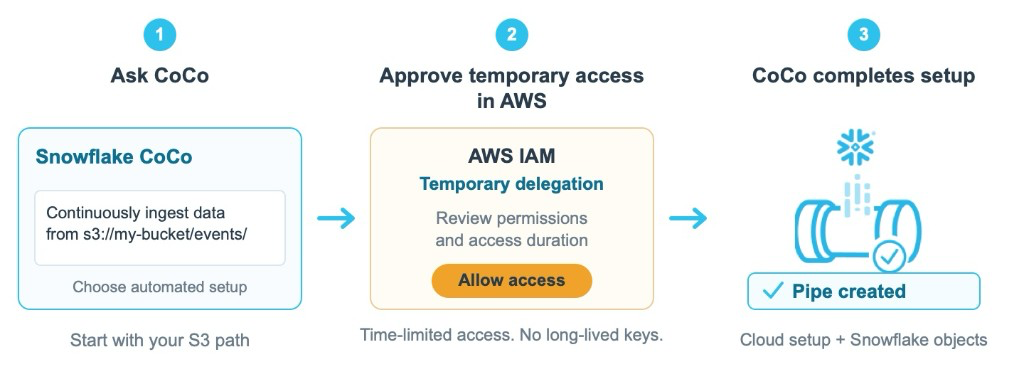
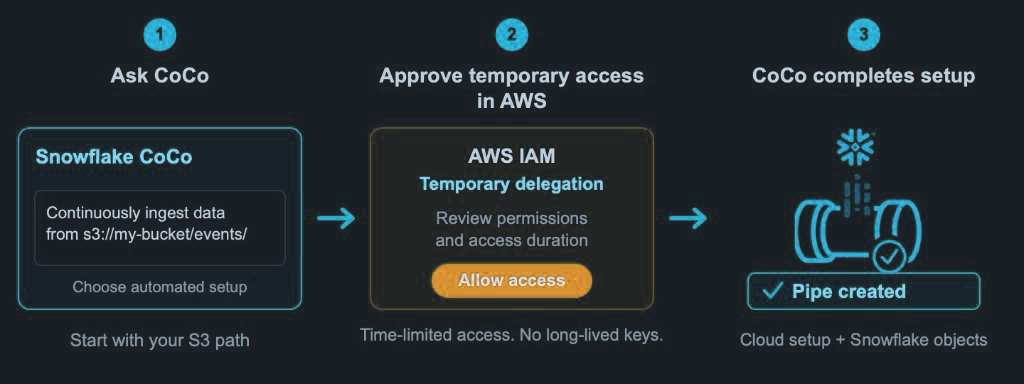
Automate cloud setup with temporary access (AWS only). CoCo generates an AWS IAM temporary delegation request scoped to the permissions needed to set up Snowpipe. You or your AWS administrator review and approve the request in the AWS Management Console. After approval, Snowflake creates the IAM role used by the storage integration (including that role’s trust policy), connects bucket notifications, and creates the Snowflake objects. This option is supported only for Amazon S3.
The following diagram shows how this option works:
-
Generate Terraform for the complete pipeline. Have CoCo generate Terraform for both Snowflake and cloud resources. Use this option when your team manages infrastructure through code. CoCo fills in the configuration for your source and guides deployment in the required order. This option is available for AWS, Azure, and Google Cloud, including loads into Snowflake-managed Apache Iceberg™ tables.
-
Reuse existing cloud access. Keep the storage integration and cloud role you already use. CoCo reuses compatible Snowflake objects and identifies any additional permissions needed. On Amazon S3, you add the
s3:GetBucketNotificationands3:PutBucketNotificationpermissions to the existing role, and then Snowflake configures notifications through that role. Adding these permissions to a role that Snowflake created with temporary access has no effect, because the Snowflake permissions boundary doesn’t allow them. For Azure and Google Cloud, CoCo guides you through completing the notification setup. -
Create Snowflake objects and generate cloud setup files. Let CoCo create the Snowflake objects directly while your cloud team deploys the notification resources. Choose Terraform or CloudFormation for AWS, Terraform or ARM templates for Azure, or Terraform for Google Cloud.
Where CoCo saves deployment files
For setup options that generate Terraform, CloudFormation, or ARM templates, where CoCo saves the files depends on the client:
- CoCo CLI or CoCo Desktop: CoCo saves the files in the directory you specify, or in the current directory, and tells you the path. With your approval, CoCo can apply the files by using AWS, Azure, or Google Cloud credentials already configured in your local environment. Otherwise, you or your team deploy them.
- CoCo in Snowsight: CoCo saves the files in a
snowpipefolder in your workspace, or in another workspace folder that you specify. If you aren’t already in a workspace, CoCo opens Workspaces first. CoCo doesn’t apply the files in Snowsight. You or your team download the files from the workspace and deploy them.
Before you begin
You need:
- CoCo connected to your Snowflake account. You can use CoCo CLI, CoCo Desktop, or CoCo in Snowsight. For CoCo in Snowsight, your role also needs the access that CoCo requires.
- A cloud storage location or an existing external stage, with sample files available for CoCo to inspect.
- A Snowflake role with
USAGEon the warehouse, database, and schema, and the privileges for the objects that CoCo creates or uses:CREATE PIPE,CREATE STAGE,CREATE FILE FORMAT, andCREATE TABLEon the schema, for new objects.INSERTandSELECTon an existing destination table.USAGEon any existing storage integration, notification integration, stage, or file format that CoCo reuses.- The global
CREATE INTEGRATIONprivilege, if CoCo creates a storage or notification integration. An administrator can create the integration for you. EVOLVE SCHEMAorOWNERSHIPon the table, for schema evolution. To enable schema evolution on an existing table, the role needsOWNERSHIPon the table.- For an Iceberg table,
CREATE ICEBERG TABLEon the schema, andCREATE EXTERNAL VOLUMEon the account orUSAGEon an existing external volume if the table uses an external volume.
- For Snowflake to configure AWS resources for you, a role with the
MODIFYprivilege on the account, such asACCOUNTADMIN. This applies to Automate cloud setup with temporary access and to configuring Amazon S3 notifications through an existing role. If you can’t use a role with this privilege, choose Generate Terraform for the complete pipeline or Create Snowflake objects and generate cloud setup files instead. - A warehouse for setup queries and schema inference. Snowpipe doesn’t use the warehouse for ongoing ingestion.
- Access to authorize the cloud setup, or help from your cloud administrator. The required access depends on the setup option you choose.
- For Amazon S3, when Snowflake configures notifications for you, a bucket with no existing notification that sends
ObjectCreatedevents for an overlapping path to a different destination. Amazon S3 doesn’t allow overlapping notifications, so setup stops with an error that names the conflicting rule. To resolve a conflict, see Step 2: Choose how Amazon S3 notifies Snowpipe.
Setup uses CoCo, which is billed based on token consumption, and runs setup queries and schema inference on your warehouse. For more information, see CoCo costs. After setup, Snowpipe charges a fixed number of credits for each GB of data that your pipes load, with no warehouse charges. For more information, see Snowpipe costs.
Supported sources are Amazon S3, Microsoft Azure Blob Storage (including Azure Data Lake Storage Gen2 and general-purpose v2 storage), and Google Cloud Storage. Supported formats are CSV and TSV, JSON (including NDJSON and JSONL), Parquet, Avro, ORC, and XML. You can load into a standard Snowflake table or a Snowflake-managed Iceberg table.
Set up your first pipeline
Step 1: Describe what you want to load
In CoCo, describe what you want to load in a short request. You don’t need to select a skill: CoCo recognizes the request and starts the Snowpipe setup automatically. For example:
In Snowsight, you can also start from the Add Data page. In the navigation menu, select Ingestion » Add Data, and then select Set up Snowpipe with CoCo, which appears only when CoCo in Snowsight is enabled for your account. CoCo in Snowsight opens a new chat, starts the Snowpipe setup, and asks for the cloud storage location to load from.
CoCo uses your session context and asks for anything else it needs, including where to load the data. You don’t need to specify a schema or file format options in the initial request. If your request names a location but doesn’t say whether to load continuously or once, CoCo asks first. For one-time loads, see Bulk load files with CoCo.
Step 2: Choose the setup option and authorize access
Choose one of the setup options when CoCo asks. For Automate cloud setup with temporary access, CoCo provides a link to review and approve temporary access in the AWS Management Console. For details about what the request includes, see What you approve in AWS. For other options, CoCo provides the permission requests or deployment files needed for your cloud.
CoCo detects the file format, compression, headers, and other parsing settings from your files. It derives the table’s columns and data types and reuses compatible integrations, stages, and file formats. If a suitable table already exists, CoCo asks before reusing it. If no compatible objects exist, CoCo either creates the required integrations, stage, file format, table, and pipe or generates the configuration for your team to deploy, depending on the setup option. It also checks for overlapping pipes and asks before proceeding with a configuration that could load the same files twice.
CoCo shows the complete SQL before it runs DDL statements that create or change Snowflake objects. In the default approval mode, CoCo also waits for your approval before it runs each statement. If you bypass approvals, CoCo runs the statements after showing them. Cloud authorization and deployment approvals remain part of the selected setup flow.
Step 3: Let CoCo complete and validate the pipeline
After the required access and deployment steps are complete, CoCo finishes connecting the pipeline and checks pipe status, notification delivery, and load history. It verifies that files load successfully as they arrive and surfaces errors that need attention. You don’t need to run SYSTEM$PIPE_STATUS or COPY_HISTORY queries yourself.
If files haven’t arrived yet, CoCo identifies that validation is waiting for data and can guide a test load. If validation fails, see Troubleshooting Snowpipe.
Snowpipe then continues loading new files independently of your CoCo session.
Adapt the setup to your workflow
Use your existing stage
Ask CoCo to reuse your existing stage and cloud access:
CoCo reuses compatible objects instead of rebuilding the pipeline from scratch.
Manage the complete pipeline with Terraform
Ask CoCo to generate Terraform for the complete pipeline:
CoCo prepares the configuration for your source and handles the dependencies between Snowflake and cloud setup. In Snowsight, CoCo saves the Terraform files in a snowpipe folder in your workspace. For details, see Where CoCo saves deployment files.
If a Terraform apply fails partway, a new CoCo session can’t resume it and can only apply the configuration again from the start. If you change the Terraform files outside CoCo, run the apply yourself instead of asking CoCo to apply the files.
Keep cloud deployment with your cloud team
Ask CoCo to generate deployment files for your cloud team:
CoCo creates the Snowflake objects and provides the cloud deployment files and any follow-up authorization steps.
Load into an Iceberg table
Ask CoCo to load into an Iceberg table:
CoCo handles Snowflake-managed Iceberg table setup and selects the loading approach for your files. For Parquet, CoCo asks whether an Iceberg writer produced the files. It uses LOAD_MODE = ADD_FILES_COPY only for Parquet files from an Iceberg writer. For other Parquet files, and for CSV, JSON, Avro, and ORC files, it uses LOAD_MODE = FULL_INGEST. For table and storage requirements, see Load data into Apache Iceberg™ tables.
To manage the Iceberg pipeline as code, ask CoCo to generate Terraform for the complete pipeline:
The Terraform covers the cloud resources and the Snowflake objects, and creates the Iceberg table with Snowflake as the catalog. By default on AWS and Azure accounts, the table stores its files in Snowflake storage. To keep the Iceberg files in your own cloud storage, ask CoCo to use an external volume, and CoCo guides you through granting Snowflake write access to that storage. For accounts on Google Cloud, in government regions, or in China, the Terraform requires an external volume. Terraform for Iceberg tables that use an external catalog isn’t supported.
Existing files and schema changes
New-file notifications don’t automatically load files that were already at the source. CoCo asks whether to load existing files that were staged within the previous seven days. If you also need older files, tell CoCo before setup so the historical load can be planned alongside continuous ingestion. For more information, see Load historical or missed files.
For supported formats, CoCo can enable schema evolution, which can add new columns and remove NOT NULL constraints when fields are absent from incoming files. It asks before enabling schema evolution on an existing table. If you decline, or tell CoCo that you want the table schema to remain fixed, CoCo still matches columns by name, but columns in your files that aren’t in the table aren’t loaded.
How temporary access works
For Automate cloud setup with temporary access, setup permissions expire after the approved duration, which is one hour by default. If no one approves the request within seven days, the request expires and CoCo needs to create a new one. The bucket’s notification configuration and the IAM role that the storage integration uses stay in your AWS account, under your control, for ongoing ingestion. After the setup permissions expire, Snowflake can’t change the bucket’s notification configuration unless you approve a new request. If you later load from another bucket, CoCo creates a new temporary access request for that bucket. You don’t need to provide long-lived AWS access keys.
What you approve in AWS
The approval page in the AWS Management Console shows the request message, such as Snowflake Snowpipe auto-setup for s3://my-bucket (StorageRole-<id>), the access duration, and two sets of permissions:
- Temporary permissions last only for the access duration. They let Snowflake read and update the notification configuration of the bucket you specified, and create one IAM role,
snowflake.com/StorageRole-<id>, with its policy, trust policy, and bucket tags. Snowflake can create the role only with the Snowflake permissions boundary attached. The temporary permissions limit which tag keys Snowflake can set on the role, but not the tag values, and don’t restrict the content of the role’s policy or trust policy. The permissions boundary limits what the role can do regardless of its policy. - Ongoing permissions are the permissions boundary, which sets the maximum permissions that the role’s own policy can grant. The role can read, write, and delete objects only in buckets tagged on the role, up to 10 buckets in your account. The boundary also allows listing objects and reading the location of any bucket in your account. The role can’t read or change bucket notification configurations. The role can’t change its own tags or trust policy. The role’s own policy limits object access and listing to the storage locations you set up, the same as a manually configured storage integration.
The approval page also notes that the temporary permissions let Snowflake create persistent access to your account through an IAM role. That persistent access is the StorageRole-<id> role, which the storage integration uses to read your files. The permissions boundary limits what this role can do.
To approve the request, you need the requested permissions in your AWS account. If you don’t have them, choose Request approval to send the request to an administrator.
For the full policies in a typical request, see Permissions requested for temporary access.
Permissions requested for temporary access
The following examples show the policies in a typical request. Security teams can use them to review the access before anyone starts setup. Snowflake can update these policies, so review the policies for your request before you approve it. To see them, choose View JSON on the approval page.
Temporary permissions, where <bucket_name> is the bucket you specified, <id> is the role identifier shown in the request message, and <version> identifies the current version of the Snowflake permissions boundary:
Ongoing permissions, which the Snowflake permissions boundary defines:
Limitations and considerations
- Automate cloud setup with temporary access is supported only for Amazon S3 sources. It isn’t available for Azure Blob Storage or Google Cloud Storage sources, or in AWS GovCloud or China deployments. Outside those deployments, your Snowflake account can be hosted on any cloud platform.
- For Iceberg tables, CoCo loads only into Snowflake-managed Iceberg tables, not tables that use an external catalog.
- For XML files and for CSV files without headers, CoCo samples the data without using
INFER_SCHEMAand identifies schema details that you need to provide or confirm. Headerless CSV doesn’t use automatic schema evolution in this workflow. - Loading recent existing files with
ALTER PIPE ... REFRESHis limited to files staged within the previous seven days. Older files require a separate historical load. For more information, see Files staged more than 7 days ago. - Azure notifications use the Event Grid event schema, not CloudEvents. Google Cloud notifications use
OBJECT_FINALIZEevents and a Pub/Sub pull subscription. CoCo prepares these settings in the generated configuration.
For administrator requirements, see Snowpipe access control and the setup guidance for Amazon S3, Azure, or Google Cloud. Cloud approvals and permission propagation can affect setup time.
For a one-time file load, CoCo can run a COPY INTO <table> for you. For more information, see Bulk load files with CoCo. For row-level streaming rather than files in cloud storage, see Snowpipe Streaming.
What’s next
After CoCo creates the pipe, you manage it like any other pipe:
- To view pipe status, copy history, and load metrics, see Manage Snowpipe in Snowsight.
- To pause, resume, refresh, or recreate the pipe, see Manage Snowpipe.
- To get notified when loads fail, see Snowpipe error notifications.
- To understand costs, see CoCo costs and Snowpipe costs.
- To resolve load problems, such as missing files, see Troubleshooting Snowpipe.