- description:
Using the snowpark-connect Snowflake CoCo migration skill to migrate PySpark code to Snowpark Connect
Spark to Snowpark Connect with the Snowflake CoCo migration skill
You can migrate PySpark and Spark Scala code to something compatible with Snowpark Connect by using the snowpark-connect migration
skill. You can learn more by reading the skill.md file associated with the skill. This skill includes two primary
components:
- Conversion: The skill reads source code files, assesses their compatibility with Snowpark Connect, and makes changes to ensure compatibility.
- Validation: The skill then asks if you want to validate the converted code. The validation skill takes a sampling of the files, generates some synthetic data, and runs them in Snowflake. Consider this a “smoke test” to ensure the code runs. This isn’t data validation.
Accessing and invoking the skill with the Snowflake CoCo CLI
The snowpark-connect Snowflake CoCo skill is bundled as part of the spark-migration skill with the Snowflake CoCo CLI. You can check the skill list to validate that the spark-migration skill is available. If it is, so will the snowpark-connect skill be available.
Using the skill is triggered by the spark-migration skill. You can invoke that skill directly, or you can ask specific questions about migrating some code files to Snowpark Connect.
Invoking the skill directly
Specify the name of the skill followed by the directory or file where you want to apply the skill:
Asking questions
You can ask any question related to Snowpark Connect or Spark migration:
I want to migrate this spark data pipeline to snowflake: path/to/your/spark_files_directory.Show me how compatible this file is with snowpark connect: path/to/your/pyspark_file.py.Convert this set of notebooks to be compatible with snowpark connect: path/to/your/notebooks_directory.
Using the skill with the Snowflake CoCo CLI
When you invoke the skill, point it at the source codebase you want to migrate. You can also point it at the output of an SMA run (see SMA issue resolution with the Snowflake CoCo CLI later). The skill needs to do a few critical setup tasks:
- Access a knowledge base that contains many sample code patterns that work well with Snowpark and Snowpark Connect.
- Access the files on your local machine. This might include a series of prompts requesting permissions.
Conversion
The skill gives you a basic analysis, including:
- The number of files found.
- The number of critical issues found.

Initial analysis of a PySpark codebase.
Then it generates a file manifest, a migration copy of the code, and converts all the issues it finds. It does this by referencing a set of code samples in an internal knowledge base that help inform each issue or error that it encounters. Because this uses Snowflake CoCo, all the issues have a generated solution.
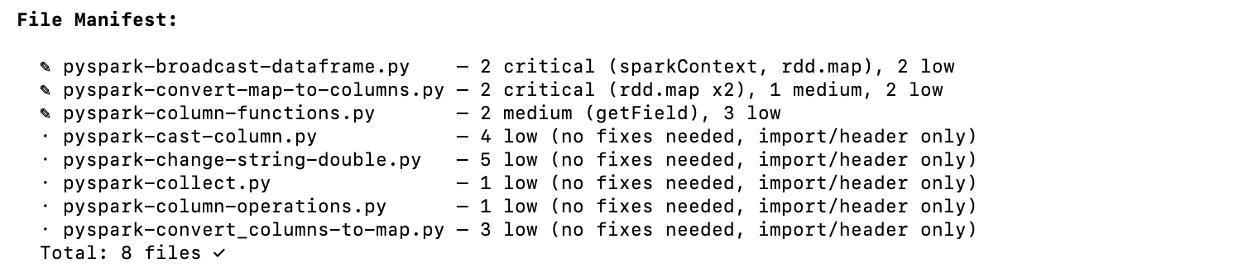
File manifest generated during conversion.
The skill runs a syntax check when it has migrated all of the files, then reports its results. This prompts you to start the validation step.
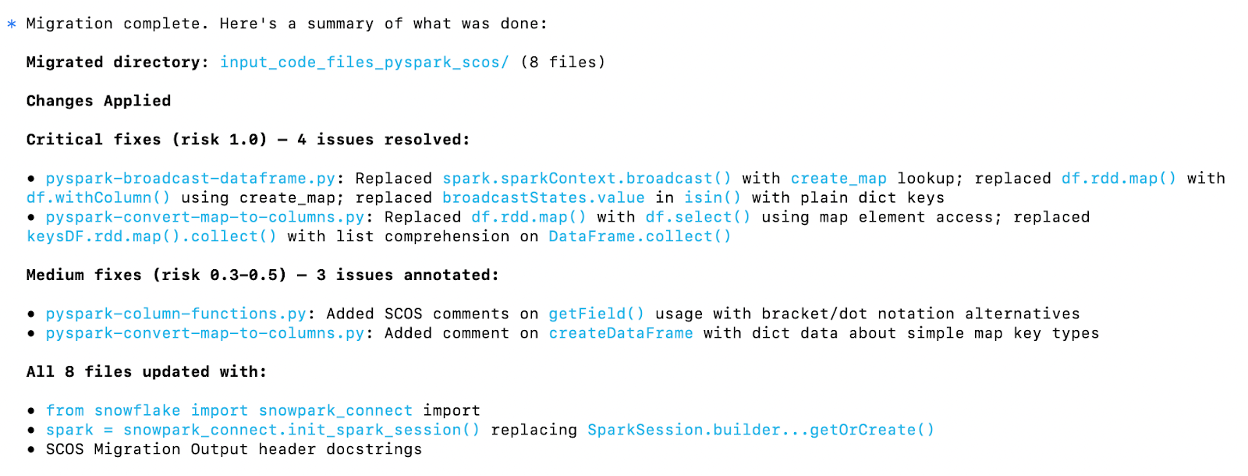
Conversion summary and syntax check results.
Validation
If you choose to execute the validation, the skill takes a sampling of the files, generates some synthetic data, and runs them in Snowflake. Consider this a “smoke test” to ensure the code runs. This isn’t data validation. Instead, a set of synthetic data is generated and passed to a set of tests generated from the converted code.
As part of this, Snowflake CoCo:
- Sets up a Snowpark Connect session.
- Sets up a test directory and an entrypoint.
- Runs the files from the entrypoints.
- Reports the results and makes recommendations based on the results.
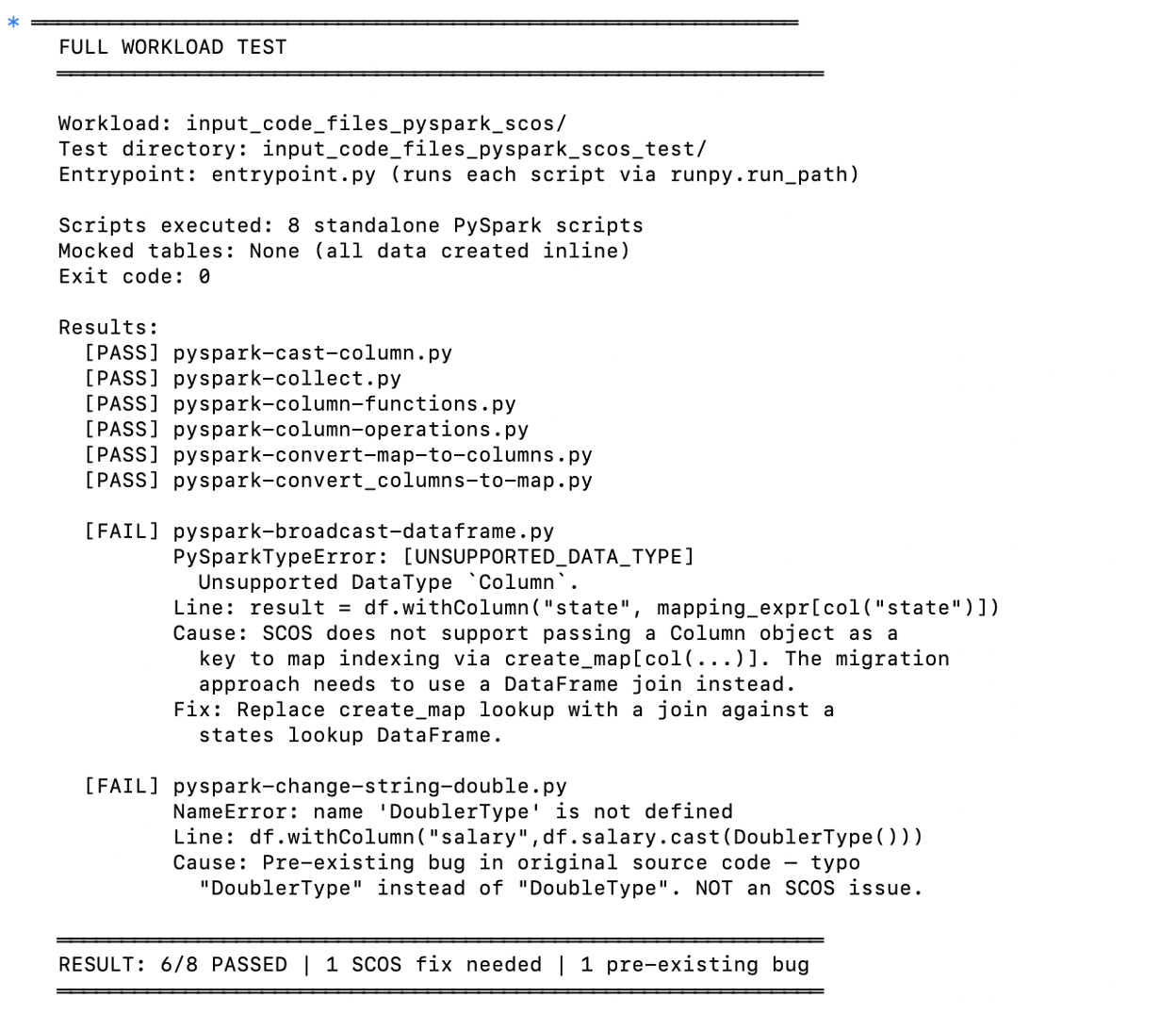
Workload test results and recommendations.
You can accept or reject the recommendations.
Once the validation is complete, you should move on to testing these files with actual data.
SMA issue resolution with the Snowflake CoCo CLI
You can also use the spark-migration skill on the output from an SMA run. Point the skill at the entire directory you migrated with the SMA, and ask it to make the code compatible with Snowpark Connect.
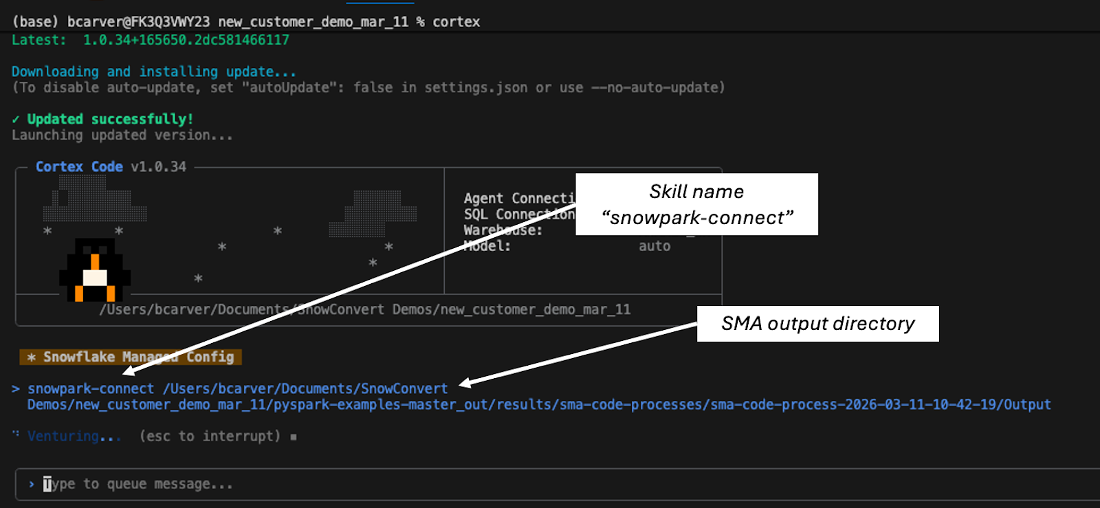
Invoking the skill on SMA output.
Whether it’s the SMA output or the input directory, the skill starts processing all the files and resolving issues.
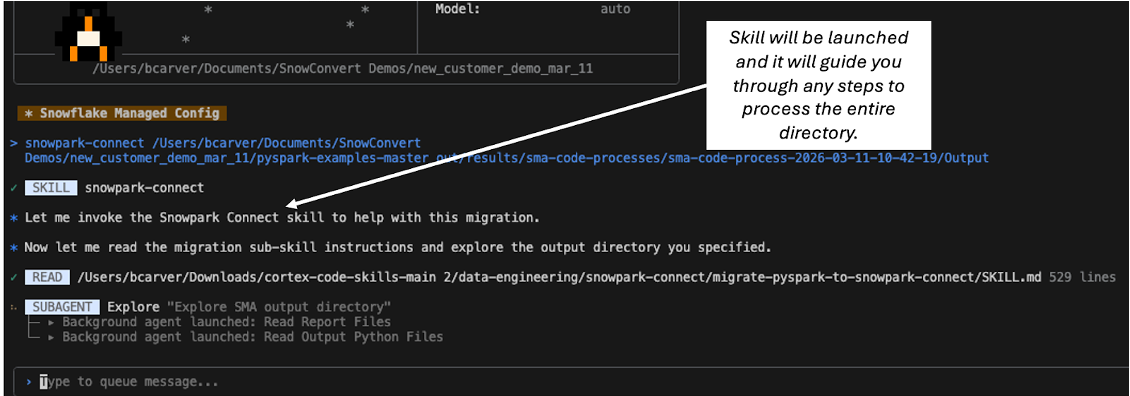
Processing SMA output for Snowpark Connect compatibility.
It might ask questions at times and summarizes what it does at the end.
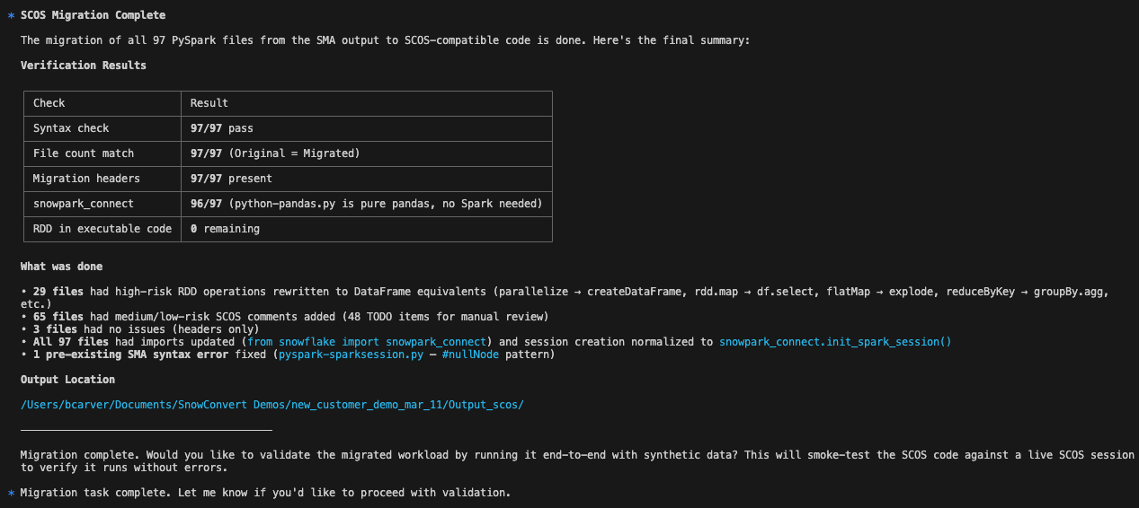
Final summary of the migration process.
At the end, a prompt suggests you run the validation step.